-->

Wednesday, October 2, 2013

How to delete multiple rows from GridView using CheckBox in ASP.NET

Download the Source file

If you want to delete multiple rows from GridView in ASP.NET. Follow some for this task.
Step-1: Take a GridView Control and one Button control onto the Design window.
Step-2 : Set AutoGenerated column property is to false.
Step-3 : Make some columns like

<Columns>
        <asp:TemplateField HeaderText ="Action">
        <ItemTemplate >
            <asp:CheckBox ID="Chkdelete" runat="server" />
        </ItemTemplate>
        </asp:TemplateField>

           <asp:TemplateField HeaderText ="Id" Visible =false>
        <ItemTemplate >
            <asp:Label ID="snolbl" runat="server" Text='<%# Eval("sno") %>' />
        </ItemTemplate>
        </asp:TemplateField>

similarly bind all column onto label control. 
     
Here is the first template field take a one checkbox control and antother field take one label control.

Step-4: Bind GridView on Page_Load() event
Step-5: Find checkbox control from GridView Rows also find Unique table column (sno).
Step-6 : Perform Delete operation

Lets take a simple example
<%@ Page Language="C#" AutoEventWireup="true" CodeFile="deleteItem.aspx.cs" Inherits="deleteItem" %>

<!DOCTYPE html PUBLIC "-//W3C//DTD XHTML 1.0 Transitional//EN" "http://www.w3.org/TR/xhtml1/DTD/xhtml1-transitional.dtd">

<html xmlns="http://www.w3.org/1999/xhtml">
<head runat="server">
    <title></title>
</head>
<body>
    <form id="form1" runat="server">
    <div>
   
        <asp:GridView ID="GridView1" runat="server" AutoGenerateColumns ="false">
        <Columns>
        <asp:TemplateField HeaderText ="Action">
        <ItemTemplate >
            <asp:CheckBox ID="Chkdelete" runat="server" />
        </ItemTemplate>
        </asp:TemplateField>


<asp:TemplateField HeaderText ="Id" Visible =false>
        <ItemTemplate >
            <asp:Label ID="snolbl" runat="server" Text='<%# Eval("sno") %>' />
        </ItemTemplate>
        </asp:TemplateField>


         <asp:TemplateField HeaderText ="Name">
        <ItemTemplate >
            <asp:Label ID="namelbl" runat="server" Text='<%# Eval("Name") %>' />
        </ItemTemplate>
        </asp:TemplateField>
         <asp:TemplateField HeaderText ="Address">
        <ItemTemplate >
      <asp:Label ID="addlbl" runat="server" Text='<%# Eval("Name") %>' />
        </ItemTemplate>
        </asp:TemplateField>
        
        </Columns>
        </asp:GridView>
   
        <br />
        <asp:Button ID="Button1" runat="server" onclick="Button1_Click"
            Text="Delete Multiple rows" />
   
    </div>
    </form>
</body>

</html>

Codebehid Code
using System;
using System.Collections.Generic;
using System.Linq;
using System.Web;
using System.Web.UI;
using System.Web.UI.WebControls;
using System.Data.SqlClient;
using System.Configuration;

public partial class deleteItem : System.Web.UI.Page
{
    SqlConnection con = new SqlConnection(ConfigurationManager.ConnectionStrings["ConnectionString"].ToString());

    protected void Page_Load(object sender, EventArgs e)
    {
        if (!Page.IsPostBack)
        {
            loadgrid();
        }
    }

    private void loadgrid()
    {
        SqlCommand cmd = new SqlCommand("Select * from deltable",con);
        con.Open();
        SqlDataReader rd = cmd.ExecuteReader();
        GridView1.DataSource = rd;
        GridView1.DataBind();
        con.Close();

       
    }
    protected void Button1_Click(object sender, EventArgs e)
    {
        foreach (GridViewRow  row in GridView1 .Rows)
        {
            var check = row.FindControl("Chkdelete") as CheckBox;
            if (check .Checked)
            {
                var id = row.FindControl("snolbl") as Label;
                SqlCommand cmd = new SqlCommand("delete from deltable where sno=@s", con);
                cmd.Parameters.AddWithValue("@s", id.Text);
                con.Open();
                cmd.ExecuteNonQuery();
                con.Close();

               
            }
           
        }
        loadgrid();
    }
}


Output
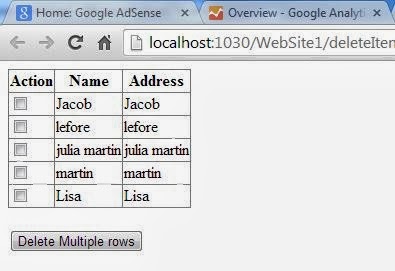
How to delete multiple rows from GridView using CheckBox in ASP.NET


How to bind DropDownlist using AddRange method in ASP.NET

Introduction

AddRange ( ) method 

Adds the items in an array of System.Web.UI..WebControls.ListItem objects to the collection or we can say add items to the array using list of item. Here we take a simple example for binding dropdownlist using list of item.
Step-1: Drop one DropDownlist to the design window.
Step-2: Take a array of ListItem also overload with ListItem class.
Step-3: Add item to the ListItem class constructor.
Step-4: Bind DropDownList using AddRange method.

Example of AddRange Method

Source Code
<%@ Page Language="C#" AutoEventWireup="true" CodeFile="Default2.aspx.cs" Inherits="Default2" %>

<!DOCTYPE html PUBLIC "-//W3C//DTD XHTML 1.0 Transitional//EN" "http://www.w3.org/TR/xhtml1/DTD/xhtml1-transitional.dtd">

<html xmlns="http://www.w3.org/1999/xhtml">
<head runat="server">
    <title></title>
</head>
<body>
    <form id="form1" runat="server">
    <div>
        <asp:DropDownList ID="DropDownList1" runat="server" AutoPostBack="True"
            onselectedindexchanged="DropDownList1_SelectedIndexChanged">
        </asp:DropDownList>
        <br />
        <br />
        <asp:Label ID="Label1" runat="server"></asp:Label>
    </div>
    </form>
</body>

</html>

Codebehind Code
using System;
using System.Collections.Generic;
using System.Linq;
using System.Web;
using System.Web.UI;
using System.Web.UI.WebControls;

public partial class Default2 : System.Web.UI.Page
{
    protected void Page_Load(object sender, EventArgs e)
    {
        ListItem[] arr = new ListItem[]
        { new ListItem("apple", "20"),
            new ListItem("mango", "15"),
            new ListItem("orange", "30") };
             
        DropDownList1.Items.AddRange(arr);


    }
    protected void DropDownList1_SelectedIndexChanged(object sender, EventArgs e)
    {
        Label1.Text = "Your selected item detail are <br/>Item Text : " + DropDownList1.SelectedItem.Text + "<br/>Item value " + DropDownList1.SelectedValue;

    }

}

Output
How to bind DropDownlist using AddRange method in ASP.NET

Tuesday, October 1, 2013

Built in types in c#

There are many Built-in type in C#

Boolean Type  : In Boolean type  variable can hold only true or false value whether in many other programming language a boolean type variable can hold 0 or 1 also. If you would assign any integer value then compiler get error in the code.

Integeral Type : sbyte , byte, short, ushort, int, uint, long, ulong, char. If you want to know that how much bytes a Integer can hold. Check it now in my previous post. Decimal precision is not available in integeral data type. So for decimal value we should use floating type variable.  

Floating type : float and double. If you want to use some precision type value then you choose floating type. A floating type can hold 32bit and double can 64bit value.

float: 7 precision
double : 15-15 precision. 

Decimal Type : A decimal data type much have precision value approx 28-29 significant digits. Also a Double data type can hold 128bit value. 

String type : A string is basically enclosed in double quotes.If you want to store a name of person then you should use string type variable. such as

string name="jacob";

here is the first quote define the beginning of the string and last quote define the end of the string.If you will run this type then output comes without quote string. If you want to print string in double quote then you should use "\" (backslash) or you can say use escape sequence character. lets take a simple example

string name= "\"jacob\"";

Escape sequence character : there are special character that has special meaning in c# compiler. Also you can say its a non printable character such as line break , carriage return. According to msdn article there are some special escape sequence characters.these are
\a : bell(alert)
\b : backspace
\f : formfeed
\n: newline
\r: carriage return
\t: Horizontal tab
\v : vertical tab.
\' : single quotation mark
\" : Double quotation mark.
\\ : backslash.

Example of Boolean Type :

using System;
using System.Collections.Generic;
using System.Linq;
using System.Text;

namespace ConsoleApplication1
{
    class Program
    {
        static void Main(string[] args)
        {
            bool yes = true;
            System.Console.WriteLine(yes);
            Console.ReadKey();

        }
    }
}

Output
Boolean Type output in c#

1

Note : Get error in the code if you assign any other number to boolean type

using System;
using System.Collections.Generic;
using System.Linq;
using System.Text;

namespace ConsoleApplication1
{
    class Program
    {
        static void Main(string[] args)
        {
            bool yes = 0;
            System.Console.WriteLine(yes);
            Console.ReadKey();

        }
    }
}

Output

Get error in the code if you assign any other number to boolean type

Example of floating type value and decimal type values

using System;
using System.Collections.Generic;
using System.Linq;
using System.Text;

namespace ConsoleApplication2
{
    class Program
    {
       static void Main(string[] args)
        {
            float f = 1.22222244444444f;
            Console.WriteLine(f);
            Console.ReadKey();
        }
    }

}
Output
Float type variable

How to change Text color using colorDialog in windows form

Introduction : allows the user to pick a color exposed by the Color property of type System.Drawing.Color.

If you want to change TextColor using colorDialog. WinForms ships with several standard dialogs (sometimes known as "common dialogs") provided as components from the System.Windows. Forms namespace. A component is like a control in that you can drag it from the Toolbox onto a design surface and set its properties using the Property Browser. However, unlike a control, a component doesn't render in a region. Instead, it shows up on the tray along the bottom of the design surface so that you can choose it, and it isn't shown at run time at all.

Step-1 : Take a TextBox and button control to the winform.
Step-2 :  Handle Button_click event for generating colorDialog and pick color from colorDialog.

using System;
using System.Collections.Generic;
using System.ComponentModel;
using System.Data;
using System.Drawing;
using System.Linq;
using System.Text;
using System.Windows.Forms;

namespace CoffieShop
{
    public partial class Form2 : Form
    {
        public Form2()
        {
            InitializeComponent();
        }

        private void button1_Click(object sender, EventArgs e)
        {
            ColorDialog cld = new ColorDialog();
            DialogResult dr = cld.ShowDialog();
            if (dr ==DialogResult .OK)
            {
                textBox1.ForeColor = cld.Color;
           
            }
        }
    }
}

Output
How to change Text color using colorDialog in windows form


Monday, September 30, 2013

Change Text style of ListBox dynamically in ASP.NET

If you want to change text style of the Listbox control dynamically then you must use listbox property at runtime. such as

  ListBox1.Font.Size = 10;
Note : some property does not appear at runtime , those properties are:
overline,underline etc.


lets take an simple example:

<%@ Page Language="C#" AutoEventWireup="true" CodeFile="Default16.aspx.cs" Inherits="Default16" %>

<!DOCTYPE html PUBLIC "-//W3C//DTD XHTML 1.0 Transitional//EN" "http://www.w3.org/TR/xhtml1/DTD/xhtml1-transitional.dtd">

<html xmlns="http://www.w3.org/1999/xhtml">
<head runat="server">
    <title></title>
</head>
<body>
    <form id="form1" runat="server">
    <div>
        <asp:ListBox ID="ListBox1" runat="server" Font-Overline="True" Height="184px"
            Width="251px">
            <asp:ListItem>Apple </asp:ListItem>
            <asp:ListItem>Orange </asp:ListItem>
            <asp:ListItem>Mango</asp:ListItem>
            <asp:ListItem>Grapes</asp:ListItem>
        </asp:ListBox>
        <br />
        <br />
        <asp:Button ID="Button1" runat="server" onclick="Button1_Click"
            style="height: 26px" Text="Chnage text style" />
        <br />
    </div>
    </form>
</body>
</html>

Output
Change Text style of ListBox dynamically in ASP.NET

How to add new fields in CreateUserWizard in ASP.NET

Introduction

CreateUserWizard is the one of the most famous control for authenticating . Means if you want to store authenticated user information into your database then you can use CreateUserWizard control. Now at this time we will learn how to add new fields in CreateUserWizard control such as Name, Gender, Country etc.
follow some steps for doing this.
Step-1: Drop one CreateUserWizard control to the design page.
Step-2: Select Customize Create User Step link by ShowSmart tag.
How to add new fields in CreateUserWizard in ASP.NET

Step-3: Add new rows after last row also add some controls in the new add rows.
How to add new fields in CreateUserWizard in ASP.NET

Step-4: Handle CreatedUser Event of the  CreateUserWizard control.

protected void CreateUserWizard1_CreatedUser(object sender, EventArgs e)
    {
        ProfileCommon pc = (ProfileCommon)ProfileCommon.Create(CreateUserWizard1.UserName, true);
        pc.Country = ((DropDownList)CreateUserWizard1.CreateUserStep.ContentTemplateContainer.FindControl("DropDownList2")).SelectedValue;
        pc.Gender = ((DropDownList)CreateUserWizard1.CreateUserStep.ContentTemplateContainer.FindControl("DropDownList1")).SelectedValue;
        pc.Name = ((TextBox )CreateUserWizard1.CreateUserStep.ContentTemplateContainer.FindControl("name")).Text;
        pc.Save();
    
    }


According to microsoft ProfileCommon class create a AuthenticatedUser Profile instance using Create method. This class is inherited from ProfileBase class so first we declare a profile properties in web.config file.

<system.web>
    <anonymousIdentification enabled ="true"/>
    <profile>
      <properties >
        <add name="Name" type ="string"/>
        <add name ="Country" type ="string"/>
        <add name ="Gender" type ="String"/>

      </properties>


    </profile>
</system.web>

Run your Application
How to add new fields in CreateUserWizard in ASP.NETHow to add new fields in CreateUserWizard in ASP.NET


Change ListBox Width Dynamically in ASP.NET

Every control have a width property . In width property you can assign any unit value such as 10, 20 and any other number.If you want to change width of the control at runtime then you must assign width to the ListBox at runtime such as

ListBox1.Width = 20;

If you want to change control width according to listbox item then you must to change Item value to integer.
Lets take an simple example.

<%@ Page Language="C#" %>

<!DOCTYPE html PUBLIC "-//W3C//DTD XHTML 1.0 Transitional//EN" "http://www.w3.org/TR/xhtml1/DTD/xhtml1-transitional.dtd">

<script runat="server">

    protected void ListBox1_SelectedIndexChanged(object sender, EventArgs e)
    {
        ListBox1.Width =int.Parse(ListBox1.SelectedValue);
    }
</script>

<html xmlns="http://www.w3.org/1999/xhtml">
<head runat="server">
    <title></title>
</head>
<body>
    <form id="form1" runat="server">
    <div>
        <asp:ListBox ID="ListBox1" runat="server" AutoPostBack="True"
            onselectedindexchanged="ListBox1_SelectedIndexChanged">
            <asp:ListItem Value="100">Increase 100 pixel</asp:ListItem>
            <asp:ListItem Value="200">Increase 200 pixel</asp:ListItem>
        </asp:ListBox>
    </div>
    </form>
</body>
</html>


Output
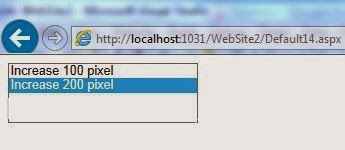
Change ListBox Width Dynamically in ASP.NET

Change ListBox Width Dynamically in ASP.NET

© Copyright 2013 Computer Programming | All Right Reserved