-->

Sunday, October 20, 2013

ASP.NET : How to export GridView Data to Word file

The Basic algorithm behind the scene is,when i click to "Export to word file" button then GridView Data pass into word.So what steps can i take for pass data to word file.
Step-1: First bind GridView control from DataSource.
Step-2: Take a one button control for passing data from GridView control to word file.
Step-3:  For passing GridView data to word file then we must should take response object, Because if we want to get client computer cookies then we can take response object so here we use response object.
Step-4: Clear all content from response buffer using response object.

Response.ClearContent();

Step-5: Specify the word file name using Add herader method of response object with content-disposition

Response.AddHeader("content-disposition", "attachment;filename=tarun.doc");


Step-6: The next thing to do set the content type using response object.

Response.ContentType = "application/word";

Step-7:  Use two class first one is StringWriter class and second one is HtmlTextWriter class. Here StringWriter class available in System.IO namespace and inherited from TextWritter class.
Step-8:  Pass object of the StringWriter class to HtmlTextWriter class

   StringWriter sw = new StringWriter();
        HtmlTextWriter htw = new HtmlTextWriter(sw);

Step-9 : Invoke RenderControl method of the GridView class.

GridView1.RenderControl(htw);

Step-10: Pass HtmlTextWriter class object to RenderControl method. Here HtmlTextWriter class object contain Text as well as Html content( table control).
Step-11 : Invoke Write method of Response object for writing text to the word file.
Step-12 : Invoke End method of the Response object.

  Response.Write(sw);
        Response.End();
        
Step-13 : Handle "'GridView' must be placed inside a form tag with runat=server" using Override mwethod.

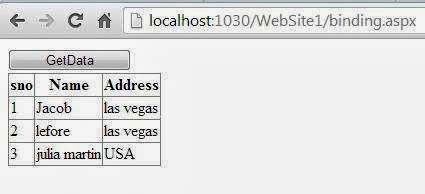
Complete code with output
Source code:
<%@ Page Language="C#" AutoEventWireup="true" CodeFile="binding.aspx.cs" Inherits="binding" %>

<!DOCTYPE html PUBLIC "-//W3C//DTD XHTML 1.0 Transitional//EN" "http://www.w3.org/TR/xhtml1/DTD/xhtml1-transitional.dtd">

<html xmlns="http://www.w3.org/1999/xhtml">
<head runat="server">
    <title></title>
</head>
<body>
    <form id="form1" runat="server">
    <asp:Button ID="Button1" runat="server" onclick="Button1_Click" Text="GetData"
        Width="123px" />
    <br />
    <div>
   
        <asp:GridView ID="GridView1" runat="server">
        </asp:GridView>
   
        <br />
        <asp:Button ID="Button2" runat="server" onclick="Button2_Click"
            Text="Export to word file" />
   
    </div>
    </form>
</body>

</html>
Codebehind Code
using System;
using System.Collections.Generic;
using System.Linq;
using System.Web;
using System.Web.UI;
using System.Web.UI.WebControls;
using System.Data.SqlClient;
using System.Configuration;
using System.Data;
using System.IO;

public partial class binding : System.Web.UI.Page
{
    protected void Page_Load(object sender, EventArgs e)
    {

    }
    protected void Button1_Click(object sender, EventArgs e)
    {
        SqlConnection con = new SqlConnection();
        con.ConnectionString =ConfigurationManager.ConnectionStrings ["ConnectionString"].ToString ();
        con.Open ();

        SqlCommand cmd = new SqlCommand();
        cmd.CommandText = "select * from deltable";
        cmd.Connection = con;
        SqlDataAdapter da = new SqlDataAdapter(cmd);
        DataSet ds = new DataSet();
        da.Fill(ds, "deltable");
        GridView1.DataSource = ds;
        GridView1.DataBind();


    }
    protected void Button2_Click(object sender, EventArgs e)
    {
        Response.ClearContent();
        Response.AddHeader("content-disposition""attachment;filename=tarun.doc");
        Response.ContentType = "application/word";
        StringWriter sw = new StringWriter();
        HtmlTextWriter htw = new HtmlTextWriter(sw);
        GridView1.RenderControl(htw);
        Response.Write(sw);
        Response.End();
       
    }

 public override void VerifyRenderingInServerForm(Control control)
    {
       
    }
   

}


Output

Saturday, October 19, 2013

ASP.NET: How to export gridview data in excel sheet

The Basic algorithm behind the scene is,when i click to "Export to Excel file" button then GridView Data pass into excel sheet.So what steps can i take for pass data to excel sheet.
Step-1: First bind GridView control from DataSource.
Step-2: Take a one button control for passing data from GridView control to excell Sheet.
Step-3:  For passing GridView data to excel sheet then we must should take response object, Because if we want to get client computer cookies then we can take response object so here we use response object.
Step-4: Clear all content from response buffer using response object.

Response.ClearContent();

Step-5: Specify the excel file name using Add herader method of response object with content-disposition

Response.AddHeader("content-disposition", "attachment;filename=tarun.xls");


Step-6: The next thing to do set the content type using response object.

Response.ContentType = "application/excel";

Step-7:  Use two class first one is StringWriter class and second one is HtmlTextWriter class. Here StringWriter class available in System.IO namespace and inherited from TextWritter class.
Step-8:  Pass object of the StringWriter class to HtmlTextWriter class

   StringWriter sw = new StringWriter();
        HtmlTextWriter htw = new HtmlTextWriter(sw);

Step-9 : Invoke RenderControl method of the GridView class.

GridView1.RenderControl(htw);

Step-10: Pass HtmlTextWriter class object to RenderControl method. Here HtmlTextWriter class object contain Text as well as Html content( table control).
Step-11 : Invoke Write method of Response object for writing text to the excel file.
Step-12 : Invoke End method of the Response object.

  Response.Write(sw);
        Response.End();
        
Step-13 : Handle "'GridView' must be placed inside a form tag with runat=server" using Override mwethod.

Complete code with output
Source code:
<%@ Page Language="C#" AutoEventWireup="true" CodeFile="binding.aspx.cs" Inherits="binding" %>

<!DOCTYPE html PUBLIC "-//W3C//DTD XHTML 1.0 Transitional//EN" "http://www.w3.org/TR/xhtml1/DTD/xhtml1-transitional.dtd">

<html xmlns="http://www.w3.org/1999/xhtml">
<head runat="server">
    <title></title>
</head>
<body>
    <form id="form1" runat="server">
    <asp:Button ID="Button1" runat="server" onclick="Button1_Click" Text="GetData"
        Width="123px" />
    <br />
    <div>
   
        <asp:GridView ID="GridView1" runat="server">
        </asp:GridView>
   
        <br />
        <asp:Button ID="Button2" runat="server" onclick="Button2_Click"
            Text="Export to excel file" />
   
    </div>
    </form>
</body>

</html>
Codebehind Code
using System;
using System.Collections.Generic;
using System.Linq;
using System.Web;
using System.Web.UI;
using System.Web.UI.WebControls;
using System.Data.SqlClient;
using System.Configuration;
using System.Data;
using System.IO;

public partial class binding : System.Web.UI.Page
{
    protected void Page_Load(object sender, EventArgs e)
    {

    }
    protected void Button1_Click(object sender, EventArgs e)
    {
        SqlConnection con = new SqlConnection();
        con.ConnectionString =ConfigurationManager.ConnectionStrings ["ConnectionString"].ToString ();
        con.Open ();

        SqlCommand cmd = new SqlCommand();
        cmd.CommandText = "select * from deltable";
        cmd.Connection = con;
        SqlDataAdapter da = new SqlDataAdapter(cmd);
        DataSet ds = new DataSet();
        da.Fill(ds, "deltable");
        GridView1.DataSource = ds;
        GridView1.DataBind();


    }
    protected void Button2_Click(object sender, EventArgs e)
    {
        Response.ClearContent();
        Response.AddHeader("content-disposition""attachment;filename=tarun.xls");
        Response.ContentType = "application/excel";
        StringWriter sw = new StringWriter();
        HtmlTextWriter htw = new HtmlTextWriter(sw);
        GridView1.RenderControl(htw);
        Response.Write(sw);
        Response.End();
       
    }


}


Output
ASP:NET: How to export gridview data in excel sheet

What is the need of Master Pages and Themes in ASP.NET

Introduction

A consistent look and feel is more of a necessity than a luxury for real-world Web applications. However, ensuring a consistent look and feel for the pages in Web Applications has not always been easy. In ASP.NET, developers can incorporate consistent look and feel in their applications by using features such as master pages and themes.
The concept of a master page is all about incorporating visual inheritance in Web application. In other words, you define the layout of a web page once, and all the pages of Web applications inherits that layout. When you create a master page, what you actually do is create a template page, based on which all the other pages are derived. Therefore, all the pages in the Web application inherits some common sections of that master page, which maintains consistency in the Web application.
What is the need of Master Pages and Themes in ASP.NET

Need For Master Pages and Themes 

When you want to create Web pages that contains some common elements and customize the properties of different controls, such as Buttons, TextBox and Labels, master pages and themes are needed. For example, you want to create a website for your company in which all the Web Pages have a header stating the company name and all the buttons on the Web pages are of blue color. You can create this website by using master pages and themes.
Master page is a feature in ASP.NET that helps define the overall layout of a Web application and reuse the defined layout in all the pages derived from the master page, A master page contains markups and controls that you can share across different Web page of your website . This makes your website more manageable and also avoids the duplication of code. To understand the need of master pages, Let's consider a scenario.
Suppose you want to include a navigation bar at a common place in all the Web pages of your website. If you are not using a master page , You will have to copy and paste the code for the common navigation bar on each page, which obviously is tedious and time consuming process. Also, if later you want to change the navigation bar slightly, then you will have to manually change the navigation bar code in all the pages of the Web application. Therefore, this does not seem to be a right way to bring consistency in your applications. However, if you are using master pages, you just need to include the navigation bar code in the master page, and all the Web pages will inherits it. It means no overhead of copying and pasting the code in different pages is required. Themes are needed when you want to keep the style and layout information files separate from other website files.

Integer Constant in C language

Integer constant 

‘‘What is an integer? Explain giving example.”

Definition: An integer constant is a whole number without any decimal point. No extra characters are allowed other than + and –sign. If + and – are present, they should precede the  number. An integer constant can be classified into three types as shown below.

Integer Constants are

Decimal : e.g: 120,14,-1, etc
Octal   : e.g : 070,012,-040, etc.
Hexadecimal : e.g. 0xBA, 0x3B etc


Now, let us explain decimal integer with example.
Definition: A decimal integer can be any combination of digits from ‘0’ to ‘9’. No extra characters are allowed other than ‘+’ and ‘–’ sign. If ‘+’ and ‘–’are present. Then they should precede the integer. For example, 100,-7,+989 etc.The following are invalid:


Decimal Integers
Validity
Reasons for Invalidity
10,000
invalid
Comma is not allowed.
0.5
invalid
Decimal point is not allowed.
10 20
invalid
Space is not allowed.
085
invalid
Should not start with the digit 0.
32768
invalid
Out of range for 16 bit machine.
-32769
invalid
Out of range for 16 bit machine.

Now let us see ‘‘What is an octal number? Explain giving example.’’

Definition: An octal integer constant can be any combination of digits from ‘0’ to ‘7’ with a Prefix 0(digit zero).No extra characters are allowed other than preceding ‘+’ and ‘- ’ sign. For Example, 01612, 034567, -0765 etc. are valid. The following are invalid:

Octal Integers
Validity
Reasons for invalidity
7,000
Invalid
Comma is not allowed.
0.075
Invalid
Decimal point is not allowed.
10 20
Invalid
Space is not allowed.
085
Invalid
8 is invalid in octal.
275
Invalid
Should have a prefix 0.


Now, let us see ‘‘What is a hexadecimal number? Explain giving example.’’

Definition: An hexadecimal integer constant can be any combination of digits from ‘0’ to ‘9’ along with the letters ‘A’ to ‘F’ or ‘a’ to ‘f’. This constant has be preceded OX or OX. For example, 0x18A, OXB, OXFFF etc. are valid. The following are invalid hexadecimal constant:

Hexadecimal Integers
Validity
Reasons for invalidity
10,000
invalid
Comma is not allowed.
0xIJ
invalid
I and J are invalid characters.
Ox123
invalid
Should be preceded with 0(zero) not O(Oh.)
O1234
invalid
Should be preceded with 0x or OX.


Note: usually decimal integers are used in programming. Octal and hexadecimal  are rarely used.
Floating point constant

Friday, October 18, 2013

How to use SqlDataAdapter Class in ASP.NET

Introduction

Represents a set of data commands and a database connection that are used to fill the DataSet and update a SQL Server database(according to msdn library). You can say that retrieved table load into DataSet.

Represents a set of data commands and a database connection that are used to fill the DataSet

SqlDataAdapter class contains different parameter or non parameter constructor such as 

SqlDataAdapter( ) // you can initiate a new instance of SqlDataAdapter class.
SqlDataAdapter(SqlCommand instance) //you can specify SqlCommand instance into the SqlDataAdapter.

Lets take a simple example to take a SqlCommand instance for retrieving data from the database and these object pass to SqlDataAdapter object.

Algorithm

Step-1 : Create a SqlConnection class object  for connecting database server.

SqlConnection con = new SqlConnection();
        con.ConnectionString =ConfigurationManager.ConnectionStrings["ConnectionString"].ToString ();

        con.Open ();


Step-2 : Create a SqlCommand Object for retrieving data columns and data rows.

SqlCommand cmd = new SqlCommand();
        cmd.CommandText = "select * from deltable";

        
Step-3 : Connect SqlCommand to SqlConnection.

cmd.Connection = con;

Step-4 : Create SqlDataAdapter Object.
Step-5 : Pass SqlCommand instance to SqlDataAdapter object.

SqlDataAdapter da = new SqlDataAdapter(cmd);

Step-6 : Create DataSet Object.

DataSet ds = new DataSet();

Step-7 : Fill DataSet by SqlDataAdapter using fill( ) method.

da.Fill(ds, "deltable");

Step-8 : Bind GridView or any other datacontrol from DataSet.

  GridView1.DataSource = ds;

        GridView1.DataBind();

Complete code

<%@ Page Language="C#" AutoEventWireup="true" CodeFile="binding.aspx.cs" Inherits="binding" %>

<!DOCTYPE html PUBLIC "-//W3C//DTD XHTML 1.0 Transitional//EN" "http://www.w3.org/TR/xhtml1/DTD/xhtml1-transitional.dtd">

<html xmlns="http://www.w3.org/1999/xhtml">
<head runat="server">
    <title></title>
</head>
<body>
    <form id="form1" runat="server">
    <asp:Button ID="Button1" runat="server" onclick="Button1_Click" Text="GetData"
        Width="123px" />
    <br />
    <div>
   
        <asp:GridView ID="GridView1" runat="server">
        </asp:GridView>
   
    </div>
    </form>
</body>

</html>
Codebehind

using System;
using System.Collections.Generic;
using System.Linq;
using System.Web;
using System.Web.UI;
using System.Web.UI.WebControls;
using System.Data.SqlClient;
using System.Configuration;
using System.Data;

public partial class binding : System.Web.UI.Page
{
    protected void Page_Load(object sender, EventArgs e)
    {

    }
    protected void Button1_Click(object sender, EventArgs e)
    {
        SqlConnection con = new SqlConnection();
        con.ConnectionString =ConfigurationManager.ConnectionStrings ["ConnectionString"].ToString ();
        con.Open ();

        SqlCommand cmd = new SqlCommand();
        cmd.CommandText = "select * from deltable";
        cmd.Connection = con;
        SqlDataAdapter da = new SqlDataAdapter(cmd);
        DataSet ds = new DataSet();
        da.Fill(ds, "deltable");
        GridView1.DataSource = ds;
        GridView1.DataBind();


    }
}
Output
How to use SqlDataAdapter Class in ASP.NET

Thursday, October 17, 2013

How to Copy File from One Location to Another: Windows Forms

Sometimes, some files are mostly used in our programming field, and we can’t use OpenFileDialog only after a minute and so on. That’s why we have to copy these files in our desired location, so that we can use them as per our requirement.

To copy a file from an existing location, we should have source path and destination path. For source path, we can use open file dialog and for destination path, we can use folder browsing path or even a path in form of string.

Generally System.IO.File namespace is used for handling file functions and events. In our previous post we have create, delete, read or write a text file. Now to copy a file from source to destination, we are just using following function:

System.IO.File.Copy("Source Path", "Destination Path", Boolean value);

This function is as simple as written above. Source and destination path is known to everyone, now the focus is on Boolean value. This Boolean parameter is deciding, whether the file should be overwriten or not. If the value of this Boolean value be
  • True: if the file exist on destination, it will overwrite that. If not exist copy that file.
  • False: if the file exist on destination, it will not copy. If not exist copy that file.
Now look out the following code, it will open an open file dialog, and then copy the selected file to our debug folder of the project.
OpenFileDialog ofd = new OpenFileDialog();
ofd.ShowDialog();
System.IO.File.Copy(ofd.FileName, Environment.CurrentDirectory + "\\"+ ofd.SafeFileName, true);

I have used the true value for Boolean parameter, means it will overwrite the file if exists. So the file has been successfully copied and we can check that using File.Exist(“Path”) function.
© Copyright 2013 Computer Programming | All Right Reserved