-->

Monday, October 21, 2013

ASP.NET : Change DropdownList font Size programmatically

Introduction

FontSize enumeration specifies the font sizes defined by HTML 4.0 . This enumeration available in System.Web.UI.WebControls.FontSize. There are many enumeration value available in FontSize enumeration those are shown below:

ASP.NET : Change DropdownList font Size programmatically


Complete code :

<%@ Page Language="C#" %>

<!DOCTYPE html PUBLIC "-//W3C//DTD XHTML 1.0 Transitional//EN" "http://www.w3.org/TR/xhtml1/DTD/xhtml1-transitional.dtd">

<script runat="server">

    protected void Button1_Click(object sender, EventArgs e)
    {
       
        DropDownList1.Font.Size =FontUnit.XLarge;


    }
</script>

<html xmlns="http://www.w3.org/1999/xhtml">
<head runat="server">
    <title></title>
</head>
<body>
    <form id="form1" runat="server">
    <div>
        <asp:DropDownList ID="DropDownList1" runat="server" Height="20px" Width="124px">
            <asp:ListItem>Hyperlink</asp:ListItem>
            <asp:ListItem>CheckBox</asp:ListItem>
            <asp:ListItem>Label</asp:ListItem>
            <asp:ListItem>Panel</asp:ListItem>
        </asp:DropDownList>
        <br />
        <br />
        <asp:Button ID="Button1" runat="server" Text="Change Font size Dynamically"
            onclick="Button1_Click" />
        <br />
        <br />
    </div>
    </form>
</body>

</html>
Output
ASP.NET : Change DropdownList font Size programmatically

ASP.NET : Change DropdownList font Size programmatically

Example of FindByText method in ASP.NET

Introduction

Searches the collection for a ListItem with a Text property that equals the specified text(According to msdn library).
Lets take an simple example to remove item from DropdownList using FindByText method. Basically this method works on collection.
Algorithm behind the scene is
Step-1 : Bind DropdownList with some values
Step-2 : Drop TextBox and Button control to the design page.
Step-3:  First check the capacity of the DropdownList is more than 0 . if capacity is more than 0 then remove the item from the list using FindByText( ) method.
Step-4: End Program.

Complete code

<%@ Page Language="C#" %>

<!DOCTYPE html PUBLIC "-//W3C//DTD XHTML 1.0 Transitional//EN" "http://www.w3.org/TR/xhtml1/DTD/xhtml1-transitional.dtd">

<script runat="server">

    protected void Button1_Click(object sender, EventArgs e)
    {
        string item = TextBox1.Text;
        if (DropDownList1 .Items .Capacity >0)
        {
            DropDownList1.Items.Remove(DropDownList1.Items.FindByText(item));
        }
       
    }
</script>

<html xmlns="http://www.w3.org/1999/xhtml">
<head runat="server">
    <title></title>
</head>
<body>
    <form id="form1" runat="server">
    <div>
        <asp:DropDownList ID="DropDownList1" runat="server" Height="20px" Width="124px">
            <asp:ListItem>Hyperlink</asp:ListItem>
            <asp:ListItem>CheckBox</asp:ListItem>
            <asp:ListItem>Label</asp:ListItem>
            <asp:ListItem>Panel</asp:ListItem>
        </asp:DropDownList>
        <br />
        <br />
        Item to be removed from Dropdownlist:<br />
        <asp:TextBox ID="TextBox1" runat="server" Width="186px"></asp:TextBox>
        <br />
        <br />
        <asp:Button ID="Button1" runat="server" Text="Remove Item "
            onclick="Button1_Click" />
        <br />
        <br />
    </div>
    </form>
</body>

</html>
Output
Example of FindByText method in ASP.NET

Example of FindByText method in ASP.NET

Example of FindByText method in ASP.NET

Example of FindByValue method in ASP.NET

Introduction

Searches the collection for a ListItem with a Value property that contains the specified value (According to msdn library).
Lets take an simple example to remove item from DropdownList using FindByValue method. Basically this method works on collection.
Algorithm behind the scene is
Step-1 : Bind DropdownList with some values
Step-2 : Drop TextBox and Button control to the design page.
Step-3:  First check the capacity of the DropdownList is more than 0 . if capacity is more than 0 then remove the item from the list using FindByValue( ) method.
Step-4: End Program.

Complete code of the program is

<%@ Page Language="C#" %>

<!DOCTYPE html PUBLIC "-//W3C//DTD XHTML 1.0 Transitional//EN" "http://www.w3.org/TR/xhtml1/DTD/xhtml1-transitional.dtd">

<script runat="server">

    protected void Button1_Click(object sender, EventArgs e)
    {
        string item = TextBox1.Text;
        if (DropDownList1 .Items .Capacity >0)
        {
            DropDownList1.Items.Remove(DropDownList1.Items.FindByValue(item));
        }
       
    }
</script>

<html xmlns="http://www.w3.org/1999/xhtml">
<head runat="server">
    <title></title>
</head>
<body>
    <form id="form1" runat="server">
    <div>
        <asp:DropDownList ID="DropDownList1" runat="server" Height="20px" Width="124px">
            <asp:ListItem>Hyperlink</asp:ListItem>
            <asp:ListItem>CheckBox</asp:ListItem>
            <asp:ListItem>Label</asp:ListItem>
            <asp:ListItem>Panel</asp:ListItem>
        </asp:DropDownList>
        <br />
        <br />
        Item to be removed from Dropdownlist:<br />
        <asp:TextBox ID="TextBox1" runat="server" Width="186px"></asp:TextBox>
        <br />
        <br />
        <asp:Button ID="Button1" runat="server" Text="Remove Item "
            onclick="Button1_Click" />
        <br />
        <br />
    </div>
    </form>
</body>

</html>
Output
Bind DropdownList in asp.net

Remove item from dropdownlist using textbox value

Remove item from FindByValue method

How to use SqlDataReader class in ASP.NET

Introduction

Provides a way of reading a forward-only stream of rows from a SQL Server database (according to msdn library). Means you can say a SqlDataReader class read DataRows in forward only stream. SqlDataReader class available in  System.Data.SqlClient namespace.

There are some useable public properties available in Library

 1. HasRows : You can check that your DataReader either empty or take some DataRows.
 2. FieldCount : Obtains numbers of fields in current rows.

There are some public method available in Library

Read( ) : Read Next record from the database table.
GetValue( ) : Gets the value of the specified column in its native format.

Lets take an simple example to read data from database_table using SqlDataReader class.

Algorithm behind the example

Step-1 : Create a SqlConnection( ) with proper connection string parameter.

SqlConnection con = new SqlConnection();
        con.ConnectionString =ConfigurationManager.ConnectionStrings ["ConnectionString"].ToString ();

        con.Open ();

Step-2 : Retrieve data from Database table using SqlCommand Class.

SqlCommand cmd = new SqlCommand();
        cmd.CommandText = "select * from deltable";

        cmd.Connection = con;

Step-3 : Create a SqlDataReader, you must call the ExecuteReader method of the SqlCommand object, instead of directly using a constructor.

SqlDataReader rd = cmd.ExecuteReader();

Step-4: Read data from Read() method 

while (rd.Read())
        {

            snolabel.Text += "sno=" + rd.GetValue(0) + "<br/>";
            name.Text += "name=" + rd.GetValue(1) + "<br/>";
            Addlabel.Text += "Address=" + rd.GetValue(2) + "<br/>";
 
        }
 Step-5: Close reader.

Complete code


   <%@ Page Language="C#" AutoEventWireup="true" CodeFile="binding.aspx.cs" Inherits="binding" %>

<!DOCTYPE html PUBLIC "-//W3C//DTD XHTML 1.0 Transitional//EN" "http://www.w3.org/TR/xhtml1/DTD/xhtml1-transitional.dtd">

<html xmlns="http://www.w3.org/1999/xhtml">
<head runat="server">
    <title></title>
</head>
<body>
    <form id="form1" runat="server">
    <asp:Button ID="Button1" runat="server" onclick="Button1_Click" Text="GetData"
        Width="123px" />
    <br />
    <br />
    <asp:Label ID="snolabel" runat="server"></asp:Label>&nbsp;&nbsp;&nbsp;&nbsp;
    <br />
    <div>
   
    <asp:Label ID="name" runat="server"></asp:Label>
   
        <br />
   
    </div>
    <p>
        <asp:Label ID="Addlabel" runat="server"></asp:Label>
    </p>
    </form>
</body>

</html>

Codebehind
using System;
using System.Collections.Generic;
using System.Linq;
using System.Web;
using System.Web.UI;
using System.Web.UI.WebControls;
using System.Data.SqlClient;
using System.Configuration;
using System.Data;
using System.IO;

public partial class binding : System.Web.UI.Page
{
    int sno = 0;
    string Name = String.Empty;
    String Address = String.Empty;
    protected void Page_Load(object sender, EventArgs e)
    {

    }
    protected void Button1_Click(object sender, EventArgs e)
    {
        SqlConnection con = new SqlConnection();
        con.ConnectionString =ConfigurationManager.ConnectionStrings ["ConnectionString"].ToString ();
        con.Open ();

        SqlCommand cmd = new SqlCommand();
        cmd.CommandText = "select * from deltable";
        cmd.Connection = con;
        SqlDataReader rd = cmd.ExecuteReader();
       
        while (rd.Read())
        {

            snolabel.Text += "sno=" + rd.GetValue(0) + "<br/>";
            name.Text += "name=" + rd.GetValue(1) + "<br/>";
            Addlabel.Text += "Address=" + rd.GetValue(2) + "<br/>";
 
        }
      
        rd.Close();


    }

   
}
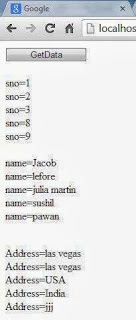
Output
How to use SqlDataReader class in ASP.NET

Sunday, October 20, 2013

ASP.NET : How to export GridView Data to Word file

The Basic algorithm behind the scene is,when i click to "Export to word file" button then GridView Data pass into word.So what steps can i take for pass data to word file.
Step-1: First bind GridView control from DataSource.
Step-2: Take a one button control for passing data from GridView control to word file.
Step-3:  For passing GridView data to word file then we must should take response object, Because if we want to get client computer cookies then we can take response object so here we use response object.
Step-4: Clear all content from response buffer using response object.

Response.ClearContent();

Step-5: Specify the word file name using Add herader method of response object with content-disposition

Response.AddHeader("content-disposition", "attachment;filename=tarun.doc");


Step-6: The next thing to do set the content type using response object.

Response.ContentType = "application/word";

Step-7:  Use two class first one is StringWriter class and second one is HtmlTextWriter class. Here StringWriter class available in System.IO namespace and inherited from TextWritter class.
Step-8:  Pass object of the StringWriter class to HtmlTextWriter class

   StringWriter sw = new StringWriter();
        HtmlTextWriter htw = new HtmlTextWriter(sw);

Step-9 : Invoke RenderControl method of the GridView class.

GridView1.RenderControl(htw);

Step-10: Pass HtmlTextWriter class object to RenderControl method. Here HtmlTextWriter class object contain Text as well as Html content( table control).
Step-11 : Invoke Write method of Response object for writing text to the word file.
Step-12 : Invoke End method of the Response object.

  Response.Write(sw);
        Response.End();
        
Step-13 : Handle "'GridView' must be placed inside a form tag with runat=server" using Override mwethod.

Complete code with output
Source code:
<%@ Page Language="C#" AutoEventWireup="true" CodeFile="binding.aspx.cs" Inherits="binding" %>

<!DOCTYPE html PUBLIC "-//W3C//DTD XHTML 1.0 Transitional//EN" "http://www.w3.org/TR/xhtml1/DTD/xhtml1-transitional.dtd">

<html xmlns="http://www.w3.org/1999/xhtml">
<head runat="server">
    <title></title>
</head>
<body>
    <form id="form1" runat="server">
    <asp:Button ID="Button1" runat="server" onclick="Button1_Click" Text="GetData"
        Width="123px" />
    <br />
    <div>
   
        <asp:GridView ID="GridView1" runat="server">
        </asp:GridView>
   
        <br />
        <asp:Button ID="Button2" runat="server" onclick="Button2_Click"
            Text="Export to word file" />
   
    </div>
    </form>
</body>

</html>
Codebehind Code
using System;
using System.Collections.Generic;
using System.Linq;
using System.Web;
using System.Web.UI;
using System.Web.UI.WebControls;
using System.Data.SqlClient;
using System.Configuration;
using System.Data;
using System.IO;

public partial class binding : System.Web.UI.Page
{
    protected void Page_Load(object sender, EventArgs e)
    {

    }
    protected void Button1_Click(object sender, EventArgs e)
    {
        SqlConnection con = new SqlConnection();
        con.ConnectionString =ConfigurationManager.ConnectionStrings ["ConnectionString"].ToString ();
        con.Open ();

        SqlCommand cmd = new SqlCommand();
        cmd.CommandText = "select * from deltable";
        cmd.Connection = con;
        SqlDataAdapter da = new SqlDataAdapter(cmd);
        DataSet ds = new DataSet();
        da.Fill(ds, "deltable");
        GridView1.DataSource = ds;
        GridView1.DataBind();


    }
    protected void Button2_Click(object sender, EventArgs e)
    {
        Response.ClearContent();
        Response.AddHeader("content-disposition""attachment;filename=tarun.doc");
        Response.ContentType = "application/word";
        StringWriter sw = new StringWriter();
        HtmlTextWriter htw = new HtmlTextWriter(sw);
        GridView1.RenderControl(htw);
        Response.Write(sw);
        Response.End();
       
    }

 public override void VerifyRenderingInServerForm(Control control)
    {
       
    }
   

}


Output

© Copyright 2013 Computer Programming | All Right Reserved