-->

Monday, November 18, 2013

Programmatically Change RadioButtonList BackGround Color in ASP.NET

Introduction

In this example we will show that how to change backGround color of the RadioButtonList. There are two methods for changing background color, first method contains Color structure and second method contain style sheet.

Algorithm behind the scene 

Step-1: Add a RadioButtonList and Button control on WebForm.
Step-2: Generate the Click event of Button
Step-3: Change color using System.Drawing.Color.Beige structure.
Step-4: In Second Method add attribute with RadioButtonList.

Example of change RadioButtonList BackGround.

<%@ Page Language="C#" AutoEventWireup="true" CodeFile="Default4.aspx.cs" Inherits="Default4" %>

<!DOCTYPE html>

<html xmlns="http://www.w3.org/1999/xhtml">
<head runat="server">
    <title></title>
</head>
<body>
    <form id="form1" runat="server">
    <div>
   
        <asp:RadioButtonList ID="RadioButtonList1" runat="server" Height="26px" Width="201px">
            <asp:ListItem>ASP.NET</asp:ListItem>
            <asp:ListItem>WINDOWS PHONE</asp:ListItem>
            <asp:ListItem>C#</asp:ListItem>
            <asp:ListItem>WINDOWS STORE</asp:ListItem>
        </asp:RadioButtonList>
        <br />
        <asp:Button ID="Button1" runat="server" Height="32px" Text="First Method " Width="108px" OnClick="Button1_Click" />
        <br />
        <br />
        <asp:Button ID="Button2" runat="server" Height="32px" Text="Second Method" Width="108px" OnClick="Button2_Click" />
   
    </div>
    </form>
</body>

</html>

Codebehind code

using System;
using System.Collections.Generic;
using System.Linq;
using System.Web;
using System.Web.UI;
using System.Web.UI.WebControls;

public partial class Default4 : System.Web.UI.Page
{
    protected void Page_Load(object sender, EventArgs e)
    {

    }
    protected void Button1_Click(object sender, EventArgs e)
    {
        RadioButtonList1.BackColor = System.Drawing.Color.Bisque;

    }
    protected void Button2_Click(object sender, EventArgs e)
    {
        RadioButtonList1.Attributes.Add("Style", "Background-color:Red");
    }
}


Output


Friday, November 15, 2013

How to Remove Record Entry in DataGridView by Command Button: Windows Form

Binding datagridview only is not sufficient for a programmer, he/she need to be known about how to remove unnecessary records from the list. For that we have to first bind our list of item to datagridview and then add a command button with text “Remove” as discussed in earlier post.

To remove an entry, either we have to find out the record’s unique detail or the index of the record in temporary list of items. Because we are binding the datagridview with the temporary list, that’s why we can remove this record using only the index of the record.
Bind a datagridview with the list of items and then add a command button with the text property to “Remove”. Our main motive in this article here is to access the command column, we have discussed earlier. So generate the Cell_Click event of datagridview and write the following c# code:
if (e.ColumnIndex == 0)
{
stuList.RemoveAt(e.RowIndex);
dataGridView1.DataSource = null;
dataGridView1.DataSource = stuList;
}
Run the form and click on remove button of any row you want to delete. And it will remove that record from the list only.
Form having all the rows:
How to Remove Record Entry in DataGridView by Command Button: Windows Form

Form after deleting the last row, it will show only two records.

How to Remove Record Entry in DataGridView by Command Button: Windows Form

Suppose, the user don’t want to remove, and by mistake he/she has clicked on the button then what? We have to use a confirmation message, record will be deleted only when user presses “Yes” and do nothing if user clicked on “No”. Write the following code replacing above code:
if (e.ColumnIndex == 0)
{
DialogResult result = MessageBox.Show("Sure Delete!", "Confirmation", MessageBoxButtons.YesNo);
if (result==DialogResult.Yes)
{
stuList.RemoveAt(e.RowIndex);
dataGridView1.DataSource = null;
dataGridView1.DataSource = stuList;
}
}
Run the code, it will show a confirmation message box as below. If you click on “Yes” it will delete it, and if you click on “No” it will do nothing. You can change the code as per your requirements.

Passing value through Public Property: Windows Forms

As in earlier article, we have passed a string value from one windows form to another, using the constructor function in C# language. In this article we will pass the same string value by a public property in the called form i.e. second windows form here.

1. Add two windows form in your project i.e. Form1 and Form2, according to standard names.
2. Drag-n-drop one textbox and one button on each of the form.
3. Generate click event of both of the buttons individually.
4. In Form2.cs file create a public property of type string named value (name may be changed).
5. Form2 class in form2.cs file have to be look like below c# code:
public partial class Form2 : Form
{
public string Value { get; set; }
public Form2()
{
InitializeComponent();
}

private void button1_Click(object sender, EventArgs e)
{
Value = textBox1.Text;
this.Close();
}
}
This code will assign the textbox1’s value to the public property “Value”, and close this form, when the user will click on button1.
6. Now on the form1 the click event of button1 will look like the following c# code:
private void button1_Click(object sender, EventArgs e)
{
Form2 form2 = new Form2();
form2.ShowDialog();
textBox1.Text = form2.Value;
}
In this code it will create an object of form2 and show that form as a modal dialog box. Enter any value in the textbox of form2, and click on the button, and your value is passed in form1.

For example I have entered “Passed value” in the textbox and after closing the form, form1’s textbox have the same value. Check out the images shown below:

1. When we run the project, the textbox is empty. Just click on the button, it will show form2.

Passing value through Public Property: Windows Forms

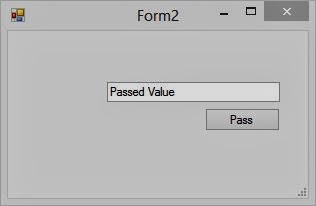
2. Write anything you want to send to previous form, I have written “Passed Value”. And click on the “pass” button.
Passing value through Public Property: Windows Forms

3. The previous form will bring to front and the textbox have the same value you write, “Passed Value” here.

Passing value through Public Property: Windows Forms

In above steps, we have passed string type of value, the type may be changed as int, float, double or any object of a class. Array can also be passed using the same procedure, replace the string from the array you want to pass.

How to pass value using Constructor

Applying a Style Sheet to an XML Document

A style sheet object that passes into the transformNode method needs to be recompiled every time the method is called. Compiling a style sheet means setting all its template rules in an executable state. By using the XSLTemplate object and the XSLProcessor object to perform transformation facilitates  the reduction of overheads and increases the performance of an XSLT application.

The XSLTemplate Object


The XSLTemplate object is a dom object that is used to access an XSLT style sheet. This object is used to hold a cached style sheet that can then be dynamically associated with an XML document.

Before a style document can be applied to an XML document, it is converted into a tree structure by the parser. In the early versions of MSXML, the style sheet had to be compiled each time it was required for processing an XML document. In other words, the tree structure for a style sheet had to be recreated for the use of XSL document, as the compiled version was not stored in the system. This resulted in a longer processing time. However, in MSXML 2.6 and later, a compiled version of the XSLT document is stored in the cache memeory of the computer. This means that the XSLT tree is created the first time the document is compiled. For each successive use of the style sheet, the compiled version is reused.

The XSLT tree structure is loaded into the memory of the computer and used to process the XML document. This is because the XSLTemplate object stores the compiled XSLT document. Therefore, you must first create an XSLTemplate object. In the following example, an XSLTemplate object called xsltobj is created using JavaScript:

           xsltobj= new ActiveXObject ("MSXML2.XSLTemplate . 6 . 0") ;

This object must be associated with an XSLT style sheet document. Consider the following code snippet:

          var xsldocobj= new  ActiveXObject ("Msxm12.freeThreadedDOMDocument . 6 . 0") ;
           xsldocobj . load ("products . xsl") ;
           xsltobj . stylesheet=xsldocobj ;

In the preceding example, an instance of the FreeThreaded DOMDocument object is created. This object can be used to access an XML document as well as an XSLT style sheet. This is because XSLT is an application of XML. The load () method of the FreeThreaded DOMDocument object is used to associate the XSL document products.xsl with the xsldocobj object. The stylesheet property of the xsltobj object is then used to associate the XSLTemplate object with the object that holds the XSL document.

The XSLProcessor Object


To process an XML document by using a style sheet, you must create an instance of the XSLProcessor object. This object is used to apply a style sheet to an XML document and then process that document. The XSLProcessor object is supported only in IE 5.0 and higher versions.

The XSLProcessor object applies the given XSLT document to a specifc XML document. In other words, this object transforms an XML document by using the XSLT style sheet. For example, an XML document can be transformed into an HTML document by applying the appropriate XSLT style sheet by using XSLProcessor object.

The JavaScript code to create an XSLProcessor object is as follows:

        var  xsalprocobj= xsltobj.createProcessor ( ) ;

In this example, the createProcessor ( ) method is used to create a new XSLProcessor object called xslprocobj. The createProcessor ( ) method is called by xsltobj, which represents a cached version of a compiled XSLT template. The xsltobj object is associated with a specific style sheet contained in the variable xsldocobj.

You can then create the XML document for which the style sheet contained in the xsltobj object must be applied. Consider the following example:

        var xmldocobj = new ActiveXObject ("Msxm12 . DOMDocument . 6 . 0") ;
        xmldocobj . load ("products . xml") ;

In the example, a new DOMDocument object called xmldocobj is created. The load ( ) method of this object is used to associate an XML document called products . xml with this object. This XML document is then passed to the XSLProcessor object as an input by using the input property. This property is used to specify the XML tree that must be transformed, as follows:

        xslprocobj . input=xmldocobj ;

The transform ( ) method of the XSLProcessor object is then invoked. This method performs the transformation of an XML document. During transformation, the tree structures of the XML and XSLT documents are used as input. The XSLT tree is applied to the XML tree and the document is then processed. The output of this process is an XML document that is rendered in the manner specified in the XSLT document. Consider the following example:

       xslprocobj . transform ( ) ;

In the preceding example, the transform ( ) method of the XSLProcessor object is invoked. The transform() method can be called multiple times for an XML Document to transform the different sections of the XML document.. The result of the transform ( ) method is displayed using the output property of the XSLProcessor object. The output can be displayed in a browser window or a message box. Consider the following example:

      alert (xslprocobj . output ) ;

In this example, the alert ( ) method is used to display the data stored in the transformed XML document in a message box.

CheckBoxList OnSelectedIndexChanged event in ASP.NET

Introduction

Every event occurs after the PostBack, or you can say after PostBack operation OnSelectedIndexChanged event is executed. In simple words when programmer is changing index of item in any list then OnSelectedIndexChanged event will execute.

CheckBoxList OnSelectedIndexChanged event in ASP.NET

In above diagram, this CheckBoxList contains 5 item with index number 0 to 4. If you select first index then your OnSelectedIndexChanged Event will execute. This event will occur every time programmer change the selection.

Note : Without PostBack doesn't active your OnSelectedIndexChanged event.


Complete code


<%@ Page Language="C#" AutoEventWireup="true" CodeFile="Default3.aspx.cs" Inherits="Default3" %>

<!DOCTYPE html>

<html xmlns="http://www.w3.org/1999/xhtml">
<head runat="server">
<title></title>
</head>
<body>
<form id="form1" runat="server">
<div>
<asp:CheckBoxList ID="CheckBoxList1" runat="server" AutoPostBack="True" Height="31px" OnSelectedIndexChanged="CheckBoxList1_SelectedIndexChanged" Width="140px">
<asp:ListItem>Adrotator</asp:ListItem>
<asp:ListItem>BulletedList</asp:ListItem>
<asp:ListItem>Button</asp:ListItem>
<asp:ListItem>Calendar</asp:ListItem>
<asp:ListItem>DropDownList</asp:ListItem>
</asp:CheckBoxList>
<br />
</div>
<asp:Label ID="Label1" runat="server"></asp:Label>
</form>
</body>
</html>
Codebehind
using System;
using System.Collections.Generic;
using System.Linq;
using System.Web;
using System.Web.UI;
using System.Web.UI.WebControls;

public partial class Default3 : System.Web.UI.Page


{
 
protected void Page_Load(object sender, EventArgs e)


{

}
 
protected void CheckBoxList1_SelectedIndexChanged(object sender, EventArgs e)


{
 
foreach (ListItem item in CheckBoxList1 .Items)


{
 
if (item.Selected)


{

Label1.Text += item.Text;

}

}

}

}


Without PostBack  

CheckBoxList OnSelectedIndexChanged event in ASP.NET


PostBack Output

CheckBoxList OnSelectedIndexChanged event in ASP.NET


Thursday, November 14, 2013

Exploring the visual Studio 2012 IDE : Part 3

The Solution Explorer window

A solution is defined as a set of projects that are part of the same application in Visual Studio. The Solution Explorer window displays every project with its references and components. If you wish to view Solution Explorer in the IDE's panes, select View->Solution Explorer or press the CTRL+ALT+L keys together.

When you create your application, components may be made up of forms, classes, modules, and any other file types. You can edit these items within the IDE by double-clicking these items through solution explorer.

The Solution Explorer window gives you a graphical representation of all the files your website have.

The Solution Explorer window IN VS2013

From the solution Explorer window, you can open a file by double-clicking the file's icon or name. To rename, copy or delete a file you need to right -click the and select the desired action from the appeared context menu.

The Properties Window

As the name suggest, the properties window in Visual Studio is used to view all the properties for various objects at design time. When you are working with classes, such as TextBox and Web form, you need to change certain attribute of those classes. When you select a component or object in the Solution explorer window or designer, all the properties associated with the selected component are displayed in the properties window. Programmer can view and edit the properties of a file, folder, project or solution using the properties window.

To view the properties window, Select View->Properties window in the menu bar or press the F4 key. Once the properties window is displayed, you can either view the list in alphabetical or categorized form of attributes. You can change the font, font size, back color, fore color, name, text and any other property control (such as button, TextBox) have.
Properties window in vs2013


If you want to view and modify the properties of controls, such as buttons or labels, then drag these controls on the form and select the control whose properties you want to modify. After selecting the appropriate control, the properties associated with that control are displayed in the Properties window.

Every individual control have its own properties, some are common among all like name, text, font. In other words the properties associated with a Button control are somewhat different from the properties associated with a Label control or from those associated with a Web Form. Note that some properties in the properties window appear in gray text. The properties appearing as gray are the read-only properties.

The Properties window also displays a toolbar containing various buttons. These buttons are explained, starting from left to right, as follows:

  • Categorized: Enables you to group the properties for a control into categories. For example, when you select a Button control and click the Categorized button on the toolbar, the properties for the button control are grouped into categories, such as Accessibility, Appearance, Behavior, Data, Layout, and Misc.
  • Alphabetical: Arranges the properties of a control alphabetically. By-default properties are sorted alphabetically.
  • Properties: Displays the properties of a control.
  • Events: Displays various events of the control.
  • Property pages: Displays the Properly Pages dialog box for the selected component. You can use the Property pages dialog box to view and edit properties related to the configuration of the project.

The Properties window is a simple tool that provides you with several benefits. You can save time while programming by using new components because information about each components is easily available and graphically configurable. You can change the properties of the components at design time as well as properties for the project and project solution. 

Windows Store : How to set Image Source in code file

Introduction

For setting Image Source in code file, you must use instance of the BitmapImage class. If your image source is a file referenced by URI, use the BitmapImage constructor that takes a URI parameter. If you want to set image using xaml then use Source attribute in <Image /> tag like.

<Image Source="Image/youtube.png" x:Name="Image1" HorizontalAlignment="Left" Height="221" VerticalAlignment="Top" Width="229"/>

Pre-requisite

  • Windows Phone 8 SDK (included in VS 2013)
  • Developer license
Windows Store : How to set Image Source in code file

Here you will see that your solution contains lots of file.  
  • MainPage.xaml - used to run our app
  • Package.appxmanifest - to describe your app and lists all the files your app contains
  • Image folder contains youtube.png file

Complete code


<Page
    x:Class="App4.MainPage"
    xmlns="http://schemas.microsoft.com/winfx/2006/xaml/presentation"
    xmlns:x="http://schemas.microsoft.com/winfx/2006/xaml"
    xmlns:local="using:App4"
    xmlns:d="http://schemas.microsoft.com/expression/blend/2008"
    xmlns:mc="http://schemas.openxmlformats.org/markup-compatibility/2006"
    mc:Ignorable="d">
    <Grid Background="{StaticResource ApplicationPageBackgroundThemeBrush}">
        <Image x:Name="Image1" HorizontalAlignment="Left" Height="221" VerticalAlignment="Top" Width="229"/>

    </Grid>
</Page>

Code file

using System;
using System.Collections.Generic;
using System.IO;
using System.Linq;
using Windows.Foundation;
using Windows.Foundation.Collections;
using Windows.UI.Xaml;
using Windows.UI.Xaml.Controls;
using Windows.UI.Xaml.Controls.Primitives;
using Windows.UI.Xaml.Data;
using Windows.UI.Xaml.Input;
using Windows.UI.Xaml.Media;
using Windows.UI.Xaml.Media.Imaging;
using Windows.UI.Xaml.Navigation;
// The Blank Page item template is documented at http://go.microsoft.com/fwlink/?LinkId=234238
namespace App4
{
    /// <summary>
    /// An empty page that can be used on its own or navigated to within a Frame.
    /// </summary>
    public sealed partial class MainPage : Page
    {
        public MainPage()
        {
            this.InitializeComponent();
            BitmapImage img = new BitmapImage();
            img.UriSource = new Uri(this.BaseUri,"Image/youtube.png");
            Image1.Source = img;          
        }
        /// <summary>
        /// Invoked when this page is about to be displayed in a Frame.
        /// </summary>
        /// <param name="e">Event data that describes how this page was reached.  The Parameter
        /// property is typically used to configure the page.</param>
        protected override void OnNavigatedTo(NavigationEventArgs e)
        {
        }
     
    }
}

Output


Windows Store : How to set Image Source in code file
© Copyright 2013 Computer Programming | All Right Reserved