-->

Thursday, December 12, 2013

How to Retrieve Selected Rows and Calculating Column values: SQL Programming

All the programming languages uses operators to be executed some calculations on the data. In SQL programming there are also some arithmetic operators listed in the article. Using where clause, programmer can easily get selected records, in the query.

Calculating Column Values

Sometimes, you might also need to show calculated values for the columns. For example, the Purchasing.PurchaseOrderDetail table stores the order details such as PurchaseOrderID, ProductID, DueDate, UnitPrice, and ReceivedQty etc. To find the total amount of an order, you need to multiply the UnitPrice of the product with the ReceivedQty. In such scenarios, programmer have apply arithmetic operators.

Arithmetic operators are used to perform mathematical operations, such as addition, subtraction, division, and multiplication, on numeric columns or on numeric constants. As in earlier article + have also used to concatenate the output of sql query.

Here're some arithmetic operations SQL Server supports:

  • + used for addition
  • - used for subtraction
  • / used for division
  • * used for multiplication
  • % used for modulo – the modulo arithmetic operator is used to obtain the remainder of two divisible numeric integer values

All arithmetic operators can be used in the SELECT statement with column names and numeric constants in any combination.

When multiple arithmetic operators are used in a single query, the processing of the operation takes place according to the precedence of the arithmetic operators. The precedence level of arithmetic operators in an expression is multiplication (*), division (/), modulo (%), subtraction (-), and addition (+). You can change the precedence of the operators by using parentheses (()). When an arithmetic expression uses the same level of precedence, the order of execution is from the left to the right.

The EmployeePayHistory table in the HumanResources schema contains the hourly rate of the employees. The following SQL query retrieves the per day rate of the employees from the EmployeePayHistory table:

SELECT BusinessEntityID, Rate, Per_Day_Rate = 8 * Rate FROM HumanResources.EmployeePayHistory

In the preceding example, Rate is multiplied by 8, assuming that an employee works for eight hours. The result is shown in the following image.

How to Retrieve Selected Rows and Calculating Column values: SQL Programming

Retrieving Selected Rows

In a given table, a column can contain different values in different records. At times, you might need to view only those records that match a specific value or a set of values. For example, in a manufacturing organization, an employee wants to view a list of products from the Products table that are priced between $100 and $200.

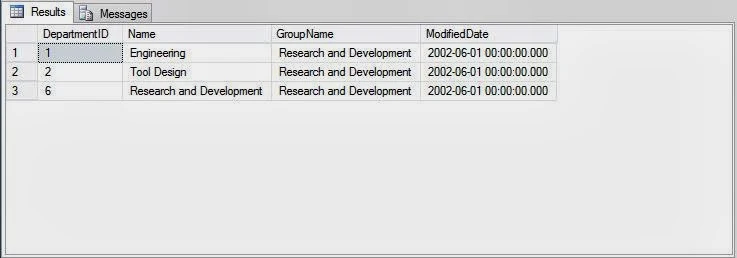
To retrieve selected rows based on a specific condition, you need to use the WHERE clause in the SELECT statement. Using the WHERE clause selects the rows that satisfy the condition. The following SQL query retrieves the department details from the Department table, where the group name is Research and Development:

SELECT * FROM HumanResources.Department WHERE GroupName = 'Research and Development'

The SQL Server will display the output of the query, as shown in the following figure.
How to Retrieve Selected Rows and Calculating Column values: SQL Programming

In the preceding example, rows containing the Research and Development group name are retrieved. Through the output window, it looks like there are only three records in the database satisfying the condition given above.


Tuesday, December 10, 2013

Customizing and Concatenating Output in SQL Database: SQL Server

Sql Server Management Studio have some options to customizing the display like adding the literals in the sql query to change the column name in output. It also have an option to concatenate strings in records, selected by sql query in sql server. In this article we will do these tasks with some examples in sql.

Customizing the Display

Sometimes, you might be required to change the way the data is displayed on the output screen. For example, if the names of columns are not descriptive, you might need to change the column headings by creating user-defined headings.

Consider the following example that displays the Department ID and Department Names from the Department table of the Adventure Works database. The report should contain column headings different from those given in the table, as specified in the following format.

Department Number  Department Name

You can write the query in the following ways:

  • SELECT ‘Department Number’ – DepartmentID, ‘Department Name’ FROM HumanResources.Department
  • SELECT DepartmentID ‘Department Number’, Name ‘Department Name’ FROM HumanResources.Department
  • SELECT DepartmentID AS ‘Department Number’, Name AS ‘Department Name’ FROM HumanResources.Department

Similarly, you might be required to make results more explanatory. In such case, you can add more text to the values displayed by the columns by using literals. Literals are string values enclosed in single quotes and added to the SELECT statement. The literal value is printed in a separate column as they are written in the SELECT list. Therefore, literals are used for display purpose.

The following SQL query retrieves the department-Id and their name from the Department table and change the column header as specified in the query.

SELECT DepartmentID 'Department Number', Name 'Department Name'
FROM Department

The SQL Server will display the output of the query, as shown in the following figure

Customizing and Concatenating Output in SQL Database: SQL Server
Add caption

Concatenating the Text Values in the Output

As a database developer, you will be required to address requirements from various users, who might want to view results in different ways. You might be required to display the values of multiple columns in a single column and also to improve readability by adding a description with the column value. In this case, you can use the Concatenation operator. The concatenation operator is used to concatenate string expressions. They are represented by the + sign.

The following SQL query concatenates the data of the Name and GroupName columns of the Department table into a single column. Text values, such as “department comes under” and “group”, are concatenated to increase the readability of the output:

SELECT Name + ' department comes under ' + groupName + ' group' AS Department
FROM Department

When you execute the query, it will format the output according to above query. The SQL Server will display the output of the query, as shown in the following figure.

Customizing and Concatenating Output in SQL Database: SQL Server

Retrieving specific Records
Retrieve Selected Rows and Calculate Column values

How to Retrieve Specific Records by SQL Database: SQL Server

By-default when user fire a query on the sql database it provides all the columns in the output, the table have. Database developer can change the no. of columns, to be displayed in the output. Sql Server Management Studio provides some special features explained in the article.

Retrieving Specific Attributes

While retrieving data from tables, you can display one or more columns. For example, the Adventure Works database stores the department details, such as Name and GroupName in the Department table. Users might want to view single column such as Name. Programmer can retrieve the required data from the database tables by using the SELECT statement.

The SELECT statement is used for accessing and retrieving data from a database. The syntax of the SELECT statement is:

SELECT [ALL | DISTINCT] select_column_list
[INTO [new_table_name]]
[FROM {table_name |view_name}
[WHERE search condition]


Where
  • ALL: represented with an (*) asterisk symbol and displays all the columns of the table.
  • Select_column_list: name of the table from which data is to be retrieved.
Note:
The SELECT statement can contains some more arguments such as WHERE, GROUP BY, COMPUTE, and ORDER BY that will be explained in later articles. All the examples in this SQL related articles are based on the Adventure Works Database, and can be download from here.
Consider the department table stored in the HumanResources schema of the Adventure Works database. To display all the detail of employees, you can use the following query:
 

SELECT * FROM HumanResources.Department
 

Execute the query and SQL Server will display the output of the query, as shown in the following figure.

How to Retrieve Specific Records by SQL Database: SQL Server 
The result set displays the records in the order in which they are stored in the table. In other words the records are sorted in ascending order of DepartmentId that is primary key of the department table.
   
Note:

The number of rows in the output window may vary depending on the modifications done on the database.
If you need to retrieve specific columns, you can specify the column names in the SELECT statement. For example, to view specific details, such as only Name of the employees of AdventureWorks, you can specify the column names in the SELECT statement, as shown in the following SQL query:
   
SELECT DepartmentId, Name FROM HumanResources.Department

The SQL Server will display the output of the query, as shown in the following figure.


How to Retrieve Specific Records by SQL Database: SQL Server 
In the output, the result set shows the column names the way they are present in the table definition. You can customize these column names, if required. As same as in above sql query you can specify some more columns as per the requirements.

Customizing and Concatening display in SQL Server

Sunday, December 8, 2013

Computer programming : Print string in double quote escape sequences, Verbatim literal

In c#, String is enclosed in double quote, suppose we want to store name then we should use string type. For example
String name="Computer Programming";

Starting double quote define the beginning of the string and ending double quote define the end of the string. Now if we want to print this string then in console application, we have to write:

System.Console.writeline (name);

If we want to print words Computer Programming in double quote or you can say output window display Computer Programming in double quote like "Computer Programming"

Note: If we use double quote beginning of the string like " "Computer Programming" then you get error in the string.

Solution: Use Escape sequence character (\) for keep double quote in the string.
For example :  String name = "\"Computer Programming\" ";
There are different types of escape sequences available in msdn library.

Lets take another example, if we want to print path of the file like C:\csharp\tutorial\beginning, then we  should use escape sequence character before every back slash.
Solution : C:\\csharp\\tutorial\\beginning.
Now this type of solution is too typical and unreadable string. So use verbatim literal for this
Solution : @” C:\csharp\tutorial\beginning”

Here @ symbol is a verbatim literal for removing escape sequences characters in the string.

Computer programming : Print string in double quote escape sequences, Verbatim literal

Here's the full program in c# language
using System;
using System.Collections.Generic;
using System.Linq;
using System.Text;
namespace ConsoleApplication1
{
    class Program
    {
        static void Main(string[] args)
        {
            string name = "\"Computer Programming\"";
            Console.WriteLine(name);
            String path = @"C:\csharp\tutorial\beginning";
            Console.WriteLine(path);
            Console.ReadKey(false);
        }
    }
}

Write above lines of code in c# console application and run the project, string with quote and path with quote will display on the screen.


Saturday, December 7, 2013

Data Types used in SQL with Range: Introduction to SQL

+Pinal Dave  : As a database developer, you need to regularly retrieve data for various purposes, such as creating reports and manipulating data. You can retrieve data from the database server by using SQL queries.

In this article we will let you know how to retrieve selected data from database tables by executing the SQL queries. It will also explain to use functions to customize the result set as well as summarize and grouping data.

Retrieving Data

At times, the database developers might need to retrieve complete or selected data from a table. Depending on the requirements, you might need to extract only selected columns or rows from a table. Consider the example of an organization that stores the employee data in SQL Server database. At times, the users might need to extract only selected information such as name, data of birth and address details of all the employees. At other times, the users might need to retrieve all the details of the employees in the Sales and Marketing department.

Identifying Data types

Data type specifies the type of data that an object can contain, such as character data or integer data. You can associate a data type with each column, local variable, expression, or parameter defined in the database.

You need to specify the data type according to the data to be stored. For example, you can specify character as the data type to store the employee name, date time as the data type to store the hire date of employees. SQL Server 2005 supports the following data types.

Int:  ranges from (-) 2^31 to 2^31-1 and used to store Integer data (whole numbers)

Decimal: ranges from (-)10^38 +1 through 10^38-1 and used to store Numeric data types with a fixed precision and scale

Numeric: ranges from (-)10^38+1 through 10^38-1 and used to store  Numeric data types with a fixed precision and scale

Float: ranges from (-)1.79E+308to-2.23E-308,0 and 2.23E-308 to 1.79E+308 and used to store Floating precision data

Money: ranges from (-)922,203,685,477.5808 to 922,337,203,685,477.5807 and used to store monetary data

Datetime: ranges from January 1,1753, through December 31, 9999 and used to store Date and time data

Char(n): n characters, where n can be 1 to 8000 and used to store Fixed length character data

Varchar(n): n characters, where n can be 1 to 8000 and used to store Variable length character data

Text: Maximum length of 2^31-1(2,147,483,647) characters and used to store character string

Bit: 0 or 1 and used to store  Integer data with 0 or 1

Image: maximum length of 2^31-1(2,147,483,647) bytes and used to store  Variable length binary data to store images

Sql_variant: Maximum length of 8016 bytes Different data types except text, ntext, image, timestamp, and
sql_variant

Timestamp: maximum storage size of 8 bytes Unique number in a database that is updated every time a row that contains timestamp is inserted or updated

Uniqueidentifier: Is a 16-byte GUID A column or local variable of the uniqueidentifier data type can be initialized by either using the NEWID function or converting from a string constant in the form xxxxxxxx-xxxx-xxxx-xxxx-xxxxxxxxxxxx, where each x is a hexadecimal digit in the range 0-9 or a-f. For example, an unique identifier value is 6F9619FF-8B86-D011-B42D-00C04FC964FF

Table: Result set to be processed later

Xml: xml instances and xml type variables Store and return xml values

In the next article, we will discuss about how to fire a query to retrieve data from the database in sql server management studio.


SQL Server Tools with SQL Server Management Studio: Introduction to SQL

SQL Server provides various tools that help improve the efficiency of database developers. The SQL Server Management Studio is one such tool that helps in creating and maintaining database objects. The SQL Server Business Intelligence Development Studio is another tool that helps in creating and implementing BI solutions. The server also provides tools, such as the Database Engine Tuning Advisor and the SQL Server Configuration Manger that help the database administrator in configuring the server and optimizing the performance.

SQL Server Management Studio

The SQL Server Management Studio is a powerful tool associated with SQL Server, it provides a simple and integrated environment for developing and managing the SQL Server database objects. The following figure shows the SQL Server Management Studio starting interface.

SQL Server Tools with SQL Server Management Studio: Introduction to SQL

Here’s the list contains main components of the SQL Server Management Studio.

Object Explorer: An Object Explorer provides the ability to register, browse, and manage servers. Using Object Explorer, you can also create, browse, and manage server components. The explorer allows you to configure:
  • Security: Used to create log on Ids and users and to assign permissions.
  • Notification Services: Used to generate and send notifications to users.
  • Replication: Used to create and manage publishers and subscribers.
  • SQL Server Agent: Used to automate administrative tasks by creating and managing jobs, alerts, and operators.
  • Management Services: Used to configure Distributed Transaction Coordinator, Full-Text search, Database Mail service, or SQL Server logs.
  • Server Objects: Used to create and manage backups, endpoints, and triggers.
Registered Servers: A registered server is a list that displays all the servers registered with the management studio. It also helps record connection information for each registered server including the authentication type, default database, network protocol characteristics, encryption, and time-out parameters.

Solution Explorer: The Solution Explorer provides on organized view of your projects and files. In this explorer, you can right-click on a project of file to manage or set their properties.

Query Editor: The Query Editor provides the ability to execute queries written in T-SQL. It can be invoked by selecting the New Query option from the File menu or the New Query button from the Standard toolbar.

Template Explorer: The Template Explorer provides a set of templates of SQL queries to perform standard database operations. You can use these queries to reduce the time spent in creating queries.

Dynamic Help: The Dynamic Help is available from the Help menu of the SQL Server Management Studio. This tool automatically displays links to relevant information while users work in the management studio environment.

SQL Server Business Intelligence Development Studio

The Business Intelligence Development Studio is a tool that provides an environment to develop business intelligence solutions. These solutions are based on the data that was generated in the organization and helps in business forecasting and making strategic decisions and future plans.

It helps building the following types of solutions:
  • Data Integration: The integration services allow you to build solutions that integrate data from various data sources and store them in a common data warehouse.
  • Data Analysis: The analysis services help analyse the data stored in the data warehouse.
  • Data Reporting: The reporting services allow you to build reports in different formats that are based on the data warehouse.

Database Engine Tuning Advisor

The Database Engine Tuning Advisor helps database administrators to analyse and tune the performance of the server. To analyse the performance of the server, the administrator can execute a set of T-SQL statements against a database. After analysing the performance of these statements, the tool provides recommendations to add, remove, or modify database objects, such as indexes or indexed views to improve performance. These recommended help in executing the given T-SQL statements in the minimum possible time.

SQL Server Configuration Manager

The SQL Server Configuration Manager helps the database administrators to manage the services associated with the SQL Server. By default, in SQL Server, some services such as full-text search, SQL Server Agent, and integration services are not enabled. Administrators can start, pause, resume, or stop these services by using this tool.

In addition, the tool allows you to manage the network connectivity configuration from the SQL Server client computers. It allows you to specify the protocols through which the client computers can connect to the server.

Friday, December 6, 2013

Windows 8 app development : Example of media element

In app development, windows 8 sdk mediaElement control support  audio and video format files. A short of code make media element or you can say media player for your apps.

<MediaElement Source="5th.mp4" HorizontalAlignment="Left" Height="438" VerticalAlignment="Top" Width="680"/>

In the preceding code define the attributes of MediaElement, the source attribute means which file you want to play in it. Height and width define the structure of mediaElement.

Example of MediaElement control in app development

<Page
x:Class="App1.MainPage"
xmlns="http://schemas.microsoft.com/winfx/2006/xaml/presentation"
xmlns:x="http://schemas.microsoft.com/winfx/2006/xaml"
xmlns:local="using:App1"
xmlns:d="http://schemas.microsoft.com/expression/blend/2008"
xmlns:mc="http://schemas.openxmlformats.org/markup-compatibility/2006"
mc:Ignorable="d">
<Grid Background="{StaticResource ApplicationPageBackgroundThemeBrush}">
<MediaElement Source="5th.mp4" HorizontalAlignment="Left" Height="438" VerticalAlignment="Top" Width="680"/>
</Grid>
</Page>

Output of the program is

Windows 8 app development : Example of media element
Using IsFullWindow property you can see your favorite videos in full window mode .It contains Boolean value for rendering videos in full or specified height and width.
© Copyright 2013 Computer Programming | All Right Reserved