-->

Thursday, March 20, 2014

Algorithm Linear Search applied to Linked List

Algorithm:

SEARCHLl1 (ROOT, IN)
[ROOT is starting address of Linked List and 
 IN is Information to be searching in Linked List]
PTR<--ROOT
Repeat While PTR< >NULL AND IN< >PTR-->INFO
  PTR<--PTR-->LINK
[End of while]
If PTR-->INFO=IN Then:
   Write: ‘Search Successful’
Else:
   Write: ‘Search Successful’
[End of If]

Second form: 

SEARCHLL2 (ROOT, IN)
PTR<--ROOT
Repeat While PTR< >NULL AND IN< >PTR-->INFO
  PTR<--PTR-->LINK
[End of while]
If PTR-->INFO=IN Then:
  Return 1
Else:
  Return 0
[End of If]
Exit.

Linear Search applied to Linked List for Data Structure in 'C'

 Linear Search applied to Linked List

        In Linked List linear searching is nothing but finding a node with the given information for the presence. If it is present search is successful otherwise unsuccessful. Linked List supports only linear search. The main reason behind this is the inability of reaching any of the nodes directly except the first node. Only the address of the first node is always available in an external pointer. With the help of the first node only it is possible to reach the second node. Without the address of previous node one can not reach the next node. The next node’s address is always stored in previous node. Although the order of the information may in either ascending or descending but accessibility of the elements is not direct, so application of linear is only possible in case of linked list. Searching (of course linear) almost resembles traversing except that if search is successful traversing is terminated otherwise the linked list is traversed till the end.
        So, in order to do linear searching, get the information to be searching and set PTR with ROOT. Compare Information with INFO of PTR, if it is equal ‘search is successful’ and terminate traversing otherwise update PTR with LINK of PTR and repeat the process. Continue the operation till the end. The end is recognized by a NULL assigned to PTR.

Wednesday, March 19, 2014

Gridview Header row border style solid example

Initial Steps for viewers

Step-1 : Open Visual Studio IDE
Step-2 : Add New Webform into your project
Step-3 : Open Design page for adding control onit.
Step-4 : You can change Gridview Header row border style solid using property bar


<!DOCTYPE html PUBLIC "-//W3C//DTD XHTML 1.0 Transitional//EN" "http://www.w3.org/TR/xhtml1/DTD/xhtml1-transitional.dtd">

<html xmlns="http://www.w3.org/1999/xhtml">
<head runat="server">
    <title></title>
</head>
<body>
    <form id="form1" runat="server">
    <asp:GridView ID="GridView1" runat="server" AllowPaging="True"
        AutoGenerateColumns="False" DataKeyNames="Sno" DataSourceID="SqlDataSource1">
        <Columns>
            <asp:BoundField DataField="Sno" HeaderText="Sno" InsertVisible="False"
                ReadOnly="True" SortExpression="Sno" />
            <asp:BoundField DataField="name" HeaderText="name" SortExpression="name" />
            <asp:BoundField DataField="address" HeaderText="address"
                SortExpression="address" />
            <asp:BoundField DataField="contactno" HeaderText="contactno"
                SortExpression="contactno" />
        </Columns>

 <HeaderStyle BorderStyle="Solid" />

    </asp:GridView>
    <asp:SqlDataSource ID="SqlDataSource1" runat="server"
        ConnectionString="<%$ ConnectionStrings:ConnectionString %>"
        DeleteCommand="DELETE FROM [userdataTable] WHERE [Sno] = @Sno"
        InsertCommand="INSERT INTO [userdataTable] ([name], [address], [contactno]) VALUES (@name, @address, @contactno)"
        SelectCommand="SELECT * FROM [userdataTable]"
        UpdateCommand="UPDATE [userdataTable] SET [name] = @name, [address] = @address, [contactno] = @contactno WHERE [Sno] = @Sno">
        <DeleteParameters>
            <asp:Parameter Name="Sno" Type="Int32" />
        </DeleteParameters>
        <InsertParameters>
            <asp:Parameter Name="name" Type="String" />
            <asp:Parameter Name="address" Type="String" />
            <asp:Parameter Name="contactno" Type="Int32" />
        </InsertParameters>
        <UpdateParameters>
            <asp:Parameter Name="name" Type="String" />
            <asp:Parameter Name="address" Type="String" />
            <asp:Parameter Name="contactno" Type="Int32" />
            <asp:Parameter Name="Sno" Type="Int32" />
        </UpdateParameters>
    </asp:SqlDataSource>
    <div>
   
    </div>
    </form>
</body>
</html>
Code Generate the following output
Gridview Header row border style solid example

C function to implement Linear Search in 1-dimensional array

  C function to implement Linear Search in 1-dimensional array:

int linear_search(int arr[ ], int n, int key)
{
  int success=0,i=0; /* initial index is 0 */
  while ((i<n)&& (success == 0))
    {
       if (arr[i] == key)
       success = 1;
       i= i+1;
     }
  return success;
}

This C function returns 1 (TRUE) if the search is successful, otherwise it returns 0 (FALSE). The same function can be written using for statement compactly as follows:
int linear_search(int arr[ ], int n, int key)
{
  int success=0,i; /*initial index is 0*/
  for(i=o; i<n&& success == 0;i++)
    if(arr[i]==key)
      success = 1;
 return success;
}

If we want to display the "successful" or "unsuccessful" message in the function itself instead of returning 1 or 0, then we can just change the function code as follows:
void linear_search(int arr[ ], int n, int key)
{
  int success=0,i; /*initial index is 0 */
  for(i=0;i<n&&success == 0;i++)
   if(arr[i] == key)
    success = 1;
 if(success==1)
  printf("Search successful");
else
  printf("Search unsuccessful");
}

Algorithm to implement linear search for Data Structure

Algorithm to implement linear search:

LINEAR SEARCH (arr, n, key)
[ ‘arr’ is one-dimensional array of size ‘n’, key is element to search ]
success <-- FALSE
[Assuming the lower bound of the array as 1]
I<--1
Repeat While (I<=n) AND (success = FALSE)
  If (arr[I] = key) Then:
    success <--TRUE
  [End of If]
  I<--I+1
[End of While]
Return success
Exit.
     In this algorithm initially we assume that the search is unsuccessful by initializing a variable success as FALSE. Then we start the comparison of key from the first element by initializing the index variable I with 1. If the key is equal to first element then success is assigned with TRUE, which terminates the while loop. When the while loop is terminated the algorithm returns success as either TRUE or FALSE depending on the assignment. Similar comparisons are done with all the elements of the array by incrementing the index variable.

How to use LINQ sorting operator in ASP.NET

Introduction

The Sorting operator in LINQ arranges the elements of a sequence based on one or more attributes. You can sort the data with one specific attribute and perform primary sorting on the elements. You can then specify the second sort criterion and sort the elements within the primary sorted group. The different Sorting operators are OrderBy, OrderByDescending, ThenBy, ThenByDescending, and Reverse.
The sorting functionality is achieved using the 'OrderBy operator. Sorting can either be ascending or descending. The default behavior of the OrderBy operator is to sort the data in ascending order. If you want to order your data in descending order, you need to use the OrderByDescending operator.
The syntax of using the OrderBy clause is:
C#
public static OrderedSequence<T> OrderBy<T, K>( this IEnumerable<T> source, Function<T, K> keySelector);

Similarly, you can use the OrderByDescending clause to sort the string in a descending order, as shown in the following code:

C#
public static OrderedSequence<T> OrderByDesceridinq<T, K>( this IEnumerable<T> source, Function<T, K> keySeIector);

Lets take an simple example 

Step-1 : Add one ListBox and two Button control on design window
   <form id="form1" runat="server">
    <div>
        <asp:ListBox ID="ListBox1" runat="server"></asp:ListBox>
        <br />
        <br />
        <asp:Button ID="Button1" runat="server" Text="Ascending" 
            onclick="Button1_Click" />
    &nbsp;<asp:Button ID="Button2" runat="server" Text="Descending " 
            onclick="Button2_Click" />
    </div>
    </form>
Step-2 : Handle business logic code on Button Click event.
Step-3 : Create double type array with some values.

 double [] dotprogramming = { 1, 2, 3, 4, 5, 6 };

Step-4 : Select filter type using OfType<string>(); extension IEnumerable.
Step-5 : Add filtered value into ListBox.

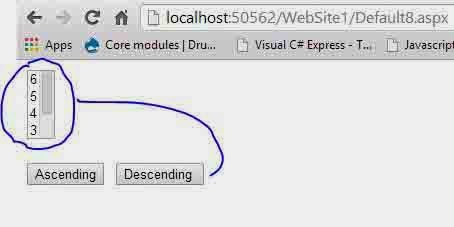
Output of given below code

How to use LINQ sorting operator in ASP.NET

How to use LINQ sorting operator in ASP.NET
public partial class Default8 : System.Web.UI.Page
{
    double [] dotprogramming = { 1, 2, 3, 4, 5, 6 };

    
    protected void Button1_Click(object sender, EventArgs e)
    {
        ListBox1.Items.Clear();
        var query = from d in dotprogramming
                    orderby d
                    select d;
        foreach (var item in query)
        {
            ListBox1.Items.Add(item.ToString() );
        }
    }
    protected void Button2_Click(object sender, EventArgs e)
    {
        ListBox1.Items.Clear();
        var query = from d in dotprogramming
                    orderby d descending
                    select d;
        foreach (var item in query)
        {
            ListBox1.Items.Add(item.ToString());
        }

    }
}

Example of Bottom Text alignment of Gridview in asp.net

Initial Steps for viewers

Step-1 : Open Visual Studio IDE
Step-2 : Add New Web form into your project
Step-3 : Open Design page for adding control on it.
Step-4 : You can change text alignment of header row text.
Example of Bottom Text alignment of Gridview in asp.net


<%@ Page Language="C#" AutoEventWireup="true" CodeFile="Default.aspx.cs" Inherits="_Default" %><!DOCTYPE html PUBLIC "-//W3C//DTD XHTML 1.0 Transitional//EN" "http://www.w3.org/TR/xhtml1/DTD/xhtml1-transitional.dtd">

<html xmlns="http://www.w3.org/1999/xhtml">
<head runat="server">
    <title></title>
</head>
<body>
    <form id="form1" runat="server">
    <asp:GridView ID="GridView1" runat="server" AllowPaging="True" 
        AutoGenerateColumns="False" DataKeyNames="Sno" DataSourceID="SqlDataSource1">
        <Columns>
            <asp:BoundField DataField="Sno" HeaderText="Sno" InsertVisible="False" 
                ReadOnly="True" SortExpression="Sno" />
            <asp:BoundField DataField="name" HeaderText="name" SortExpression="name" />
            <asp:BoundField DataField="address" HeaderText="address" 
                SortExpression="address" />
            <asp:BoundField DataField="contactno" HeaderText="contactno" 
                SortExpression="contactno" />
        </Columns>
  <HeaderStyle VerticalAlign="Bottom" />
    </asp:GridView>
    <asp:SqlDataSource ID="SqlDataSource1" runat="server" 
        ConnectionString="<%$ ConnectionStrings:ConnectionString %>" 
        DeleteCommand="DELETE FROM [userdataTable] WHERE [Sno] = @Sno" 
        InsertCommand="INSERT INTO [userdataTable] ([name], [address], [contactno]) VALUES (@name, @address, @contactno)" 
        SelectCommand="SELECT * FROM [userdataTable]" 
        UpdateCommand="UPDATE [userdataTable] SET [name] = @name, [address] = @address, [contactno] = @contactno WHERE [Sno] = @Sno">
        <DeleteParameters>
            <asp:Parameter Name="Sno" Type="Int32" />
        </DeleteParameters>
        <InsertParameters>
            <asp:Parameter Name="name" Type="String" />
            <asp:Parameter Name="address" Type="String" />
            <asp:Parameter Name="contactno" Type="Int32" />
        </InsertParameters>
        <UpdateParameters>
            <asp:Parameter Name="name" Type="String" />
            <asp:Parameter Name="address" Type="String" />
            <asp:Parameter Name="contactno" Type="Int32" />
            <asp:Parameter Name="Sno" Type="Int32" />
        </UpdateParameters>
    </asp:SqlDataSource>
    <div>
 </div>
    </form>
</body>
</html>
Example of Bottom Text alignment of Gridview in asp.net
© Copyright 2013 Computer Programming | All Right Reserved