-->

Thursday, August 20, 2015

How to connect Microsoft Access Database to Windows Form c#

Introduction
In this article we will learn how to connect access database to windows form application. Get the MS Access data in windows form application. Access is a database system or you can its a tool of MS-Office. Through this we can store data permanently in it. If you want to store data in it by the help of windows application then you should connect it with the application.

Description
If you want to connect the database with the windows form application then you must to install the MS- Access in the computer. Also must to install connection drivers properly. Now, follow the instruction to connect ms-access database to windows form c#.

  1. First to prepare a database file in MS-Access.
  2. Add a windows form project Using Visual Studio 2013 or earlier.
  3. Add a Method just after Initializing Component. Like 


using System;
using System.Collections.Generic;
using System.ComponentModel;
using System.Data;
using System.Drawing;
using System.Linq;
using System.Text;
using System.Threading.Tasks;
using System.Windows.Forms;
using System.Data.OleDb;
using System.Configuration;

namespace ConnectAccessDatabase
{
    public partial class Form1 : Form
    {
        public Form1()
        {
            InitializeComponent();
            loadgrid();
        }

        private void loadgrid()
        {
            OleDbConnection con = new OleDbConnection();
            con.ConnectionString = ConfigurationManager.ConnectionStrings["Connection"].ToString();
            con.Open();
            MessageBox.Show("Connection Sucess");
  

        }
    }
}

Monday, August 17, 2015

Get the page name example in asp.net c#

In this article i will learn how to get the page name in asp.net. If you are using visual studio 2005 to 2010 then url show page name with extension. But if you are using vs2012 to vs2015 then do not show. Lets check the example of  get page name from page url.


<%@ Page Language="C#" AutoEventWireup="true" CodeFile="Default5.aspx.cs" Inherits="Default5" %>

<!DOCTYPE html>

<html xmlns="http://www.w3.org/1999/xhtml">
<head runat="server">
    <title>Get the page name program in asp.net</title>
</head>
<body>
    <form id="form1" runat="server">
    <div>
        <asp:Button ID="Button1" runat="server" Text="Get Page Name" OnClick="Button1_Click" />
        <br />
        <br />
        <asp:Label ID="lblresult" runat="server" Text=""></asp:Label>
    </div>
    </form>
</body>
</html>
Code Behind
using System;
using System.IO;

public partial class Default5 : System.Web.UI.Page
{
    protected void Page_Load(object sender, EventArgs e)
    {

    }
    protected void Button1_Click(object sender, EventArgs e)
    {
        string pagename = Path.GetFileName(Request.Path);
        lblresult.Text = pagename;
    }
}

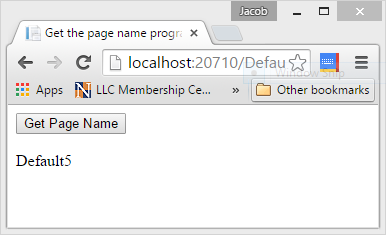
Code generate the following output


Get the page name in asp.net c#

Sunday, August 16, 2015

Random password generator software free download

Introduction

This software is used to generate random password. Free download random password generator software. Through this password generator you can generator long string password like this

Password: Asdfrte,./7864@3k#
Example of long/strong/good password. If you want to know about this software that how it work?
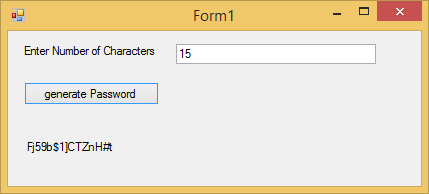
First to run the executable file and open the software in windows environment and put some number like 15. After entered you get 15 character long string password.
How to design the software:
First to create a new project in visual studio , File-->New-->Project-->Windows form (c# Language). Design a form with one label, one TextBox, one button control. When you press the button then you get long string password. So put this code on Button click.

using System;
using System.Collections.Generic;
using System.ComponentModel;
using System.Data;
using System.Drawing;
using System.Linq;
using System.Text;
using System.Threading.Tasks;
using System.Windows.Forms;

namespace RandomPasswordGenerator
{
    public partial class Form1 : Form
    {
        public Form1()
        {
            InitializeComponent();
        }

        private void button1_Click(object sender, EventArgs e)
        {
            string randomstring = string.Empty;
            char[] array = "0123456789qwertyuiopasdfghjklzxcvbnmQWERTYUIOPASDFGHJKLZXCVBNM[];,.?@#$%^&*()".ToCharArray();
            Random r1 = new Random();
            int getnumber = Convert.ToInt32(textBox1.Text);
            for(int i=0;i<getnumber;i++)
            {
                int point = r1.Next(1, array.Length);
                if (!randomstring.Contains(array.GetValue(point).ToString()))
                    randomstring += array.GetValue(point);
                else
                    i--;
            }
            lblresult.Text = randomstring;
        }
    }
}


Code Generate the following output
Random password generator software download

Saturday, August 15, 2015

ZoomIn and ZoomOut Text Example using JQuery

Introduction: 

Here I will explain example of Text ZoomIn or ZoomOut example using JQuery or increase or decrease font size of blog/website dynamically on button click using jQuery in asp.net.

Description: 
 
In previous articles I explained ajax password strength validator and checker. This all things are related to Jquery. To read more article about JQuery which is implemented in asp.net.

To implement this we need to write the following code in aspx page


<%@ Page Language="C#" AutoEventWireup="true" CodeFile="Default4.aspx.cs" Inherits="Default4" %>

<!DOCTYPE html>

<html xmlns="http://www.w3.org/1999/xhtml">
<head runat="server">
    <title></title>
    <script type="text/javascript" src="http://ajax.googleapis.com/ajax/libs/jquery/1.7.2/jquery.min.js"></script>
    <script>
        $(document).ready(function () {
            var getdiv = $('#test');

            //get zoomin button

            $('#zoomin').click(function () {

                var presentsize = getdiv.css('fontSize');
                var latestsize = parseInt(presentsize.replace("px", "")) + 1;
                $(getdiv).css("fontSize",latestsize + "px");

            });

            //get zoomout button

            $('#zoomout').click(function () {

                var presentsize = getdiv.css('fontSize');
                var latestsize = parseInt(presentsize.replace("px", "")) - 1;
                $(getdiv).css("fontSize", latestsize + "px");

            });

        })

    </script>
</head>
<body>
    <form id="form1" runat="server">
    <div id="test">
        Welcome to my blog: http://dotprogramming.blogspot.com
 
    </div>
        <input id="zoomin" type="button" value="+" />
        <input id="zoomout" type="button" value="-" />
    </form>
</body>
</html>

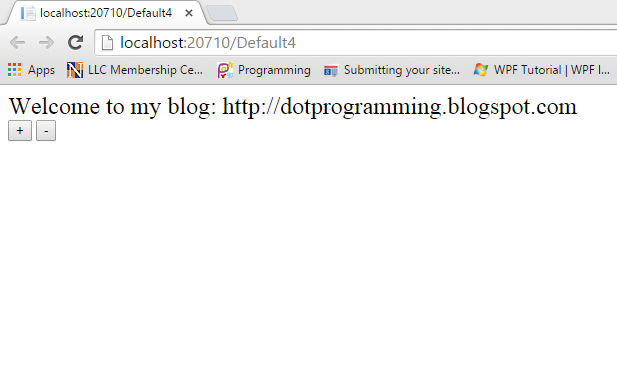
Code Generate the following output:

ZoomIn and ZoomOut Text Example using JQuery

Thursday, August 13, 2015

Ajax Password Strength and password indicator example in asp.net

Introduction

In this article i will learn about password strength control of ajax. Example of password indicator of ajax in asp.net. This example cover all such things which is related to password strength.

Description

i already explained about Always visible control example in ajax. Example of calendar extender using ajax. Example of Numeric UpDown Extender example using ajax. Example of Resizable control in asp.net. Slider Extender example in AJAX.


Source code :

<%@ Page Language="VB" AutoEventWireup="false" CodeFile="Default2.aspx.vb" Inherits="Default2" %>

<%@ Register assembly="AjaxControlToolkit" namespace="AjaxControlToolkit" tagprefix="cc1" %>

<!DOCTYPE html>

<html xmlns="http://www.w3.org/1999/xhtml">
<head runat="server">
    <title></title>
    <style>
        .very{
background-color:gray;
color:white;
        }
.weak{
    background-color:Red;
color:white;

}
.average{
    background-color:blue;
color:white;
}
.good{
    background-color:orange;
    color:green;
}
.excellent
{
    background-color:green;
    color:black;
}
        .barline
        {
            border-style:solid;
            border-width:2px;
            width:190px;
            padding:2px;

        }
  </style>
</head>
<body>
    <form id="form1" runat="server">
        <asp:ScriptManager ID="ScriptManager1" runat="server"></asp:ScriptManager>
    <div>
        Password:
        <asp:TextBox TextMode="Password" ID="TextBox1" runat="server" Height="23px" Width="227px"></asp:TextBox>
&nbsp;</div>
        <p>
            <asp:Label ID="Label1" runat="server" Text="Label"></asp:Label>
            <cc1:PasswordStrength PreferredPasswordLength="8" TargetControlID="TextBox1" ID="pwdstrength" runat="server" StrengthIndicatorType="Text" HelpStatusLabelID="Label1" MinimumNumericCharacters="1" MinimumSymbolCharacters="1" TextStrengthDescriptions="very;weak;average;good;excellent" />
        </p>
        <p>
            &nbsp;</p>
        <p>
            PassWord Indicator :
        <asp:TextBox TextMode="Password" ID="TextBox2" runat="server" Height="23px" Width="227px"></asp:TextBox>
            <cc1:PasswordStrength TextStrengthDescriptionStyles="very;weak;average;good;excellent" BarBorderCssClass="barline" PreferredPasswordLength="8" TargetControlID="TextBox2" ID="TextBox2_PasswordStrength" runat="server" StrengthIndicatorType="BarIndicator" HelpStatusLabelID="Label2" MinimumNumericCharacters="1" MinimumSymbolCharacters="1" TextStrengthDescriptions="very;weak;average;good;excellent" />
       
        </p>
        <p>
            <asp:Label ID="Label2" runat="server" Text="Label"></asp:Label>
        </p>
       
    </form>
</body>
</html>
In this example TextStrengthDescriptionStyles cover all css classes which is covered in the example. StrengthIndicatorType define the appearance of the validator.

Code generate the following outout

Ajax Password Strength and password indicator example in asp.net


Tuesday, August 11, 2015

How to add StaticResource and DynamicResource style in WPF

Introduction

In this article i will explain about style in wpf, How to use staticResources in wpf. Through the windows.Resources tag i will explain how to use style in xaml. Also use the DynamicResources in app.xaml file. Example of DynamicResourcs style in app.xaml file. 

Description

If you want to do some changes in formatting of your page or control then add some attribute like Background Foreground etc in xaml tag.But if you want to do same changes with 1000 of controls then what to do. There are two options first one is changes in all tags and second one is changes in one place but effect appear in all controls. Now, this example i will use both methods for you.


This video cover:
 How to add TextBlock in wpf window, How to add inline style in wpf . How to add foreground and background of TextBlock in wpf. Example of TextBlock control in wpf. How to change color of TextBlock in wpf. How to change foreground and background color of button control. How to use window.Resources in wpf. Example of window.Resources. How to create style in window.Resources. Example of style tag in xaml. Example of setter property of style tag. How to apply style on controls in wpf.

DynamicResources in WPF


This video cover:
How to use Application.Resources in wpf, example of Application.Resources. How to add style in app.xaml file. Example of TargetType property of style tag in wpf. How to use setter property of style in application.Resources tag. How to use application.Resources code on wpf controls.  
© Copyright 2013 Computer Programming | All Right Reserved