-->

Saturday, September 28, 2013

How to run javascript code on Label Text in ASP.NET

<%@ Page Language="C#" %>

<!DOCTYPE html PUBLIC "-//W3C//DTD XHTML 1.0 Transitional//EN" "http://www.w3.org/TR/xhtml1/DTD/xhtml1-transitional.dtd">

<script runat="server">

    protected void Page_Load(object sender, EventArgs e)
    {
 
     
    }
</script>

<html xmlns="http://www.w3.org/1999/xhtml">
<head runat="server">
    <title></title>
</head>
<body>
    <form id="form1" runat="server">
    <div>
        <asp:Label ID="Label1" runat="server" Text="JavaScript:<script>alert('hello');</script>"></asp:Label>
    </div>
    </form>
</body>
</html>

Output
How to run javascript code on Label Text in ASP.NET

Formating on Label Control in ASP.NET

<%@ Page Language="C#" %>

<!DOCTYPE html PUBLIC "-//W3C//DTD XHTML 1.0 Transitional//EN" "http://www.w3.org/TR/xhtml1/DTD/xhtml1-transitional.dtd">

<script runat="server">

</script>

<html xmlns="http://www.w3.org/1999/xhtml">
<head runat="server">
    <title></title>
</head>
<body>
    <form id="form1" runat="server">
    <div>
 
        <asp:Label ID="Label1" runat="server" BackColor="#CCCC00"
            Text="Chnage back color using Back Color property"></asp:Label>
        <br />
        <br />
        <asp:Label ID="Label2" runat="server" BorderColor="Red" BorderStyle="Solid"
            Text="Change Border Color Using BorderColor Property"></asp:Label>
        <br />
        <br />
        <asp:Label ID="Label3" runat="server" BorderStyle="Dashed"
            Text="Change border style dashed using BorderStyle property"></asp:Label>
        <br />
        <br />
        <asp:Label ID="Label4" runat="server" BorderWidth="3px"
            Text="Border Width using BorderWidth Property"></asp:Label>
        <br />
        <br />
        <asp:Label ID="Label5" runat="server" ForeColor="#333300"
            Text="Chnage Forecolor using Forecolor property"></asp:Label>
        <br />
        <br />
        <asp:Label ID="Label6" runat="server" Font-Bold="True" Text="Change Font Bold"></asp:Label>
        <br />
        <br />
        <asp:Label ID="Label7" runat="server" Font-Strikeout="True"
            Text="For wrong type text "></asp:Label>
        <br />
        <br />
        <asp:Label ID="Label8" runat="server" Font-Overline="True"
            Text="Overline text , line on the text"></asp:Label>
        <br />
        <br />
 
    </div>
    </form>
</body>
</html>

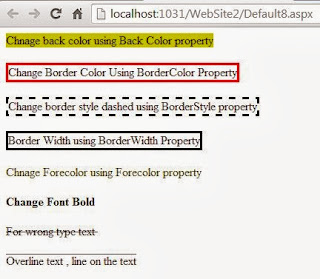
Output
Formating on Label Control in ASP.NET

Friday, September 27, 2013

Bind DropdownList using structure in ASP.NET

<%@ Page Language="C#" AutoEventWireup="true" CodeFile="Default7.aspx.cs" Inherits="Default7" %>

<!DOCTYPE html PUBLIC "-//W3C//DTD XHTML 1.0 Transitional//EN" "http://www.w3.org/TR/xhtml1/DTD/xhtml1-transitional.dtd">

<html xmlns="http://www.w3.org/1999/xhtml">
<head runat="server">
    <title></title>
</head>
<body>
    <form id="form1" runat="server">
    <div>
        <asp:DropDownList ID="DropDownList1" runat="server">
        </asp:DropDownList>
    </div>
    </form>
</body>
</html>

Codebehind code

using System;
using System.Collections.Generic;
using System.Linq;
using System.Web;
using System.Web.UI;
using System.Web.UI.WebControls;

public partial class Default7 : System.Web.UI.Page
{
    struct student
    {
       public string name;
       public int age;
    }
    protected void Page_Load(object sender, EventArgs e)
    {
        student[] s1 = new student[5];
        s1[0].name = "jacob";
        s1[1].name = "jacob lefore";
        s1[2].name = "my name is jacob";


        foreach (student item in s1)
        {
            DropDownList1.Items.Add(item.name);   
        }


    }
}

Output
Bind DropdownList using structure in ASP.NET

How to use DropDownList Control in ASP.NET

<%@ Page Language="C#" %>

<!DOCTYPE html PUBLIC "-//W3C//DTD XHTML 1.0 Transitional//EN" "http://www.w3.org/TR/xhtml1/DTD/xhtml1-transitional.dtd">

<script runat="server">

    protected void Page_Load(object sender, EventArgs e)
    {
        DropDownList1.Items.Add("Apple");
        DropDownList1.Items.Add("mango");
        DropDownList1.Items.Add("orange");
     
    }

    protected void DropDownList1_SelectedIndexChanged(object sender, EventArgs e)
    {
        Label1.Text = "your selected item is <br/>" + DropDownList1.SelectedItem.Text;
    }
</script>

<html xmlns="http://www.w3.org/1999/xhtml">
<head runat="server">
    <title></title>
</head>
<body>
    <form id="form1" runat="server">
    <div>
        <asp:DropDownList ID="DropDownList1" runat="server" Height="20px"
            onselectedindexchanged="DropDownList1_SelectedIndexChanged" Width="186px"
            AutoPostBack="True">
        </asp:DropDownList><br />
        <asp:Label ID="Label1" runat="server" Text=""></asp:Label>
    </div>
    </form>
</body>
</html>
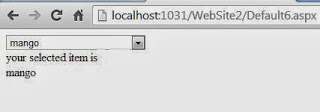
Output
Example of Add item to DropdownList in ASP.NET

Example of Add item to DropdownList in ASP.NET

<%@ Page Language="C#" %>

<!DOCTYPE html PUBLIC "-//W3C//DTD XHTML 1.0 Transitional//EN" "http://www.w3.org/TR/xhtml1/DTD/xhtml1-transitional.dtd">

<script runat="server">

    protected void Page_Load(object sender, EventArgs e)
    {
        DropDownList1.Items.Add("Apple");
        DropDownList1.Items.Add("mango");
        DropDownList1.Items.Add("orange");
     
    }

    protected void DropDownList1_SelectedIndexChanged(object sender, EventArgs e)
    {
        Label1.Text = "your selected item is <br/>" + DropDownList1.SelectedItem.Text;
    }
</script>

<html xmlns="http://www.w3.org/1999/xhtml">
<head runat="server">
    <title></title>
</head>
<body>
    <form id="form1" runat="server">
    <div>
        <asp:DropDownList ID="DropDownList1" runat="server" Height="20px"
            onselectedindexchanged="DropDownList1_SelectedIndexChanged" Width="186px"
            AutoPostBack="True">
        </asp:DropDownList><br />
        <asp:Label ID="Label1" runat="server" Text=""></asp:Label>
    </div>
    </form>
</body>
</html>

Output
Example of Add item to DropdownList in ASP.NET

How to Bind ListBox using Complex DataType in ASP.NET

Step-1: Define class properties in class
Step-2: Create a List<DataType> object in code file.
Step-3: Add fields to the list.
Step-4: Bind ListBox with list
Step-5: Assign DataMember to the ListBox.


Create a class file in ASP.NET
using System;
using System.Collections.Generic;
using System.Linq;
using System.Web;

/// <summary>
/// Summary description for Fruits
/// </summary>
public class Fruits
{
    public string  Fruits_Name { get; set; }
    public decimal Fruits_price { get; set; }
 

Take a ListBox on Design window
<%@ Page Language="C#" AutoEventWireup="true" CodeFile="Default5.aspx.cs" Inherits="Default5" %>

<!DOCTYPE html PUBLIC "-//W3C//DTD XHTML 1.0 Transitional//EN" "http://www.w3.org/TR/xhtml1/DTD/xhtml1-transitional.dtd">

<html xmlns="http://www.w3.org/1999/xhtml">
<head runat="server">
    <title></title>
</head>
<body>
    <form id="form1" runat="server">
    <div>
        <asp:ListBox ID="ListBox1" runat="server"
            ></asp:ListBox>
    </div>
    </form>
</body>
</html>

Codebehind Code
using System;
using System.Collections.Generic;
using System.Linq;
using System.Web;
using System.Web.UI;
using System.Web.UI.WebControls;

public partial class Default5 : System.Web.UI.Page
{
    List<Fruits> listitem = new List<Fruits>();

    protected void Page_Load(object sender, EventArgs e)
    {
        listitem.Add(new Fruits() { Fruits_Name = "Apple", Fruits_price = 45.40M });
        listitem.Add(new Fruits() { Fruits_Name = "Mango", Fruits_price = 30.40M });
        listitem.Add(new Fruits() { Fruits_Name = "Orange", Fruits_price = 36.40M });
        listitem.Add(new Fruits() { Fruits_Name = "grapes", Fruits_price = 89.40M });
        ListBox1.DataSource = listitem;
        ListBox1.DataTextField = "Fruits_Name";
        ListBox1.DataBind();

    }
}

Output
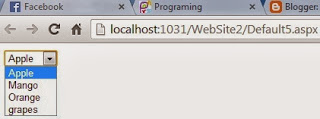
How to Bind ListBox using Complex DataType in ASP.NET

Thursday, September 26, 2013

How to Bind DropDownList using Complex DataType in ASP.NET

Step-1: Define class properties in class
Step-2: Create a List<DataType> object in code file.
Step-3: Add fields to the list.
Step-4: Bind DropDownlist with list
Step-5: Assign DataMember to the DropDownList.


Create a class file in ASP.NET
using System;
using System.Collections.Generic;
using System.Linq;
using System.Web;

/// <summary>
/// Summary description for Fruits
/// </summary>
public class Fruits
{
    public string  Fruits_Name { get; set; }
    public decimal Fruits_price { get; set; }
 

Take a DropDownList on Design window
<%@ Page Language="C#" AutoEventWireup="true" CodeFile="Default5.aspx.cs" Inherits="Default5" %>

<!DOCTYPE html PUBLIC "-//W3C//DTD XHTML 1.0 Transitional//EN" "http://www.w3.org/TR/xhtml1/DTD/xhtml1-transitional.dtd">

<html xmlns="http://www.w3.org/1999/xhtml">
<head runat="server">
    <title></title>
</head>
<body>
    <form id="form1" runat="server">
    <div>
        <asp:DropDownList ID="DropDownList1" runat="server">
        </asp:DropDownList>
    </div>
    </form>
</body>
</html>

Codebehind Code
using System;
using System.Collections.Generic;
using System.Linq;
using System.Web;
using System.Web.UI;
using System.Web.UI.WebControls;

public partial class Default5 : System.Web.UI.Page
{
    List<Fruits> listitem = new List<Fruits>();

    protected void Page_Load(object sender, EventArgs e)
    {
        listitem.Add(new Fruits() { Fruits_Name = "Apple", Fruits_price = 45.40M });
        listitem.Add(new Fruits() { Fruits_Name = "Mango", Fruits_price = 30.40M });
        listitem.Add(new Fruits() { Fruits_Name = "Orange", Fruits_price = 36.40M });
        listitem.Add(new Fruits() { Fruits_Name = "grapes", Fruits_price = 89.40M });
        DropDownList1.DataSource = listitem;
       DropDownList1.DataTextField = "Fruits_Name";
        DropDownList1.DataBind();

    }
}

Output
How to Bind DropDownList using Complex DataType in ASP.NET

© Copyright 2013 Computer Programming | All Right Reserved