-->

Saturday, September 28, 2013

ImageUrl Property of Hyperlink Control example

Example of ImageUrl Property

If you want to use image in place of Text on hyperlink control then you must specify the ImageUrl Property to the Hyperlink control. If you have been set ImageUrl then your Text will be hide because Image priority is high compare to text.

Lets take an example 


<%@ Page Language="C#" %>

<!DOCTYPE html PUBLIC "-//W3C//DTD XHTML 1.0 Transitional//EN" "http://www.w3.org/TR/xhtml1/DTD/xhtml1-transitional.dtd">

<script runat="server">

</script>

<html xmlns="http://www.w3.org/1999/xhtml">
<head runat="server">
    <title></title>
</head>
<body>
    <form id="form1" runat="server">
    <div>
        <asp:HyperLink ID="HyperLink1" runat="server" ImageUrl="~/submit.jpg"
            NavigateUrl="Http://www.google.com">HyperLink</asp:HyperLink>
    </div>
    </form>
</body>
</html>


Output
ImageUrl Property of Hyperlink Control example

How to run javascript code on Label Text in ASP.NET

<%@ Page Language="C#" %>

<!DOCTYPE html PUBLIC "-//W3C//DTD XHTML 1.0 Transitional//EN" "http://www.w3.org/TR/xhtml1/DTD/xhtml1-transitional.dtd">

<script runat="server">

    protected void Page_Load(object sender, EventArgs e)
    {
 
     
    }
</script>

<html xmlns="http://www.w3.org/1999/xhtml">
<head runat="server">
    <title></title>
</head>
<body>
    <form id="form1" runat="server">
    <div>
        <asp:Label ID="Label1" runat="server" Text="JavaScript:<script>alert('hello');</script>"></asp:Label>
    </div>
    </form>
</body>
</html>
Output
How to run javascript code on Label Text in ASP.NET

Formating on Label Control in ASP.NET

<%@ Page Language="C#" %>

<!DOCTYPE html PUBLIC "-//W3C//DTD XHTML 1.0 Transitional//EN" "http://www.w3.org/TR/xhtml1/DTD/xhtml1-transitional.dtd">

<script runat="server">

</script>

<html xmlns="http://www.w3.org/1999/xhtml">
<head runat="server">
    <title></title>
</head>
<body>
    <form id="form1" runat="server">
    <div>
 
        <asp:Label ID="Label1" runat="server" BackColor="#CCCC00"
            Text="Chnage back color using Back Color property"></asp:Label>
        <br />
        <br />
        <asp:Label ID="Label2" runat="server" BorderColor="Red" BorderStyle="Solid"
            Text="Change Border Color Using BorderColor Property"></asp:Label>
        <br />
        <br />
        <asp:Label ID="Label3" runat="server" BorderStyle="Dashed"
            Text="Change border style dashed using BorderStyle property"></asp:Label>
        <br />
        <br />
        <asp:Label ID="Label4" runat="server" BorderWidth="3px"
            Text="Border Width using BorderWidth Property"></asp:Label>
        <br />
        <br />
        <asp:Label ID="Label5" runat="server" ForeColor="#333300"
            Text="Chnage Forecolor using Forecolor property"></asp:Label>
        <br />
        <br />
        <asp:Label ID="Label6" runat="server" Font-Bold="True" Text="Change Font Bold"></asp:Label>
        <br />
        <br />
        <asp:Label ID="Label7" runat="server" Font-Strikeout="True"
            Text="For wrong type text "></asp:Label>
        <br />
        <br />
        <asp:Label ID="Label8" runat="server" Font-Overline="True"
            Text="Overline text , line on the text"></asp:Label>
        <br />
        <br />
 
    </div>
    </form>
</body>
</html>

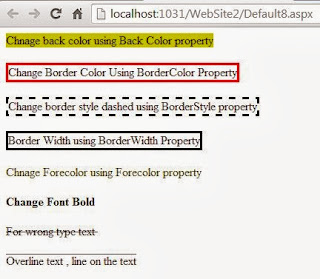
Output
Formating on Label Control in ASP.NET

Friday, September 27, 2013

Bind DropdownList using structure in ASP.NET

<%@ Page Language="C#" AutoEventWireup="true" CodeFile="Default7.aspx.cs" Inherits="Default7" %>

<!DOCTYPE html PUBLIC "-//W3C//DTD XHTML 1.0 Transitional//EN" "http://www.w3.org/TR/xhtml1/DTD/xhtml1-transitional.dtd">

<html xmlns="http://www.w3.org/1999/xhtml">
<head runat="server">
    <title></title>
</head>
<body>
    <form id="form1" runat="server">
    <div>
        <asp:DropDownList ID="DropDownList1" runat="server">
        </asp:DropDownList>
    </div>
    </form>
</body>
</html>

Codebehind code

using System;
using System.Collections.Generic;
using System.Linq;
using System.Web;
using System.Web.UI;
using System.Web.UI.WebControls;

public partial class Default7 : System.Web.UI.Page
{
    struct student
    {
       public string name;
       public int age;
    }
    protected void Page_Load(object sender, EventArgs e)
    {
        student[] s1 = new student[5];
        s1[0].name = "jacob";
        s1[1].name = "jacob lefore";
        s1[2].name = "my name is jacob";


        foreach (student item in s1)
        {
            DropDownList1.Items.Add(item.name);   
        }


    }
}

Output
Bind DropdownList using structure in ASP.NET

How to use DropDownList Control in ASP.NET

<%@ Page Language="C#" %>

<!DOCTYPE html PUBLIC "-//W3C//DTD XHTML 1.0 Transitional//EN" "http://www.w3.org/TR/xhtml1/DTD/xhtml1-transitional.dtd">

<script runat="server">

    protected void Page_Load(object sender, EventArgs e)
    {
        DropDownList1.Items.Add("Apple");
        DropDownList1.Items.Add("mango");
        DropDownList1.Items.Add("orange");
     
    }

    protected void DropDownList1_SelectedIndexChanged(object sender, EventArgs e)
    {
        Label1.Text = "your selected item is <br/>" + DropDownList1.SelectedItem.Text;
    }
</script>

<html xmlns="http://www.w3.org/1999/xhtml">
<head runat="server">
    <title></title>
</head>
<body>
    <form id="form1" runat="server">
    <div>
        <asp:DropDownList ID="DropDownList1" runat="server" Height="20px"
            onselectedindexchanged="DropDownList1_SelectedIndexChanged" Width="186px"
            AutoPostBack="True">
        </asp:DropDownList><br />
        <asp:Label ID="Label1" runat="server" Text=""></asp:Label>
    </div>
    </form>
</body>
</html>

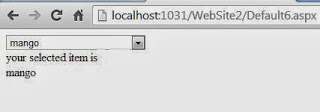
Output
Example of Add item to DropdownList in ASP.NET

Example of Add item to DropdownList in ASP.NET

<%@ Page Language="C#" %>

<!DOCTYPE html PUBLIC "-//W3C//DTD XHTML 1.0 Transitional//EN" "http://www.w3.org/TR/xhtml1/DTD/xhtml1-transitional.dtd">

<script runat="server">

    protected void Page_Load(object sender, EventArgs e)
    {
        DropDownList1.Items.Add("Apple");
        DropDownList1.Items.Add("mango");
        DropDownList1.Items.Add("orange");
     
    }

    protected void DropDownList1_SelectedIndexChanged(object sender, EventArgs e)
    {
        Label1.Text = "your selected item is <br/>" + DropDownList1.SelectedItem.Text;
    }
</script>

<html xmlns="http://www.w3.org/1999/xhtml">
<head runat="server">
    <title></title>
</head>
<body>
    <form id="form1" runat="server">
    <div>
        <asp:DropDownList ID="DropDownList1" runat="server" Height="20px"
            onselectedindexchanged="DropDownList1_SelectedIndexChanged" Width="186px"
            AutoPostBack="True">
        </asp:DropDownList><br />
        <asp:Label ID="Label1" runat="server" Text=""></asp:Label>
    </div>
    </form>
</body>
</html>

Output
Example of Add item to DropdownList in ASP.NET

How to Bind ListBox using Complex DataType in ASP.NET

Step-1: Define class properties in class
Step-2: Create a List<DataType> object in code file.
Step-3: Add fields to the list.
Step-4: Bind ListBox with list
Step-5: Assign DataMember to the ListBox.


Create a class file in ASP.NET
using System;
using System.Collections.Generic;
using System.Linq;
using System.Web;

/// <summary>
/// Summary description for Fruits
/// </summary>
public class Fruits
{
    public string  Fruits_Name { get; set; }
    public decimal Fruits_price { get; set; }
 

Take a ListBox on Design window
<%@ Page Language="C#" AutoEventWireup="true" CodeFile="Default5.aspx.cs" Inherits="Default5" %>

<!DOCTYPE html PUBLIC "-//W3C//DTD XHTML 1.0 Transitional//EN" "http://www.w3.org/TR/xhtml1/DTD/xhtml1-transitional.dtd">

<html xmlns="http://www.w3.org/1999/xhtml">
<head runat="server">
    <title></title>
</head>
<body>
    <form id="form1" runat="server">
    <div>
        <asp:ListBox ID="ListBox1" runat="server"
            ></asp:ListBox>
    </div>
    </form>
</body>
</html>

Codebehind Code
using System;
using System.Collections.Generic;
using System.Linq;
using System.Web;
using System.Web.UI;
using System.Web.UI.WebControls;

public partial class Default5 : System.Web.UI.Page
{
    List<Fruits> listitem = new List<Fruits>();

    protected void Page_Load(object sender, EventArgs e)
    {
        listitem.Add(new Fruits() { Fruits_Name = "Apple", Fruits_price = 45.40M });
        listitem.Add(new Fruits() { Fruits_Name = "Mango", Fruits_price = 30.40M });
        listitem.Add(new Fruits() { Fruits_Name = "Orange", Fruits_price = 36.40M });
        listitem.Add(new Fruits() { Fruits_Name = "grapes", Fruits_price = 89.40M });
        ListBox1.DataSource = listitem;
        ListBox1.DataTextField = "Fruits_Name";
        ListBox1.DataBind();

    }
}

Output
How to Bind ListBox using Complex DataType in ASP.NET

© Copyright 2013 Computer Programming | All Right Reserved