-->

Wednesday, October 9, 2013

How to pass list of string from Controller to view in MVC

Introduction

In my previous post i have been learned about pass data from controller to view in MVC. This post contains a list of string value in controller action method and we want to pass that value to MVC View.

lets take a simple Example.

Step-1 : Create a List<String> collection and pass these collection to Dynamic property of ViewBag object.
Step-2: Return View in Controller Index method.
Step-3: Create a view and access dynamic property of ViewBag Object from Controller Index method.

Controller class

using System;
using System.Collections.Generic;
using System.Linq;
using System.Web;
using System.Web.Mvc;

namespace MvcApplication4.Controllers
{
    public class HomeController : Controller
    {
        //
        // GET: /Home/

        public ActionResult Index()
        {
            ViewBag.country = new List<string>()
            {
                "USA",
                "INDIA",
                "UK"
            };
            return View();
        }

    }

}

View
@{
    ViewBag.Title = "List of string value";
}


<h2>Country List</h2>
<ul>
    @foreach (string  country in ViewBag .country)
    {
        <li>@country</li>
    }


</ul>
Output
How to pass list of string from Controller to view in MVC

Tuesday, October 8, 2013

How to pass data from Controller to View in MVC

Introduction 

In my previous post we have been learned How to create a new controller in MVC
Bydefault a controller class contains a Index method and that method returns a ActionResult type value. So we can return View in Index method. Here we will use ViewBag object for initializing dynamic properties such as

public class HomeController : Controller
    {
        //
        // GET: /Home/

        public ActionResult Index()
        {
            ViewBag.name = "jacob";
            return View();
        }


    }
If we want to pass Data ("jacob") from Controller class to View then first we would create a View.

How to create a View in View folder

Step-1 : Create a Directory which name same as Controller class ( here we use Home)
Step-2: Right Click on Home Directory and add new View which name same as Action Controller method (here we use Index.cshtml)
Step-3: Open Index.cshtml page and access Dynamic properties of View Bag object using "@" symbol such as
<h2>@ViewBag.name</h2>

Note :Must Check your Directory structure
Directory structure of MVC file


Output


How to pass data from Controller to View in MVC

How to Use ToolBar Control: WPF

Toolbar control is a container control, that can contains other types of controls like labels, buttons even other containers. In our windows environment, there is also a toolbar which contains our shortcut buttons with images. Wherever we want to go in computer, we can go through a single click on the toolbar’s buttons.

<ToolBar Header="Header of Toolbar Control"/>

The above line of XAML code will place a toolbar control with the header text. The header text will be the above text i.e. “Header of Toolbar Control”. The following image shows the toolbar control:

How to use ToolBar control in WPF XAML

In the right side of this toolbar there is a symbol down arrow key which provides an overflow mechanism. This mechanism is used, when there are more items to fit in the control, to place those items in this overflow area.
<ToolBar VerticalAlignment="Bottom">
<Button Content="File"></Button>
<Button Content="Edit"></Button>
<Button Content="View"></Button>
<Button Content="Help"></Button>
</ToolBar>

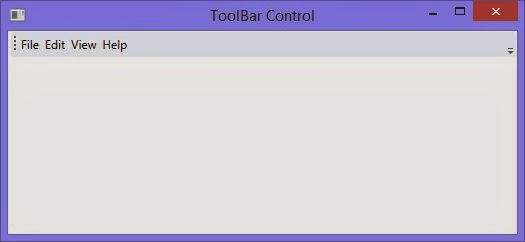
Just analyse the above XAML code, it contains four buttons like a simple menu bar. These buttons will be shown in the toolbar control without using the overflow area.

How to use ToolBar control in WPF XAML

Now, if we want to use that overflow area then just decrease the width of this control as I do in following XAML code.
<ToolBar VerticalAlignment="Bottom" Width="150">
<Button Content="File"></Button>
<Button Content="Edit"></Button>
<Button Content="View"></Button>
<Button Content="Help"></Button>
<Button Content="Height"></Button>
<Button Content="Width"></Button>
<Button Content="Margin"></Button>
</ToolBar>

Using this code it will show four buttons by default, and the last three button in the overflow area. It means when we have some more items to be used, then those items will placed on that overflow area.

How to use ToolBar control in WPF XAML

How to bind DropDownlist using Xml file in ASP.NET

XML File Introduction

XML file is a text file. basically XML file is used for carry data.
Features of XML file
1. Its a Case sensitive language.
2. Use User defined tags
3. Used for communication purpose
4. Its not a presentation language .
5. Same as HTML language.
6. Use Tree based architecture

The DropDownList control displays the list of data as a drop-down list from which you can make a single selection. The DropDownList control exists within the System.Web.UI.WebControls namespace. You cannot select multiple items in this control because when you make a selection from the list, the list closes automatically.
The DropDownList control has no non-inherited methods or events. This class inherited the ListControl class.

Public Properties of DropDownList Class

SelectedIndex : Obtains or sets the index of the selected item in the control.

Application of DropDownList Control


  • In Registration page where you can select your country in given DropDownList.
  • In management project where you can select single option in given options.

Lets take an simple example to bind DropdownList 

Step-1. Create a XML file with <Countries> tag.

<?xml version="1.0" encoding="utf-8" ?>
<Countries>
  <country>
    <countryId>101</countryId>
    <countryName>USA</countryName>
   
  </country>
  <country>
    <countryId>102</countryId>
    <countryName>India</countryName>

  </country>

  <country>
    <countryId>103</countryId>
    <countryName>UK</countryName>

  </country
 
 
</Countries>


Step-2 : Drag one DropdownList from ToolBox and Drop to design window.
Step-3 : Create a DataSet instance 
Step-4 : Read XML file by ReadXML() method
Step-5 :Bind DropdownList with DataSet Instance.

using System;
using System.Collections.Generic;
using System.Linq;
using System.Web;
using System.Web.UI;
using System.Web.UI.WebControls;
using System.Data;

public partial class Default3 : System.Web.UI.Page
{
    protected void Page_Load(object sender, EventArgs e)
    {
        DataSet ds = new DataSet();
      
        ds.ReadXml(Server.MapPath("countries.xml"));
        DropDownList1.DataSource = ds;
        DropDownList1.DataTextField = "countryName";
        DropDownList1.DataValueField = "countryId";
        DropDownList1.DataBind();
       

    }

}
Output
How to bind DropDownlist using Xml file in ASP.NET

Monday, October 7, 2013

Designing Contact us page using ASP.NET and C#

Introduction

A contact us page contains some information about visitor who visit the site and he/she want to contact site- administrator. It contains some fields such as Message subject , Body, Reply name and Reply email.

A simple snap of the contact us page.

Designing Contact us
For designing this type of contact us page first we should take a webform and after that drop some controls onit.
Designing methodology 
Step-1 : Take a webform named as "contact.aspx"
Step-2 :  For writing Contact Us , we should take division tag  <div> </div>
for example 
<div>
    <h2>Contact us</h2>
    </div>

Step-3 : Drop one label control in second division tag with blank text for display result message.

<div style="text-align :center ; background-color :Green" >
        <asp:Label ID="ResultLabel" runat="server" Text=""></asp:Label>

    </div>

Step-4 : Place Label , TextBox with proper validation control on design form.
<div>
        <table style="width: 100%;">
            <tr>
                <td class="style1">
                    &nbsp;
                    <asp:RequiredFieldValidator ID="RequiredFieldValidator1" runat="server"
                        ControlToValidate="msubtxt" ForeColor="Maroon" ValidationGroup="c1">*</asp:RequiredFieldValidator>
                    &nbsp;Message Subject :
                </td>
                <td>
                    &nbsp;<asp:TextBox ID="msubtxt" runat="server" TabIndex="1"
                        ValidationGroup="c1" Width="222px"></asp:TextBox>
                </td>
                <td>
                    &nbsp;
                </td>
            </tr>
            <tr>
                <td class="style1" valign="top">
                    &nbsp;
                    <asp:RequiredFieldValidator ID="RequiredFieldValidator2" runat="server"
                        ControlToValidate="bdytxt" ForeColor="Maroon" ValidationGroup="c1">*</asp:RequiredFieldValidator>
                    &nbsp;&nbsp;&nbsp;&nbsp;&nbsp;&nbsp;&nbsp;&nbsp;&nbsp;&nbsp;&nbsp;&nbsp;&nbsp;&nbsp;&nbsp;&nbsp;&nbsp;&nbsp;&nbsp; Body:</td>
                <td>
                    &nbsp;<asp:TextBox ID="bdytxt" runat="server" Height="87px"
                         TabIndex="2" TextMode="MultiLine"
                        ValidationGroup="c1" Width="223px"></asp:TextBox>
                </td>
                <td>
                    &nbsp;
                </td>
            </tr>
            <tr>
                <td class="style1" valign="top">
                    <asp:RequiredFieldValidator ID="RequiredFieldValidator3" runat="server"
                        ControlToValidate="rplynmetxt" ForeColor="Maroon" ValidationGroup="c1">*</asp:RequiredFieldValidator>
&nbsp;&nbsp;&nbsp;&nbsp;&nbsp;&nbsp;&nbsp;&nbsp;&nbsp;&nbsp;&nbsp;&nbsp; Reply name:</td>
                <td>
                    <asp:TextBox ID="rplynmetxt" runat="server" TabIndex="3" ValidationGroup="c1"
                        Width="222px"></asp:TextBox>
                </td>
                <td>
                    &nbsp;</td>
            </tr>
            <tr>
                <td class="style1" valign="top">
                    <asp:RequiredFieldValidator ID="RequiredFieldValidator4" runat="server"
                        ControlToValidate="rplyemltxt" ForeColor="Maroon" ValidationGroup="c1">*</asp:RequiredFieldValidator>
&nbsp;<asp:RegularExpressionValidator ID="RegularExpressionValidator1" runat="server"
                        ControlToValidate="rplyemltxt" ForeColor="Maroon"
                        ValidationExpression="\w+([-+.']\w+)*@\w+([-.]\w+)*\.\w+([-.]\w+)*"
                        ValidationGroup="c1">*</asp:RegularExpressionValidator>
                    &nbsp;&nbsp;&nbsp;&nbsp;&nbsp;&nbsp;&nbsp;&nbsp;&nbsp;&nbsp;&nbsp; Reply Email:</td>
                <td>
                    <asp:TextBox ID="rplyemltxt" runat="server" TabIndex="4" ValidationGroup="c1"
                        Width="222px"></asp:TextBox>
                </td>
                <td>
                    &nbsp;</td>
            </tr>
            <tr>
                <td class="style1" valign="top">
                    &nbsp;</td>
                <td>
                    <asp:Button ID="Button1" runat="server" Text="Send" ValidationGroup="c1"
                        onclick="Button1_Click" />
&nbsp;<asp:Button ID="Button2" runat="server" Text="Cancel" ValidationGroup="c1" />
                </td>
                <td>
                    &nbsp;</td>
            </tr>
        </table>


    </div>
Design View
Designing Contact us page using ASP.NET and C#

Code View

using System;
using System.Collections.Generic;
using System.Linq;
using System.Web;
using System.Web.UI;
using System.Web.UI.WebControls;
using System.Net.Mail;

public partial class contact : System.Web.UI.Page
{
   
    protected void Page_Load(object sender, EventArgs e)
    {

    }

    protected void Button1_Click(object sender, EventArgs e)
    {

        try
        {
            MailMessage msg = new MailMessage();
            msg.From = new MailAddress(rplyemltxt.Text);
            msg.To.Add("Email id here");
            msg.Subject = msubtxt.Text;
            msg.Body = "Name:" + rplynmetxt.Text + "<br/> Email : " + rplyemltxt.Text + "<br/>Subject :" + msubtxt.Text + "<br/>Contents :" + bdytxt.Text;
            msg.IsBodyHtml = true;
            SmtpClient smt = new SmtpClient("smtp.gmail.com", 587);
            smt.EnableSsl = true;
            smt.Credentials = new System.Net.NetworkCredential("Email id here", "your account password ");
            smt.Send(msg);
            ResultLabel.Text = "Send Message";
        }
        catch (Exception ex)
        {
            ResultLabel.Text = ex.Message;
        }


    }
    protected void Button2_Click(object sender, EventArgs e)
    {
        msubtxt.Text = "";
        bdytxt.Text = "";
        rplyemltxt.Text = "";
        rplynmetxt.Text = "";

    }
}


Note :Read carefully about above mentioned code
msg.To.Add("Email id here"); // pass your gmail id 

 smt.Credentials = new System.Net.NetworkCredential("Email id here""your account password ");  // again pass same gmail id and pass here in the code which is mentioned above.

Output of the Contact page
Designing Contact us page using ASP.NET and C#

Email Output
Designing Contact us page using ASP.NET and C#

© Copyright 2013 Computer Programming | All Right Reserved