-->

Thursday, October 10, 2013

How to insert multiple records into database with SqlParameter in C#

Introduction 

Represents a parameter to a SqlCommand and optionally its mapping to DataSet. Simply you can say, you can add parameter to SqlParameter constructor. Like

new SqlParameter("variable name","value");

Pass this parameter to SqlCommand parameter.

SqlCommand cmd = new SqlCommand();  Like that 

Cmd . Parameter.Add(new SqlParameter("variable name","value")) ;

 Also you can represents some properties of the SqlParameter to SqlCommand something like that.

cmd.Parameters["variable name"].Value = value;
cmd.Parameters["variable name"].Size = 255;
cmd.Parameters["variable name"].SqlDbType = SqlDbType.NVarChar;

Lets take a Simple Example to Insert Multiple record using SqlParameter.

Source code


<%@ Page Language="C#" AutoEventWireup="true" CodeFile="Default.aspx.cs" Inherits="_Default" %>

<!DOCTYPE html PUBLIC "-//W3C//DTD XHTML 1.0 Transitional//EN" "http://www.w3.org/TR/xhtml1/DTD/xhtml1-transitional.dtd">

<html xmlns="http://www.w3.org/1999/xhtml">
<head runat="server">
    <title></title>
</head>
<body>
    <form id="form1" runat="server">
    <div>
    Name :&nbsp;&nbsp;
        <asp:TextBox ID="nmetxt" runat="server"></asp:TextBox> <br />

    Address:  <asp:TextBox ID="addtxt" runat="server"></asp:TextBox>
        <br />
        <br />
        <asp:Button ID="Button1" runat="server" Text="Submit" onclick="Button1_Click" />
        <br />
        <br />
        <asp:Label ID="Label1" runat="server"></asp:Label>
    </div>
    </form>
</body>

</html>
Codebehind File


using System;
using System.Collections.Generic;
using System.Linq;
using System.Web;
using System.Web.UI;
using System.Web.UI.WebControls;
using System.Data.SqlClient;
using System.Data;

public partial class _Default : System.Web.UI.Page
{
    SqlConnection con = new SqlConnection(@"Data Source=.\SQLEXPRESS;AttachDbFilename=|DataDirectory|\Database.mdf;Integrated Security=True;User Instance=True");
    protected void Page_Load(object sender, EventArgs e)
    {

    }
    protected void Button1_Click(object sender, EventArgs e)
    {
        SqlCommand cmd = new SqlCommand();

        cmd .Parameters .Add(new SqlParameter("@name11",nmetxt .Text ));
        cmd.Parameters .Add (new  SqlParameter ("@Add",addtxt .Text ));
        cmd.Parameters["@name11"].Value = nmetxt.Text;
        cmd.Parameters["@name11"].Size = 255;
        cmd.Parameters["@name11"].SqlDbType = SqlDbType.NVarChar;

        cmd.Parameters["@Add"].Value = addtxt.Text;
        cmd.Parameters["@Add"].Size = 255;
        cmd.Parameters["@Add"].SqlDbType = SqlDbType.NVarChar;


        cmd.Connection = con;
        cmd.CommandText = "Insert into [dbtable](name1,Address)values(@name11,@Add)";
        cmd.CommandType = CommandType.Text;

        con.Open();
        int a=cmd.ExecuteNonQuery();
        if (a>0)
        {
            Label1.Text = "sucess";
            Label1.BackColor = System.Drawing.Color.Green;
            Label1.ForeColor = System.Drawing.Color.White;
        }
        con.Dispose();


    }
}


Output
How to insert multiple records into database with SqlParameter in C#

How to insert multiple records into database with SqlParameter in C#

How to pass list of string from Controller to View in MVC using ViewData

Introduction 

ViewData is used to pass Data from controller to View in MVC. ViewData is a Dictionary of Objects that are stored and retrieved using string as a Keys such as 

ViewData["Key"] = Value; // Stored value in ViewData.

String n = ViewData["Keys"] ;  // retrieve from DataView


Controller class code (HomeController.cs)

using System;
using System.Collections.Generic;
using System.Linq;
using System.Web;
using System.Web.Mvc;

namespace MvcApplication4.Controllers
{
    public class HomeController : Controller
    {
        //
        // GET: /Home/

        public ActionResult Index()
        {
           ViewData["countries"] = new List<string>()
            {
                "USA",
                "INDIA",
                "UK"
            };
            return View();
        }

    }

}
Index.cshtml class code in View
@{
    ViewBag.Title = "List of string value";
}


<h2>Country List</h2>
<ul>
    @foreach (string  country in (List<string>)ViewData["countries"])
    {
        <li>@country</li>
    }


</ul>
Output
How to pass list of string from Controller to View in MVC using ViewData

Wednesday, October 9, 2013

Difference/Similarities between ViewBag and ViewData in MVC

Differences
ViewData
ViewBag
ViewData is a dictionary of objects that are stored and retrieved using strings as keys.
Such as:

ViewData[“key”]=value; // stored value in ViewData

String n = ViewData[“Key”]; // Retrieve Data


ViewBag uses the dynamic feature that was introduced in to c# 4. It allows an object to have properties dynamically add to it.

ViewBag.name = “Jacob”;

// here name is the dynamic property of //ViewBag object

Similarities
·         Both ViewData ans ViewBag are used to pass data from a controller to a View.
·         Both ViewData & ViewBag does not provide compile time error checking

Example
Controller class
  public ActionResult Index()
        {
            ViewBag.country = new List<string>()
            {
                "USA",
                "INDIA",
                "UK"
            };
            return View();
        }

View
<ul>
    @foreach (string  country in ViewBag .coun)
    {
        <li>@country</li>
    }


</ul>

·         Note  : In View here you are accessing dynamic property of coun , which is not existing in Controller class. But in case Both ViewData & ViewBag does not provide compile time error checking


How to pass list of string from Controller to view in MVC

Introduction

In my previous post i have been learned about pass data from controller to view in MVC. This post contains a list of string value in controller action method and we want to pass that value to MVC View.

lets take a simple Example.

Step-1 : Create a List<String> collection and pass these collection to Dynamic property of ViewBag object.
Step-2: Return View in Controller Index method.
Step-3: Create a view and access dynamic property of ViewBag Object from Controller Index method.

Controller class

using System;
using System.Collections.Generic;
using System.Linq;
using System.Web;
using System.Web.Mvc;

namespace MvcApplication4.Controllers
{
    public class HomeController : Controller
    {
        //
        // GET: /Home/

        public ActionResult Index()
        {
            ViewBag.country = new List<string>()
            {
                "USA",
                "INDIA",
                "UK"
            };
            return View();
        }

    }

}

View
@{
    ViewBag.Title = "List of string value";
}


<h2>Country List</h2>
<ul>
    @foreach (string  country in ViewBag .country)
    {
        <li>@country</li>
    }


</ul>
Output
How to pass list of string from Controller to view in MVC

Tuesday, October 8, 2013

How to pass data from Controller to View in MVC

Introduction 

In my previous post we have been learned How to create a new controller in MVC
Bydefault a controller class contains a Index method and that method returns a ActionResult type value. So we can return View in Index method. Here we will use ViewBag object for initializing dynamic properties such as

public class HomeController : Controller
    {
        //
        // GET: /Home/

        public ActionResult Index()
        {
            ViewBag.name = "jacob";
            return View();
        }


    }
If we want to pass Data ("jacob") from Controller class to View then first we would create a View.

How to create a View in View folder

Step-1 : Create a Directory which name same as Controller class ( here we use Home)
Step-2: Right Click on Home Directory and add new View which name same as Action Controller method (here we use Index.cshtml)
Step-3: Open Index.cshtml page and access Dynamic properties of View Bag object using "@" symbol such as
<h2>@ViewBag.name</h2>

Note :Must Check your Directory structure
Directory structure of MVC file


Output


How to pass data from Controller to View in MVC

How to Use ToolBar Control: WPF

Toolbar control is a container control, that can contains other types of controls like labels, buttons even other containers. In our windows environment, there is also a toolbar which contains our shortcut buttons with images. Wherever we want to go in computer, we can go through a single click on the toolbar’s buttons.

<ToolBar Header="Header of Toolbar Control"/>

The above line of XAML code will place a toolbar control with the header text. The header text will be the above text i.e. “Header of Toolbar Control”. The following image shows the toolbar control:

How to use ToolBar control in WPF XAML

In the right side of this toolbar there is a symbol down arrow key which provides an overflow mechanism. This mechanism is used, when there are more items to fit in the control, to place those items in this overflow area.
<ToolBar VerticalAlignment="Bottom">
<Button Content="File"></Button>
<Button Content="Edit"></Button>
<Button Content="View"></Button>
<Button Content="Help"></Button>
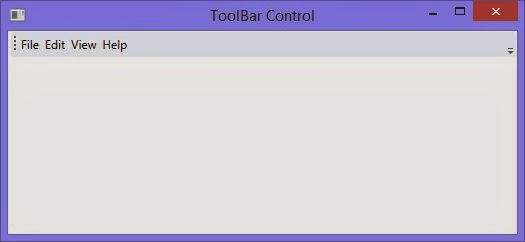
</ToolBar>

Just analyse the above XAML code, it contains four buttons like a simple menu bar. These buttons will be shown in the toolbar control without using the overflow area.

How to use ToolBar control in WPF XAML

Now, if we want to use that overflow area then just decrease the width of this control as I do in following XAML code.
<ToolBar VerticalAlignment="Bottom" Width="150">
<Button Content="File"></Button>
<Button Content="Edit"></Button>
<Button Content="View"></Button>
<Button Content="Help"></Button>
<Button Content="Height"></Button>
<Button Content="Width"></Button>
<Button Content="Margin"></Button>
</ToolBar>

Using this code it will show four buttons by default, and the last three button in the overflow area. It means when we have some more items to be used, then those items will placed on that overflow area.

How to use ToolBar control in WPF XAML

© Copyright 2013 Computer Programming | All Right Reserved