-->

Wednesday, November 6, 2013

Reset all the TextBoxes in c#: Windows Form

When we are doing some editing operations, sometimes we have to empty all the textboxes after or in-between the operation. If user have entered all the values and save all the data, then programmer have to clear the textboxes to operate again.

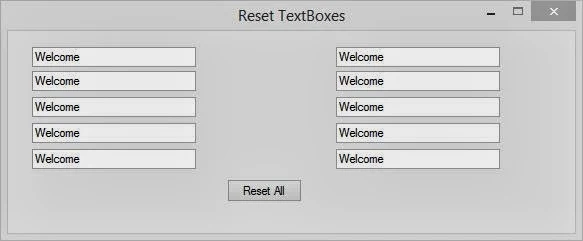
Drag-n-drop some textboxes on the form and a button also. The text of all the textboxes is set to “Welcome”, we are going to be clear all these textboxes with some lines of c# code. The form is look like the below image:


How to reset all the textboxes in c# windows Forms

In the click event of this button, write the following code:
foreach (var item in this.Controls)
{
if (item.GetType().Equals(typeof(TextBox)))
{
TextBox tb = item as TextBox;
tb.Text = string.Empty;
}
}

In this c# code, the loop will exist till all the controls of this form. In the next line check the type of control, if the type is TextBox then set the text property to string.Empty. This code will set the text property to blank string for all the textboxes. And after it the form will look like the below image.

How to reset all the textboxes in c# windows Forms

Using the same code we can set any value for any control having the same type. If we want to set some string to the textboxes then replace string.Empty to that string to be replaced.

Programmatically change Label Text Style in ASP.NET

There are many options to change Text Style of the Text. Basically three types of styles available in ASP.NET such as Inline style sheet , Internal Style Sheet and external style sheet. Inline style sheet applies inside the tag. Now you can change text style of the text using inline style sheet.


<div style="font-family: 'Bernard MT Condensed'; font-size: medium; font-weight: 100; font-style: normal; font-variant: normal; color: #003366"> ASP.NET IS THE BASIC AND CORE PROGRAMMING LANGUAGE</div>

OUTPUT.
inline style sheet

In this example we cover all font style like font name, underline ,size etc  in code behind file
<%@ Page Language="C#" AutoEventWireup="true" CodeFile="Default.aspx.cs" Inherits="_Default" %>

<!DOCTYPE html PUBLIC "-//W3C//DTD XHTML 1.0 Transitional//EN" "http://www.w3.org/TR/xhtml1/DTD/xhtml1-transitional.dtd">

<html xmlns="http://www.w3.org/1999/xhtml">
<head runat="server">
    <title></title>
</head>
<body>
    <form id="form1" runat="server">
    <div style="font-family: 'Bernard MT Condensed'; font-size: medium; font-weight: 100; font-style: normal; font-variant: normal; color: #003366">
   
        Change font style in code behind<br />
    </div>
    <asp:Label ID="Label1" runat="server" Text="Welcome to dotprogramming "></asp:Label>
    <br />
    <br />
    <asp:Button ID="Button1" runat="server" onclick="Button1_Click"
        Text="Change it" />
    </form>
</body>
</html>
Codebehind file

using System;
using System.Collections.Generic;
using System.Linq;
using System.Web;
using System.Web.UI;
using System.Web.UI.WebControls;

public partial class _Default : System.Web.UI.Page
{
    protected void Page_Load(object sender, EventArgs e)
    {

    }
    protected void Button1_Click(object sender, EventArgs e)
    {
        Label1.Font.Name = "broadway";
        Label1.Font.Underline = true;
        Label1.Font.Size = FontUnit.Larger;
        Label1.Font.Overline = true;
        Label1.Font.Italic = true;

    }
}


Output
Programmatically change Label Text Style in ASP.NET


Tuesday, November 5, 2013

How to Provide Search Feature in DataGridView: Windows Forms

We have successfully bind our datagridview with a list of items discussed in earlier post. What if there are many records in our list and datagridview is looking full of records. In this case, user can’t even search any single record, if he/she find, it will be a time consuming process.

So we (The Programmer) have to provide a search feature, through which the user can find some records according to the desired condition. A textbox have its TextChanged event that is triggered when the text value of the textbox is changed. So our task is to write some code in this event, so that when user change the text, the datagridview vary according to the code.

Create a list and bind a datagridview with that list. Add a textbox in the form and generate its TextChanged event and write the following code as it is.
private void searchTextBox_TextChanged(object sender, EventArgs e)
{
if (searchTextBox.Text != string.Empty)
{
var searchResult = stuList.Where(a => a.Name.StartsWith(searchTextBox.Text));
dataGridView1.DataSource = searchResult.ToList();
}
else
dataGridView1.DataSource = stuList;
}

The code will search all the records that’s name will be starts with the given text in the searchTextBox. The following image shows the result after write the character “B” in the textbox. Only a single record will be shown because there is only a single record in the list.

How to provide search feature in DataGridView: Windows Forms

Now if we don’t know the starting characters of the name then there is another function i.e. Contains() that can be used to search all the records that contains the text. Just replace the first line with the below line.

var searchResult = stuList.Where(a => a.Name.Contains(searchTextBox.Text));

Run the project and write the character “o” in the textbox and it will show the result in datagridview as shown:

How to provide search feature in DataGridView: Windows Forms

The datagridview binding will vary with the text changed in the textbox, and if the textbox left empty then it will show all the records of the list.

Monday, November 4, 2013

Exploring the visual studio 2012 IDE : Part-2

Toolbox

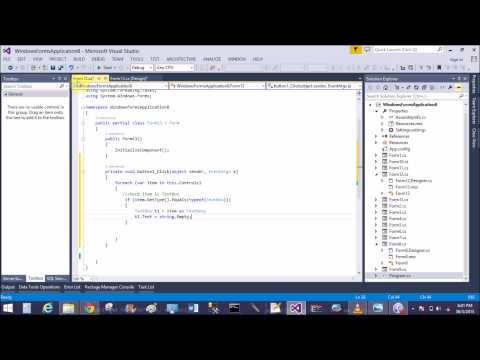
The Toolbox contains a number of tabs and each tab contains a list of controls and components that can be dragged onto your Web form. The Toolbox is docked on the left-side of the IDE; however, if it is not visible, you can access the Toolbox from the View menu or press the CTRL+ALT+ X keys together to open it.

There are different sets of controls available, depending on the type of the designer that is active in the editor. If you are designing a Web Form, you will get a specific set of tools that work with Web controls. If you are designing Windows Form, you will get a specific set of tools in the visual studio IDE for windows controls. If you are designing an XML document, there will be some other controls available within the TollBox. You can also add other customized tabs to the Toolbox wherein you can place your favorite controls and components or add your own customized controls.
ToolBox vs2012


The Code Editor Window

The Code Editor window allows you to write and edit code. You can press the F7 key to switch from the web Forms Designer to Code Editor. Alternatively, you can switch to code Editor by selecting View-->Code. You can use the same editor to create different types of files, such as text files and XML documents. In such a case, this window is called Text Editor
Code Editor window in vs2012

Using the Code Editor window, you can set breakpoints for debugging the application, and collapse sections of code to increase readability. The code Editor window also contain the intellisense feature that makes programming easier.

Intellisense

intelliSense is an extremely useful feature in visual studio. This, as you type the code, provides a list of options for making language references easily accessible and helps you in finding the information you need.
Intellisense is very helpful, as it automatically completes typing for you. For example, when you type TextBox1 and then a period operator(.), Intellisense displays a list of options. Now you can directly enter the member function or variable by using the list of options.
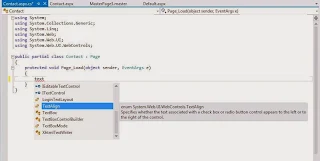
Intellisense in vs2012

The Intellisense technology makes writting of code easier and less prone to errors. It provides quick access to valid member functions or variables, including global variables through the members list. You can select these member functions and variables from the list and use it in your code. Intellisense is also used to view code comments, function declarations, and variable type information. By default, Intellisense works automatically. However, if you prefer to invoke Intellisense explicitly with a menu command or a key combination, disable it by turning it off selecting the Tools-->Options-->Text Editor-->All Languages-->General Option and then deselect the Auto members and Parameter information check boxes. Now, if you want to incorporate the intellisense functionality in the code, You will have to use the Intellisense menu item in the Edit menu.
Visual Studio provides a new features wherein you can make the Intellisense drop-down list transparent. To do so, press the CTRL key while the Intellisense drop-down list is open and you can see the Intellisense drop-down list in a transparent mode that enable you to look at the code without closing the Intellisense.

Transparent Intellisense using ctrl key in vs2012

Various options available in Intellisense are as follows:

List Members- Displays a list of valid member variables or functions for the selected class or structure selecting from the list inserts the member into your code.
Quick Info--Displays the complete declaration for any identifier in your code. Intellisense usually runs as soon as you type the period after a class instance. However, there are occasions where you need to force Intellisense to appear. For example, suppose you misspell a method name, then the Intellisense will not appear because of the wrong function name. You can bring Intellisense appear by pressing CTRL+j keys together. This allows you to select the appropriate method through Intellisense and replace the misspelled method name with the selected one.
Parameter info--Displays the complete declaration, including a parameter list for the method, such as number, name and types of parameters required by a method. You can also force Intellisense for parameter information for methods. For that, type an open parenthesis after the name of the function. Intellisense displays a complete list of the declaration function in a pop-up window and the first parameter appear in bold. By the time you specify the first parameter , the next parameter in the list is highlighted in bold. To close the list, you can press ESC at any time or keep typing the parameters till you complete the method. If you close the closing parenthesis, the parameter list also closes automatically.

Complete Word -- Shows the rest of a variable or function name once you have entered sufficient initial characters to differentiate the term. When you start typing a word and typed sufficient initial character so that it uniquely identifiers a given word in your current file, try pressing the CTRL+SPACEBAR+ keys together. The usual Intellisense drop-down list will be displayed by the specified starting characters. Simply select the appropriate word to complete the word quickly. If the series of starting letters uniquely identifies a single word in the Intellisense list, then the complete word will be inserted automatically. For example, to make the fontFamily property appear quickly on the code Editor, type font on the Code Editor. An Intellisense drop-Down list appear with options starting from Font, such as font, fontConverter, FontFamily, FontHeight. The moment you enter F, the selected item becomes FontFamily and you can press the Enter key to make the FontFamily word appear quickly on the code Editor.
Sunday, November 3, 2013

Atomic,List and Union Data Types in XML Schemas

Atomic Data Types

Atomic data types cannot be broken down into smaller units. These data types can be primitive or derived. For example, the string primitive data type cannot be broken down further into smaller units, such as a characters.

List Data Types 

List data types are derived data types that contain a set of values of atomic data types elements referring to a list data type can contain a value only from that defined set. For example, you can create a list data type called pointlist, which is derived from the data type decimal and contains the following values .5, 2.5, and .75. Any element that is associated with the pointlist data type can contain only .5, 2.5, or .75 as its value.

Union Data Types

Union data types are derived from the atomic list data types. For example, if zip name is an atomic data type that can n create a data type called zips that can contain a combination of both these data types. Now, if you create an element called ZIPCODE of type zips, then ZIPCODE  element can contain the values shown in the following code snippet:

<ZIPCODE>NY</ZIPCODE>
<ZIPCODE>90547  96098 90contain only string values and zipnum is a list data type that can contain a list of zip code numbers, then you ca878 </ZIPCODE>
<ZIPCODE>CA </ZIPCODE>

Derived Data Types in XML Schemas

Introduction

Derived data types are defined by using other data types called base types. Base data types can either be primitive or derived data types. Derived data types can be built-in or user-defined. For example, integer is a built-in data type that is derived from the decimal data type.

Derived Data Types
Base Data Type
Description
Integer
Decimal
Represents a sequence of decimal digits with an optional leading sign (+ or -)
long
Integer
Represents a value within the range -9223372036854775808 to 9223372036854775807
nonNegativeInteger
Integer
Represents an integer that is greater than or equal to zero
Positive Integer
nonNegativeInteger
Represents an integer greater than zero
int
Long
Represents an integer within the range -2147483648 to 2147483747
time
recurringDuration
Represents an instance of time that recurs every day.
date
 timeDuration
Represents a time period that starts at the midnight of a particular day and ends at the next midnight.

Primitive Data Type in XML Schemas

Introduction

Primitive data type are the fundamental data types of XSD. These data types are the basis for defining other data types in XSD. Primitive data types dot not contain elements or attributes. They contain only values.

Some of the primitive data types supported by XSD are listed in the following table.

Primitive Data Type
Description
String
Represents a collection of characters.
Decimal
Represents decimal numbers. This can be used to accurately define a value.
Float
Represents single-precision 32-bit floating-point numbers
Boolean
Represents Boolean values. This data type can have a value of true or false
timeDruration
Represents certain duration of time.
RecurringDuration
Represents a time duration that recurs after a specific interval.
© Copyright 2013 Computer Programming | All Right Reserved