-->

Friday, November 8, 2013

Lab Digitization Project in Windows Forms with C#

Download this project

Project cost : 300Rs or $10
Pay me at:


Via bank transfer

 
ICICI bank account number is :    153801503056
Account holder name is :                 Tarun kumar saini
IFSC code is :                                   ICIC0001538

SBBJ bank detail :                             61134658849
Account holder name:                        Tarun kumar saini
IFSC code :                                        SBBJ0010398


CONTACT ME

Introduction:

In Colleges and Schools all the labs are following the same procedure to giving the task to students. They write that assignment on the board, students get/copy that and do that in the computer. What if there will be a software in which teacher save the assignment and when student login into the software, the assignment is opened by default.

Lab Digitization is a windows application which stores all the tasks to perform by students and load the current task to be perform. Only the specified tutor can check the related task done by students that’s why it is secure to check the files on computer.

The important thing of this software is: after a time period, student can’t check the tutor’s task and he/she will not be eligible to do that assignment. Each task entry usually consist of some fields i.e. tutor filename, start time and end time.

Features of Project: 


  • Tutor and student can only login with their respective credentials.
  • Only tutor can save an assignment. 
  • Related tutor can add/edit student’s details and check all the files submitted by the students
  • Student can only read its current assignment and can submit its own answer.

System Requirements:


  • Visual Studio 2010 or higher
  • SqlServer 2008 or higher
  • DotNet Framework 4.0 or higher (pre-loaded with Visual Studio)

Run the project:

It is a windows form application, so either press F5 or click on Start button. It will load the login window, which requires username and password. For Tutor username is “admin” and password is “password”, click on login button and the manage options window will be shown to you.

And for the student its name and rollno is required and after login student only read its current assignment and submit its answer only once.

Screenshots:

Tutor Login
Lab Digitization Project in Windows Forms with C#

Student Login
Lab Digitization Project in Windows Forms with C#

TutorList: Contains the list of tutors stored in the database.
Lab Digitization Project in Windows Forms with C#

TutorFileOptions: where user can save its file with start time and end time and date. Student can only open that file in-between the given time.
Lab Digitization Project in Windows Forms with C#

There are some more forms like student workplace, student file check and etc, that can be used by downloading the project.

If you want to purchase this please contact me on :  narenkumar851@gmail.com

How to get name of users in ASP.NET

Introduction

Get the name of the person who is active in the windows environment. ASP.NET provides simple property for this type of query. Use UserName property of the Environment class which is reside in System namespace.

Application of the property is


  • Divide the application in different users also check who is online in current thread.

Example

<%@ Page Language="C#" %>

<!DOCTYPE html PUBLIC "-//W3C//DTD XHTML 1.0 Transitional//EN" "http://www.w3.org/TR/xhtml1/DTD/xhtml1-transitional.dtd">

<script runat="server">

    protected void Button1_Click(object sender, EventArgs e)
    {
        Label1.Text = Environment.UserName; ;
    }
</script>

<html xmlns="http://www.w3.org/1999/xhtml">
<head runat="server">
    <title></title>
</head>
<body>
    <form id="form1" runat="server">
    <div>
   
        <span style="color: rgb(0, 0, 0); font-family: 'Times New Roman'; font-size: medium; font-style: normal; font-variant: normal; font-weight: normal; letter-spacing: normal; line-height: normal; orphans: auto; text-align: left; text-indent: 0px; text-transform: none; white-space: normal; widows: auto; word-spacing: 0px; -webkit-text-stroke-width: 0px; display: inline !important; float: none;">
        Get the name of the person who is active in the windows environment.<br />
        <br />
        <asp:Button ID="Button1" runat="server" onclick="Button1_Click"
            Text="Get user name" Width="135px" />
        <br />
        <br />
        <asp:Label ID="Label1" runat="server"></asp:Label>
        <br />
        </span>
   
    </div>
    </form>
</body>
</html>

OUTPUT
How to get name of users in ASP.NET

Thursday, November 7, 2013

Advantages of XML

Some of the advantages of XML are:


  • Domain-specific vocabulary
  • Data interchange
  • Smart searches
  • Granular updates
  • Users-selected view of data
  • Message transformation

Domain - Specific Vocabulary

HTML uses a set of predefined tags to present data in various formats. While working with HTML, you are restricted to the use of only these tags. On the other hand, XML does not have any predefined tags. You can create new tags based on the requirerments of the application, that is, you can create domain-specific vocabulary in XML.

Consider the following HTML code snippet:

 
      <B> My Book </B>
      <p>
               john smith <br>
               Tech books publications <br>
               $30.00<br>
    </p>
The preceding code snippet represents information about the author, publisher, and cost of a book. However, the tags used for presenting this content do not reveal this information. The tags specify the format in which the content must be displayed on a browser. The same information can be represented in XML as:

        <Book>
               <NAME> My Book </NAME>
               <AUTHOR> John smith </ AUTHOR>
               <PUBLISHER> tech books publications </PUBLISHER>
<PRICE>$30.00</PRICE>
</BOOK>
In the preceding code snippet, the content is described by using meaningful tags to represent the data. XML enables you ti create a markup language for your application and does not place any restriction on the number of tags that you can define. There are several languages derived from XML, such as MathML, which is a markup language used for the representation of mathematical formulae and scientific data, and Wireless Markup Language(WML), which is used for Web Applications that can be accessed by using a cellular phone.

Data Interchange

Data interchange is essential to carry out business transactions. You need to establish standard interfaces among related enterprises in which the data is stored is disparate forms to facilitate data interchange. XML produces files that are unambiguous, easy to generate, and easy to read. It provides a structure to store data in textual format, which can then be used as a standard format or protocol for data interchange. This eliminates the differences in the system that exchange data.

Smart Searches

Although HTML provides you with a set of predefined tags, it is difficult to implement a search on an HTML document. for example, consider the following code snippet in HTML :

The best picture award in 1999 went to the film <b> Titanic. </b> This film was based on the story of a ship called <b> Titanic.</b>

In the preceding code snippet, the search engine will not be able to determine whether you are referring to Titanic as a ship, a play, or a film. If you specify a search for the next Titanic within the tags <b> </b>, then the search will return all the words matching Titanic within the <b> and </b> tags.
The flexibility to create user-defined tags in XML enables you to create smart search engines. For example, consider the following code snippet:

The best picture award in 1999 went to the film
<FILM> Titanic.</FILM>
This film was based on the story of a ship called.
<SHIP>Titanic.</SHIP>

In the preceding code snippet, it is very clear that Titanic is a reference to a film by that name. When you perform a search, you can specify that the search needs to be performed for the text Titanic within the <FILM> and </FILM> tags. This enables the browser to perform a focused search and return precise information that matches the search query.

Granular Updates

 Document updates in HTML are slow as the entire document needs to be refreshed from the server. In comparison with this, only the changed content needs to be downloaded in XML documents, thus making updates faster. For example, if you need to update stock prices on a Web page, it will take more time to update an HTML document, as the entire page would have to be reloaded. With XML, only the prices can be updated.

User -Selected View of Data

In HTML, you need to create separate HTML pages to display the same information in different formats. This is because an HTML page contains data, as well as, instructions to the browser for the presentation of data. On the other hand, XML concentrates on the data and not on its presentation. You can display XML document in the required format by using Cascading Style Sheets(CSS) and Extensible Style Sheet Language (XSL). This separation of data from its presentation has various advantages. For example, you can download an XMl document once and reply different formatting styles by using CSS or XSL.
A user can select one, several, or all records, and sort by different attributes, format data based on a condition, or switch to the graphical view without requesting the XML document from the server for each operation. The same data can be presented differently, perhaps as a subset, depending on the viewer's role with respect to the data. For example, the account department my be able to access financial information, whereas a buyer may not be able to access the same information.

HTML does not allow conditional formatting of a document. For example, it is not possible using HTML to display the name of the product with the highest sales figure in green and the lowest sale figure is red. You can implement conditional formatting of data by using XML.

Message Transformation 

In XML, a message ca be stored in the form of a document, object data, or data from a database. XML message are designed in such a way they reflected the information content and not the intended use of the messages. XML design provides flexibility while storing data as it does not impose any restriction o the field size and the order in which the data is stored. Data can be extracted based on the needs of the client application.

Wednesday, November 6, 2013

Reset all the TextBoxes in c#: Windows Form

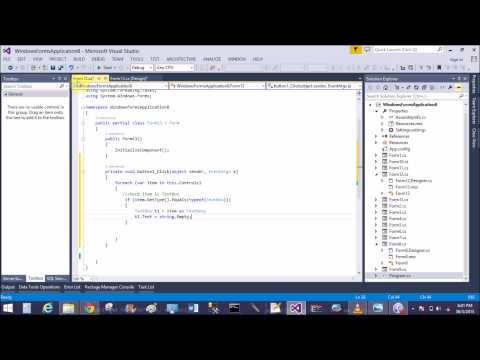
When we are doing some editing operations, sometimes we have to empty all the textboxes after or in-between the operation. If user have entered all the values and save all the data, then programmer have to clear the textboxes to operate again.

Drag-n-drop some textboxes on the form and a button also. The text of all the textboxes is set to “Welcome”, we are going to be clear all these textboxes with some lines of c# code. The form is look like the below image:


How to reset all the textboxes in c# windows Forms

In the click event of this button, write the following code:
foreach (var item in this.Controls)
{
if (item.GetType().Equals(typeof(TextBox)))
{
TextBox tb = item as TextBox;
tb.Text = string.Empty;
}
}

In this c# code, the loop will exist till all the controls of this form. In the next line check the type of control, if the type is TextBox then set the text property to string.Empty. This code will set the text property to blank string for all the textboxes. And after it the form will look like the below image.

How to reset all the textboxes in c# windows Forms

Using the same code we can set any value for any control having the same type. If we want to set some string to the textboxes then replace string.Empty to that string to be replaced.

Programmatically change Label Text Style in ASP.NET

There are many options to change Text Style of the Text. Basically three types of styles available in ASP.NET such as Inline style sheet , Internal Style Sheet and external style sheet. Inline style sheet applies inside the tag. Now you can change text style of the text using inline style sheet.


<div style="font-family: 'Bernard MT Condensed'; font-size: medium; font-weight: 100; font-style: normal; font-variant: normal; color: #003366"> ASP.NET IS THE BASIC AND CORE PROGRAMMING LANGUAGE</div>

OUTPUT.
inline style sheet

In this example we cover all font style like font name, underline ,size etc  in code behind file
<%@ Page Language="C#" AutoEventWireup="true" CodeFile="Default.aspx.cs" Inherits="_Default" %>

<!DOCTYPE html PUBLIC "-//W3C//DTD XHTML 1.0 Transitional//EN" "http://www.w3.org/TR/xhtml1/DTD/xhtml1-transitional.dtd">

<html xmlns="http://www.w3.org/1999/xhtml">
<head runat="server">
    <title></title>
</head>
<body>
    <form id="form1" runat="server">
    <div style="font-family: 'Bernard MT Condensed'; font-size: medium; font-weight: 100; font-style: normal; font-variant: normal; color: #003366">
   
        Change font style in code behind<br />
    </div>
    <asp:Label ID="Label1" runat="server" Text="Welcome to dotprogramming "></asp:Label>
    <br />
    <br />
    <asp:Button ID="Button1" runat="server" onclick="Button1_Click"
        Text="Change it" />
    </form>
</body>
</html>
Codebehind file

using System;
using System.Collections.Generic;
using System.Linq;
using System.Web;
using System.Web.UI;
using System.Web.UI.WebControls;

public partial class _Default : System.Web.UI.Page
{
    protected void Page_Load(object sender, EventArgs e)
    {

    }
    protected void Button1_Click(object sender, EventArgs e)
    {
        Label1.Font.Name = "broadway";
        Label1.Font.Underline = true;
        Label1.Font.Size = FontUnit.Larger;
        Label1.Font.Overline = true;
        Label1.Font.Italic = true;

    }
}


Output
Programmatically change Label Text Style in ASP.NET


Tuesday, November 5, 2013

How to Provide Search Feature in DataGridView: Windows Forms

We have successfully bind our datagridview with a list of items discussed in earlier post. What if there are many records in our list and datagridview is looking full of records. In this case, user can’t even search any single record, if he/she find, it will be a time consuming process.

So we (The Programmer) have to provide a search feature, through which the user can find some records according to the desired condition. A textbox have its TextChanged event that is triggered when the text value of the textbox is changed. So our task is to write some code in this event, so that when user change the text, the datagridview vary according to the code.

Create a list and bind a datagridview with that list. Add a textbox in the form and generate its TextChanged event and write the following code as it is.
private void searchTextBox_TextChanged(object sender, EventArgs e)
{
if (searchTextBox.Text != string.Empty)
{
var searchResult = stuList.Where(a => a.Name.StartsWith(searchTextBox.Text));
dataGridView1.DataSource = searchResult.ToList();
}
else
dataGridView1.DataSource = stuList;
}

The code will search all the records that’s name will be starts with the given text in the searchTextBox. The following image shows the result after write the character “B” in the textbox. Only a single record will be shown because there is only a single record in the list.

How to provide search feature in DataGridView: Windows Forms

Now if we don’t know the starting characters of the name then there is another function i.e. Contains() that can be used to search all the records that contains the text. Just replace the first line with the below line.

var searchResult = stuList.Where(a => a.Name.Contains(searchTextBox.Text));

Run the project and write the character “o” in the textbox and it will show the result in datagridview as shown:

How to provide search feature in DataGridView: Windows Forms

The datagridview binding will vary with the text changed in the textbox, and if the textbox left empty then it will show all the records of the list.

Monday, November 4, 2013

Exploring the visual studio 2012 IDE : Part-2

Toolbox

The Toolbox contains a number of tabs and each tab contains a list of controls and components that can be dragged onto your Web form. The Toolbox is docked on the left-side of the IDE; however, if it is not visible, you can access the Toolbox from the View menu or press the CTRL+ALT+ X keys together to open it.

There are different sets of controls available, depending on the type of the designer that is active in the editor. If you are designing a Web Form, you will get a specific set of tools that work with Web controls. If you are designing Windows Form, you will get a specific set of tools in the visual studio IDE for windows controls. If you are designing an XML document, there will be some other controls available within the TollBox. You can also add other customized tabs to the Toolbox wherein you can place your favorite controls and components or add your own customized controls.
ToolBox vs2012


The Code Editor Window

The Code Editor window allows you to write and edit code. You can press the F7 key to switch from the web Forms Designer to Code Editor. Alternatively, you can switch to code Editor by selecting View-->Code. You can use the same editor to create different types of files, such as text files and XML documents. In such a case, this window is called Text Editor
Code Editor window in vs2012

Using the Code Editor window, you can set breakpoints for debugging the application, and collapse sections of code to increase readability. The code Editor window also contain the intellisense feature that makes programming easier.

Intellisense

intelliSense is an extremely useful feature in visual studio. This, as you type the code, provides a list of options for making language references easily accessible and helps you in finding the information you need.
Intellisense is very helpful, as it automatically completes typing for you. For example, when you type TextBox1 and then a period operator(.), Intellisense displays a list of options. Now you can directly enter the member function or variable by using the list of options.
Intellisense in vs2012

The Intellisense technology makes writting of code easier and less prone to errors. It provides quick access to valid member functions or variables, including global variables through the members list. You can select these member functions and variables from the list and use it in your code. Intellisense is also used to view code comments, function declarations, and variable type information. By default, Intellisense works automatically. However, if you prefer to invoke Intellisense explicitly with a menu command or a key combination, disable it by turning it off selecting the Tools-->Options-->Text Editor-->All Languages-->General Option and then deselect the Auto members and Parameter information check boxes. Now, if you want to incorporate the intellisense functionality in the code, You will have to use the Intellisense menu item in the Edit menu.
Visual Studio provides a new features wherein you can make the Intellisense drop-down list transparent. To do so, press the CTRL key while the Intellisense drop-down list is open and you can see the Intellisense drop-down list in a transparent mode that enable you to look at the code without closing the Intellisense.

Transparent Intellisense using ctrl key in vs2012

Various options available in Intellisense are as follows:

List Members- Displays a list of valid member variables or functions for the selected class or structure selecting from the list inserts the member into your code.
Quick Info--Displays the complete declaration for any identifier in your code. Intellisense usually runs as soon as you type the period after a class instance. However, there are occasions where you need to force Intellisense to appear. For example, suppose you misspell a method name, then the Intellisense will not appear because of the wrong function name. You can bring Intellisense appear by pressing CTRL+j keys together. This allows you to select the appropriate method through Intellisense and replace the misspelled method name with the selected one.
Parameter info--Displays the complete declaration, including a parameter list for the method, such as number, name and types of parameters required by a method. You can also force Intellisense for parameter information for methods. For that, type an open parenthesis after the name of the function. Intellisense displays a complete list of the declaration function in a pop-up window and the first parameter appear in bold. By the time you specify the first parameter , the next parameter in the list is highlighted in bold. To close the list, you can press ESC at any time or keep typing the parameters till you complete the method. If you close the closing parenthesis, the parameter list also closes automatically.

Complete Word -- Shows the rest of a variable or function name once you have entered sufficient initial characters to differentiate the term. When you start typing a word and typed sufficient initial character so that it uniquely identifiers a given word in your current file, try pressing the CTRL+SPACEBAR+ keys together. The usual Intellisense drop-down list will be displayed by the specified starting characters. Simply select the appropriate word to complete the word quickly. If the series of starting letters uniquely identifies a single word in the Intellisense list, then the complete word will be inserted automatically. For example, to make the fontFamily property appear quickly on the code Editor, type font on the Code Editor. An Intellisense drop-Down list appear with options starting from Font, such as font, fontConverter, FontFamily, FontHeight. The moment you enter F, the selected item becomes FontFamily and you can press the Enter key to make the FontFamily word appear quickly on the code Editor.

© Copyright 2013 Computer Programming | All Right Reserved