-->

Tuesday, November 19, 2013

How to change Application name in Windows Store Grid App

Introduction

In our previous article, we have studied about Windows Store Grid App. In this article we will learn about App.xaml file and their behaviors also take a simple example to change Application name.

Pre-requisite

  • You need windows 8 SDK
  • You need developer license

General Structure of App.xaml file

<Application
    x:Class="FirstGridApplication.App"
    xmlns="http://schemas.microsoft.com/winfx/2006/xaml/presentation"
    xmlns:x="http://schemas.microsoft.com/winfx/2006/xaml"
    xmlns:local="using:FirstGridApplication"
    xmlns:localData="using:FirstGridApplication.Data">

    <Application.Resources>
        <ResourceDictionary>
            <ResourceDictionary.MergedDictionaries>

                <!--
                    Styles that define common aspects of the platform look and feel
                    Required by Visual Studio project and item templates
                 -->
                <ResourceDictionary Source="Common/StandardStyles.xaml"/>
            </ResourceDictionary.MergedDictionaries>

            <!-- Application-specific resources -->

            <x:String x:Key="AppName">FirstGridApplication</x:String>
        </ResourceDictionary>
    </Application.Resources>

</Application>

If you want to change Application name in Grid App then you should go for  App.xaml file and change in markup as specified in below XAML code

 <x:String x:Key="AppName">FirstGridApplication</x:String>

First Output Page
How to change Application name in Windows Store Grid App

<x:String x:Key="AppName">My Application</x:String>

After change Output will become

How to change Application name in Windows Store Grid App


Monday, November 18, 2013

How to Develop your Own Custom Controls in C#

Custom control, the control with combined features of other controls, can be developed by any programmer easily. A custom control will not only be usable in the same application, but also it can be used in any other application that may be on other system. This designed control can be easily embedded in other applications.

Custom control have some basic features as well as some functionality that may be known by the programmer:
  • Improves encapsulation.
  • Simplifying a programming model.
  • Can swap out a control with another one.
  • Combines UI elements in a simple way.
  • Using these controls programmer can develop unique controls.

Types

User Control: combines other controls in a logical unit. Inherit from System.Windows.Forms.UserControl class.

Inherited controls: developed by an existing .NET control that is as close as you want to develop. We have to create a custom class and inherit an existing abstract class that is close to what we are developing.

Owner-drawn controls: inherit from a base class like System.Windows.Forms.Control. These controls provides most customizable UI.

Extender providers: These are used to add features to other controls on a form, means these are not necessarily at all.

These controls may be used in our other applications and it reduces the amount of code and the code duplication. It also helps in modularize your code. In the next article we will explain about the steps to create a custom control and also about the events, need to override to create custom textbox.

Getting Started with Windows Store Grid App (XAML)

Introduction

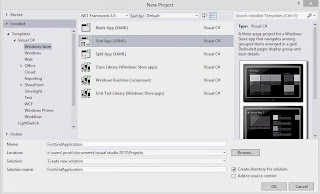
The Grid App is basically used for navigating between categories. User can search contents between categories for example, photo and video apps in Windows 8. In this article we will discuss basics about windows store Grid App. Lets start windows Store Grid Apps with some simple steps. Select  File->New Project->Windows Store Grid (XAML) under the "Windows Store" category.

Windows Store Grid(XAML)

After selecting "OK" button you have successfully created windows Store Grid Application and by-default application page will be opened. This app contains many files shown in Solution Explorer:

Windows Store Grid App(XAML) : Solution explorer

The Grid App template includes these .xaml files:

App.xaml, where you can change your application name also provides markup for the content Host.
GroupedItemsPage.xaml, it is the first page of the application. It contains Application name, Group name, Item name with sub-title. It enables a user to select an item to navigate to the full-page item view, or to select a group label to navigate to the group details page.
GroupedItemsPage.xaml in windows store Grid App

GroupDetailPage.xaml, It shows Group name with short description and also item name with short description, and select an item to navigate to the full-page item view.
GroupDetailPage.xaml in windows store Grid Apps

ItemDetailPage.xaml, which is the full-page view for an item.
ItemDetailPage.xaml in windows store Grid Apps

Programmatically Change RadioButtonList BackGround Color in ASP.NET

Introduction

In this example we will show that how to change backGround color of the RadioButtonList. There are two methods for changing background color, first method contains Color structure and second method contain style sheet.

Algorithm behind the scene 

Step-1: Add a RadioButtonList and Button control on WebForm.
Step-2: Generate the Click event of Button
Step-3: Change color using System.Drawing.Color.Beige structure.
Step-4: In Second Method add attribute with RadioButtonList.

Example of change RadioButtonList BackGround.

<%@ Page Language="C#" AutoEventWireup="true" CodeFile="Default4.aspx.cs" Inherits="Default4" %>

<!DOCTYPE html>

<html xmlns="http://www.w3.org/1999/xhtml">
<head runat="server">
    <title></title>
</head>
<body>
    <form id="form1" runat="server">
    <div>
   
        <asp:RadioButtonList ID="RadioButtonList1" runat="server" Height="26px" Width="201px">
            <asp:ListItem>ASP.NET</asp:ListItem>
            <asp:ListItem>WINDOWS PHONE</asp:ListItem>
            <asp:ListItem>C#</asp:ListItem>
            <asp:ListItem>WINDOWS STORE</asp:ListItem>
        </asp:RadioButtonList>
        <br />
        <asp:Button ID="Button1" runat="server" Height="32px" Text="First Method " Width="108px" OnClick="Button1_Click" />
        <br />
        <br />
        <asp:Button ID="Button2" runat="server" Height="32px" Text="Second Method" Width="108px" OnClick="Button2_Click" />
   
    </div>
    </form>
</body>

</html>

Codebehind code

using System;
using System.Collections.Generic;
using System.Linq;
using System.Web;
using System.Web.UI;
using System.Web.UI.WebControls;

public partial class Default4 : System.Web.UI.Page
{
    protected void Page_Load(object sender, EventArgs e)
    {

    }
    protected void Button1_Click(object sender, EventArgs e)
    {
        RadioButtonList1.BackColor = System.Drawing.Color.Bisque;

    }
    protected void Button2_Click(object sender, EventArgs e)
    {
        RadioButtonList1.Attributes.Add("Style", "Background-color:Red");
    }
}


Output


Friday, November 15, 2013

How to Remove Record Entry in DataGridView by Command Button: Windows Form

Binding datagridview only is not sufficient for a programmer, he/she need to be known about how to remove unnecessary records from the list. For that we have to first bind our list of item to datagridview and then add a command button with text “Remove” as discussed in earlier post.

To remove an entry, either we have to find out the record’s unique detail or the index of the record in temporary list of items. Because we are binding the datagridview with the temporary list, that’s why we can remove this record using only the index of the record.
Bind a datagridview with the list of items and then add a command button with the text property to “Remove”. Our main motive in this article here is to access the command column, we have discussed earlier. So generate the Cell_Click event of datagridview and write the following c# code:
if (e.ColumnIndex == 0)
{
stuList.RemoveAt(e.RowIndex);
dataGridView1.DataSource = null;
dataGridView1.DataSource = stuList;
}
Run the form and click on remove button of any row you want to delete. And it will remove that record from the list only.
Form having all the rows:
How to Remove Record Entry in DataGridView by Command Button: Windows Form

Form after deleting the last row, it will show only two records.

How to Remove Record Entry in DataGridView by Command Button: Windows Form

Suppose, the user don’t want to remove, and by mistake he/she has clicked on the button then what? We have to use a confirmation message, record will be deleted only when user presses “Yes” and do nothing if user clicked on “No”. Write the following code replacing above code:
if (e.ColumnIndex == 0)
{
DialogResult result = MessageBox.Show("Sure Delete!", "Confirmation", MessageBoxButtons.YesNo);
if (result==DialogResult.Yes)
{
stuList.RemoveAt(e.RowIndex);
dataGridView1.DataSource = null;
dataGridView1.DataSource = stuList;
}
}
Run the code, it will show a confirmation message box as below. If you click on “Yes” it will delete it, and if you click on “No” it will do nothing. You can change the code as per your requirements.

Passing value through Public Property: Windows Forms

As in earlier article, we have passed a string value from one windows form to another, using the constructor function in C# language. In this article we will pass the same string value by a public property in the called form i.e. second windows form here.

1. Add two windows form in your project i.e. Form1 and Form2, according to standard names.
2. Drag-n-drop one textbox and one button on each of the form.
3. Generate click event of both of the buttons individually.
4. In Form2.cs file create a public property of type string named value (name may be changed).
5. Form2 class in form2.cs file have to be look like below c# code:
public partial class Form2 : Form
{
public string Value { get; set; }
public Form2()
{
InitializeComponent();
}

private void button1_Click(object sender, EventArgs e)
{
Value = textBox1.Text;
this.Close();
}
}
This code will assign the textbox1’s value to the public property “Value”, and close this form, when the user will click on button1.
6. Now on the form1 the click event of button1 will look like the following c# code:
private void button1_Click(object sender, EventArgs e)
{
Form2 form2 = new Form2();
form2.ShowDialog();
textBox1.Text = form2.Value;
}
In this code it will create an object of form2 and show that form as a modal dialog box. Enter any value in the textbox of form2, and click on the button, and your value is passed in form1.

For example I have entered “Passed value” in the textbox and after closing the form, form1’s textbox have the same value. Check out the images shown below:

1. When we run the project, the textbox is empty. Just click on the button, it will show form2.

Passing value through Public Property: Windows Forms

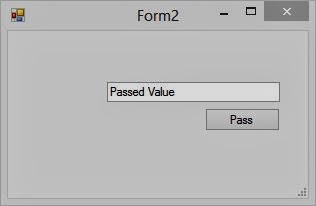
2. Write anything you want to send to previous form, I have written “Passed Value”. And click on the “pass” button.
Passing value through Public Property: Windows Forms

3. The previous form will bring to front and the textbox have the same value you write, “Passed Value” here.

Passing value through Public Property: Windows Forms

In above steps, we have passed string type of value, the type may be changed as int, float, double or any object of a class. Array can also be passed using the same procedure, replace the string from the array you want to pass.

How to pass value using Constructor

Applying a Style Sheet to an XML Document

A style sheet object that passes into the transformNode method needs to be recompiled every time the method is called. Compiling a style sheet means setting all its template rules in an executable state. By using the XSLTemplate object and the XSLProcessor object to perform transformation facilitates  the reduction of overheads and increases the performance of an XSLT application.

The XSLTemplate Object


The XSLTemplate object is a dom object that is used to access an XSLT style sheet. This object is used to hold a cached style sheet that can then be dynamically associated with an XML document.

Before a style document can be applied to an XML document, it is converted into a tree structure by the parser. In the early versions of MSXML, the style sheet had to be compiled each time it was required for processing an XML document. In other words, the tree structure for a style sheet had to be recreated for the use of XSL document, as the compiled version was not stored in the system. This resulted in a longer processing time. However, in MSXML 2.6 and later, a compiled version of the XSLT document is stored in the cache memeory of the computer. This means that the XSLT tree is created the first time the document is compiled. For each successive use of the style sheet, the compiled version is reused.

The XSLT tree structure is loaded into the memory of the computer and used to process the XML document. This is because the XSLTemplate object stores the compiled XSLT document. Therefore, you must first create an XSLTemplate object. In the following example, an XSLTemplate object called xsltobj is created using JavaScript:

           xsltobj= new ActiveXObject ("MSXML2.XSLTemplate . 6 . 0") ;

This object must be associated with an XSLT style sheet document. Consider the following code snippet:

          var xsldocobj= new  ActiveXObject ("Msxm12.freeThreadedDOMDocument . 6 . 0") ;
           xsldocobj . load ("products . xsl") ;
           xsltobj . stylesheet=xsldocobj ;

In the preceding example, an instance of the FreeThreaded DOMDocument object is created. This object can be used to access an XML document as well as an XSLT style sheet. This is because XSLT is an application of XML. The load () method of the FreeThreaded DOMDocument object is used to associate the XSL document products.xsl with the xsldocobj object. The stylesheet property of the xsltobj object is then used to associate the XSLTemplate object with the object that holds the XSL document.

The XSLProcessor Object


To process an XML document by using a style sheet, you must create an instance of the XSLProcessor object. This object is used to apply a style sheet to an XML document and then process that document. The XSLProcessor object is supported only in IE 5.0 and higher versions.

The XSLProcessor object applies the given XSLT document to a specifc XML document. In other words, this object transforms an XML document by using the XSLT style sheet. For example, an XML document can be transformed into an HTML document by applying the appropriate XSLT style sheet by using XSLProcessor object.

The JavaScript code to create an XSLProcessor object is as follows:

        var  xsalprocobj= xsltobj.createProcessor ( ) ;

In this example, the createProcessor ( ) method is used to create a new XSLProcessor object called xslprocobj. The createProcessor ( ) method is called by xsltobj, which represents a cached version of a compiled XSLT template. The xsltobj object is associated with a specific style sheet contained in the variable xsldocobj.

You can then create the XML document for which the style sheet contained in the xsltobj object must be applied. Consider the following example:

        var xmldocobj = new ActiveXObject ("Msxm12 . DOMDocument . 6 . 0") ;
        xmldocobj . load ("products . xml") ;

In the example, a new DOMDocument object called xmldocobj is created. The load ( ) method of this object is used to associate an XML document called products . xml with this object. This XML document is then passed to the XSLProcessor object as an input by using the input property. This property is used to specify the XML tree that must be transformed, as follows:

        xslprocobj . input=xmldocobj ;

The transform ( ) method of the XSLProcessor object is then invoked. This method performs the transformation of an XML document. During transformation, the tree structures of the XML and XSLT documents are used as input. The XSLT tree is applied to the XML tree and the document is then processed. The output of this process is an XML document that is rendered in the manner specified in the XSLT document. Consider the following example:

       xslprocobj . transform ( ) ;

In the preceding example, the transform ( ) method of the XSLProcessor object is invoked. The transform() method can be called multiple times for an XML Document to transform the different sections of the XML document.. The result of the transform ( ) method is displayed using the output property of the XSLProcessor object. The output can be displayed in a browser window or a message box. Consider the following example:

      alert (xslprocobj . output ) ;

In this example, the alert ( ) method is used to display the data stored in the transformed XML document in a message box.
© Copyright 2013 Computer Programming | All Right Reserved