-->

Saturday, December 21, 2013

How to Create a Project in NetBeans GUI Builder: Java Programming

A NetBeans IDE project is a group of Java source files plus its associated Meta data, including project-specific files. A Java application may consist of one or more projects. All Java development in the IDE takes place with in projects, we first need to create a new project within which to store sources and other project files.

To create a new GUI application project:

  • Click File → New Project command. Alternately. You can click the New Project icon in the IDE toolbar or press Ctrl + Shift + N.
  • In the Categories pane, select the Java node and in the projects pane, choose the Java Desktop Application and then Click Next.

How to Create a Project in NetBeans GUI Builder: Java Programming

  • Enter desired name in the Project Name field and specify the project location.
  • Leave the Use Dedicated Folder for storing Libraries checkbox unselected. (If you are using IDE 6.0, this option ids not available.)
  • Ensure that the Set as Main Project checkbox is selected.

How to Create a Project in NetBeans GUI Builder: Java Programming


  • Finally click Finish button.
    Now the NetBeans IDE will create the project folder on your system in the designated location. This folder contains all of the project’s associated files.
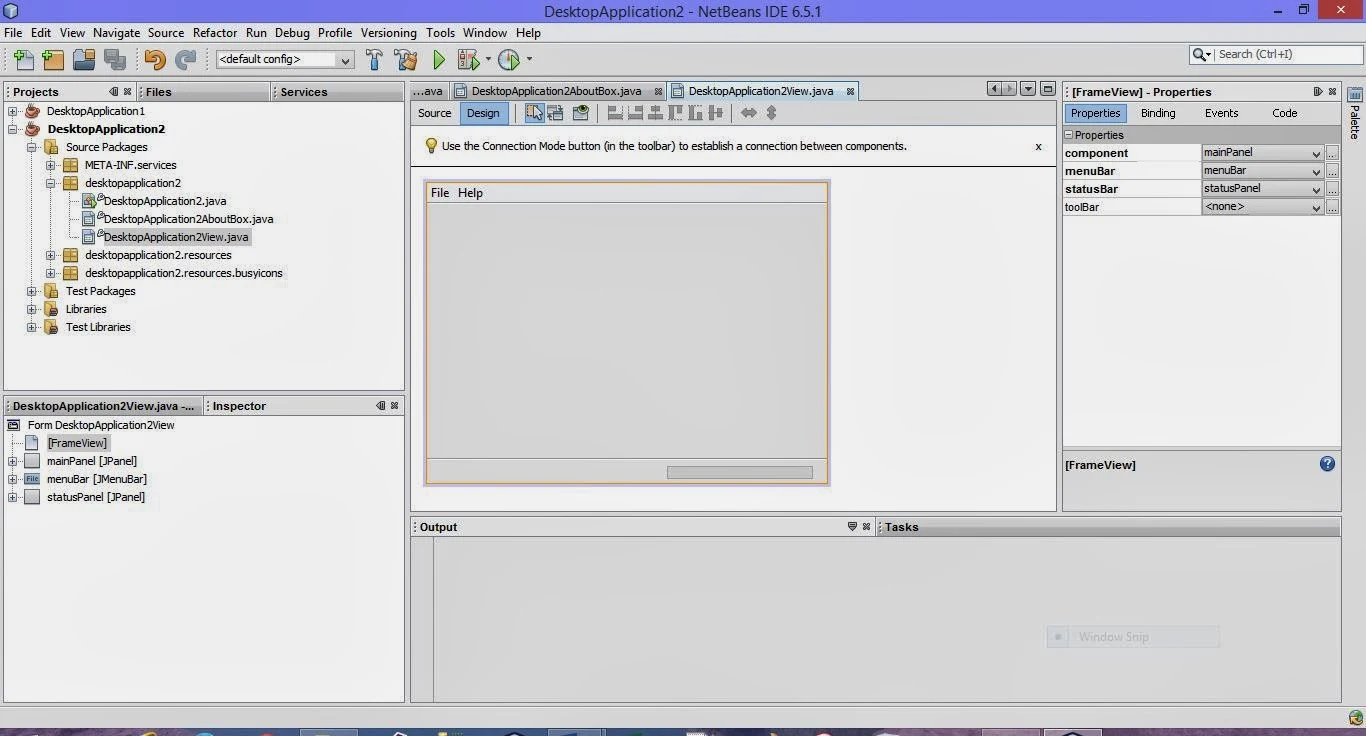
  • Next, you need to first add a frame window to your project where you can add desired components and functionally.
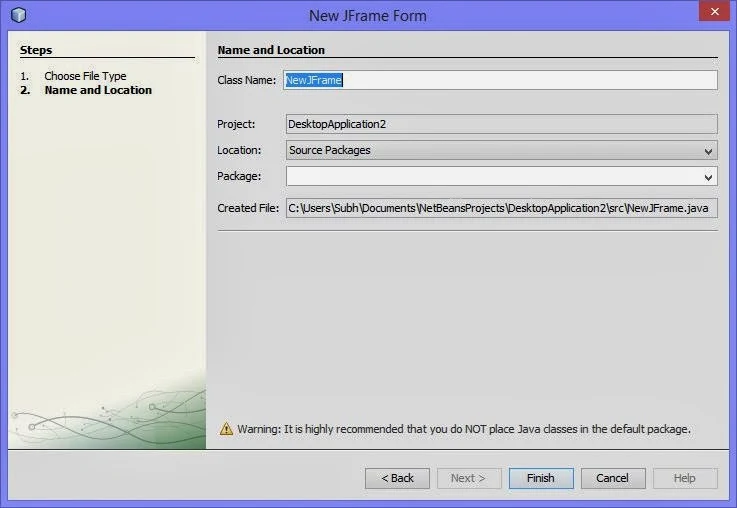
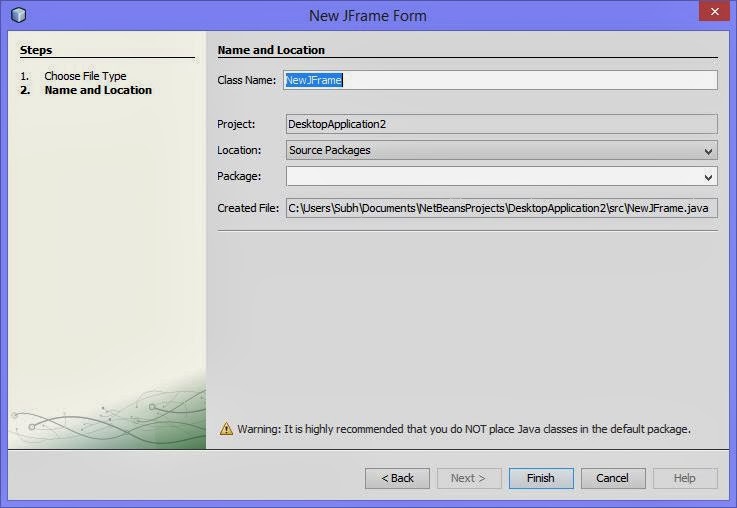
    For this, on the top left pane, under Projects Tab, right click on your project’s name and select New. From the submenu, select JFrame Form. A new Frame dialog box will open as shown:
How to Create a Project in NetBeans GUI Builder: Java Programming

  • In this dialog box, specify the name of the frame being added in the box next to Class Name and click Finish.

This is newly added frame is the top level container of your application. Now in the Design View of this frame, you can add desired components from the Swing Controls under Palette and work further.

Friday, December 20, 2013

Connect SqlDataSource Control with Database, Insert, Update and Delete

How to connect SqlDataSource Control with database, also add extra features like insert, update and delete. Here we will take some steps, these are

Step-1 : Create a SQL Table with some fields like
sno int (primaryKey, Isidentity=true)
name nvarchar(50)
address nvarchar(250)


Step-2 : Add SqlDataSource Control to Design window from toolbox
Step-3 : Select 'Configure Data Source' link using show Smart tag.

'Configure Data Source'


Step-4 : Select Database or ConnectionString from Dropdown menu.
ConnectionString

Step-5 : Select Table-name from Dropdown menu also select Advanced tab.
Table-name from Dropdown menuAdvanced tab

Step-6 : Select Insert, Update and delete checkbox option.
Step-7 : Click to Test Query and  Finish button

Now generate source code in page file

<%@ Page Language="C#" AutoEventWireup="true" CodeFile="Default.aspx.cs" Inherits="_Default" %>
<!DOCTYPE html PUBLIC "-//W3C//DTD XHTML 1.0 Transitional//EN" "http://www.w3.org/TR/xhtml1/DTD/xhtml1-transitional.dtd">
<html xmlns="http://www.w3.org/1999/xhtml">
<head runat="server">
    <title></title>
</head>
<body>
    <form id="form1" runat="server">
    <div>
    Database items
        <br />
        <asp:SqlDataSource ID="SqlDataSource1" runat="server"
            ConnectionString="<%$ ConnectionStrings:xyz %>"
            DeleteCommand="DELETE FROM [emp] WHERE [sno] = @sno"
            InsertCommand="INSERT INTO [emp] ([name], [address]) VALUES (@name, @address)"
            SelectCommand="SELECT * FROM [emp]"
            UpdateCommand="UPDATE [emp] SET [name] = @name, [address] = @address WHERE [sno] = @sno">
            <DeleteParameters>
                <asp:Parameter Name="sno" Type="Int32" />
            </DeleteParameters>
            <InsertParameters>
                <asp:Parameter Name="name" Type="String" />
                <asp:Parameter Name="address" Type="String" />
            </InsertParameters>
            <UpdateParameters>
                <asp:Parameter Name="name" Type="String" />
                <asp:Parameter Name="address" Type="String" />
                <asp:Parameter Name="sno" Type="Int32" />
            </UpdateParameters>
        </asp:SqlDataSource>

    </div>
    </form>
</body>
</html>


Steps to Retrieve Records with SQL Server Management Studio: SQL Programming

As I have discussed in my first SQL article that the database scenario is AdventureWorks, on which we will work on. The AdventureWorks database is stored on the LocalDb (Currently used) database server. The problem we are sorting out is, the details of the sales persons are stored in the SalesPerson table. The management wants to view the details of the top three sales persons who have earned a bonus between $4,000 and $6,000.

To retrieve the specified records, programmer need to create a query first and then execute the query to generate the report. To display the top three sales person records from the SalesPerson table, programmer need to use the TOP keyword. In addition, to specify the range of bonus earned, you need to use the BETWEEN range operator.

To create the query by using the SQL Server Management Studio, just follow simple steps written below:
  • Select Start>Programs>SQL Server Management Studio to display the Microsoft SQL Server Management Studio Window. Connect to Server dialog box is displayed by-default, if not you can simple open it from File>Connect Object Explorer.
  • Select the server name from the Server name drop-down list.

    Steps to Retrieve Records with SQL Server Management Studio: SQL Programming
    Note: Name of the server is computer specific. In this example, the name of the server is (LocalDb)\v11.0. You can use the default server as the database server.
  • Fill the details as given in the image and click on Connect button. It will connect to the server and management studio will be displayed as shown in the image.

    Steps to Retrieve Records with SQL Server Management Studio: SQL Programming
  • Expand the Databases node and it will show all the databases on this server. Now right click on AdventureWorks2012 database and select New Query.
  • Name of the Query Editor window is specific to machine.
  • Type the following query in the Query Editor window:
SELECT TOP 3 *
FROM [AdventureWorks2012].[Sales].[SalesPerson]
Where Bonus BETWEEN 4000 AND 6000

  • Click on Execute (in SQL editor toolbar) or press F5 and check the result as shown in the following image:

Steps to Retrieve Records with SQL Server Management Studio: SQL Programming


Wednesday, December 18, 2013

How to Add Functionality to NetBeans GUI: Java Programming

Programmer can know, to add graphical components in a frame and how to set their properties. But doing much is not sufficient in java programming, because the graphical controls that you add to frame can’t do anything on their own.

In other words, they have the look but not any feel. To add feel i.e. functionality or behaviour to them, you must also know about something called events and listeners. The three major players that add functionality to GUI are:

  • The Event: An event is an objects that gets generated when user does something such as mouse click, dragging, pressing a key on the keyboard etc.
  • Source of the Event: The component where the event has occurred, is the source of the event. For example, if a user clicks (the Event) on a Submit button then the source of this event is Submit button.
  • Event Listener: An event listener is attached to a component and contains the methods/functions that will be executed in response to an event. For example, if a user click on a button, then the buttons event listener will executed some code in response to this event.
    Listener Interface. An event Listener stores all the methods that it will implement in response to events, inside the listener interface. So, you can say that a listener interface stores all event-response-methods or event-handler methods of an event listener.

Commonly used Events and Listeners.


  • ActionEvents: of type ActionListener used to gets activated when the user performs an action with a button or other components. Usually, a user invokes the button by clicking over it. However, the user can also invoke a button action tabbing to the button and pressing the Enter key.
  • ItemEvent of type ItemListener used to gets activated when the selected item in a list control, such as a combo box or list box, is changed.
  • AdjustmentEvent of type AdgustListener used to gets activated when the user drags or moves knob of a scroll bar.
  • ChangeEvent of type ChangeListener used to gets active when the properties of a slider change.
  • KeyEvents of type KeyListener used to gets activate when the user press a key on the keyboard. You can use this event to watch for specific keystrokes entered by the user.
  • ListSelection of type ListSelectionListener used to get activated when an item is selected/deselected from list (JList).
  • MouseEvent of type MouseEventListener used to gets activated when the user does something with the mouse, such as clicks one of the buttons, drags the mouse, or simply moves over another objects.
  • FocusEvent of type FocusEventListener used to gets activated when a components receives or lose focus. Focus is ability to receive input, e.g., you can select from a list box only when it has focus, you can type in a text field only if it has focus.  


Each of the listeners listed above have multiple methods stored in their listener interfaces to respond to different type of events. You are armed with some basic knowledge of GUI functioning in Java so in further articles i will let you know about to create a GUI application using NetBeans.

How to Retrieve Records without Duplication of Values: SQL Programming

Redundancy is each second programmer’s problem in querying with sql programming. Sql programming provides some in-built keyword that may be used to remove this problem. The article shows syntax and use of this keyword with examples.

When there is a requirement to eliminate rows with duplicate values in a column, the DISTINCT keyword is used. The DISTINCT keyword eliminates the duplicate rows from the result set.

The syntax of the DISTINCT keyword is:

SELECT [ALL|DISTINCT] column_names
FROM table_name
WHERE search_condition

Where

  • column_names: name of fields to be displayed in output.
  • table_name: name of table from which records are to be retrieved.
  • Search_condition: mostly used to filter the output.
  • DISTINCT keyword specifies that only the records containing non-duplicated values in the specified column are displayed.

In a query that contains the DISTINCT keyword, you can specify more than one column name. In that case, the DISTINCT keyword is applied to all the columns that are there in the select list. You can specify DISTINCT only before the select list. The following SQL query retrieves all the Titles beginning with PR from the Employee table:

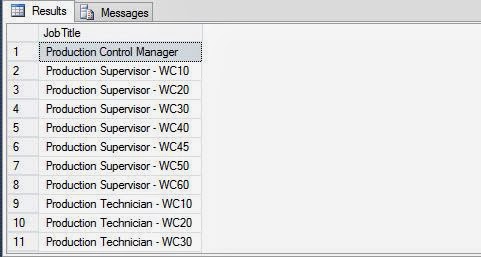
SELECT DISTINCT JobTitle FROM HumanResources.Employee WHERE JobTitle LIKE 'PR%'

Output: The result contains all the records of employee table having PR, the starting two characters. The query will display only the JobTitle field, as specified in the query.

How to Retrieve Records without Duplication of Values: SQL Programming


How to Retrieve Records from Top of Table: SQL Programming

Sql Programming provides a specific keyword that enables programmer to retrieve records from the top of the table. Programmer can use the TOP keyword to retrieve only the first set of rows from the top of a table. This set of records can be either a number of records or a percent of rows that will be returned from a query result.

For example, you want to view the product details from the product table, where the product price is more than $50. There might be various records in the table, but you want to see only the top 10 records that satisfy the condition. In such a case, you can use the TOP keyword.

The syntax of using the TOP keyword in the SELECT statement is:

SELECT [TOP n{PERENT}] column_name [, column_name…]
FROM table_name
WHERE search_conditions
[ORDER BY [column_name [, column_name…]

Where

  • n is the number of rows that you want to retrieve.
  • If the PERCENT keyword is used, then ‘n’ percent of the rows are returned.
  • If the SELECT statement including TOP has an ORDER BY clause, then the rows to be returned are selected after the ORDER BY clause has been applied.

The following SQL query retrieves the top three records from the Employee table where the HireDate should be greater than or equal to 1/1/2002 and less than or equal to 12/31/2005. Further, the record should be displayed in the ascending order based on the SickLeaveHours column:

SELECT TOP 3 *
FROM HumanResources.Employee
WHERE HIreDate >= '1/1/2002' AND HireDate <= '12/31/2005'
ORDER BY SickLeaveHours ASC

Output: The result from the above sql query will be only top three records after satisfying the given condition.

 How to Retrieve Records from Top of Table: SQL Programming


How to Retrieve Records to be Displayed in a Sequence: SQL Programming

We have discussed many situations in which programmer retrieve records based on a condition. The purpose of this clause in sql programming, is not to verify the result, but to sort the result set. Using this clause, programmer can sort the records either in ascending or descending order.

Programmer can use the ORDER BY clause in the SELECT statement to display the data in a specific order. The order may be ascending and descending, depend on the requirement of query result.

The Syntax of the ORDER BY clause:

SELECT select_list
FROM table_name
[ORDER BY order_by_expression [ASC|DESC]
[, order_by_expression [ASC|DESC]…]

Where

  • Select_list: the list of field names to be displayed.
  • Table_name: name of table from which records are to be retrieved.
  • order_by_expression is the column name on which the sort is to be performed.
  • ASC specifies that the values need to be sorted in ascending order.
  • DESC specifies that the values need to be sorted in descending order.

Optionally, you can also specify multiple columns, if you want to sort the result set based on more than one column. For this, you need to specify the sequence of the sort columns in the ORDER BY clause.

The following SQL query retrieves the record from the Department table by setting ascending order on the Name column:

SELECT DepartmentID, Name FROM HumanResources.Department ORDER BY Name ASC

Output: in the output the records are sorted alphabetically in ascending order according to name as shown in the image.

How to Retrieve Records to be Displayed in a Sequence: SQL Programming


Now try the same query with DESC keyword.

SELECT DepartmentID, Name FROM HumanResources.Department ORDER BY Name DESC

Output: in the output the records are sorted alphabetically in descending order according to name as shown in the image.

How to Retrieve Records to be Displayed in a Sequence: SQL Programming

Note: If you do not specify the ASC or DESC keywords with the column name in the ORDER BY clause, the records are sorted in the ascending order.
© Copyright 2013 Computer Programming | All Right Reserved