-->

Sunday, July 20, 2014

Altering, Dropping and Renaming Views in SQL Server

In addition to creating view in sql server, database developer also need to manage them. Management of a view includes altering, dropping, or renaming described below.

Altering views

If you define a view with a SELECT * statement and then alter the structure of the underlying tables by adding columns, the new columns do not appear in the view. Similarly, when you select all the columns in a CREATE VIEW statement, the columns list is interpreted only when you first create the view. To add new columns in the view, you must alter the view.

You can modify a view without dropping it. This ensures that permissions on the view are not lost. You can modify a view without affecting its dependent objects. To modify a view, you need to use the ALTER VIEW statement. The syntax of the ALTER VIEW statement is:

ALTER VIEW view_name [ (column_name) ]
[WITH ENCRYPTION]
AS select_statement
[WITH CHECK OPTION]
Where,

  • View_name specifies the view to be altered.
  • Column_name specifies the name of the column(s) to be used in a view.
  • WITH ENCRYPTION option enerypts the text of the view in the syscomments view.
  • AS specifies the action to be performed by the view.
  • Select_statement specifies the SELECT statement that defines a view
  • WITH CHECK OPTION forces the data modification statements to follow the criteria given in the SELECT statement.

For example, you created a view to retrieve selected data from the Employee and EmployeeDepartmentHistory tables. You need to alter the view definition by including the LoginID attribute from the Employee table.

To modify the definition, you can write the following statement:

ALTER VIEW vwEmployeeDepData
AS
SELECT e.EmployeeID, LoginID, MaritalStatus, DepartmentID
FROM HumanResources.Employee e JOIN
HumanResources.EmployeeDepartmentHistory d
ON e.EmployeeID = d.employeeID

The preceding code alters the view definition by including the LoginID attribute from the Employee Table.

Dropping Views

You need to drop a view when it is no longer required. You can drop a view from a database by using the DROP VIEW statement. When a view is dropped, it has no effect on the underlying table(s). Dropping a view removes its definition and all the permissions assigned to it.

Further, if you query any view that references a dropped table, you receive an error message. Dropping a table that references a view does not drop the view automatically. You have to use the DROP VIEW statement explicitly.
The syntax of the DROP VIEW statement is:  DROP VIEW view_name

For example, you can use the following statement to remove the vwEmployeeDepData view:
DROP VIEW vwEmployeeDepData

The preceding statement will drop the vwEmployeeDepData view from the database.

You can drop multiple views with a single DROP VIEW statement. The names of the view that need to be dropped are separated by commas in the DROP VIEW statement

Renaming Views

At times, you might need to change the name of a view. You can rename a view without dropping it. This ensures that permissions on the view are not lost. A view can be renamed by using the sp_rename system stored procedure.
The syntax of the sp_rename procedure is:  Sp_rename old_viewname, new_viewname
Where,

  • Old_viewname is the view that needs to be renamed.
  • New_viewname is the new name of the view.

For example, you can use the following statement to rename the vwSal view:
Sp_rename vwSal, vwSalary

The preceding command renames the vwSal view as vwSalary.

While renaming views, you must ensure the following:

  • The view must be in the current database.
  • The new name for the view must follow the rules for identifiers.
  • The view can only be renamed by its owner.
  • The owner of the database can also rename the view.
How to Implement Custom Role Provider in Asp.Net MVC

As I have discussed in earlier article that programmer need to implement custom provides to enable its own database works with in-built functionality. My previous article was to implement custom membership provider and in this article I will continue with custom role provider in MVC.

By following these simple steps we will complete the task:

  • Create a class "Custom_RoleMembership" in Models folder in your MVC application.
  • Inherit this from RoleProvider class exists in "System.Web.Security" namespace.
  • Right click on RoleProvider and select on “Implement Abstract Class”, it will all the override function need to be implement by us.
  • Just implement GetRolesForUser(string username) method and replace that function with the following code:

    public override string[] GetRolesForUser(string username)
    {
    //Get roles for this username and return in string array
    if(username=="admin")
    return new string[] { "Admin" };
    return null;
    }


  • Go to HomeController and place an attribute like below:

    [Authorize(Roles = "Admin")]
    public ActionResult Index()
    {
    ViewBag.Message = "Modify this template to jump-start your ASP.NET MVC application.";
    return View();
    }
  • Open web.config file and place below code under system.web tag

    <roleManager defaultProvider="Custom_RoleMembership" enabled="true">
      <providers>
    <clear />
    <add name="Custom_RoleMembership"
    type="CustomMembershipP.Models.Custom_RoleMembership"  />
      </providers>
    </roleManager>

Now run the application and open Index page, it will redirect you on login view. Login with username = admin and password = password and debug this application, it will check the above method GetRolesForUser(). If there is a role for this user then it will go to index view otherwise return to login page.

In my case I have used only one username and return admin only from the method. But you can check the roles in your database and return them in string array. If there is a role “admin” in your array then only it will open index page.

Saturday, July 19, 2014

How to Implement Custom Membership in Asp.Net MVC

In Asp.Net MVC, default membership works with pre-defined/specified data source where programmer don’t worry about anything related to authentication. To implement authentication with desired data source, programmer must implement custom membership as explained in the article. Using custom membership, programmer can easily authenticate user’s visit through self-written code.

This article will describe some simple steps to complete the task:

  • Create a class named "Custom_Membership" in Models folder in your MVC application.
  • Inherit this from MembershipProvider class exists in “System.Web.Security” namespace.
  • Right click on MembershipProvider and select on “Implement Abstract Class”, it will all the override function need to be implement by us.
  • Just implement ValidateUser() method and replace that function with the following code:

    public override bool ValidateUser(string username, string password)
    {
    if (username == "admin" && password == "password")
    {
    return true;
    }
    return false;
    }

  • Go to AccountController >> Login action and change the login functionality as:

    public ActionResult Login(LoginModel model, string returnUrl)
    {
    if (ModelState.IsValid && Membership.ValidateUser(model.UserName, model.Password))
    {
    FormsAuthentication.SetAuthCookie(model.UserName, model.RememberMe);
    return RedirectToLocal(returnUrl);
    }
    ModelState.AddModelError("", "The user name or password provided is incorrect.");
    return View(model);
    }

  • Open web.config file of the root and add following in system.web tag

    <membership defaultProvider="Custom_Membership">
      <providers>
    <clear/>
    <add name="Custom_Membership"
    type="CustomMembershipP.Models.Custom_Membership"/>
      </providers>
    </membership>
Run the MVC application and open Login page, it provide an error related to membership, to resolve through error just delete “[InitializeSimpleMembership]” attribute from AccountController.

Again run the application and enter username and password as provided above in ValidateUser() function. It will login successfully, now you can override any of the function in your custom membership class.

Thursday, July 17, 2014

How to change text color from ARGB value in ASP.NET

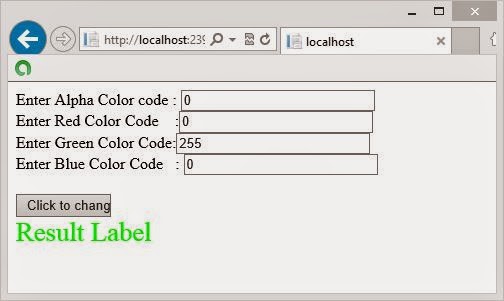
ARGB( ) takes four integer input parameter as a argument. Method name explain all things automatically. This name contain four color code, first "A" for Alpha which take 0-255 integer value. Similarly "R" for RED , "G" for Green and "B" for blue. Now lets take an simple example of ARGB( ) method.

How to change text color from ARGB value in ASP.NETSource code

<form id="form1" runat="server">
    <div>
    
        Enter Alpha Color code :
        <asp:TextBox ID="TextBox1" runat="server" Width="190px"></asp:TextBox>
        <br />
        Enter Red Color Code&nbsp;&nbsp;&nbsp; :<asp:TextBox ID="TextBox2" runat="server" Width="190px"></asp:TextBox>
        <br />
        Enter Green Color Code:<asp:TextBox ID="TextBox3" runat="server" Width="190px"></asp:TextBox>
        <br />
        Enter Blue Color Code&nbsp;&nbsp; :
        <asp:TextBox ID="TextBox4" runat="server" Width="190px"></asp:TextBox>
        <br />
        <br />
        <asp:Button ID="Button1" runat="server" OnClick="Button1_Click" Text="Click to change " Width="95px" />
        <br />
    
    </div>
        <asp:Label ID="Label1" runat="server" Font-Size="20pt" Text="Result Label "></asp:Label>
    </form>

CodeBehind Code


protected void Button1_Click(object sender, EventArgs e)
    {
       
        int alpha = int.Parse (TextBox1.Text);
        int red = int.Parse (TextBox2.Text);
        int green = int.Parse (TextBox3.Text);
        int blue =int.Parse ( TextBox4.Text);
        Label1.ForeColor = System.Drawing.Color.FromArgb(alpha, red, green, blue);


    }   

Code generate the following output


How to change text color from ARGB value in ASP.NET

How to Bind Radio Button Control inside the Grid View control in ASP.NET

Binding process of control is same , You can bind all of controls from this method. In previous article we have  already discussed about Bind GridView in asp.net. In this example we have four radio buttons and one label control. Bind the text  of  radio button use <%# Eval(" Attribute of table") %> .
How to Bind Radio Button Control inside the Grid View control in ASP.NET

<asp:GridView ID="GridView2" runat="server" Height="202px" Width="624px" AutoGenerateColumns ="False" ShowHeader="False" AllowPaging="True">
      <Columns>
<asp:TemplateField>
    <ItemTemplate>
        <asp:Label ID="Label1" runat="server" Text='<%# Eval("Question") %>'></asp:Label><br />
     
            <asp:RadioButton ID="R1" runat="server" Text ='<%# Eval ("Answer-1") %>' GroupName ="g1" />
         <asp:RadioButton ID="R2" runat="server" Text ='<%# Eval ("Answer-2") %>' GroupName ="g1" />
         <asp:RadioButton ID="R3" runat="server" Text ='<%# Eval ("Answer-3") %>' GroupName ="g1"/>
         <asp:RadioButton ID="R4" runat="server" Text ='<%# Eval ("Answer-4") %>' GroupName ="g1"/>
    </ItemTemplate>
    <ItemStyle BorderColor="#999999" BorderStyle="Solid" BorderWidth="3px" />
</asp:TemplateField></Columns> </asp:GridView>

Codebehind code

 private void Bindabledata()
    {
        SqlConnection con = new SqlConnection();
        con.ConnectionString = ConfigurationManager.ConnectionStrings["ConnectionString"].ToString();
        con.Open();
        SqlCommand cmd = new SqlCommand();
        cmd.CommandText = "select * from [Question_Table]";
        cmd.Connection = con;
        DataSet ds = new DataSet();
        SqlDataAdapter da = new SqlDataAdapter(cmd);
        da.Fill(ds);
        GridView2.DataSource = ds;
        GridView2.DataBind();

    }

Code generate the following output

Sunday, July 13, 2014

Clock in windows phone 8

In this article,  i will use  DispatcherTimer class for creating timer control. Using interval property of this class, i will set the increment counter. After set the interval you can call tick event of this class. On tick event you can take current date and time. .
To create a new app in windows phone 8, the steps are listed below:
Create a new project by going through File | New Project | Windows Phone Application - Visual C#. Give a desired project name( World Clock is my app name).
create a new app in windows phone 8

From Solution Explorer, open MainPage.xaml file. (If Solution Explorer window is currently not opened then open it via View>>Other Windows>>Solution Explorer).
Inside Control Panel code fragment, add following code to create world clock app.

Source code (MainPage.xaml)

 <TextBlock HorizontalAlignment="Left" Margin="10,10,0,0" TextWrapping="Wrap" Text="" VerticalAlignment="Top" Width="436" Height="63" x:Name="label1" FontSize="30" Grid.ColumnSpan="2"/>

Code behind 

   DispatcherTimer t1 = new DispatcherTimer();
    t1.Interval = TimeSpan.FromSeconds(1);
            t1.Tick += OnTick;
            t1.Start();

  void OnTick(Object sender, EventArgs args)
        {
            label1.Text = DateTime.Now.ToString();
        }

Code Generate the following output

Clock in windows phone 8

Wednesday, July 9, 2014

How to Get text of radio button using JQuery

If you want to get Text from radio button then first to determine whether the radio button is checked or not , if it is checked then return true. Using the name property, you will get element of  html control. ':Checked' property check the status of html control. Suppose your radio button return true (it means checked) then you will get the value of radio button control using the val( ) method.

Now lets take an simple example

<%@ Page Language="c#" %>

<!DOCTYPE html>
<html xmlns="http://www.w3.org/1999/xhtml">
<head runat="server">   
    <title>Get Text Of Radio Button</title>


    <script src="Scripts/jquery-1.10.2.js"></script>
    <script>
        $(function () {
            $('#Button1').click(function () {
                var rdtxt = $('input[name=rd]:Checked').val();
                alert(rdtxt);
            })
        }); 
</script>

</head>
<body>
    <form id="form1" runat="server">
        <input id="Radio1" type="radio"  value="Gender" name ="rd"/>Gender<br />
        <input id="Button1" type="button" value="button" />
    </form>
</body>
</html>


Code Generate the following output

How to Get text of radio button using JQuery

© Copyright 2013 Computer Programming | All Right Reserved