-->

Tuesday, January 27, 2015

Validate TextBox inside Footer Row of Gridview in ASP.NET

Introduction

Validation of TextBox is already performed earlier. Now, in this post i will do apply the same validation on the TextBox control. But, at this time TextBox inside in GridView control. So, For this type of problem, i have two solution. Before performed all actions, we should bind the gridview with datasource. Now, we can apply validation on the TextBox, which is inside in FooterRow of GridView.  I have a database table, which is used mentioned example:

database table

I-Method (Using RequiredFieldValidator)


<asp:GridView ID="GridView1" runat="server" AutoGenerateColumns="false" ShowFooter="true">

            <Columns>
                <asp:TemplateField HeaderText="Program Id">
                    <ItemTemplate>
                        <asp:Label ID="progid" runat="server" Text='<%# Eval("prog_id") %>' />
                    </ItemTemplate>
                    <FooterTemplate>
                        <asp:TextBox ID="fid" runat="server"></asp:TextBox>

<asp:RequiredFieldValidator ControlToValidate="fid" ForeColor="red" ID="RequiredFieldValidator1" runat="server" ErrorMessage="*"></asp:RequiredFieldValidator>
                     
                    </FooterTemplate>

                </asp:TemplateField>

            </Columns>

        </asp:GridView>
By this method we have to attach RequiredField Validator control with the TextBox control.

II-Method(Using JavaScript)


<!DOCTYPE html>

<html xmlns="http://www.w3.org/1999/xhtml">
<head runat="server">
    <title></title>
    <script type="text/javascript">
        function valiadte() {
            var ftid = document.getElementById('<%=((TextBox)GridView1.FooterRow.FindControl("fid")).ClientID %>');
            if (ftid.value != '') {
                alert("Sucess");

            }
            else {
                alert("field is required");
            }

        }

    </script>
 
</head>
<body>
    <form id="form1" runat="server">
    <div>
        <asp:GridView ID="GridView1" runat="server" AutoGenerateColumns="false" ShowFooter="true">
            <Columns>
                <asp:TemplateField HeaderText="Program Id">
                    <ItemTemplate>
                        <asp:Label ID="progid" runat="server" Text='<%# Eval("prog_id") %>' />
                    </ItemTemplate>
                    <FooterTemplate>
                        <asp:TextBox ID="fid" runat="server"></asp:TextBox>

             
                    </FooterTemplate>
          </asp:TemplateField>
          </Columns>
 </asp:GridView>
    </div>
     
        <asp:Button ID="Button1" runat="server" Text="Button" OnClientClick="valiadte();" />
       </form>
</body>
</html>

Code generate the following out-- see the video 


Download : Full code of program
In the second method, first we access the id of the TextBox with the help of java script function, which is mentioned in the program after that check the value of the Control , if TextBox is empty then generate the alert message on the screen.

Monday, January 26, 2015

Generate QRCODE in ASP.NET

Introduction QRCode

Data display in the form of matrix, Actually i am saying to you that you data hide behind the image. First time this code is designed in japan. If you want to read more about QRCode click it.  Here i have a library to generate QRCode image for your data.

Generate code from nuget.org library

First to download MessagingToolkit.QRCode.dll assembly from Nuget source using some steps:
1. Tools--Nuget Package Manager--Manage Nuget Packages for solution.
2. Search QRcode as text in Search bar. Now, appear some library in the middle pane.

Select QRCode library

3. Add a web form in solution. Now, I have two page one page is source page(Default2.aspx) and other one is code behind page(Default2.aspx.cs).
4. Add a Image control from the toolBox in design window of Default2.aspx page. Now, the source page look like

 <asp:Image ID="img" runat="server"/>

5. Now, add this code in code behind file.

using System.Drawing;
using System.Drawing.Imaging;
using MessagingToolkit.QRCode.Codec.Data;
using MessagingToolkit.QRCode.Codec;

protected void Page_Load(object sender, EventArgs e)
    {
     
        QRCodeEncoder encoder = new QRCodeEncoder();
        Bitmap hi = encoder.Encode("http://dotprogramming.blogspot.com");
        hi.Save(Server.MapPath("~/imageFolder/ji.jpg"),ImageFormat.Jpeg);
        img.ImageUrl = "~/imageFolder/ji.jpg";


    }

Here, imageFolder is a directory which is exist in the project solution.

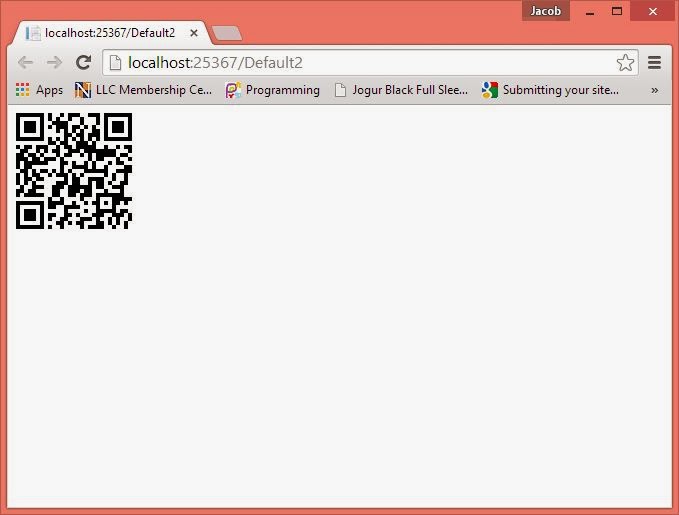
Code Generate the following output

Generate QRCODE in ASP.NET

Download Full Source code

II-Method

To generate QR Code image. First to Download QRcode library from the codeplex site.

Webform Source page:
<form id="form1" runat="server">
    <div>
    <asp:Image ID="img" runat="server" Height="142px" Width="124px" />
    </div>
    </form>

CodeBehind file

protected void Page_Load(object sender, EventArgs e)
    {

        QrEncoder encode = new QrEncoder();
        QrCode code = encode.Encode("hello world");
        Bitmap hi = new Bitmap(code.Matrix.Width, code.Matrix.Height);
        for (int i = 0; i<=code.Matrix.Width-1; i++)
        {
            for (int j = 0; j < code.Matrix.Height-1; j++)
{
if(code.Matrix.InternalArray[i,j])
             {
                 hi.SetPixel(i, j, System.Drawing.Color.LightBlue);

             }
             else
             {
                 hi.SetPixel(i, j, System.Drawing.Color.DarkBlue);
             }
}
        }
        hi.Save(Server.MapPath("~/imjk/ji.jpg"),ImageFormat.Jpeg);
        img.ImageUrl = "~/imjk/ji.jpg";


    }

Sunday, January 25, 2015

How to add Text with value in Dropdownlist in ASP.NET code file

Introduction

Dropdownlist is a string collection control class. Through the ListItem class, we can add some string into it. If we add some item into it in the code file only one string can add in it. Like

Dropdownlist1.items.add(String item);

But at the compile/Design time, we can add text as well as value in it. At the compile time, visual Studio IDE use ListItem class for data insertion. ListItem class provide overloaded constructor, Through this we can add both Text and Value.


Example:
Source code of the file : Complete Code Download

<%@ Page Language="C#" AutoEventWireup="true" CodeFile="Default5.aspx.cs" Inherits="Default5" %>

<!DOCTYPE html>

<html xmlns="http://www.w3.org/1999/xhtml">
<head runat="server">
    <title></title>
   
</head>
<body>
    <form id="form1" runat="server">
        <asp:DropDownList ID="DropDownList1" runat="server"></asp:DropDownList>
        <p>
        <asp:Button ID="Button1" runat="server" Text="Button" OnClick="Button1_Click" />
      
        </p>
        <asp:Label ID="Label1" runat="server" Text="Label"></asp:Label>
      
    </form>
</body>
</html>

Code Behind file

using System;
using System.Collections.Generic;
using System.Configuration;
using System.Data.SqlClient;
using System.Linq;
using System.Web;
using System.Web.UI;
using System.Web.UI.WebControls;

public partial class Default5 : System.Web.UI.Page
{
    protected void Page_Load(object sender, EventArgs e)
    {
    if(!Page.IsPostBack)
    {
        DropDownList1.Items.Add(new ListItem("Apple", "20"));
        DropDownList1.Items.Add(new ListItem("Mango", "30"));
        DropDownList1.Items.Add(new ListItem("Grapes", "40"));

    }
    }

    protected void Button1_Click(object sender, EventArgs e)
    {
        Label1.Text = DropDownList1.SelectedValue;
    }
}

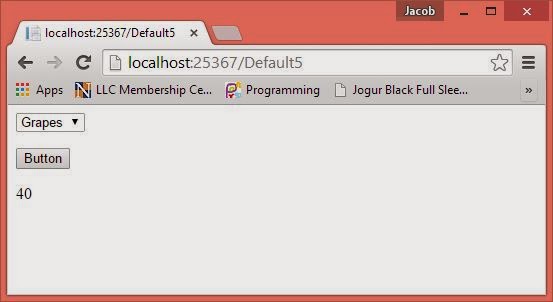
Code Generate the following output

How to add Text with value in Dropdownlist in ASP.NET code file
In this example, we have three control on design. First to add Text with value in the DropdownList using the ListItem class. Now, On button click, we accessed the selected item value of control in the label.

Wednesday, January 21, 2015

Polish Notation for Data Structure in C Language

Polish Notation

Normally in an arithmetic expression the operator is placed in between the operands or expression. Such an expression is called as INFIX expression. In an INFIX expression according to the need the parentheses are placed according to the need. The parentheses are placed to find the value overhauling the operator hierarchy. Considering the operator hierarchy it is not possible to find the value of INFIX expression in one scan. Several scans are needed if an INFIX expression contains different hierarchy operators.

Following is a simple list of binary operators with hierarchy. Binary operators are those which involve two operands or expressions to frame an expression.
Level 1     ! Exponent (to find power, A ! B, A to the power B)
Level 2   */ Multiplication, Division, same hierarchy
Level 3    +-Addition, Subtraction, same hierarchy
In an INFIX expression, if the different operators are used to frame the expression ,then the expressions involving highest hierarchy are evaluated first scanning from left to right. The resulting expression is again evaluated for the next expression or value. If any parentheses are there they are removed by finding the value within the parentheses. So an expression is evaluated after multiple passes.
For example consider an expression:
                                          6 * 3 ! 2 / (3+6)
After first pass                   6 * 3 !  2 / 9
After second pass              6 * 9 / 9
After third pass                             6        Final value

       In computer it consumes much time. In order to overcome these difficulties French mathematician Polish has given different ways of writing an INFIX expression. He has given parentheses free notation called Polish notation in which the operator is placed before the operands, such notation is called as ‘Polish Notation’. As the operators are placed before the operands the resulting expression is called as PREFIX expression.

                     If the operators are placed after the operands the resulting notation is called as RPN, Reverse Polish Notation and the resulting expression is called as POSTFIX expression.

INFIX        - Operators in between operands / sub expressions
PREFIX     -Operators before operands / sub expressions
POSTFIX   -Operators after operands / sub expression

Conversion of an INFIX expression to POSTFIX expression using STACK in C language

Conversion of an INFIX expression to POSTFIX expression using STACK
                          STACK finds an application in converting an INFIX expression to POSTFIX expression. In this application STACK is used store the operators as items.

Procedure:

In order to convert an INFIX expression to POSTFIX expression. Call an INFIX expression as I and a POSTFIX expression as P. Add a’)’,right parentheses, at the end of I and PUSH a’ (‘,left parentheses on to STACK.. Scan I, from left to right till STACK is empty.
  If the second character is operands like 2, 3, 4 or a, b, c etc just add it to P.If the scanned character is’(‘,a left parentheses then PUSH it on to the STACK.The resulting expression P is the POSTFIX expression.

For example, consider an INFIX expression: 8*3/2 ! (2+1)

First add a ‘)’ at the end of INFIX expression and call it I.

Scan I till STACK is empty. Scanned character for the first time is 8, an operand add it to P.
P:8
Next scanned character is *, an operator PUSH it on to the STACK.
Next scanned character is 3, an op[errand add it to P.
P:8  3
Next scanned character is /, an operator, check the TOP of STACK, it contains*, * is having same hierarchy as/, so POP it and add it to P. After that the TOP of STACK is ‘(‘,so PUSH scanned character  /, on to STACK.
P:8    3 * 


Tuesday, January 20, 2015

How to make Feed back System in asp.net

Introduction

Feed back is a system, through which we can communicate to the website owner. Generally this system is designed for various purpose, such as quality checking in supply chain management, suggestion etc. If we talk about quality checking then simply say that feed back is given by the customer if he/she is  either satisfied or not. But if we talk about article feed back then you simply say that comment is the best idea for it. 

How to implement it:

First to design the comment box with the help of some controls and their properties. If you want to complete the first step then should see the below mentioned video:


After design it, you should connect all required control with the back-end store table. In this example i have a repeater control and here i bind this control using eval( ) method, if you want to do this, please see the video:
Bind the repeater control with the help of SqlDataSource control in asp.net. Repeater control is best control for comments, By this we can display list of items. If you want to see the feed back then check it mentioned video:

Monday, January 19, 2015

How to bind C# Gridview using ADO.NET

The C# GridView Control
The C# GridView control is a Data bound control that displays the values of a data source in the form of a table . In this table , each column represents a field and each row represents a record . The C# GridView control exists within the System.Web.UI.Controls namespace . When you drag and drop the GridView control on the designer page , the following syntax is added to the source view of the page.

<asp:gridview id="GridView1" runat="server"> </asp:gridview>

ASP.NET reduce lots of code in binding process, provide binding controls such as SqlDataSource for connecting database. The GridView data control has a built-in capability of sorting ,paging , updating and deleting data. You can also set the column fields through the AutoGenerate property to indicate whether bound fields are automatically created for each field in the data source.
In the below mentioned example, step 1 is define for add gridview in the webpage. Now, come to second step create columns in the gridview, which is depend on user choice. Under the <Columns> tag, create TemplateFields, which is used for design first column, according to step 3.


STEP-1 : Drag Gridview from Toolbox and Drop on design window.

    <form id="form1" runat="server">
    <div>  
        <asp:GridView ID="GridView1" runat="server">        
        </asp:GridView>  
    </div>
    </form>

STEP-2 : Create columns inside Gidview

<asp:GridView ID="GridView1" runat="server">
            <Columns >
            </Columns>        
        </asp:GridView>

STEP-3 : Create first column using TemplateField

  <Columns >
<asp:TemplateField>
</asp:TemplateField>
            </Columns>

STEP-4 : Create ItemTemplate inside <asp:TemplateField>
STEP-5 :  Also bind with table Attribute/Field

<asp:TemplateField>
   <ItemTemplate>
    <%# Eval("EmployeeId") %>
        </ItemTemplate>
</asp:TemplateField>

STEP-6:
Make StoredProcedure for retrieving data from database table.

CREATE PROCEDURE [dbo].[getdata]

AS
SELECT * from [Table]

RETURN 0


STEP-7 : Create code for binding data

using System;
using System.Collections.Generic;
using System.Linq;
using System.Web;
using System.Web.UI;
using System.Web.UI.WebControls;
using System.Data.SqlClient;
using System.Data;
using System.Configuration;

public partial class binggrid : System.Web.UI.Page
{
    protected void Page_Load(object sender, EventArgs e)
    {
        if (!Page .IsPostBack)
        {
            getdataload();

        }

    }

    private void getdataload()
    {
        using (SqlConnection con = new SqlConnection())
        {
            con.ConnectionString = ConfigurationManager.ConnectionStrings["ConnectionString"].ToString();
            con.Open();
            using (SqlCommand cmd = new SqlCommand())
            {
                cmd.CommandText = "getdata";
                cmd.Connection = con;
                cmd.CommandType = CommandType.StoredProcedure;
                using (DataSet ds = new DataSet())
                {
                    using (SqlDataAdapter da = new SqlDataAdapter(cmd))
                    {
                        da.Fill(ds);
                        GridView1.DataSource = ds;
                        GridView1.DataBind();

                    }

                }  
         
            }
       
        }

    }
}

Output of the program
C# gridview bind in asp.net

Note : Some Extra Column appear in gridview like EmployeeId, name
if you want to remove these column add attribute inside gridview
<asp:GridView ID="GridView1" runat="server" AutoGenerateColumns ="false">

Main Output of the program are:


C# gridview bind in asp.net
Here we are using single Template field. If you want to make more column then you must take more than one template field. Each template specifies column of the GridView.


Top related post

© Copyright 2013 Computer Programming | All Right Reserved