-->

Sunday, July 5, 2015

Difference between MYSQL and MSACCESS

MYSQL is used to store data permanently also MSACCESS is used. But both are different technology so today i will discuss about difference between both.

MYSQL
MSACCESS
Fully RDBMS
RDBMS
Large application
Small application
Multiple DB Engine
Single DB Engine
More ACID(Atomicity Consistency Integrity Durability) of transaction
Less ACID property of transaction
Easy referential Integrity
Hard Referential integrity
Open source
Product of Microsoft
License Free
License paid
Good Execution Speed
Poor Execution Speed
Good Performance
Poor performance
Platform Independent
Platform dependent
Hard Maintenance
Easy Maintenance

Saturday, July 4, 2015

How to use OpenFileDialog control in wpf to read txt file

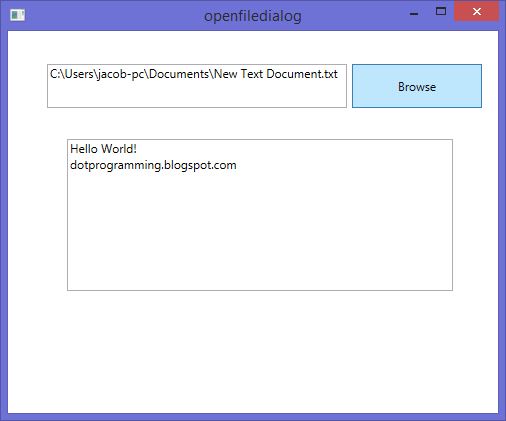
Today i am talking about OpenFileDialog control. This control is used for picking some files from computer drive or location. I have already learn about OpenFileDialog control in windows form article. Today, the same article i cover using WPF. The logics are same in all language but some presentation of the language are different Like previous article cover by windows form and this article present by xaml language. Lets take a simple example: In this example, we will pick the text file from computer and read this file by using TextBox.

<Grid>
        <TextBox x:Name="textBox" HorizontalAlignment="Left" Height="44" Margin="39,33,0,0" TextWrapping="Wrap" VerticalAlignment="Top" Width="300"/>
        <Button x:Name="button" Content="Browse" HorizontalAlignment="Left" Margin="344,33,0,0" VerticalAlignment="Top" Width="130" Height="44" Click="button_Click"/>
        <TextBox x:Name="textBox1" HorizontalAlignment="Left" Height="152" Margin="59,108,0,0" TextWrapping="Wrap" Text="" VerticalAlignment="Top" Width="386"/>

    </Grid>


Code behind file

  private void button_Click(object sender, RoutedEventArgs e)
        {
            OpenFileDialog ofd = new OpenFileDialog();
            ofd.DefaultExt = ".txt";
            ofd.Filter = "Text Document (.txt)|*.txt";
            if(ofd.ShowDialog()==true)
            {
                string filename = ofd.FileName;
                textBox.Text = filename;
                textBox1.Text = File.ReadAllText(filename);
            }

        }
Here OpenFileDialog control is exist in Microsoft.Win32 namespace. So use it by using "using" keyword. If you want to take only text file by this control then use Filter property. After picked file you can read this by using ReadAllText method of  File class.

Now , code generate the following output
How to use OpenFileDialog control in wpf to read txt file

Tuesday, June 30, 2015

How to transfer one listBox item to another listBox in WPF

Today, i would like to share something about ListBox. ListBox is a container which is available in System.windows namespace. In it we can add item in both way (Design time or Run time ). In this article we have to add item at run time also transfer items of listBox to another listBox item. So, lets to start it:
1. Add two listBox and two button control in the page.
2. When window is load first time then first left ListBox is loaded with ArrayList.


<Window x:Class="WpfApplication2.transferlistitem"
        xmlns="http://schemas.microsoft.com/winfx/2006/xaml/presentation"
        xmlns:x="http://schemas.microsoft.com/winfx/2006/xaml"
        xmlns:d="http://schemas.microsoft.com/expression/blend/2008"
        xmlns:mc="http://schemas.openxmlformats.org/markup-compatibility/2006"
        xmlns:local="clr-namespace:WpfApplication2"
        mc:Ignorable="d"
        Title="transferlistitem" Height="500" Width="500">

    <Grid>

        <ListBox x:Name="listBox" HorizontalAlignment="Left" Height="317" Margin="30,42,0,0" VerticalAlignment="Top" Width="151"/>

        <ListBox x:Name="listBox1" HorizontalAlignment="Left" Height="317" Margin="299,42,0,0" VerticalAlignment="Top" Width="156"/>

        <Button x:Name="button" Content="Add" HorizontalAlignment="Left" Margin="201,88,0,0" VerticalAlignment="Top" Width="75" Height="38" Click="button_Click"/>

        <Button x:Name="button1" Content="Remove" HorizontalAlignment="Left" Margin="201,192,0,0" VerticalAlignment="Top" Width="75" Height="46" Click="button1_Click"/>

    </Grid>
</Window>

Code behind code

using System.Collections;
using System.Windows;

namespace WpfApplication2
{
    public partial class transferlistitem : Window
    {
        ArrayList mylist;
        string currentitem = string.Empty;
        int index = 0;
        public transferlistitem()
        {
            InitializeComponent();
         mylist=loadlistbox();
            listBox.ItemsSource = mylist;

        }

        private ArrayList loadlistbox()
        {
            ArrayList list = new ArrayList();
            list.Add("Apple");
            list.Add("Orange");
            list.Add("Grapes");
            list.Add("mango");
            return list;
        }

        private void button_Click(object sender, RoutedEventArgs e)
        {
            currentitem = listBox.SelectedValue.ToString();
            index = listBox.SelectedIndex;
            listBox1.Items.Add(currentitem);
            if(mylist!=null)
            {
                mylist.RemoveAt(index);
            }
            bindnewlist();


        }

        private void bindnewlist()
        {
            listBox.ItemsSource = null;
            listBox.ItemsSource = mylist;
        }

        private void button1_Click(object sender, RoutedEventArgs e)
        {
            currentitem = listBox1.SelectedValue.ToString();
            index = listBox1.SelectedIndex;
            mylist.Add(currentitem);
            listBox1.Items.RemoveAt(listBox1.Items.IndexOf(listBox1.SelectedItem));
            bindnewlist();
  }
    }
}
First to select the first listBox item then press the 'Add' button. When we press the add button then get the selected item as well as selected item index. Selected item insert into second listbox also remove from the ArrayList. After that first ListBox will updated with ArrayList. When we press remove button the selected item of ListBox 2 is removed and selected item insert into first listbox.

Saturday, June 27, 2015

How to insert data into database table in WPF application

After binding the DataGrid in wpf.  You can insert some item in the database table using WPF TextBox. So first of all add one label , TextBox and one button control in the grid container. Insert data in the table on button click so add button click event on button.
 

<Grid>
        <Grid Margin="0,0,10,203">
          <Label Content="Enter Name Here:" />  <TextBox Name="text1" Text="" Margin="112,4,228,0" Height="27" VerticalAlignment="Top" />
        <Button Content="Add Data" Margin="76,46,310,22" Click="Button_Click" />
        </Grid>


        <DataGrid Name="g1" AutoGenerateColumns="False" Margin="110,121,137,57">
            <DataGrid.Columns>
                <DataGridTextColumn Binding="{Binding Id}" Header="Id" Width="100"/>
                <DataGridTextColumn Binding="{Binding Name}" Header="Name" Width="100"/>
            </DataGrid.Columns>
        </DataGrid>

    </Grid>
</Window>

If you want to show inserted item then need to bind DataGrid along with other control.  Check my previous article.

C# Code

using System.Configuration;
using System.Data;
using System.Data.SqlClient;
using System.Windows;

namespace WpfApplication2
{
    /// <summary>
    /// Interaction logic for MainWindow.xaml
    /// </summary>
    public partial class MainWindow : Window
    {
        public MainWindow()
        {
            InitializeComponent();
            binddatagrid();
   

        }

        private void binddatagrid()
        {
            SqlConnection con = new SqlConnection();
            con.ConnectionString = ConfigurationManager.ConnectionStrings["connstudent"].ConnectionString;
            con.Open();
            SqlCommand cmd = new SqlCommand();
            cmd.CommandText = "select * from [Students]";
            cmd.Connection = con;
            SqlDataAdapter da = new SqlDataAdapter(cmd);
            DataTable dt = new DataTable("Students");
            da.Fill(dt);

            g1.ItemsSource = dt.DefaultView;
            con.Close();
        }

        private void Button_Click(object sender, RoutedEventArgs e)
        {
            SqlConnection con = new SqlConnection();
            con.ConnectionString = ConfigurationManager.ConnectionStrings["connstudent"].ConnectionString;
            con.Open();
            SqlCommand cmd = new SqlCommand();
            cmd.CommandText = "Insert into [Students](Name)values(@nm)";
            cmd.Parameters.AddWithValue("@nm", text1.Text);
            cmd.Connection = con;
            int a = cmd.ExecuteNonQuery();
            if(a==1)
            {
                MessageBox.Show("Data add Sucessfully");
                binddatagrid();

            }

        }
    }
}

Above mentioned code is similar to all application like asp.net, windows form etc. Apply sql insert query with the SqlCommand class and execute NonQuery() method to insert the item in the database table.

Friday, June 26, 2015

How to bind DataGrid in WPF using Sql

DataGrid is a way to show the data items of database table in wpf application. So, first to design the database table by using Sql Server. I have a country table, which is mentioned below:

CREATE TABLE [dbo].[country] (
    [CountryId]    INT            IDENTITY (1, 1) NOT NULL,
    [CountryName]  NVARCHAR (MAX) NULL,
    [Countryimage] NVARCHAR (MAX) NULL,
    PRIMARY KEY CLUSTERED ([CountryId] ASC)
);


After design the table you need to insert some data in it. So you can show your table data in wpf application with the help of DataGrid. Make two column in DataGrid, i have done this , you can check by the mentioned below code:

<DataGrid Name="g1" AutoGenerateColumns="False" Margin="110,121,137,57">
            <DataGrid.Columns>
                <DataGridTextColumn Binding="{Binding Id}" Header="Id" Width="100"/>
                <DataGridTextColumn Binding="{Binding Name}" Header="Name" Width="100"/>
            </DataGrid.Columns>
        </DataGrid>

Here Binding property is directly connected with table columns and Header property assigned by user/Developer.

using System.Configuration;
using System.Data;
using System.Data.SqlClient;
using System.Windows;

namespace WpfApplication2
{
    /// <summary>
    /// Interaction logic for MainWindow.xaml
    /// </summary>
    public partial class MainWindow : Window
    {
        public MainWindow()
        {
            InitializeComponent();
            binddatagrid();
   

        }

        private void binddatagrid()
        {
            SqlConnection con = new SqlConnection();
            con.ConnectionString = ConfigurationManager.ConnectionStrings["connstudent"].ConnectionString;
            con.Open();
            SqlCommand cmd = new SqlCommand();
            cmd.CommandText = "select * from [Students]";
            cmd.Connection = con;
            SqlDataAdapter da = new SqlDataAdapter(cmd);
            DataTable dt = new DataTable("Students");
            da.Fill(dt);

            g1.ItemsSource = dt.DefaultView;
            con.Close();
        }
}
}

With the help of c# code you can connect with Database table, In WPF we have ItemSource property to bind the DataGrid, in other application like asp.net, we have DataSource property.

Saturday, June 20, 2015

Dropdownlist with image in asp.net c#

If you want to make beautiful and attractive web application in asp.net then you think ahead. You can make each control attractive using some other technologies like JQuery, JavaScript etc. Today i am discussing with you on topic Dropdownlist. If you bind the list with simple text then your Dropdownlist not look beautiful but if you add some images with each item then your list becomes beautiful. Lets take a simple example of Dropdownlist with image.

So first of all design database table and imsert some data in it , I have a table , which is mentioned below.

Dropdownlist with image in asp.net c#


Source page

<%@ Page Language="C#" AutoEventWireup="true" CodeFile="Dropdownlistwithimage.aspx.cs" Inherits="Dropdownlistwithimage" %>

<!DOCTYPE html>

<html xmlns="http://www.w3.org/1999/xhtml">
<head runat="server">
    <title>Bind DropDownlist With Image</title>
<link href="style/dd.css" rel="stylesheet" />
<script src="Scripts/jquery-1.6.1.min.js"></script>
<script src="Scripts/jquery.dd.js"></script>
<script>
$(document).ready(function(){

try {
$("#DropDownList1").msDropDown();

} catch (e) {
alert(e.message);

}
})
</script>
</head>
<body>
    <form id="form1" runat="server">
    <div>
<asp:DropDownList ID="DropDownList1" runat="server" AutoPostBack="True" Height="26px" OnSelectedIndexChanged="DropDownList1_SelectedIndexChanged" Width="149px">

</asp:DropDownList>
    <br />
    </div>
    <asp:Label ID="Label1" runat="server"></asp:Label>
    </form>
</body>
</html>
In the above mentioned code we have two ".js" file and one css file, both are used to make the dropdownlist beautiful also insert the image with text.

Code Behind file
using System;
using System.Collections.Generic;
using System.Configuration;
using System.Data;
using System.Data.SqlClient;
using System.Linq;
using System.Web;
using System.Web.UI;
using System.Web.UI.WebControls;

public partial class Dropdownlistwithimage : System.Web.UI.Page
{
    protected void Page_Load(object sender, EventArgs e)
    {
        if(!Page.IsPostBack)
        {
            Binddropdown();
            BindTitle();

        }

    }

    private void BindTitle()
    {
     
        if(DropDownList1!=null)
        {
            foreach (ListItem li in DropDownList1.Items)
            {
                li.Attributes["title"] = li.Value;
            }
        }
    }

    private void Binddropdown()
    {
        SqlConnection con = new SqlConnection();
        con.ConnectionString = ConfigurationManager.ConnectionStrings["ConnectionString"].ToString();
        con.Open();
        SqlCommand cmd = new SqlCommand();
        cmd.CommandText = "select * from [country]";
        cmd.Connection = con;
        SqlDataAdapter da = new SqlDataAdapter(cmd);
        DataSet ds = new DataSet();
        da.Fill(ds);
        DropDownList1.DataTextField = "CountryName";
        DropDownList1.DataValueField = "Countryimage";
        DropDownList1.DataSource = ds;
        DropDownList1.DataBind();


    }

    protected void DropDownList1_SelectedIndexChanged(object sender, EventArgs e)
    {
        Label1.Text = DropDownList1.SelectedValue;
        BindTitle();
    }
}
After bind the Dropdownlist you have to access each item from the list by using DataBound event. Use foreach loop to access all item one by one from the list also apply tooltip on each item by the help of Attribute property. When you apply attribute in BindTitle( ) method on that time JQuery will apply on it so you see the image with text in Dropdownlist.

Download the code

Friday, June 19, 2015

How to access application setting tag of web.config file in asp.net

Today i am writing ado.net code in code behind file, On that time i notice that if i take my connection string in the web.config file then we can access it easily. But how? So i have search in msdn library to access the web.config file then i found ConfigurationManager class which is available in System.Configuration Namespace. Through this class we can get all elements of web.config file. Lets take a simple example.


Web.config file

<appSettings>
    <add key="jacob" value="My Name"/>
   
  </appSettings>

Source Code

<%@ Page Language="C#" AutoEventWireup="true" CodeFile="Readwebxmlfile.aspx.cs" Inherits="Readwebxmlfile" %>

<!DOCTYPE html>

<html xmlns="http://www.w3.org/1999/xhtml">
<head runat="server">
    <title></title>
</head>
<body>
    <form id="form1" runat="server">
    <div>
<asp:Label ID="Label1" runat="server" Text=""></asp:Label>
    </div>
    <asp:Button ID="Button1" runat="server" Height="57px" OnClick="Button1_Click" Text="Get Data from Application Setting" Width="232px" />
    </form>
</body>
</html>

Code Behind Code
using System.Configuration;
 protected void Button1_Click(object sender, EventArgs e)
    {
        String getname = ConfigurationManager.AppSettings["jacob"].ToString();
        Label1.Text = getname;
    }

Here we access AppSettings By the configurationManager class. You can access all property or elements from web.config file by using this class. Now the simple syntax to access them.
ConfigurationManager.elementName
© Copyright 2013 Computer Programming | All Right Reserved