-->

Saturday, November 14, 2015

Getting started with MVC 4

Introduction

Model-View-Controller(MVC) has been an important architectural pattern in computer science for many years. Originally named "Tbing-Model-View_Editor in 1979. It was later simplified to Model-View-Controller. It is a powerful and elegant means of separating concerns within an application (for example, separating data access logic from display logic) and applies itself extremely well to web applications.

The MVC separates the user interface of an application into three main aspects:

 The Model  : A set of classes that describes the data you're working with as well as the business rules for how the data can be changed and manipulated.
The View : Defines how the application's user interface(UI) will be displayed.
The Controller : A set of classes that handles communication from the user, overall application flow, and application specific logic.

Lets take an simple example : follow some steps for creating first MVC application
Step-1: Goto file->New->project
Step-2: In left panel select visual c# also select ASP.NET MVC 4 Web application.
MVC template window

Step-3: Select Empty project template in given project template. Also select Razor view engine from engine view and press OK
MVC Project template

Step-4: : In solution explorer , Add new Controller using Right click on Controllers folder and select Add new Controller.
Add new controller window in MVC


Step-5: Change Controller name  (Default1->Home)
Change Controller name in MVC application

Step-6: Your controller contains Index method with action return. Now if you want to print string value then you must change ActionResult to string type. Now you can return string something like "Hello world".
ActionResult change with string type in MVC
ActionResult change with String Type.
String type in MVC 4
Step-7: Now Save and run your Application.
Getting started with MVC 4

Getting Started to Build Web Applications: Introduction to MVC

MVC (Model View Controller), most usable framework for latest web programmer, enables programmer to separates their work in these three names. It is a lightweight and standard design pattern which is familiar to many web developers.

According to the name of this framework, the application divides itself in three things i.e. one contains your logic, one contains your pages (may be razor or aspx pages) and the last one will contain some classes which are used to control the pages redirecting per user clicks.

The following diagram shown about the layers of this framework which includes Business layer, display layer and input control.


Getting Started to Build Web Applications: Introduction to MVC

Model, used to represent the core of web application. To interact with database tables there are some classes have to be written. Those classes must be placed in the model folder to follow the MVC framework. It means all the logic, works for the application, falls in this category.

View, used to decide about the display of data on the pages. Mostly views uses the model data, for the validation or may be other features. When we login in to application with invalid credentials, it requires some valid entries.

Controller, used to control the display data on the views by the model. It is the middle layer of the framework, which decides about what data are to be shown from the model and of course on which view.

Microsoft described some advantages of MVC based application:
  • It makes it easier to manage complexity by dividing an application into the model, the view, and the controller.
  • It does not use view state or server-based forms. This makes the MVC framework ideal for developers who want full control over the behavior of an application.
  • It uses a Front Controller pattern that processes Web application requests through a single controller. This enables you to design an application that supports a rich routing infrastructure. For more information, see Front Controller.
  • It provides better support for test-driven development (TDD).
  • It works well for Web applications that are supported by large teams of developers and for Web designers who need a high degree of control over the application behavior.
Create First MVC Application using Visual Studio

Getting started with MVC Application

Getting started -Introduction

MVC is a framework used for building web application using latest and somewhat different approach. According to this architecture, whole application divides in to three part i.e. Model, View and Controller which is also the pronunciation stands for MVC.
  • Model: keeps the application core. It includes some classes written to interact with database.
  • View: how is to be displayed on the page? falls into this category.
  • Controller: what is to be transfer on the views? falls into this category.


More about MVC can be easily read through here, but we will start some practical work here. I suppose every DotNet programmer knows about Visual Studio. Let’s start with creating a new MVC application using below steps. Step 1. Create new project and select ASP.NET MVC 4 Web Application under the Web categories. Step 2. Change the directory where solution will exist, it takes default if not changed and click on OK button. Step 3. It will asks about the type of application e.g. empty, internet, intranet etc. listed in the image provided. Select Internet application because it loads the default controllers and their actions with authentication.

Getting started with MVC Application

Through this we can only creating application, on the next we will code with empty MVC application. Step 4. Congratulation, you have successfully created a new MVC 4 application. Now run this with F5 or from Start debugging option in DEBUG menu. When it run it looks like the below image. In the browser’s address i.e. http://localhost:port/  localhost is the computer which is running that application at that time, means the client machine and the port is the number assigned for that application.

Getting started with MVC Application

Friday, November 13, 2015

How to read data from excel file in ASP.NET, Example

This article will cover, How to read data from Excel spreadsheet using ASP.NET. First we need to connect Microsoft Excel workbook using the OLEDB.NET data provider. Add excel file path to connectionString, after doing this the connectionstring will be look like

string connString = "Provider=Microsoft.Jet.OLEDB.4.0;" + "Data Source=" + Server.MapPath("first.xls") + ";" + "Extended Properties=Excel 4.0;";

Here, you can connect .xls file using Microsoft.Jet.OLEDB.4.0 provider also display data into gridview. In Data Source, you can take .xls file path.

You can follow some steps for reading data from excel file. 

Step 1: Open Visual Studio > File > New >Website > Under Templates, click ASP.NET WebSite and choose Visual C# as the language. Select a system location and click Ok.

Step 2: We will create excel sheet and add them to the website folder. Excel sheet will be created in Office 2003(first.xls).

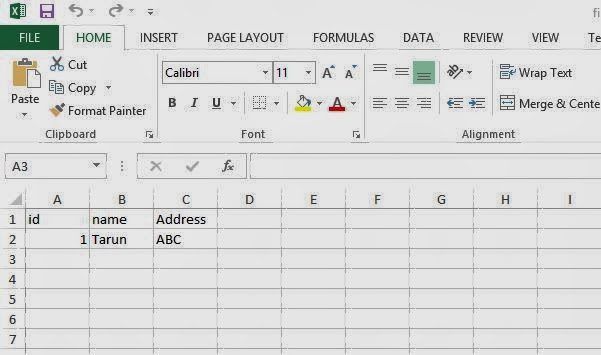
Step 3: Add three column called id, name and Address to the Sheet1. Also add some data into the columns. Once these excel files are created, add them to your website folder. To add them to the solution, right click website name > Add Existing Item > Add the excel file.

excel file in asp.net

Step 4: Add a web form called 'excelfile.aspx' into the website folder.
Step 5: Add a GridView and label control to the 'excelfile.aspx' page. We will extract data from the excel file and bind it to the GridView on page_load method.
Step 6: Bind GridView on page load method

Complete code is


<%@ Page Language="C#" AutoEventWireup="true" CodeFile="excelfile.aspx.cs" Inherits="excelfile" %>

<!DOCTYPE html PUBLIC "-//W3C//DTD XHTML 1.0 Transitional//EN" "http://www.w3.org/TR/xhtml1/DTD/xhtml1-transitional.dtd">

<html xmlns="http://www.w3.org/1999/xhtml">
<head runat="server">
    <title></title>
</head>
<body>
    <form id="form1" runat="server">
    <div>
        <asp:GridView ID="GridView1" runat="server">
        </asp:GridView>
    </div>
    <asp:Label ID="Label1" runat="server" Text="Label"></asp:Label>
    </form>
</body>
</html>

using System;
using System.Collections.Generic;
using System.Linq;
using System.Web;
using System.Web.UI;
using System.Web.UI.WebControls;
using System.Data.OleDb;
using System.Configuration;
using System.Data;

public partial class excelfile : System.Web.UI.Page
{
    protected void Page_Load(object sender, EventArgs e)
    {
        string connString = "Provider=Microsoft.Jet.OLEDB.4.0;" + "Data Source=" + Server.MapPath("first.xls") + ";" + "Extended Properties=Excel 4.0;";

        OleDbConnection oledbconn = new OleDbConnection(connString);
        try
        {
            oledbconn.Open();
            OleDbCommand cmd = new OleDbCommand("Select * from [Sheet1$]", oledbconn);
            OleDbDataAdapter oleda = new OleDbDataAdapter();
            oleda.SelectCommand = cmd;
            DataSet ds = new DataSet();
            oleda.Fill(ds, "first");
            GridView1.DataSource = ds.Tables[0].DefaultView;
            GridView1.DataBind();
        }
        catch (OleDbException ex)
        {
           Label1.Text = ex.Message;
        }
        finally
        {
            oledbconn.Close();
        }
    

    }
}


Code generate following output 

Computer Programming : How to read data from excel file in ASP.NET, Example


Wednesday, November 11, 2015

WPF Window attribute | Properties examples

Introduction
In this article, we will learn many more attributes or you can say properties of window tag in WPF. First of, I will take Width and Height properties of Window Tag. Width defines Horizontal size of window and Height vertically. Both takes numbers. If you do some changes in these attribute then your window will resize. Now, come to Next attribute that is Title, Define the label of title bar, which is the Top most bar of your window. Title is aligned in center bydefault. 


Icon: If you want to put image in left corner which is realted to your project like suppose your project window is related to login, now you can put login image into your title bar in left corner.

ResizeMode : Change the window size at run time, if you want. Minimize and Maximize button appear by using this arrtibute. Also you can hide both buttons, if you assign "NoResize" value in it. By using this value, hide minimize and maximize button as well as resize arrow. 

ShowInTaskbar : The default value of it is 'True'. It means when your application will run  then your application icon will display into your taskbar. If you assign False then does not appear in Taskbar.

SizeToContent : Define the window size which is totaly depend on your content. If you assign 'width' as a value in it then your window's width resized. Similarly in case of Height.

TopMost : Your window will always appear at top position. The Default value of it is false.

Tuesday, November 10, 2015

Example domainUpDown control in windows form c#

Introduction
In this article, we will see, How to use domainUpDown control in windows form c#. This control is used to choose single item at time, In this we have multiple options. If you see this control then you notice that this control is similar to Numeric UpDown control. But NumericUpDown control display numbers only. domainUpDown control display string like display month's name and many more things. In this article we will see many more interesting things which are related to domainUpDownControl.
Example domainUpDown control in windows form c#

How to use doaminUpDown Control
  1. First of all add domainUpDown control from ToolBox
  2. Copy this code paste into your code file

    private void Form2_Load(object sender, EventArgs e)
        {
            DomainUpDown.DomainUpDownItemCollection collection = this.domainUpDown1.Items;
            collection.Add("Jan");
            collection.Add("Feb");
            collection.Add("Mar");
            collection.Add("Apr");

            //How to set the text default in DomainUpDown

            this.domainUpDown1.Text = "Jan";

        }


The Last line of code explain the default value of domainUpDown Control. 
In the Second example, I will explain you how to retrieve value from domainUpDown Control using SelectedItemChanged.

        private void domainUpDown1_SelectedItemChanged(object sender, EventArgs e)
        {
            MessageBox.Show(domainUpDown1.Text);
        }

When, first time the page is load then appear message box on your screen with the text message of selected item of domainUpDown Control.

Now, Learn how to add domainUpDown control using code file. Also learn how to fire SelectedItemChanged event using code file.

using System;
using System.Collections.Generic;
using System.ComponentModel;
using System.Data;
using System.Drawing;
using System.Linq;
using System.Text;
using System.Threading.Tasks;
using System.Windows.Forms;

namespace WindowsFormsApplication3
{
    public partial class Form3 : Form
    {
        public Form3()
        {
            InitializeComponent();
        }

        private void Form3_Load(object sender, EventArgs e)
        {
            DomainUpDown dynamicallyadd = new DomainUpDown();
            dynamicallyadd.Location = new System.Drawing.Point(12, 50);
            dynamicallyadd.Name = "domainupdown";
            dynamicallyadd.Width = 250;
            dynamicallyadd.Height = 100;
            dynamicallyadd.Items.Add("Apple");
            dynamicallyadd.Items.Add("mango");
            dynamicallyadd.Items.Add("Grapes");
            dynamicallyadd.Text = "Apple";
            this.Controls.Add(dynamicallyadd);
            dynamicallyadd.SelectedItemChanged += new System.EventHandler(Itemchanged);
        }

        private void Itemchanged(object sender, EventArgs e)
        {
           // throw new NotImplementedException();
            DomainUpDown item = sender as DomainUpDown;
            MessageBox.Show(item.Text);
        }
    }
}


Now, In this last section of the domainUpDown Control, we will learn how to bind it with Database table. If you bind it with SQL server then  first to add EDMX file in the project.

      private void Form1_Load(object sender, EventArgs e)
        {
            BankingSystemEntities bs = new BankingSystemEntities();
            var item = bs.userAccounts.ToArray();
            foreach (var item1 in item)
            {
                domainUpDown1.Items.Add(item1.Account_No.ToString());
            }


Monday, November 9, 2015

How to get cell value from dataGridView in windows form c#

In this article, I will teach you, How to get cell value from dataGridView in windows form c#. First of all bind the dataGridView with any Data Source then you can access cell value from it. I bind it with many data source, check this link. In previous article, I get the cell value from selected row of  dataGrid but on this time, we set the default row. In this article, I will give an example of cell click event.


private void dataGridView1_CellClick(object sender, DataGridViewCellEventArgs e)
        {
     
            decimal accno = Convert.ToDecimal(dataGridView1.Rows[e.RowIndex].Cells[0].Value);
            MessageBox.Show(accno.ToString());
}

Here, Cells[0] return the first column's cell value from dataGridView.

© Copyright 2013 Computer Programming | All Right Reserved