-->

Thursday, December 10, 2015

How to pass data from controller to view in ASP.NET MVC

If you want to pass value from controller to view in asp.net MVC, we have two methods. The first method of it is ViewBag and last is ViewData, both are used to pass data from controller to view. ViewBag object creates a dynamic variable and ViewData creates a dynamic key like ViewState in ASP.NET.  Learn, How to use ViewBag in MVC for single variable as well as List<String> type variable. 


In controller class, we used ViewBag.Dynamic_variable = "Value" and in View we used @ViewBag.Dynamic_Variable_Name. Also, learn how to pass value from controller to view using ViewData.


Both objects doesnot generate compile time error.

Tuesday, December 8, 2015

Password Box example in WPF

If you want to design login control then must to set the special character in password box. Today, we will learn, how to design password box in WPF. In WPF, we have a PasswordBox tag in XAML , through this we can add Password box in WPF. I have a simple login control through you can see password control.


The complete code of login control

<Window x:Class="WpfApplication8.password"
        xmlns="http://schemas.microsoft.com/winfx/2006/xaml/presentation"
        xmlns:x="http://schemas.microsoft.com/winfx/2006/xaml"
        Title="password" Height="300" Width="300">
    <Grid> 
        <StackPanel Margin="20">
            <Label>Password Box Example</Label>
            <WrapPanel>
                <Label>Username:</Label>
                <TextBox Width="100"/>
            </WrapPanel>
            <WrapPanel>
                <Label>Password:</Label>
                <PasswordBox PasswordChar="x" MaxLength="8" Width="100"/>
            </WrapPanel>
            
            
        </StackPanel>
        
    </Grid>
</Window>

Code Generates the following output:


Monday, December 7, 2015

WPF common "enable all" checkbox in the top

Introduction
In this WPF article, I will show you, single checkbox enable all other remaining checkboxes; if it is unchecked then remaining them also unchecked. To do this task, first of add single checkbox for all other checkboxes in the stack panel. Now, add other child checkboxes in nested stack panel. look at, simple xaml code view.


<Window x:Class="WpfApplication8.MainWindow"
        xmlns="http://schemas.microsoft.com/winfx/2006/xaml/presentation"
        xmlns:x="http://schemas.microsoft.com/winfx/2006/xaml"
        Title="MainWindow" Height="350" Width="525">
    <Grid>
        <StackPanel Margin="10">
            <Label FontWeight="Bold">Technical Skills</Label>
            <StackPanel Margin="20,10">
                <CheckBox IsThreeState="True" Name="AllSelect" Checked="AllSelect_Checked" Unchecked="AllSelect_Checked">Enable All</CheckBox>
                <StackPanel Margin="20,10">
                    <CheckBox Name="singlecheckjava" Checked="singlecheckjava_Checked" Unchecked="singlecheckjava_Checked">Java</CheckBox>
                    <CheckBox Name="singlecheckcpp" Checked="singlecheckjava_Checked" Unchecked="singlecheckjava_Checked">C++</CheckBox>
                    <CheckBox Name="singlecheckphp" Checked="singlecheckjava_Checked" Unchecked="singlecheckjava_Checked">PHP</CheckBox>          


                </StackPanel>
            </StackPanel>      
         
         
        </StackPanel>
    </Grid>
</Window>
Here, we have checked and unchecked events. Both are calling same function in "Allselect" checkbox. In the child checkboxes also we have checked and unchecked event , they are calling same method. So in this program we have two method that is "AllSelect_Checked" and "singlecheckjava_Checked".

Code Behind Code 

using System;
using System.Collections.Generic;
using System.Linq;
using System.Text;
using System.Threading.Tasks;
using System.Windows;
using System.Windows.Controls;
using System.Windows.Data;
using System.Windows.Documents;
using System.Windows.Input;
using System.Windows.Media;
using System.Windows.Media.Imaging;
using System.Windows.Navigation;
using System.Windows.Shapes;

namespace WpfApplication8
{
    /// <summary>
    /// Interaction logic for MainWindow.xaml
    /// </summary>
    public partial class MainWindow : Window
    {
        public MainWindow()
        {
            InitializeComponent();
        }

        private void AllSelect_Checked(object sender, RoutedEventArgs e)
        {
            bool allcheckbox = (AllSelect.IsChecked == true);
            singlecheckjava.IsChecked = allcheckbox;
            singlecheckcpp.IsChecked = allcheckbox;
            singlecheckphp.IsChecked = allcheckbox;

        }

        private void singlecheckjava_Checked(object sender, RoutedEventArgs e)
        {
            AllSelect.IsChecked = null;
            if ((singlecheckjava.IsChecked == true) && (singlecheckcpp.IsChecked == true) && (singlecheckphp.IsChecked == true))
                AllSelect.IsChecked = true;
            if ((singlecheckjava.IsChecked == false) && (singlecheckcpp.IsChecked == false) && (singlecheckphp.IsChecked == false))
                AllSelect.IsChecked = false;
        }
    }
}

Friday, December 4, 2015

How to add window media player in ASP.NET

Introduction
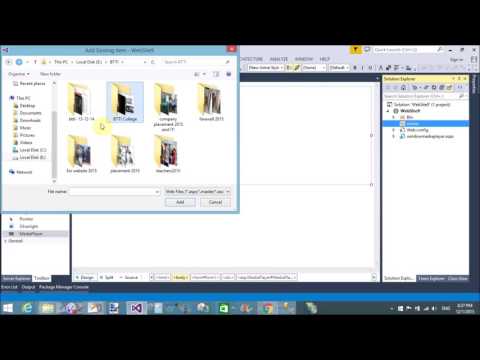
In this article, I will show you how to play mp4 and WMV file in asp.net. To do this task first to install Silverlight into your computer by the following link. After installed Silverlight, add System.Web.Silverlight.dll file reference in the bin folder. Add media player component in ToolBox by using right click on toolBox.


Right click on toolbox--> choose Items...--->.Net Framework Components--> Click on Browse Button also select System.Web.Sliverlight from uncompressed folder.


Drag Media player control from ToolBox to Web Form. Set Required property that is mentioned below.
Media Source = ~/movie/first.mp4
Here, we have movie folder.

Download System.Web.Silverlight.dll file.

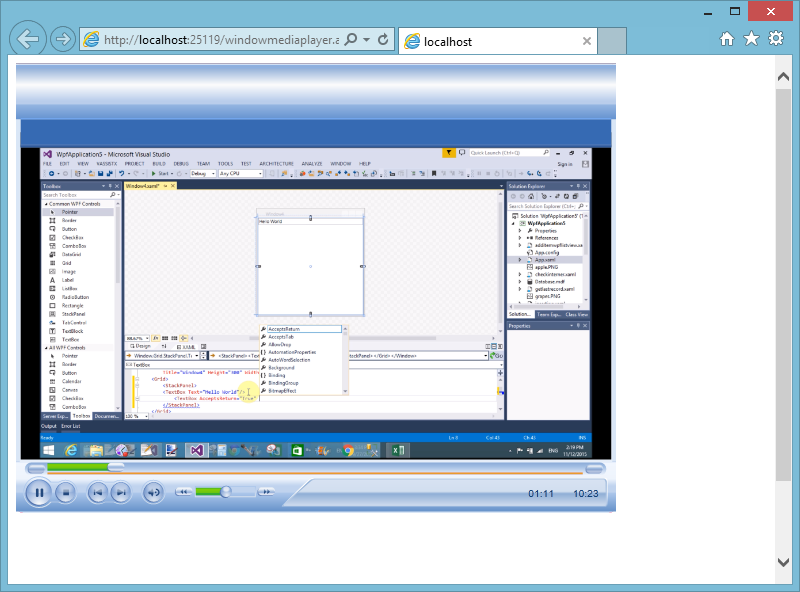
Code generates the following output

How to add window media player in ASP.NET

Thursday, December 3, 2015

Add multiple TextBox dynamically using Button click in ASP.NET C#

Introduction
In this article, I will show you how to add multiple TextBox by using button click. When we press the button then add TextBox in the panel. Similarly again when we press the button then again TextBox add just after previous one. I will give you an example of add multiple TextBox dynamically in ASP.NET.


Source code

<body>
    <form id="form1" runat="server">
    <div>

    </div>
    </form>
</body>

Code Behind page

using System;
using System.Collections.Generic;
using System.Linq;
using System.Web;
using System.Web.UI;
using System.Web.UI.WebControls;

public partial class DynamicallyAdd : System.Web.UI.Page
{
    Panel panelforTextBox;
    protected void Page_Load(object sender, EventArgs e)
    {
        Literal literal;
        Label labelTextBox;

        panelforTextBox = new Panel();
        panelforTextBox.ID = "panelforTextBox";
        panelforTextBox.BorderWidth = 2;
        panelforTextBox.Width = 400;
        this.form1.Controls.Add(panelforTextBox);

        literal = new Literal();
        literal.Text = "<br/>";

        this.form1.Controls.Add(literal);

        labelTextBox = new Label();
        labelTextBox.Text = "Dynamic TextBox <br/>";


        panelforTextBox.Controls.Add(labelTextBox);
        Button addbutton = new Button();
        addbutton.ID = "addbutton";
        addbutton.Text = "Add New TextBox";
        addbutton.Click += new System.EventHandler(clicktoaddTextBox);
        this.form1.Controls.Add(addbutton);

        if (IsPostBack)
        {
            controlcreate("DynamicText", "TextBox");
        }

    }

    private void controlcreate(string p1, string p2)
    {
        string[] controls = Request.Form.ToString().Split('&');
        int count = findcontrolcount(p1);
        if(count>0)
        {
            Literal lit;
            for (int k = 0; k <=count; k++)
            {
                for (int i = 0; i < controls.Length; i++)
                {
                    if (controls[i].Contains(p1+"-"+k.ToString()))
                    {
                        string controlname = controls[i].Split('=')[0];
                        string controlvalue = controls[i].Split('=')[1];
                        controlvalue = Server.UrlDecode(controlvalue);
                        if(p2=="TextBox")
                        {
                            TextBox txt = new TextBox();
                            txt.ID = controlname;
                            txt.Text = controlvalue;
                            panelforTextBox.Controls.Add(txt);
                            lit = new Literal();
                            lit.Text = "<br/>";
                            panelforTextBox.Controls.Add(lit);

                        }
                        break;
                    }
                }
            }
        }
    }

    private void clicktoaddTextBox(object sender, EventArgs e)
    {
        //throw new NotImplementedException();
        Button button = (Button)sender;
        if (button.ID=="addbutton")
        {
            int count = findcontrolcount("DynamicText");
            TextBox text = new TextBox();
            text.ID = "DynamicText-" + Convert.ToString(count + 1);
            panelforTextBox.Controls.Add(text);
            Literal lit = new Literal();
            lit.Text = "<br/>";
            panelforTextBox.Controls.Add(lit);
        }


    }

    private int findcontrolcount(string p)
    {
        //throw new NotImplementedException();
        string str = Request.Form.ToString();
        return ((str.Length - str.Replace(p, "").Length) / p.Length);

    }

}

Monday, November 23, 2015

How to determine version of MVC application

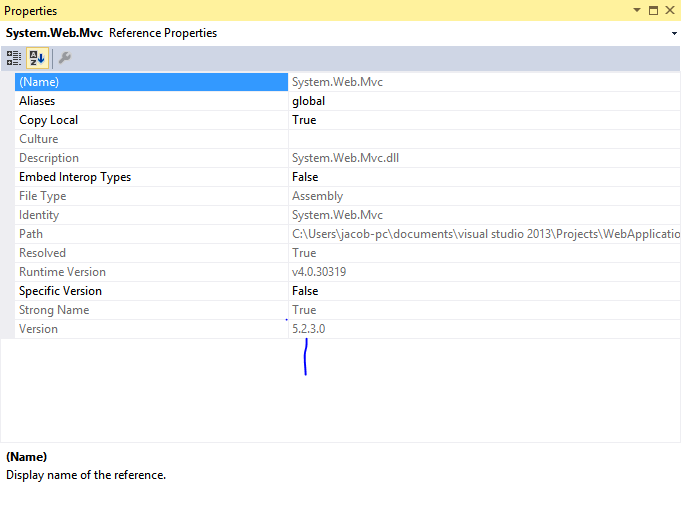
In this article, I will show you how to check  MVC version of application. There are two methods, through which we can get the version of MVC. In the first method we use property of System.Web.MVC namespace. But, How to check, check the mentioned snap shots.

1. Expand References folder 
2. Right click on System.Web.MVC namespace also select property , check the mentioned snap.

II-Method

using System;
using System.Collections.Generic;
using System.Linq;
using System.Web;
using System.Web.Mvc;

namespace WebApplication9.Controllers
{
    public class HomeController : Controller
    {
        // GET: Home
        public string Index()
        {
            return typeof(Controller).Assembly.GetName().Version.ToString();
        }
}
}

Tuesday, November 17, 2015

Drop Shadow example in WPF

In this article, I will show you, How to create Shadow of controls. Through this, we can show 3d view of control. First of all, I will apply this style on manually created designs like Ellipse, Rectangle etc. After that I will apply same things on controls. So, add a new window in the project. Add this code in between the <grid> ...</grid> section of xaml file.


 <Rectangle Height="150" Width="150" Stroke="Black" StrokeThickness="2">
            <Rectangle.BitmapEffect>
                <DropShadowBitmapEffect Color="Black" Direction="-50" ShadowDepth="40" Softness=".8"/>
               
            </Rectangle.BitmapEffect>
            <Rectangle.Fill>
                <ImageBrush ImageSource="apple.png"/>
               
            </Rectangle.Fill>
        </Rectangle>      

BitmapEffect creates the shadow effect behind the object. In the above-mentioned code we have Direction attribute. With the help of Direction attribute we can show shadow of control at user defined position. 

<Button Width="150" Margin="71,167,71,59">
            <Button.BitmapEffect>
                <DropShadowBitmapEffect Color="Black" Direction="-50" ShadowDepth="40" Softness=".7"/>
            </Button.BitmapEffect>
            <Image Source="apple.png" Stretch="Fill"/>


Code generates the following output

Drop Shadow example in WPF

© Copyright 2013 Computer Programming | All Right Reserved