Through this project we are booking a hotel room in a city also reduce lots of paper work. Actually physical process converted into logical process or you can say online process.
In this project we will provide such types of searching functionality:
Pick random city
Search city
You can search hotel directly
Module of the project :
Visitor
Administrator
Working of the project
First of all visitor choose the hotel city by the help of searching facilities. In the search result we will provide some basic information about each hotel which is exist in the city. When visitor select a specific hotel in the given list, we will provide the full details of selected hotel with "book now" button. When visitor press this button, the system will check that visitor is whether authenticated or not. If visitor is not authenticated then visitor moves to the login page. Login page contain a link of register page. If visitor not a website user then she/he will not login by the login panel so first of all visitor should member of the website. After that he /she will booked the selected hotel.
In this article i will show you how to bind TreeView at 2 level, you can say that Bind tree view with country , state and city table. Country table data bind at 0 level , state data bind at 1 level and last city data bind at 2 level. So first of all create three table, Sql Script mentioned below:
Database Table : (Country)
CREATE TABLE [dbo].[Country] (
[Id] INT IDENTITY (1, 1) NOT NULL,
[Name] NVARCHAR (50) NULL,
PRIMARY KEY CLUSTERED ([Id] ASC)
);
Database Table : (State)
CREATE TABLE [dbo].[state] (
[Id] INT NOT NULL,
[Name] NVARCHAR (50) NULL,
[cid] INT NULL,
PRIMARY KEY CLUSTERED ([Id] ASC)
);
Database Table : (City)
CREATE TABLE [dbo].[city] (
[Id] INT NOT NULL,
[Name] NVARCHAR (50) NULL,
[sid] INT NULL,
PRIMARY KEY CLUSTERED ([Id] ASC)
);
Now, add the tree view in web form. Now, your source page looking like this.
Source Code :
<asp:TreeView ID="TreeView1" runat="server">
</asp:TreeView>
Code Behind Code :
using System;
using System.Collections.Generic;
using System.Configuration;
using System.Data;
using System.Data.SqlClient;
using System.Linq;
using System.Web;
using System.Web.UI;
using System.Web.UI.WebControls;
public partial class Default6 : System.Web.UI.Page
using (SqlConnection con = new SqlConnection(constr))
{
using (SqlCommand cmd = new SqlCommand(query))
{
using (SqlDataAdapter sda = new SqlDataAdapter())
{
cmd.CommandType = CommandType.Text;
cmd.Connection = con;
sda.SelectCommand = cmd;
sda.Fill(dt);
}
}
return dt;
}
}
}
In this code First to bind DataTable with the Country table, for each country , retrieved State name and for each state name , retrieved city name. Here, we have recursion technique. In the Populate TreeView method parent id define the level of the tree view.
Create User Wizard control is used to store information of the user or visitor into the database table. ASP.net provide the control through this we can store limited information of the client into the database table. But we can change its user interface. You can say customization of Grid View. When we drag it on design window then its look like:
Select Create User Step link by using "show smart tag". After that you can make some changes in fields. Like if You want to remove "Security Answer" and Security Question. Suppose you have to remove it then your interface look like:
Create User Wizard control is used to store information of the user or visitor into the database table. ASP.net provide the control through this we can store limited information of the client into the database table. But we can change its user interface. You can say customization of Grid View. When we drag it on design window then its look like:
Select Create User Step link by using "show smart tag". After that you can make some changes in fields. Like if You want to remove "Security Answer" and Security Question. Suppose you have to remove it then your interface look like:
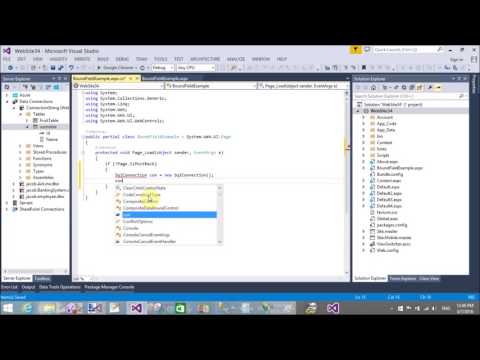
In this article i will show you, How to use BoundField of GridView in ASP.NET C#. Actually, BoundField is the Default field of GridView Control, used for DataBinding purpose. In my previous article i have already use this field with SQL DataSource control. Check mentioned below link:
Now, Learn, How to create BoundField manually also bind them using ADO.NET Technology with Database table. First to create a database table, insert some data into table. Prepare BoundField like this:
In this article i will show you, How to retrieve record from database table in MVC. This things we have already learned in ASP.NET WEB FORMS, Now the same things we can do in MVC. Before doing this task first to install Entity Framework in the application. Create a Empty MVC project. Add a new database also create table by using this video tutorial. We have a database table with their following fields:
CREATE TABLE [dbo].[Student_Table] (
[Id] INT IDENTITY (1, 1) NOT NULL,
[Name] NVARCHAR (50) NULL,
[City] NVARCHAR (50) NULL,
PRIMARY KEY CLUSTERED ([Id] ASC)
);
Now, Following these steps to retrieve items from table:
Step-1 : Create a "Student" model class in model folder. Like :
using System.ComponentModel.DataAnnotations.Schema;
namespace WebApplication19.Models
{
[Table("Student_Table")]
public class Student
{
public int Id { get; set; }
public string Name { get; set; }
public string City { get; set; }
}
}
By using the Table class we can mapped our class to database table.
Step-2 : Create a "StudentContext" class in model folder. Like
using System.Data.Entity;
namespace WebApplication19.Models
{
public class StudentContext : DbContext
{
public DbSet<Student> students { get; set; }
}
}
By using "students" property we can communicate with the table.
Step-3 : Create ConnectionString in the Web.Config file, in this way :
here we have a connection name is same as Context Class name.
Step-4 : Now, add a controller in the Controller folder, copy this code under controller action method
using System;
using System.Collections.Generic;
using System.Linq;
using System.Web;
using System.Web.Mvc;
using WebApplication19.Models;
namespace WebApplication19.Controllers
{
public class HomeController : Controller
{
// GET: Home
public ActionResult Index()
{
StudentContext sc = new StudentContext();
Student singlestu = sc.students.Single(stu => stu.Id == 2);
return View(singlestu);
}
}
}
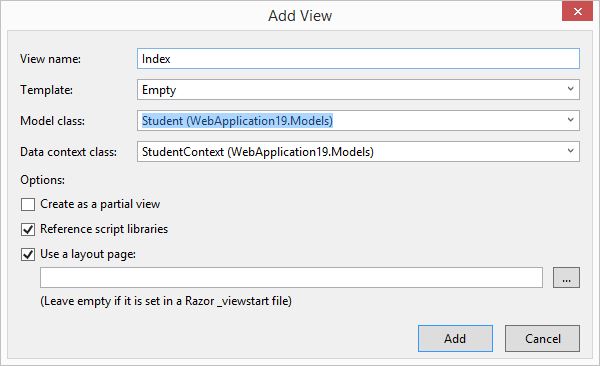
By using the LINQ Query we have to retrieving student details from table who's id is 2. Now, Build the project. Add a View By Right click on Index Action method.Now, appear a screen look like this.
Fill all mentioned fields, according to mentioned snaps. Now, last
Step-5 : Design to view for values.
@model WebApplication19.Models.Student
@{
ViewBag.Title = "Student";
}
<h2>Single Student Record</h2>
<div>
Student Id : @Model.Id <br/>
Student Name : @Model.Name <br/>
Student City : @Model.City
By using the Entity Framework you can can communicate with the Sql Server. In which we have two approaches i.e "Code First" and "Model First". But, In this article, I will explain you how to install Entity Framework from console and Solutions: Install From Console:
1. Select "Package Manager Console" by the following path :
Tools -> NuGet Package Manager--> Package Manager Console
Note : Before type the command in command line, must to ensure your internet connection.
Type command in Command Line:
PM> Install-Package EntityFramework
Install From Solution:
1. Select "Manage Nuget Packages for Solutions... " by the following path :
Tools -> NuGet Package Manager--> Manage Nuget Packages for Solutions...
Note : Before type the command in command line, must to ensure your internet connection.
Search Entity Framework in search bar, which reside in right side bar.