-->

Sunday, September 29, 2013

How to Make TextBox Control ReadOnly: WPF

In our previous post, we have enable the spell check feature of the textbox, through which user can check the spellings of the word entered and correct it. As we know that the textbox is used to input any value by the user, but it can be used to display fix text on the screen.

To display fix text that cannot be edited by the user, we have to make the textbox read-only. The textbox have a property IsReadOnly, that is set to be true to enable this feature. Just write the following XAML code snippet:
<TextBox Width="300" Height="25" Margin="5"
Text="This is the correct line and you cannot edit it."
 IsReadOnly="True">
</TextBox>
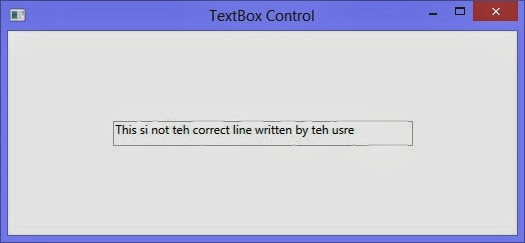
Now run the code and a textbox will display with the above text written. The thing to check is, this textbox have its fix text and the user can not vary that text.

How to make read-only textbox in WPF XAML

So the read-only property is used to make the textbox read-only for the users. We can validate the input entered by the user by writing some line of code in our code part. We will validate the input in our next article.

Saturday, September 28, 2013

Difference between Application.Run() and form.showDialog() method in windows form

class program {
  static void Main() {
    Form form = new Form();
    form.ShowDialog();
  }
}

This code would show a blank form and wait for the user to close it before returning control to the Main function, but it's not the code you will generally be writing. Instead, to make it accessible in other parts of your application, you'll be designating one form as the main form. To do this, pass the main form as an argument to the Run method of the Application object, which also resides in the System.Windows.Forms namespace

class program {
  static void Main() {
    Form form = new Form();
    Application.Run(form);
  }
}

The Application class's static Run method will show the main form, and when it's closed, Run will return, letting our Main function exit and closing the process.


ImageUrl Property of Hyperlink Control example

Example of ImageUrl Property

If you want to use image in place of Text on hyperlink control then you must specify the ImageUrl Property to the Hyperlink control. If you have been set ImageUrl then your Text will be hide because Image priority is high compare to text.

Lets take an example 


<%@ Page Language="C#" %>

<!DOCTYPE html PUBLIC "-//W3C//DTD XHTML 1.0 Transitional//EN" "http://www.w3.org/TR/xhtml1/DTD/xhtml1-transitional.dtd">

<script runat="server">

</script>

<html xmlns="http://www.w3.org/1999/xhtml">
<head runat="server">
    <title></title>
</head>
<body>
    <form id="form1" runat="server">
    <div>
        <asp:HyperLink ID="HyperLink1" runat="server" ImageUrl="~/submit.jpg"
            NavigateUrl="Http://www.google.com">HyperLink</asp:HyperLink>
    </div>
    </form>
</body>
</html>


Output
ImageUrl Property of Hyperlink Control example

How to run javascript code on Label Text in ASP.NET

<%@ Page Language="C#" %>

<!DOCTYPE html PUBLIC "-//W3C//DTD XHTML 1.0 Transitional//EN" "http://www.w3.org/TR/xhtml1/DTD/xhtml1-transitional.dtd">

<script runat="server">

    protected void Page_Load(object sender, EventArgs e)
    {
 
     
    }
</script>

<html xmlns="http://www.w3.org/1999/xhtml">
<head runat="server">
    <title></title>
</head>
<body>
    <form id="form1" runat="server">
    <div>
        <asp:Label ID="Label1" runat="server" Text="JavaScript:<script>alert('hello');</script>"></asp:Label>
    </div>
    </form>
</body>
</html>

Output
How to run javascript code on Label Text in ASP.NET

Formating on Label Control in ASP.NET

<%@ Page Language="C#" %>

<!DOCTYPE html PUBLIC "-//W3C//DTD XHTML 1.0 Transitional//EN" "http://www.w3.org/TR/xhtml1/DTD/xhtml1-transitional.dtd">

<script runat="server">

</script>

<html xmlns="http://www.w3.org/1999/xhtml">
<head runat="server">
    <title></title>
</head>
<body>
    <form id="form1" runat="server">
    <div>
 
        <asp:Label ID="Label1" runat="server" BackColor="#CCCC00"
            Text="Chnage back color using Back Color property"></asp:Label>
        <br />
        <br />
        <asp:Label ID="Label2" runat="server" BorderColor="Red" BorderStyle="Solid"
            Text="Change Border Color Using BorderColor Property"></asp:Label>
        <br />
        <br />
        <asp:Label ID="Label3" runat="server" BorderStyle="Dashed"
            Text="Change border style dashed using BorderStyle property"></asp:Label>
        <br />
        <br />
        <asp:Label ID="Label4" runat="server" BorderWidth="3px"
            Text="Border Width using BorderWidth Property"></asp:Label>
        <br />
        <br />
        <asp:Label ID="Label5" runat="server" ForeColor="#333300"
            Text="Chnage Forecolor using Forecolor property"></asp:Label>
        <br />
        <br />
        <asp:Label ID="Label6" runat="server" Font-Bold="True" Text="Change Font Bold"></asp:Label>
        <br />
        <br />
        <asp:Label ID="Label7" runat="server" Font-Strikeout="True"
            Text="For wrong type text "></asp:Label>
        <br />
        <br />
        <asp:Label ID="Label8" runat="server" Font-Overline="True"
            Text="Overline text , line on the text"></asp:Label>
        <br />
        <br />
 
    </div>
    </form>
</body>
</html>

Output
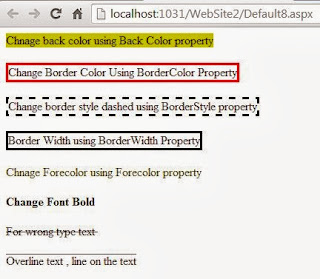
Formating on Label Control in ASP.NET

Friday, September 27, 2013

Bind DropdownList using structure in ASP.NET

<%@ Page Language="C#" AutoEventWireup="true" CodeFile="Default7.aspx.cs" Inherits="Default7" %>

<!DOCTYPE html PUBLIC "-//W3C//DTD XHTML 1.0 Transitional//EN" "http://www.w3.org/TR/xhtml1/DTD/xhtml1-transitional.dtd">

<html xmlns="http://www.w3.org/1999/xhtml">
<head runat="server">
    <title></title>
</head>
<body>
    <form id="form1" runat="server">
    <div>
        <asp:DropDownList ID="DropDownList1" runat="server">
        </asp:DropDownList>
    </div>
    </form>
</body>
</html>

Codebehind code

using System;
using System.Collections.Generic;
using System.Linq;
using System.Web;
using System.Web.UI;
using System.Web.UI.WebControls;

public partial class Default7 : System.Web.UI.Page
{
    struct student
    {
       public string name;
       public int age;
    }
    protected void Page_Load(object sender, EventArgs e)
    {
        student[] s1 = new student[5];
        s1[0].name = "jacob";
        s1[1].name = "jacob lefore";
        s1[2].name = "my name is jacob";


        foreach (student item in s1)
        {
            DropDownList1.Items.Add(item.name);   
        }


    }
}

Output
Bind DropdownList using structure in ASP.NET

How to use DropDownList Control in ASP.NET

<%@ Page Language="C#" %>

<!DOCTYPE html PUBLIC "-//W3C//DTD XHTML 1.0 Transitional//EN" "http://www.w3.org/TR/xhtml1/DTD/xhtml1-transitional.dtd">

<script runat="server">

    protected void Page_Load(object sender, EventArgs e)
    {
        DropDownList1.Items.Add("Apple");
        DropDownList1.Items.Add("mango");
        DropDownList1.Items.Add("orange");
     
    }

    protected void DropDownList1_SelectedIndexChanged(object sender, EventArgs e)
    {
        Label1.Text = "your selected item is <br/>" + DropDownList1.SelectedItem.Text;
    }
</script>

<html xmlns="http://www.w3.org/1999/xhtml">
<head runat="server">
    <title></title>
</head>
<body>
    <form id="form1" runat="server">
    <div>
        <asp:DropDownList ID="DropDownList1" runat="server" Height="20px"
            onselectedindexchanged="DropDownList1_SelectedIndexChanged" Width="186px"
            AutoPostBack="True">
        </asp:DropDownList><br />
        <asp:Label ID="Label1" runat="server" Text=""></asp:Label>
    </div>
    </form>
</body>
</html>

Output
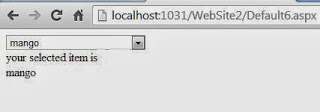
Example of Add item to DropdownList in ASP.NET

© Copyright 2013 Computer Programming | All Right Reserved