-->

Sunday, October 6, 2013

Eample of QueryString in ASP.NET

Introduction

If we want to pass control or variable value from one form to another form then we can use QueryString . There are many options available to pass queryString , these are.

In Hyperlink:

    <a href=”~/Default.aspx?id=10&name=Jacob”>QueryString Example</a>

In Response.Redirect method :

 Response.Redirect(“~/Default.aspx?id=10&name=Jacob”);

If we want to get queryString Parameter valuefrom url then we should use Request.QueryString  Object.
Label1.Text=Request.QueryString[“querystring parameter”].ToString();

Lets take an simple example to pass textbox value from one form to another form using QueryString.


<%@ Page Language="C#" %>

<!DOCTYPE html PUBLIC "-//W3C//DTD XHTML 1.0 Transitional//EN" "http://www.w3.org/TR/xhtml1/DTD/xhtml1-transitional.dtd">
<script runat="server">

    protected void Button1_Click(object sender, EventArgs e)
    {
        Response.Redirect("~/Default2.aspx?name=" + TextBox1.Text);
    }

    protected void Page_Load(object sender, EventArgs e)
    {
        if (Page.Request.QueryString["name"] != null)
        {
            Label1.Text = "name of the querystring parameter is " + Page.Request.QueryString["name"];
        }
    }
</script>
<html xmlns="http://www.w3.org/1999/xhtml">
<head runat="server">
    <title></title>
</head>
<body>
    <form id="form1" runat="server">
    <div>
        Enter Name :
        <asp:TextBox ID="TextBox1" runat="server"></asp:TextBox><br />
        <asp:Button ID="Button1" runat="server" Text="QueryString" OnClick="Button1_Click" /><br />
        <asp:Label ID="Label1" runat="server" Text=""></asp:Label>
    </div>
    </form>
</body>

</html>
Output
Eample of QueryString in ASP.NET

Saturday, October 5, 2013

How to set Default action method in MVC.

Introduction

In MVC index method is the default method in application route file. Means you can say Index is the first running action method. Here this example show how to change default method means
Index to another method.

Follow some steps for changing Default method

Step-1: Create a new action method in the Home controller class
Like
using System;
using System.Collections.Generic;
using System.Linq;
using System.Web;
using System.Web.Mvc;

namespace MvcApplication3.Controllers
{
    public class HomeController : Controller
    {
        //
        // GET: /Home/

        public ActionResult Index()
        {
            return View();
        }
        public string detail()
        {
            return "hello";
        }

    }
}
This example take two method first one is Index ( Default method) and another one is detail method . If you want to set default method is detail then you would go RouteConfig.cs file.
Step-2:  Open RouteConfig.cs file which is inside in App_Start folder.
Step-3:  Change action value in RouteConfig.cs file
public static void RegisterRoutes(RouteCollection routes)
        {
            routes.IgnoreRoute("{resource}.axd/{*pathInfo}");

            routes.MapRoute(
                name: "Default",
                url: "{controller}/{action}/{id}",
                defaults: new { controller = "Home", action = "detail", id = UrlParameter.Optional }
            );
        }
Step-4: Assign second action method name (detail) to action value in RegisterRoutes method (which is mentioned above).

Step-5 : Save your Application and run.
How to set Default action method in MVC.

Friday, October 4, 2013

Difference between Webform application and MVC application.

MVC Application
WebForm Application
In MVC URL’s are mapped to controller Action methods.

Example:

MVC Output mapped with code file


In Above snap you can see a url’s mapped to  controller function(Index,another) , it’s not related to physical files .


In a WebForm url’s are mapped to physical files

Example :


In Above snap you can see url mapped to Home.aspx files (physical file). Its not related to function.

How to Edit Columns in SQL Server Binding: Windows Froms

When we bind the data grid view with SQL Server database, then it will show all the columns created in the table of database. According to our previous post we have displayed all the records of table, without writing a single line of code.

Now in previous example all the columns are shown even the primary key of table. In this article we will remove those columns by some mouse clicks.

A datagridview tasks pop-up menu appears automatically, as shown in below image, click on Edit Columns link button.

How to Edit Columns in SQL Server Binding: Windows Froms


By clicking on this link button, some column names are shown in left side and on the right side there are some properties of that particular selected column.

How to Edit Columns in SQL Server Binding: Windows Froms


To remove a column, just select that and click on remove button (just below the selected columns panel), and it will be removed. We can easily change the header text of the particular column. Select a column and on the right side edit the value of Header Text.

How to Edit Columns in SQL Server Binding: Windows Froms


Perform the editing you want and at the last, click on ok button. All the settings you changed has been saved and when you run the project only three columns Code, Description and Type will be shown like:

How to Edit Columns in SQL Server Binding: Windows Froms

How to deploy a MVC project from inbuilt server to localhost

Also you can say how to deploy a mvc project from inbuilt server to another server such as
Before  address --  localhost:34376
After Address--  localhost:8080

Step-1 : Open Visual studio in administrator mode.
Step-2:  Open your MVC project
Step-3: Right Click on Your MVC project name and select properties.
project property window in asp.net


Step-4: In open window (below snap) , your application run on default server port such as 34376
project property window in asp.net

Step-5 :  Save your application and run.
How to deploy  a MVC project  from inbuilt server to localhost


Step-6 : Again open project property window and change your current server  to local server  also click to create virtual directory button, check below snap
project property window in asp.net

Step-7:  Save your Application and run

How to deploy  a MVC project  from inbuilt server to localhost

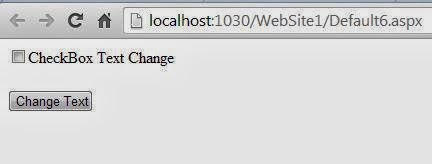
ASP.NET: Change CheckBox Text in code file

How to change control text in code file

If you want to change text of the control in code file then you must use text property of the control in code file. Simple you can say

ControlId.Text = " Assign Text in double quotes";
 lets take a simple example to change CheckBox text , alignment of the text and color of the Text.
<%@ Page Language="C#" %>

<!DOCTYPE html PUBLIC "-//W3C//DTD XHTML 1.0 Transitional//EN" "http://www.w3.org/TR/xhtml1/DTD/xhtml1-transitional.dtd">

<script runat="server">

    protected void Button1_Click(object sender, EventArgs e)
    {
        CheckBox1.Text = "change text of the control";
        CheckBox1.TextAlign = TextAlign.Left;
        CheckBox1.ForeColor = System.Drawing.Color.Green;
    }
</script>

<html xmlns="http://www.w3.org/1999/xhtml">
<head runat="server">
    <title>Change CheckBox Text in Code file</title>
</head>
<body>
    <form id="form1" runat="server">
    <asp:CheckBox ID="CheckBox1" runat="server" Text="CheckBox Text Change" />
    <br />
    <br />
    <asp:Button ID="Button1" runat="server" onclick="Button1_Click" Text="Change Text"
        Width="85px" />
    <div>
   
    </div>
    </form>
</body>

</html>
Output
ASP.NET: Change CheckBox Text in code file

ASP.NET: Change CheckBox Text in code file

Change visibility property dynamically in ASP.NET

Introduction

Every control having a visibility property means you can hide or visible a control at any time any where. Bydefault every control set true in visibility. lets take a simple example take a web form and place control onit. Also set visibility property.

Example

ControlId.Visibility = True/false;

<%@ Page Language="C#" %>

<!DOCTYPE html PUBLIC "-//W3C//DTD XHTML 1.0 Transitional//EN" "http://www.w3.org/TR/xhtml1/DTD/xhtml1-transitional.dtd">

<script runat="server">

    protected void Button1_Click(object sender, EventArgs e)
    {
        CheckBox1.Visible = false;
    }
</script>

<html xmlns="http://www.w3.org/1999/xhtml">
<head runat="server">
    <title>Visibility Property of the control</title>
</head>
<body>
    <form id="form1" runat="server">
    <asp:CheckBox ID="CheckBox1" runat="server" Text="CheckBox Visible" />
    <br />
    <br />
    <asp:Button ID="Button1" runat="server" onclick="Button1_Click" Text="Hide"
        Width="85px" />
    <div>
   
    </div>
    </form>
</body>
</html>
Output
Change visibility property dynamically in ASP.NET

Change visibility property dynamically in ASP.NET

© Copyright 2013 Computer Programming | All Right Reserved