-->

Saturday, November 2, 2013

Programmatically change CheckBoxList font size in ASP.NET

Introduction

If you want to change size of the font for better visibility then you must change font size according to users. Highly rich content website change font color , font name/face and font size according to users. Get lots of visitors or viewers from your website  using website functionality (better presentation, better look and better theme) .

lets take an simple example


<%@ Page Language="C#" AutoEventWireup="true" CodeFile="CheckBoxListFont.aspx.cs" Inherits="CheckBoxListFont" %>

<!DOCTYPE html PUBLIC "-//W3C//DTD XHTML 1.0 Transitional//EN" "http://www.w3.org/TR/xhtml1/DTD/xhtml1-transitional.dtd">

<html xmlns="http://www.w3.org/1999/xhtml">
<head runat="server">
    <title></title>
</head>
<body>
    <form id="form1" runat="server">
    <div>
   
        <asp:CheckBoxList ID="CheckBoxList1" runat="server" Height="45px" Width="239px">
            <asp:ListItem>Adrotator</asp:ListItem>
            <asp:ListItem>BulletedList</asp:ListItem>
            <asp:ListItem>Button</asp:ListItem>
            <asp:ListItem>CheckBox</asp:ListItem>
        </asp:CheckBoxList>
        <br />
        <asp:Button ID="Button1" runat="server" Height="35px" onclick="Button1_Click"
            Text="Change Font" Width="119px" />
   
    </div>
    </form>
</body>

</html>

Codebehind Code

using System;
using System.Collections.Generic;
using System.Linq;
using System.Web;
using System.Web.UI;
using System.Web.UI.WebControls;

public partial class CheckBoxListFont : System.Web.UI.Page
{
    protected void Page_Load(object sender, EventArgs e)
    {

    }
    protected void Button1_Click(object sender, EventArgs e)
    {
        CheckBoxList1.Font.Size = FontUnit.Larger;

    }
}
Output
Programmatically change CheckBoxList font size in ASP.NET

Programmatically change CheckBoxList font size in ASP.NET

Friday, November 1, 2013

How to Access Record by DataGridViewButton: Windows Forms

I have created a DataGridViewButton for each particular record of DataGridView, as in my earlier post. Adding a button is not sufficient in programming, it should perform some functions when clicked, so we have to generate its click event.

In simple words, we can’t generate a click event of this DataGridViewButton using double click or from the events section. As this is in datagridview so generate Cell_Click event of this datagridview. Now, I have added this button in first column, so I can check it on the same.
private void dataGridView1_CellClick(object sender, DataGridViewCellEventArgs e)
{
MessageBox.Show("Column: " + e.ColumnIndex + " and Row: " + e.RowIndex);
}

By this simple code, the debugger will execute all your line of code, written in the space provided. ColumnIndex contains the column index and RowIndex contains row index, when this event triggered.

Let suppose, we want to access the record of the clicked row of datagridview. I have bound that datagridview with list of student class, so the following C# lines of code will get the instance of student, which is currently focused by mouse click event.
private void dataGridView1_CellClick(object sender, DataGridViewCellEventArgs e)
{
Student stu = dataGridView1.Rows[e.RowIndex].DataBoundItem as Student;
MessageBox.Show("Name: " + stu.Name + "\r" + "Age: " + stu.Age
+ "\r" + "City" + stu.City + "\r"
+ "Dob: " + stu.Dob);
}

The first line will get the particular record, which is of student type. When we run the project and click on the datagridviewbutton it will show a message box, containing the detail of particular student.

How to access record by Datagridviewbutton in C#: Windows Forms

Thursday, October 31, 2013

How to Add Commands with Binding in DataGridView: Windows Forms

After binding records with DataGridView, there may be some options to edit or to remove those records. To do these simple task we can provide either a button, which gets the selected record and perform operation, or we can provide the button with each particular record.

We will discuss here how to add a button with particular record with the following simple steps. Drag-n-drop a datagridview on the form and a task pop-up menu will automatically open, click on Add Columns link button to add a new column. It will show following Add Column window.

How to Add Commands with Binding in DataGridView: Windows Forms

By default Unbound column radio button have been checked, if not check it and use the following values in respective fields:
  • Type: DataGridViewButtonColumn
  • Header Text: Command (Changeable)
Sure the Visible check box is checked and click on Add button to add this column. Now you have successfully added a command button with empty text as shown in below image:

How to Add Commands with Binding in DataGridView: Windows Forms

To write text on the button generate Cell_Formatting event of dataGridview and set the value of first column as I do in the following c# code:
private void dataGridView1_CellFormatting(object sender, DataGridViewCellFormattingEventArgs e)
{
dataGridView1.Rows[e.RowIndex].Cells[0].Value = "Remove";
}

When you run the project now, it will show “remove” on the button. To check if this code will works for multiple records or not, add some records in data gridview like How to add Records in Datagridview. Run the project now and it will show the Remove button with each record as shown in the following image:

How to Add Commands with Binding in DataGridView: Windows Forms

In the next article I will remove the particular record with this command button.

How to Bind ComboBox with List of Items: C#

A list of items is used to store some temporary records, used in the program and do some operations like sorting, grouping and etc. In the previous post we have created a list and bind that list to the datagridview, using its DataSource property.

A combo box also have DataSource property to bind some data as I have discussed in my earlier article i.e. How to bind combobox with database. Combo Box is used to display a single field at a time and a list can contains multiple fields. I will use the same student class as in my earlier articles.
To show a single field, combo box have a property DisplayMember that will specify the field to display. In the following C# code the student list will bind with the combo box and name field will be shown.

List<Student> stuList = new List<Student>();
cmbBox.DataSource = stuList;
cmbBox.DisplayMember = "Name";

Before running this code, you have to sure that your list have some records to show. It will not throw an exception, but it will also not show any records because the list is empty.

Run the project and combo box will bind the list items and we can select any of them. The image shown the combo box items:

How to bind combobox with list of items: C# Windows forms

Wednesday, October 30, 2013

GridView Paging in ASP.NET

Introduction

There are many things to remember that how a GridView support paging at runtime. Also DOTNET provides many styles is to related paging such as numbering , first and last order etc. Always first think in mind that SqlDataReader does not support paging so do not bind your GridView control with DataReader.

Here we are describe easy steps to bind GridView with paging.

Step-1: Drop GridView Control on Designing window and add some attributes in GridView Tag.

<asp:GridView ID="GridView1" runat="server" AutoGenerateColumns ="false"
            AllowPaging ="true" PageSize ="2"
            onpageindexchanging="GridView1_PageIndexChanging1">

Step-3:  Handle onpageindexchanging event in code file.

protected void GridView1_PageIndexChanging1(object sender, GridViewPageEventArgs e)
    {
        GridView1.PageIndex = e.NewPageIndex;
        loadgrid();

    }
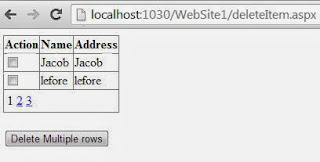
Step-4 : Run your application

Complete code

<%@ Page Language="C#" AutoEventWireup="true" CodeFile="deleteItem.aspx.cs" Inherits="deleteItem" %>

<!DOCTYPE html PUBLIC "-//W3C//DTD XHTML 1.0 Transitional//EN" "http://www.w3.org/TR/xhtml1/DTD/xhtml1-transitional.dtd">

<html xmlns="http://www.w3.org/1999/xhtml">
<head runat="server">
    <title></title>
</head>
<body>
    <form id="form1" runat="server">
    <div>
   
        <asp:GridView ID="GridView1" runat="server" AutoGenerateColumns ="false"
            AllowPaging ="true" PageSize ="2"
            onpageindexchanging="GridView1_PageIndexChanging1">
        <Columns>
        <asp:TemplateField HeaderText ="Action">
        <ItemTemplate >
            <asp:CheckBox ID="Chkdelete" runat="server" />
        </ItemTemplate>
        </asp:TemplateField>

           <asp:TemplateField HeaderText ="Id" Visible =false>
        <ItemTemplate >
            <asp:Label ID="snolbl" runat="server" Text='<%# Eval("sno") %>' />
        </ItemTemplate>
        </asp:TemplateField>

         <asp:TemplateField HeaderText ="Name">
        <ItemTemplate >
            <asp:Label ID="namelbl" runat="server" Text='<%# Eval("Name") %>' />
        </ItemTemplate>
        </asp:TemplateField>
         <asp:TemplateField HeaderText ="Address">
        <ItemTemplate >
      <asp:Label ID="addlbl" runat="server" Text='<%# Eval("Name") %>' />
        </ItemTemplate>
        </asp:TemplateField>
        
        </Columns>
        </asp:GridView>
   
        <br />
        <asp:Button ID="Button1" runat="server" onclick="Button1_Click"
            Text="Delete Multiple rows" />
   
    </div>
    </form>
</body>

</html>
Codebehind

using System;
using System.Collections.Generic;
using System.Linq;
using System.Web;
using System.Web.UI;
using System.Web.UI.WebControls;
using System.Data.SqlClient;
using System.Configuration;
using System.Data;

public partial class deleteItem : System.Web.UI.Page
{
    SqlConnection con = new SqlConnection(ConfigurationManager.ConnectionStrings["ConnectionString"].ToString());

    protected void Page_Load(object sender, EventArgs e)
    {
        if (!Page.IsPostBack)
        {
            loadgrid();
        }
    }

    private void loadgrid()
    {
        SqlCommand cmd = new SqlCommand("Select * from deltable",con);
        con.Open();
        DataSet ds = new DataSet();
        SqlDataAdapter da = new SqlDataAdapter(cmd);
        da.Fill(ds);
        GridView1.DataSource = ds;

        GridView1.DataBind();
        con.Close();

       
    }
    protected void Button1_Click(object sender, EventArgs e)
    {
        foreach (GridViewRow  row in GridView1 .Rows)
        {
            var check = row.FindControl("Chkdelete") as CheckBox;
            if (check .Checked)
            {
                var id = row.FindControl("snolbl") as Label;
                SqlCommand cmd = new SqlCommand("delete from deltable where sno=@s", con);
                cmd.Parameters.AddWithValue("@s", id.Text);
                con.Open();
                cmd.ExecuteNonQuery();
                con.Close();

               
            }
           
        }
        loadgrid();
    }

    protected void GridView1_PageIndexChanging1(object sender, GridViewPageEventArgs e)
    {
        GridView1.PageIndex = e.NewPageIndex;
        loadgrid();

    }

}


Output
GridView Paging in ASP.NET


ASP.NET Exception : The data source does not support server-side paging

The data source does not support server-side paging
SqlDataReader class does not support paging in ASP.NET.  In above snapshot you can see that your GridView is bind with DataReader instance so if you want to remove this error , replace your DataReader with DataSet or DataTable.

Here are given some easy steps to bind your GridView with Dataset.

 Use DataSet for enable paging

DataSet ds = new DataSet();
        SqlDataAdapter da = new SqlDataAdapter(cmd);
        da.Fill(ds);
        GridView1.DataSource = ds;
        GridView1.DataBind();

Paging Example in ASP.NET

Tuesday, October 29, 2013

Difference Between SGML, HTML, and XML

XML , markup languages such as standard Generalized Markup Language(SGML) and Hypertext Markup Language(HTML) are also available.

SGML was released in 1980. It allows documents to describe their grammar by specifying the tag set used in the document and the structural relationship that these tags represent. This makes it possible to define individual formats for documents, handle large and complex documents, and manage large information repositories. However, SGML is complex and difficult for developers to master.

HTML was created by Tim Berners-Lee in 1989 as a simple and effective way of generating clear and readable documents. HTML enables you to create documents and Web pages that can be read by all web browsers . It uses a set of tags in conformance with the SGML specification.

The World Wide web consortium (W3C) developed XML to enable the expansion of Web technologies into the new domains of document processing and data interchange. XML is a subset of SGML. It is designed to ease data exchange over the Internet.  Though HTML and XML are markup languages, they have different purposes. HTML is used for data presentation, whereas XML is used for data description and definition.


© Copyright 2013 Computer Programming | All Right Reserved