-->

Tuesday, December 3, 2013

Database Architectures used by Database Developer: Introduction to SQL

According to earlier discussion about employee’s details storage in database, any business application can have some major elements as Single-tier Architecture, Two-tier architecture, Three-tier Architecture and at the last N-tier Architecture in context of SQL server. A database developer can easily use this concepts in sql by following below description.

Single-Tier Architecture

In single-tier architecture, all elements of a business application are combined as a single executable unit. This unit is installed on all the computers that the users need to work on. It is required to recompile and redistribute the entire application to all the computers, after any modification. That’s why it becomes complicated to modify the application or to fix any bugs.

Two-Tier Architecture

This architecture makes entry to address the problems in modifying an application faced in a first scenario. In two-tier architecture, the application is divided into two manageable parts; one part handles the data, while the other provides the user interface. The two parts can be located on a single computer or on separate computers over a network.

The part that handles the user interface (UI) is called the client tier. The part that Implements the application logic and manages the input data based on the business rules is called the server tier, as shown in the following connection.

Client Computers<---------------------------------->Database Server

Two-tier architecture is also called client-server architecture. Most RDBMSs, such as Microsoft Access, SQL Server, and Oracle adhere to the client-server architecture. RDBMS provides centralized functionality required while supporting many users.

Three-Tier Architecture

When implementing complex business solutions in case of a two-tier architecture, the tier on which the business logic is implemented becomes over loaded. As a result, it takes more time to execute. Therefore, to provide further flexibility, the two-tier architecture can be split into three tiers. In three-tier architecture, the first tier is the client tier, the second or middle tier is called the business tier and the third tier is called the server tier. The server tier contains a database server that manages the data.

Client Computers<-------->Business Tier <-------->Database Server

The business tier consists of all the business rules. It consists of the application logic that Implements rules and checks the data. The advantage of a three-tier application is that it allows you to change the business rules without affecting the other two tiers.

For instance in a banking application for loans, the user tier is the front-end, used by the customer to specify the loan details. The server tier can consist of an RDBMS in which the data is stored. The business tier lies between the other two tiers and consists of business rules, such as the loan limit and the interest rate charged to a customer. If there is a change in the rate of interest, only the middle tier component needs to be modified.

N-Tier Architecture

Webpage design using master page and css in asp.net

Webpage design is term to represent proper arrangement of the objects. If you want to design webpages in asp.net using master page, you should use visual studio IDE (Integrated Development Environment).
Lets take a simple steps for webpage design using master page and CSS.
Step-1 : Open visual studio , i have visual studio 2010 IDE
Step-2 :  Select new website under file menu.
Step-3 :  In the left pane select visual c# also select ASP.NET Empty website in the middle pane in New website window.
Step-4 : Open Add new item window using Ctrl+Shift+A and select master page. Also select "place code in separate file" check box
Step-5 : Here, simple demonstration of master page.

webpage design : master page source code

Step-6: Before further designing take a rough diagram of your webpage, suppose your page look like.
Rough diagram of webpage design


Step-7 : Now, we will start designing in master page. First we take HTML table just after <form> tag, Bydefault table contains three rows and three columns.
Step-8 : Select all cell of the first row for designing Header part, merge all of them by selecting "MergeCells" in modify menu.
modify cell of the html table in webpage design


Step-9 : Similarly again Merge cell for designing sidebar,content, and footer part.
Step-10 : Place ContentPlaceHolder in content part. Now your master page look like.

webpage design of master page in asp.net


Step-11 : Add new Item using Ctrl+Shift+A , select webform which extension as .aspx. Also this page inherits from master page so select master page check Box and press add button.
Step-12 : Now you can see your default.aspx page inherits layout of the master page.

Monday, December 2, 2013

Data Engine for Database Developer: Introduction to SQL

SQL Server, a data engine introduced by Microsoft, lies at the core of data Management solution of an organization. It allows secure, efficient storage and Management of data. SQL database Server also provides other components and Services that support the business intelligence platform to generate reports and facilitate Data analysis used by database developer.

Every organization needs to maintain information related to employees, Customers or Business partners. Organizations build business applications either to store and manipulate the information or to generate reports. In addition, they need a platform that can be used to store and maintain these information in an efficient way. Various database management systems (DBMS) and relational database Management system (RDBMS) such as SQL Server 2005, Oracle and Sybase can be used to maintain this information.
How to install SQL Server
It is important for a database developer to identify the role of a database server in an organization, to effectively design and implement database solutions by using SQL Server, to identify its components and services. In Addition, you need to understand the basics of SQL, a language that is used to query and manage data.

Role of a Database Server

Earlier, organizations used to store the data on paper. With an increase in the usage of computers, they began building and using business applications to support the business operations.

The business applications accept data/information as input, process the data based on business requirements and provide data/information as output. For example, an application that maintains the sales details for an organization, accepts the details of the sales transaction from the users. The data is saved and an output message will display confirming that the data has been saved.

For example, the Human Resource department of an organization uses an application to manage employee’s data. The users need to add the details of new employees. The application provides an interface to enter the employee details. These details are validated for accuracy based on business rules. A business rule is defined to check that the date of joining of the new employee is less than or equal to the current date. If the data meets the requirements, it is saved in the data store.

Architectures used in Business application

Friday, November 29, 2013

Windows 8 App Development: How to use HyperlinkButton in c# code file

In my previous article, i have discuss hyperlinkbutton with XAML code in windows 8 app development. In this article i will explain use this button in c# code file. Write the below code in specified file:

XAML CODE

<Page
    x:Class="App4.MainPage"
    xmlns="http://schemas.microsoft.com/winfx/2006/xaml/presentation"
    xmlns:x="http://schemas.microsoft.com/winfx/2006/xaml"
    xmlns:local="using:App4"
    xmlns:d="http://schemas.microsoft.com/expression/blend/2008"
    xmlns:mc="http://schemas.openxmlformats.org/markup-compatibility/2006"
    mc:Ignorable="d">

    <Grid Background="{StaticResource ApplicationPageBackgroundThemeBrush}">
     
<HyperlinkButton x:Name="h1" Height="200" Width="257" Content="Microsoft Development Network" Margin="90,20,0,548" Click="h1_Click" />
    </Grid>
</Page>

CODE FILE
using System;
using System.Collections.Generic;
using System.IO;
using System.Linq;
using Windows.Foundation;
using Windows.Foundation.Collections;
using Windows.UI.Xaml;
using Windows.UI.Xaml.Controls;
using Windows.UI.Xaml.Controls.Primitives;
using Windows.UI.Xaml.Data;
using Windows.UI.Xaml.Input;
using Windows.UI.Xaml.Media;
using Windows.UI.Xaml.Media.Imaging;
using Windows.UI.Xaml.Navigation;

// The Blank Page item template is documented at http://go.microsoft.com/fwlink/?LinkId=234238

namespace App4
{
    /// <summary>
    /// An empty page that can be used on its own or navigated to within a Frame.
    /// </summary>
    public sealed partial class MainPage : Page
    {
        public MainPage()
        {
            this.InitializeComponent();
            //BitmapImage img = new BitmapImage();
            //img.UriSource = new Uri(this.BaseUri,"Image/youtube.png");

            //Image1.Source = img;
            List<string> lit = new List<string>();
            lit.Add("Apple");
            lit.Add("Apple");
            lit.Add("Apple");
            lit.Add("Apple");
            //l1.ItemsSource = lit;           
        }

        private void h1_Click(object sender, RoutedEventArgs e)
        {
            Uri uri = new Uri("http://www.msdn.microsoft.com");
            h1.NavigateUri = uri;            
        }    
    }
}
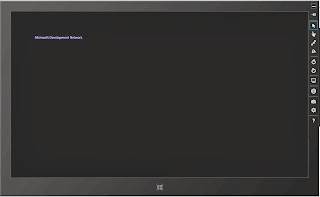
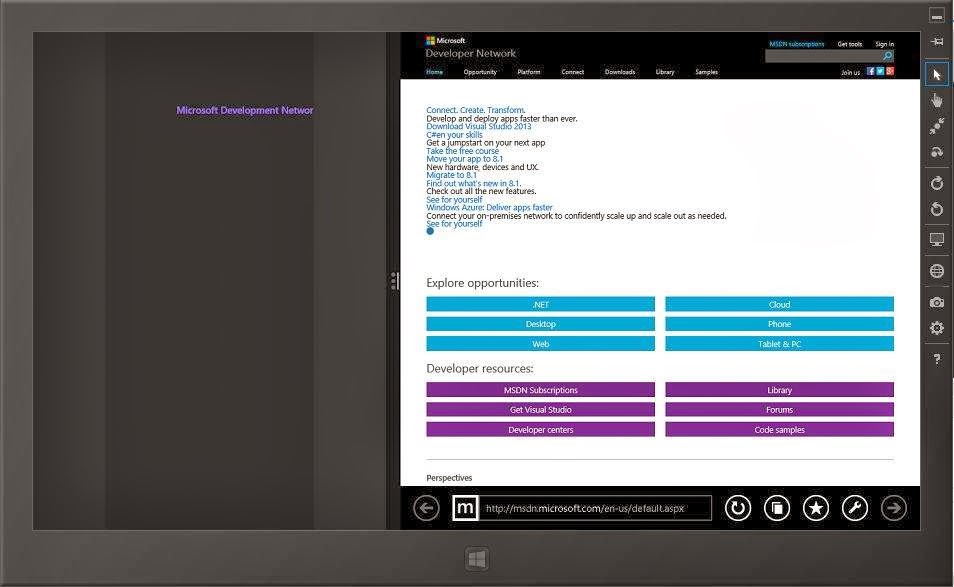
In the above c# code, look out the click event of hyperlinkbutton h1, i have created an object of Uri class with the link as a constructor's parameter. And then set the property NavigateUri  to the object defined above. When user will click on this button, it will redirect programmer to the specified page.

OUTPUT
Windows 8 App Development: How to use HyperlinkButton in c# code file

Windows 8 App Development: How to use HyperlinkButton in c# code file

First image shown the hyperlinkbutton created by the c# code, when programmer will click on that button, it will redirect on the msdn page, shown in the second image. The second image shows the latest feature in windows 8 app development as it is redirecting programmer and both the pages are side by side.

Tuesday, November 26, 2013

How to add Styles to an HTML Document

Introduction

Rules can be applied to an HTML document in three ways, as inline style directions, as a style element embedded in the head section of HTML file and as an external file that can be either linked to or imported into document.

Inline styles

Style information can be added to an individual element by adding style attribute within HTML tag of that element. Value of style attribute is one or more standard style declarations, as shown here:

html page code

<!DOCTYPE html>
<html xmlns="http://www.w3.org/1999/xhtml">
<head>
 
    <title></title>
</head>
<body><div style="font-size: large; font-weight: bolder; font-style: normal; color: #FF0000; background-color: #FFFF00">
    Hello World
    </div>

</body>
</html>
Although a perfectly valid use of style information, inline styles are equivalent to <font> tag in the "pollute" document with presentation information. Style information is still tied to each individual content element and any changes would need to be made in every file, rather than globally. Inline styles are best used to override higher-level styles.

Embedded style sheet

A more compact method for adding style sheets is to embedding a style block, in the top of HTML document, using the <style> element. Following example shows sample rules embedded in a HTML document:

<!DOCTYPE html>
<html xmlns="http://www.w3.org/1999/xhtml">
<head>
    <style>
        h1 {
            font-size :x-large;
        }
        .inner {
            color:orange;
            background-color :green;
        }


    </style>
    <title></title>
</head>
<body><div class="inner">
    <h1>Hello World</h1>
    </div>

</body>
</html>

Output of the code is :


<style> element must be placed within <head> tag in the document. It is usually necessary to place HTML comment tags (<!-and->) around the <style> contents. This hides style information from browsers that don’t understand the <style> tag (otherwise, they could display the rules as text in browser window).

Currently, Cascading Style Sheets (CSS) are the style sheet language only, but the W3C has prepared for possibility of additional languages to be added in the future by providing type attribute within the <style> element. Only viable style type as of this writing is text/css. If the type attribute some browsers may ignore entire style sheet.

External style sheet 

The powerful way to use styles is to collect them all in a separate text document and create links to that document from all HTML pages in a site. In this way, you can make stylistic changes consistently across a whole site by editing style information in a single document. This is a powerful tool for large-scale sites.
These are two ways to refer to external style sheets from within an HTML document.
  1. Linking. The most standard and best-supported method is to create a link to that document using <link> tag  in <head> of document as shown here:
<link href="StyleSheet.css" rel="stylesheet" />


The rel attribute defines linked document’s relation to the current document- a “style sheet”. The href attribute provides URL to the file containing style sheet information.

Style sheet document is a simple text document that contains a collection of style sheet rules. It may not contain HTML tags, particularly structural tags that set up an HTML document (<head>, and <body>).

Style sheet. css file 

body {
    background-color :black;
}
.fontclass {
    color :white ;
    font-size :medium;
}

.html file

<!DOCTYPE html>
<html xmlns="http://www.w3.org/1999/xhtml">
<head>
    <link href="StyleSheet.css" rel="stylesheet" />
    <title></title>
</head>
<body><div class="fontclass">
    <h1>Hello World</h1>
    </div>

</body>
</html>

Output File 


2. Importing. An alternative to linking is to import external style sheets into <style> element using <style> the @import function as shown:

First Stylesheet.css file code 

@import url(StyleSheet2.css);

.fontclass {
    color :white ;
    font-size :medium;
}

Second Stylesheet.css file code

body {
    background-color :green;
}

Advantage to importing is, multiple style sheets can be applied to same Document (only one style sheet can be “linked” to a document). When additional import functions are added within <style> element, style information from the last file read (the one at the bottom of the list) will take precedence over previous ones.
Major drawback to import is limited browser support (it is currently only supported by Internet Explorer 4.0).


Monday, November 25, 2013

How to use HyperlinkButton with XAML in Windows 8 App Development

HyperLinkButton, used to open the specified URI in the default browser. URI can be specified in NavigateURI property of this button and it will launch that by clicking on that button. This button look like a text with underline. This button opens another page side by side in windows 8 app development.

Here's the XAML code which will create this type of button:

<Page
    x:Class="App4.MainPage"
    xmlns="http://schemas.microsoft.com/winfx/2006/xaml/presentation"
    xmlns:x="http://schemas.microsoft.com/winfx/2006/xaml"
    xmlns:local="using:App4"
    xmlns:d="http://schemas.microsoft.com/expression/blend/2008"
    xmlns:mc="http://schemas.openxmlformats.org/markup-compatibility/2006"
    mc:Ignorable="d">

    <Grid Background="{StaticResource ApplicationPageBackgroundThemeBrush}">
        
<HyperlinkButton x:Name="h1" NavigateUri="http://msdn.microsoft.com" Height="200" Width="257" Content="Microsoft Development Network" Margin="90,20,0,548" />


    </Grid>
</Page>

Here above the XAML code is so simple to read and understand. This code is using some mostly used properties described below:
  • x:Name: Specify the name of this button and used in code behind file.
  • NavigateURI: get or set the URI to navigate to when the button is clicked.
  • Height & Width: commonly used property by XAML elements. Read Height & Width in XAML.
  • Content: the text to be shown on the button.
  • Margin: specify the extra space to get placed around the outside edges. Read Margin in XAML.

Output

How to use HyperlinkButton in windows store app

How to use HyperlinkButton in windows store app

Saturday, November 23, 2013

How to make custom login control in asp.net programming

Introduction about security of your web page in asp.net programming

You have been familiarized with the process of creating websites of your choice. However , only creating a website is not enough, one have to secure from unauthorized users. Such users can access and steal vital information of other users or about secret info of website such as credit card numbers and email-ids.
Considering these factors, it is necessary to secure the websites from malicious users. To implement security, we must be able to track the user who visit the website and allow only authorized users to access the website resources. For tracking users, we need to collect some required information (such as name, email id, and contact no.) including username and password.

Users are required to furnish username and password to authenticate them as valid/registered users.To fulfill these tasks, we need to create a user interface for authenticating the user, and displaying the desired page based on the roles or rights given to the user. However, creating such forms or user interface with the help of standard ASP.NET Programming server controls is quite tedious and time consuming.
There is a fix login control in Visual Studio 2013 ASP programming, but it is attached with the in-built database. That's why we are designing custom login control for security of the web page, because through custom login control, programmer can check credentials from its own database.

 Follow some steps to make custom login control in asp.net programming

Step-1 : Design view of the asp program. We are designing something like the image shown.

custom login : Design view of the asp program.

Step-2: ASPX Code part in asp.net programming
<p>
        <h2>Login for security</h2></p>
    <asp:ValidationSummary ID="ValidationSummary1" runat="server" BackColor="#CCCC00" BorderColor="Black" BorderStyle="Solid" BorderWidth="4px" />
    <p>
        Enter member username :&nbsp;
        <asp:TextBox ID="usrtxt" runat="server" Width="182px"></asp:TextBox>
        <asp:RequiredFieldValidator ID="RequiredFieldValidator1" runat="server" ControlToValidate="usrtxt" ErrorMessage="Enter Username" ForeColor="Maroon">*</asp:RequiredFieldValidator>
    </p>
    <p>
        Enter&nbsp; member password : <asp:TextBox ID="pwd" runat="server" TextMode="Password" Width="182px"></asp:TextBox>
        <asp:RequiredFieldValidator ID="RequiredFieldValidator2" runat="server" ControlToValidate="usrtxt" ErrorMessage="Enter password" ForeColor="Maroon">*</asp:RequiredFieldValidator>
    </p>
    <p>
        <asp:Button ID="Button1" runat="server" Text="Member Login" OnClick="Button1_Click" />
    </p>
    <p>
        <asp:Label ID="Label1" runat="server"></asp:Label>


C# Code part
using System;
using System.Collections.Generic;
using System.Linq;
using System.Web;
using System.Web.UI;
using System.Web.UI.WebControls;
using System.Data.SqlClient;
using System.Data;
using System.Configuration;

public partial class welcome : System.Web.UI.Page
{
    SqlDataReader rd;
    protected void Page_Load(object sender, EventArgs e)
    {

    }
    protected void Button1_Click(object sender, EventArgs e)
    {
        bool flag=true ;
        using (SqlConnection con = new SqlConnection())
        {

        con.ConnectionString =ConfigurationManager .ConnectionStrings ["ConnectionString"].ToString ();
        con.Open ();
            using (SqlCommand cmd=new SqlCommand ())
            {
                cmd.CommandText ="select * from [Table]";
                cmd.Connection =con;
                rd=cmd.ExecuteReader (CommandBehavior .CloseConnection);
                while (rd.Read ())
{
                    if (rd["username"].ToString ().Equals(usrtxt .Text) && rd["password"].ToString ().Equals (pwd .Text))
                    {
                        flag =false ;
                        Session ["username"]=rd["username"].ToString ();
                        break ;

                    }
     
}
                if (flag ==true)
                    Label1 .Text ="No record found";
                else
                    Response .Redirect ("~/admin/securepage.aspx");

             
            }
        }
    }
}
Run this web page and the same design will be shown to you and you will be able to check the given credentials in your own database. The database name will be pass through the connection string used in the C# code.
© Copyright 2013 Computer Programming | All Right Reserved