-->

Wednesday, October 21, 2015

Refactoring in visual studio 2013,2015

Refactoring, change the internal structure of the code without any changes in behavior/outer structure. By using visual studio plugins, you can do the following refactoring in the visual studio code. The most popular and powerful refactoring plugin/extension in visual studio is visual assist. By using it, we can do some following tasks:

  • Extract method refactoring: By using visual studio we can create new methods for existing code, I want to say that if you have a code in a method, you want to break it in different segments/methods then you can use extract method like Suppose your code look like
   public class Class1  
   {  
     public void display()  
     {  
       int a=10;  
       int b=20;  
       Console.WriteLine(a + b);  
     }  
   }  

Select the code fragment you want to extract:

  int a=10;  
       int b=20;   

Right click on selected text, Refactor--> Extract Method..., appear new window.

Extract method window in visual studio

After pressing the "ok" button, your code look like

  public class Class1  
   {  
     public void display()  
     {  
       int a;  
       int b;  
       NewMethod(out a, out b);  
       Console.WriteLine(Convert.ToString(a+b));  
     }  
     private static void NewMethod(out int a, out int b)  
     {  
       a = 10;  
       b = 20;  
     }  
   }  

  • Change class name also the file name: If you want to change class name after creating code then you can do this by replacing. But, file name doesn't change. So, try visual assist to change the class name, constructor name, and file name.    
Right click on class name, select Refactor(VA)--Rename to change the class name also file name.


After do this, your code and file:
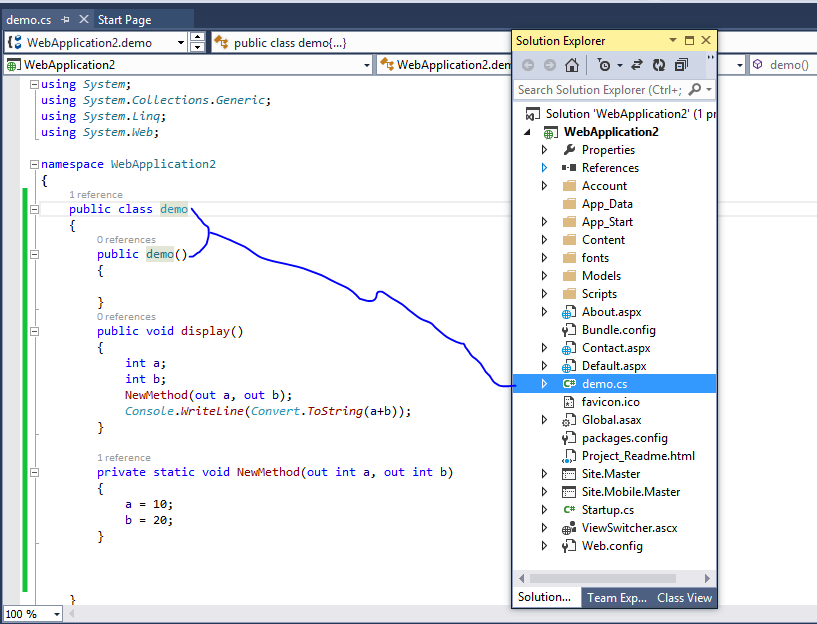
Change class name also the file name

Tuesday, October 20, 2015

VISUAL STUDIO DESIGN GAMES USING UNITY PLUGINS

Microsoft and many more product based companies provides some extensions for visual studio. Behind the scene, the main purpose of them, they want to enhance the features of visual studio. Similarly, UNITY software is a type of extension, which is used for design games in visual studio. UNITY provides you to make platform independent games, i mean, you can run your games data in 21 platforms. Also provides many more features like:
  1. You can design your games either in 2D and 3D.
  2. Debug your game code using break point in visual studio.
  3. You can put your logics in UNITY game by using c#, which is userfriendly for you.
  4. Check error in error list of visual studio. 

How to download it: Download it by using official sites, but i recommended this path, Through this you can download other things. Download UnityDownloadAssistant-5.2.1f1.exe, start it by using double click. Below mentioned Progress snap  of downloading. 

unity download installer

In the next article i will show you how to start screen of unity, how to start codes in it and many more things.

Monday, October 19, 2015

Design beautiful web forms in any technology

Good morning, i am jacob, Today i have to share some post which is related to design beautiful web forms in asp.net. If you want to design web forms in asp.net then you need to learn some basic technologies like HTML, CSS, Photoshop, JQuery etc. Here, i will tech you about these technologies one by one using some web forms article. so, lets start, Following these steps to design beautiful we forms:
(Task-1)Before anything doing, must to rough stretch your website : Suppose you want to design 20 pages website then  you need 20 pages of note book. Now, stretch each web site page into your notebook. Suppose i have to design first page in my note book that is:

design beautiful web forms

Similarly do for all remaining pages. Now, your first task is completed.

(Task-2)Fill colors in stretched design: Now, come to second task that is fill colors, For beautiful web forms, must to fill different colors in the page by using color pens.

(Task-3)Design your pages by using Photoshop: By using Photoshop, you can feel exact look of your theme. So, Read some how to: articles about Photoshop by using googling. 

(Task-4)Now, start to design beautiful web forms in HTML from first page of your stretch/Photoshop page: Here, i have use web forms design in asp.net, so you need to read some article about asp.net master page. By using master page you can design your layout of all beautiful web forms.
Read more article about master page : need of master page and themes in asp.net

(Task-5) Fill colors and make responsive your design by using CSS3: if you want to design responsive and beautiful web forms then you need to learn CSS(Cascading Style Sheet). Here, i have demo of style sheet.

(Task-6) Put some Dynamic effects using JQuery into your web forms: If you have some pages which is related to login/register then use JQuery to put some dynamic effects like shadow, popups etc. I have some examples, which is related to dynamic effects like:
Dynamic effects using JQuery :  Show login form in popup using JQuery.

Saturday, October 17, 2015

wpf listview bind with list of string type

As we all know the wpf listview is inherited class of listbox and have almost all the properties of listbox. We have learnt listbox binding with string list in our earlier post. In this article we bind the listview with the same string list.

Just place a wpf listview having only name property, because we have to access that wpf listview in our code behind file. We can also use height and width property of the listview, if the data items are of lengthy string.
<ListView>
<ListView.Name>listView</ListView.Name>
</ListView>

Now use the same list of string as in previous post i.e.
List<string> strList = new List<string>();
strList.Add("London");
strList.Add("Italy");
strList.Add("California");
strList.Add("France");
listView.ItemsSource = strList;

Now look out the last statement, it will set the item source of the wpf listview as this string list. When we run the project it will show a listview with four items:

Bind listview with string list in WPF C#


To get selected item the same procedure will follow as in listview bind with grid resource.

jquery button created dynamically

Introduction
In this article, i will show you how to create jquery button dynamically. Example of dynamically created button using jquery. In this example, create a input tag with their attributes by using jquery. Now, after this you can append it in division.


<!DOCTYPE html>
<html xmlns="http://www.w3.org/1999/xhtml">
<head>
    <title>JQuery Button Created Dynamically</title>
    <script src="Scripts/jquery-1.10.2.js"></script>
  <script>
      $(document).ready(function () {
          var $bt=$('<input/>').attr({type:'button',name:'mybutton',value:'Dynamic Button'});
          $("#div1").append($bt);


      })

  </script>

</head>
<body>
 <div id="div1"></div>

</body>
</html>

Friday, October 16, 2015

Query String in web forms asp.net c#

Introduction

Query String in web forms asp.net is very important if you have a shopping products. Through this  article we will show you how to use Query String in web forms asp.net also you can say i will provide you an example of it.  If we want to pass control or variable value from one form to another form then we can use QueryString . There are many options available to pass queryString , these are.

In Hyperlink:

    <a href=”~/Default.aspx?id=10&name=Jacob”>QueryString Example</a>

In Response.Redirect method :

 Response.Redirect(“~/Default.aspx?id=10&name=Jacob”);

If we want to get queryString Parameter valuefrom url then we should use Request.QueryString  Object.
Label1.Text=Request.QueryString[“querystring parameter”].ToString();

Lets take an simple example to pass textbox value from one form to another form using QueryString.


<%@ Page Language="C#" %>

<!DOCTYPE html PUBLIC "-//W3C//DTD XHTML 1.0 Transitional//EN" "http://www.w3.org/TR/xhtml1/DTD/xhtml1-transitional.dtd">
<script runat="server">

    protected void Button1_Click(object sender, EventArgs e)
    {
        Response.Redirect("~/Default2.aspx?name=" + TextBox1.Text);
    }

    protected void Page_Load(object sender, EventArgs e)
    {
        if (Page.Request.QueryString["name"] != null)
        {
            Label1.Text = "name of the querystring parameter is " + Page.Request.QueryString["name"];
        }
    }
</script>
<html xmlns="http://www.w3.org/1999/xhtml">
<head runat="server">
    <title></title>
</head>
<body>
    <form id="form1" runat="server">
    <div>
        Enter Name :
        <asp:TextBox ID="TextBox1" runat="server"></asp:TextBox><br />
        <asp:Button ID="Button1" runat="server" Text="QueryString" OnClick="Button1_Click" /><br />
        <asp:Label ID="Label1" runat="server" Text=""></asp:Label>
    </div>
    </form>
</body>

</html>
Output
Eample of QueryString in ASP.NET

How to bind CheckBoxList using Xml file in ASP.NET

XML File Introduction

XML file is a text file. basically XML file is used for carry data.
Features of XML file
1. Its a Case sensitive language.
2. Use User defined tags
3. Used for communication purpose
4. Its not a presentation language .
5. Same as HTML language.
6. Use Tree based architecture

The CheckBoxList control displays the list of data as a CheckBox from which you can make a multiple selection. The CheckBoxList control exists within the System.Web.UI.WebControls namespace. You can select multiple items in this control because In this control you have some options. The CheckBoxList control has no non-inherited methods or events.

Public Properties of DropDownList Class

SelectedIndex : Obtains or sets the index of the selected item in the control.

Application of DropDownList Control

  • In skill page where you can select your skills in given CheckBoxList options.
  • In management project where you can select multiple option in given options.

Lets take an simple example to bind CheckBoxList

Step-1. Create a XML file with <Countries> tag.

<?xml version="1.0" encoding="utf-8" ?>
<Countries>
  <country>
    <countryId>101</countryId>
    <countryName>USA</countryName>
   
  </country>
  <country>
    <countryId>102</countryId>
    <countryName>UK</countryName>

  </country
 
 
</Countries>


Step-2 : Drag one CheckBoxList from ToolBox and Drop to design window.
Step-3 : Create a DataSet instance 
Step-4 : Read XML file by ReadXML() method
Step-5 :Bind CheckBoxList with DataSet Instance.

using System;
using System.Collections.Generic;
using System.Linq;
using System.Web;
using System.Web.UI;
using System.Web.UI.WebControls;
using System.Data;

public partial class Default3 : System.Web.UI.Page
{
    protected void Page_Load(object sender, EventArgs e)
    {
        DataSet ds = new DataSet();
      
        ds.ReadXml(Server.MapPath("countries.xml"));
        DropDownList1.DataSource = ds;
        DropDownList1.DataTextField = "countryName";
        DropDownList1.DataValueField = "countryId";
        DropDownList1.DataBind();
       

    }

}
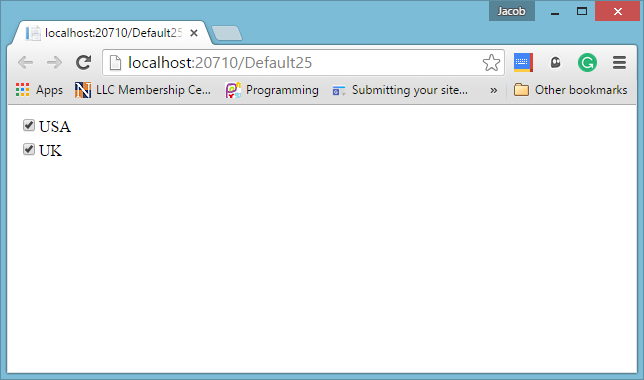
Output
How to bind CheckBoxList using Xml file in ASP.NET

© Copyright 2013 Computer Programming | All Right Reserved