-->

Friday, March 4, 2016

How to install Entity Framework from console and Solutions in MVC

By using the Entity Framework you can can communicate with the Sql Server.  In which we have two approaches i.e "Code First" and "Model First". But, In this article, I will explain you how to install Entity Framework from console and Solutions:
Install From Console:
1. Select "Package Manager Console" by the following path :
 Tools -> NuGet Package Manager--> Package Manager Console

Note : Before type the command in command line, must to ensure your internet connection.

Type command in Command Line:

PM> Install-Package EntityFramework


Install From Solution: 
1. Select "Manage Nuget Packages for Solutions... " by the following path :
 Tools -> NuGet Package Manager--> Manage Nuget Packages for Solutions...

Note : Before type the command in command line, must to ensure your internet connection.
Search Entity Framework in search bar, which reside in right side bar.

Manage Nuget Packages for Solutions...

Thursday, March 3, 2016

Edit Update GridView Row using Command Name

In this article, I will show you how to update GridView row. By using edit button we can update GridView row. But the question is, how to design "Edit" button for delete. If you follow me then i am sure you can delete rows from GridView.
Mentioned Following steps are:
Step-1 : Add a GridView Control on source window by using html code. Now, in the source page you have.
<asp:GridView ID="g1" runat="server">
</asp:GridView>

Step-2: Add these mentioned properties in the GridView:
AutoGenerateColumns="false"
 OnRowCancelingEdit="g1_RowCancelingEdit"
 OnRowEditing="g1_RowEditing"
 OnRowUpdating="g1_RowUpdating"

 Here, we have AutoGenerateColumns="false" means you design GridView columns manually. OnRowCancelingEdit is a event through this you can cancel the process of editing. OnRowEditing is also a event through this you can edit new Index. By using OnRowUpdating event you can update rows with new Data. 

 Step-3 : Suppose we have two fields in Database table then you can design GridView for this way. Now, the complete code of GridView is:

Source Code:


  <asp:GridView ID="g1" runat="server" AutoGenerateColumns="false" OnRowCancelingEdit="g1_RowCancelingEdit" OnRowEditing="g1_RowEditing" OnRowUpdating="g1_RowUpdating">
            <Columns>
                <asp:TemplateField HeaderText="Controls">
                    <ItemTemplate>
                        <asp:Button Text="Edit" ID="Editbutton" runat="server" CommandName="Edit" />
                    </ItemTemplate>
                    <EditItemTemplate>
                         <asp:Button Text="Update" ID="updatebutton" runat="server" CommandName="Update" />
                         <asp:Button Text="Cancel" ID="cancelButton" runat="server" CommandName="Cancel" />
                    </EditItemTemplate>
                </asp:TemplateField>
                <asp:TemplateField HeaderText="Id">
                    <ItemTemplate>
                        <asp:Label ID="idlbl" runat="server" Text='<%# Eval("Id") %>' />
                    </ItemTemplate>
                </asp:TemplateField>

                <asp:TemplateField HeaderText="Name">
                    <ItemTemplate>
                        <asp:Label ID="namelbl" runat="server" Text='<%# Eval("Name") %>' />
                    </ItemTemplate>
                    <EditItemTemplate>
                        <asp:TextBox ID="nametext" runat="server" Text ='<%# Eval("Name") %>' />
                    </EditItemTemplate>
                </asp:TemplateField>

            </Columns>
        </asp:GridView>    

In the First Template field we have two templates i.e ItemTemplate and EditItemTemplate. By using ItemTemplate we can show Edit Button with their "Edit" Command Name Property. When you click on it then open EditItemTemplate, in which we have two buttons in same column i.e Update and Cancel. similarly Design two columns for data. Pick the data from the database table using Embedded code block. 

Code behind code
using System;
using System.Collections.Generic;
using System.Configuration;
using System.Data.SqlClient;
using System.Linq;
using System.Web;
using System.Web.UI;
using System.Web.UI.WebControls;

public partial class Default3 : System.Web.UI.Page
{
    protected void Page_Load(object sender, EventArgs e)
    {
        if (!Page.IsPostBack)
        {
            bindgrid();
        }

    }

    private void bindgrid()
    {
        SqlConnection con = new SqlConnection();
        con.ConnectionString = ConfigurationManager.ConnectionStrings["ConnectionString"].ToString();
        con.Open();

        SqlCommand cmd = new SqlCommand();
        cmd.CommandText = "select * from [usertable]";
        cmd.Connection = con;

        SqlDataReader rd = cmd.ExecuteReader();
        g1.DataSource = rd;
        g1.DataBind();
        con.Close();
    }
    protected void g1_RowEditing(object sender, GridViewEditEventArgs e)
    {
        g1.EditIndex = e.NewEditIndex;
        bindgrid();
    }
    protected void g1_RowCancelingEdit(object sender, GridViewCancelEditEventArgs e)
    {
        g1.EditIndex = -1;
        bindgrid();
    }
    protected void g1_RowUpdating(object sender, GridViewUpdateEventArgs e)
    {
        Label l1 = g1.Rows[e.RowIndex].FindControl("idlbl") as Label;
        TextBox t1 = g1.Rows[e.RowIndex].FindControl("nametext") as TextBox;
        SqlConnection con = new SqlConnection();
  con.ConnectionString = ConfigurationManager.ConnectionStrings["ConnectionString"].ToString();
        con.Open();

        SqlCommand cmd = new SqlCommand();
        cmd.CommandText = "update [usertable] set Name=@nm where Id=@id1";
        cmd.Parameters.AddWithValue("@id1", l1.Text);

        cmd.Parameters.AddWithValue("@nm", t1.Text);
        cmd.Connection = con;
        cmd.ExecuteNonQuery();

        g1.EditIndex = -1;
        bindgrid();


    }
}

Code Generates the following output

Edit Update GridView Row using Command Name

Edit Update GridView Row using Command Name

Sunday, February 28, 2016

How to design finger print/ scanner based project in C#

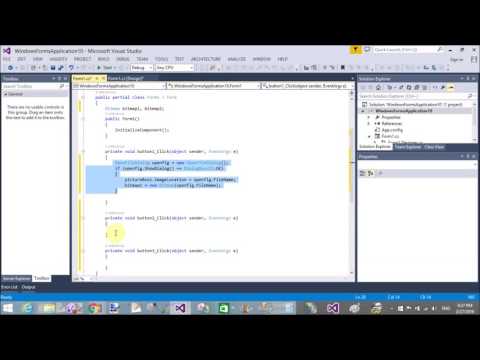
In this article, I will show you, how to compare two images in c#. You can say that how to match prints images in c#. Basically, this types things we can implement in biometric systems like fingerprint etc. If you want to work on this system, follow these mentioned steps to complete this task.


Step-1:  Create a windows form project using Visual Studio, you can take any version of visual studio.

Step-2:  Design output type form in default added file ie. form1

Step-3:  Copy and Paste mentioned code, according to their controls

using System;
using System.Collections.Generic;
using System.ComponentModel;
using System.Data;
using System.Drawing;
using System.IO;
using System.Linq;
using System.Text;
using System.Threading.Tasks;
using System.Windows.Forms;

namespace Fingure_print
{
    public partial class Form2 : Form
    {
        Bitmap bitmapPictureBox1;
        Bitmap bitmapPictureBox2;
        public Form2()
        {
            InitializeComponent();
        }

        private void button1_Click(object sender, EventArgs e)
        {

            if (openFileDialog1.ShowDialog() == System.Windows.Forms.DialogResult.OK)
            {

                pictureBox1.ImageLocation = openFileDialog1.FileName;

                bitmapPictureBox1 = new Bitmap(openFileDialog1.FileName);
            }

        }

        private void button2_Click(object sender, EventArgs e)
        {
            if (openFileDialog1.ShowDialog() == System.Windows.Forms.DialogResult.OK)
            {

                pictureBox2.ImageLocation = openFileDialog1.FileName;

                bitmapPictureBox2 = new Bitmap(openFileDialog1.FileName);
            }

        }

        private void button3_Click(object sender, EventArgs e)
        {
            bool compare = ImageCompareString(bitmapPictureBox1,bitmapPictureBox2);
            if(compare==true)
            {
                MessageBox.Show("match");

            }
            else
            {
                MessageBox.Show("not");
            }
        }
        public static bool ImageCompareString(Bitmap firstImage, Bitmap secondImage)
    {
       MemoryStream ms = new MemoryStream();
        firstImage.Save(ms, System.Drawing.Imaging.ImageFormat.Png);
        String firstBitmap = Convert.ToBase64String(ms.ToArray());
       ms.Position = 0;
   
       secondImage.Save(ms, System.Drawing.Imaging.ImageFormat.Png);
        String secondBitmap = Convert.ToBase64String(ms.ToArray());
 
      if (firstBitmap.Equals(secondBitmap))
      {
         return true;
     }
       else
       {
          return false;
     }
   }
    }
}

Code Generates the following output
How to design finger print/ scanner based project in C#


Saturday, February 27, 2016

Blood bank System project in ASP.NET C#

Introduction
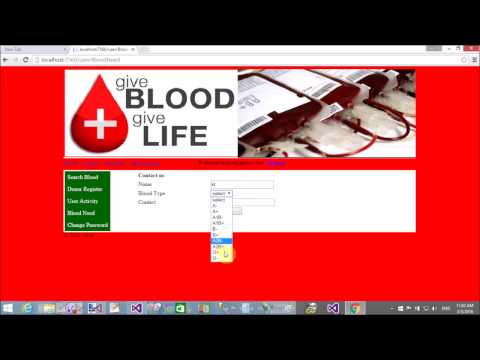
The blood bank system provides some information about blood bank. A needy person can take some points of blood with their blood groups. By using this system, we provides the information  about donor and takers. These all information are public. Any one  person register in the control panel and after successfully register in the panel. He/She can login in the system. We have a form for donor, in this form, donor fill these mentioned fields.

Donor Id :  Int type
Name :  nvarchar (100)
Blood Group :  nvarchar ( 50)
Contact ( Phone Number)  : nvarchar (50)
Address : nvarchar(max)
Picture:  nvarchar(max)

Blood bank System project in ASP.NET C#


After filling the form, information display on home screen, registered user can see donor information. Project also provide the search facility, through it, registered user can see donor information, according to blood group. It provide the total storage of blood in the bank. Bank takes blood from outer side also vice versa. Total in and out details stored in separate database table.

Software information : Visual Studio 2013
Hardware requirement :  Visual Studio 2013 compatible hardware.

Video : Comming Soon

How to run it: You can run it using video help.

Download/Buy : mail me narenkumar851@gmail.com


Thursday, February 25, 2016

GridView rows details on DetailsView using onSelectedIndexChanged event in ASP.NET C#

Bind Details view using onselectedIndexChanged event of Gridview view. First to Bind the Gridview with select command. By using selectedIndexChanged method you can bind the details view. If you want to bind the DetailsView from Gridview Row then use select command name in GridView's button field name. In the Code behind file, first to bind the Gridview from database table. Retrieve the selected Row data using select command, bind DataTable with Retrieved data.


<%@ Page Language="C#" AutoEventWireup="true" CodeFile="Default2.aspx.cs" Inherits="Default2" %>

<!DOCTYPE html>

<html xmlns="http://www.w3.org/1999/xhtml">
<head runat="server">
    <title></title>
</head>
<body>
    <form id="form1" runat="server">
    <div>
        <asp:GridView ID="GridView1" runat="server" AutoGenerateColumns="false" OnSelectedIndexChanged="GridView1_SelectedIndexChanged">
            <Columns>
                <asp:BoundField DataField="Id" HeaderText="ID" />
                <asp:BoundField DataField="name" HeaderText="Name" />
                <asp:TemplateField HeaderText="address">
                    <ItemTemplate>

                        <asp:Label ID="addlabel" Text='<%# Eval("address") %>' runat="server" />

                    </ItemTemplate>
             

                </asp:TemplateField>
                <asp:ButtonField Text="select" CommandName="select" />
            </Columns>


        </asp:GridView>
        <asp:DetailsView ID="DetailsView1" runat="server" Height="50px" Width="125px" AutoGenerateRows="false">
            <Fields>
                <asp:BoundField DataField="Id" HeaderText="ID" />
                <asp:BoundField DataField="name" HeaderText="Name" />
                <asp:BoundField DataField="address" HeaderText="Address" />


            </Fields>


        </asp:DetailsView>
    </div>
    </form>
</body>
</html>

Code Behind Code

using System;
using System.Collections.Generic;
using System.Configuration;
using System.Data;
using System.Data.SqlClient;
using System.Linq;
using System.Web;
using System.Web.UI;
using System.Web.UI.WebControls;

public partial class Default2 : System.Web.UI.Page
{
    protected void Page_Load(object sender, EventArgs e)
    {
        if (!Page.IsPostBack)
        {
            SqlConnection con = new SqlConnection();
            con.ConnectionString = ConfigurationManager.ConnectionStrings["myconnection"].ToString();
            con.Open();
            SqlCommand cmd=new SqlCommand();
            cmd.CommandText="select * from [Registration]";
            cmd.Connection=con;
            SqlDataReader rd = cmd.ExecuteReader();
            GridView1.DataSource = rd;
            GridView1.DataBind();

        }

    }
    protected void GridView1_SelectedIndexChanged(object sender, EventArgs e)
    {
        int id= int.Parse(GridView1.SelectedRow.Cells[0].Text);
        string name = GridView1.SelectedRow.Cells[1].Text;
        string add = (GridView1.SelectedRow.FindControl("addlabel") as Label).Text;
        DataTable dt = new DataTable();
        dt.Columns.AddRange(new DataColumn[] { new DataColumn("ID", typeof(int)), new DataColumn("Name", typeof(string)), new DataColumn("Address", typeof(string)) });
        dt.Rows.Add(id, name, add);
        DetailsView1.DataSource = dt;
        DetailsView1.DataBind();
    }
}

Code Generates the following output
GridView rows details on DetailsView using onSelectedIndexChanged event in ASP.NET C#

Saturday, February 20, 2016

Banking Software Application Project in c#

Introduction
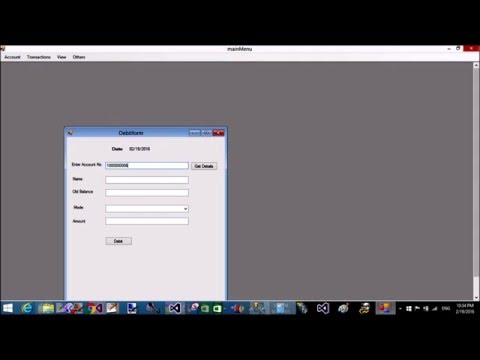
Purchase Banking software project built in window platform. By using this software, we can do banking task easily. In this project,  I have to provide you banking functionality like Create new account, update customer account, deposit money, transfer money etc. I will give you project executable file to run the project. If you want to learn how to design this project then follow these mentioned steps:

[Video Describe full details]


  1. Start from Login screen. If admin username exists in database table then loginIn into the system else give failed message.
banking System Login Failed Screen

2. If login success then enter in main screen.

Banking Software Application Project in c#

3. Similarly all option which is given in the project.


Requirement
Software : Visual Studio 2013. 


How to run you project
Double click on application executable file and run your project.

How to design Banking Software
First to create a login form for Administrator. After successfully login, administrator can do some work in the control panel like:

  1. Add New Customer.
  2. Deposit money to customer bank account.
  3. Transfer money from one account to another account.
  4.  Show list of account which is available in the bank.
  5. Withdrawal amount from account number by the account holder.
  6. Generate balance sheet.
  7. FD form for customers.
Download : mail me : narenkumar851@gmail.com

Thursday, February 18, 2016

How to retrieve items from database table in JAVA using Netbeans

In this article i will explain you, how to retrieve items from database table in Java using Netbeans. In previous article, we have already learned, how to create connection with the derby database using netbeans. Before reading this article, please must to see the previous article for implementations. In this article, i only explain you, how to use executeQuery( ) method and select statement in java.

--How to create connection with database full video tutorial 


Code :

class abc {
    public abc() throws SQLException
    {
        Connection conn=DriverManager.getConnection("jdbc:derby://localhost:1527/student", "tarun", "tarun");
        System.out.println("Connection Created");
        Statement st=conn.createStatement();
        ResultSet rs=st.executeQuery("select * from USERTABLE");
        while(rs.next())
        {
            System.out.println(rs.getString(2));
        }
   
    }

}

Here, we have a table i.e USERTABLE. If you want to learn how to create table in exists database using Netbeans. Read mentioned steps:
Step-1 :  Right click on Connection String, select "connect" from popup menu.
Step-2 :  Expand username which contains Tables, views and stored procedure.
Step-3 :   Right click on table, select create table.


Write the name of table also add columns with their datatypes. 
© Copyright 2013 Computer Programming | All Right Reserved