-->

Friday, October 25, 2013

ASP.NET: Programmatically change CheckBoxList Background Color

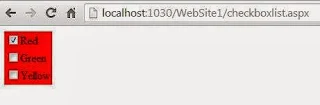
In previous example we already explain How to use CheckBoxList Control. If you want to change BackGround color on OnIndex change method then use this algorithm.
Step-1 : Add item to the CheckBox List using Show smart tag
Step-2 : Handle SelectedIndexChanged Event
Step-3 : If you want to change  BackGorgound color of the CheckBox List according to CheckBoxList Item then don't use System color enumeration.
Step-4 : Add Style Attribute in every selected item of CheckBoxList.

Complete Code:
<%@ Page Language="C#" %>

<!DOCTYPE html PUBLIC "-//W3C//DTD XHTML 1.0 Transitional//EN" "http://www.w3.org/TR/xhtml1/DTD/xhtml1-transitional.dtd">

<script runat="server">

    protected void CheckBoxList1_SelectedIndexChanged(object sender, EventArgs e)
    {
        foreach (ListItem  item in CheckBoxList1.Items)
        {
            if (item .Selected)
            {
                CheckBoxList1.Attributes.Add("Style", "BackGround-color:" + CheckBoxList1.SelectedItem.Text); 
            }
        }
       
       
    }
</script>

<html xmlns="http://www.w3.org/1999/xhtml">
<head runat="server">
    <title>Change CheckBoxList BackGround Color</title>
</head>
<body>
    <form id="form1" runat="server">
    <div>
   
        <asp:CheckBoxList ID="CheckBoxList1" runat="server" AutoPostBack="True"
            onselectedindexchanged="CheckBoxList1_SelectedIndexChanged">
            <asp:ListItem>Red</asp:ListItem>
            <asp:ListItem>Green</asp:ListItem>
            <asp:ListItem>Yellow</asp:ListItem>
        </asp:CheckBoxList>
   
    </div>
    </form>
</body>

</html>
   Output
ASP.NET: Programmatically change CheckBoxList Background Color

ASP.NET: Programmatically change CheckBoxList Background Color

ASP.NET: Programmatically change CheckBoxList Background Color

Thursday, October 24, 2013

Online Examination Cell project in ASP.NET

Introduction

Examination cell conduct all activity  related to examination cell such as sheet allotment, room allotment ,etc. Directly you can say its a college management ERP software which handle all such types of activities.

This types of project conduct some types of functionality like:


  • Administrator has a privilege to create, modify and delete the test papers and its particular questions.
  • User can register, login and give the test with his specific id, and can see the results as well
  • Technical college software’s examination module is mainly concerned upon
  • In-college examination including sessionals and practical
  • External exams management
  • Admit card managing
  • External exams managing of colleges centered in the college
  • Schedule management
  • This module will look upon all basic as well as advanced needs of an examination cell.

Module of the project

This Project is dividing into the three Types of user

  1. Super user.
  2. Administrator.
  3. Faculty member
  4. Student

Super user
Super user is the top level faculty of organization. Handle many modules by the super user. Like
  • Create user.
  • Allotted Course To The Faculty.
  • Send Message To The Faculty.
Administrator
An administrator is the Exam –cell in charges of organization also handle many modules by the Administrator Like
  •  Sheet allotment.
  •  Duty chart.
  •  Paper Collection.
  •  Report generation.
  •  Notice generation.
  • University result
  •  Model exam question papers
  • Unit/sessional test time table
  •  Current News
  •  Course allotment
  •  Paper Collection
If you want to purchase this please contact me on :  narenkumar851@gmail.com

Wednesday, October 23, 2013

How to Create a List of Item, with Multiple Fields: C#

If read more about DataTable, then follow How to Use DataTable in C#.

DataTable is the tabular form of data we are storing. Now to create a list, we have to create a list that can contains our desired set of data. List resides in System.Collection.Generic namespace of visual studio. Let suppose, we have a student class with some common properties like name, age, city, and date of birth.

To create a list, just create a list object type of student as in following line of c# code:
public class Student
{
public string Name { get; set; }
public int Age { get; set; }
public string City { get; set; }
public DateTime Dob { get; set; }
}

And the list object will create by the following line:

List<Student> stuList = new List<Student>();

This list can be used further like to insert new record of student, to bind this list with datagridview, to store temporary data from the database and many more. A list have many in-built functions, we have to just analyse them and use them.

This list is empty by default and can contains student type of data only. To insert some data in this list, we have to create a new object of student and then call the add() method of list. The add() method requires a parameter of student type. The syntax of method to add a new student is:
stuList.Add(new Student()
{
Name = "Jacob",
Age = 29,
City = "London",
Dob = new DateTime(1984, 5, 26)
});

This will add a single record of student with above details. We can add as many record as per our requirement.

In the next post we will use some in-built functions which requires Basics of LINQ language.

Tuesday, October 22, 2013

How to check either the CheckBox is Checked or Not

Introduction

You can perform different types of operation on CheckBox Status such as you can check your item either is selected or not. If your CheckBox checked status is true then your CheckBox is selected.

Application of CheckBox Checked status

1. For cookies enable in Facebook Login page.

How to check either the CheckBox is Checked or Not

Lets take a simple example to check that your CheckBox is checked or not

Complete code
<%@ Page Language="C#" %>

<!DOCTYPE html PUBLIC "-//W3C//DTD XHTML 1.0 Transitional//EN" "http://www.w3.org/TR/xhtml1/DTD/xhtml1-transitional.dtd">

<script runat="server">

    protected void Button1_Click(object sender, EventArgs e)
    {
        if (CheckBox1.Checked == true)
        {
            Label1.Text = "CheckBox checked";
        }
        else
        {
            Label1.Text = "CheckBox not checked";
        }
    }
</script>

<html xmlns="http://www.w3.org/1999/xhtml">
<head runat="server">
    <title>How to check either the CheckBox is Checked or Not</title>
</head>
<body>
    <form id="form1" runat="server">
    <div>
    <asp:CheckBox ID="CheckBox1" runat="server"
            Text="How to check either the CheckBox is Checked or Not" />
        <br />
        <br />
        <asp:Button ID="Button1" runat="server" onclick="Button1_Click" Text="Check" />
        <br />
        <br />
        <asp:Label ID="Label1" runat="server"></asp:Label>
    </div>
    </form>
</body>

</html>
Output
How to check either the CheckBox is Checked or Not

How to check either the CheckBox is Checked or Not

Programmatically change CheckBox Border Style in ASP.NET

Introduction

If you want to change Border-Style of the CheckBox programmatically then you should use Border-style property at Codebehind. Lets take a simple example for completing this task. Take a WebForm control and place one CheckBox and one Button control onto it.

Algorithm behind the scene is :

Step-1: Assign Border Color to CheckBox control.
Step-2: Set Border Width of the CheckBox Control in Units.
Step-3: Change Border Style.

Complete code

<%@ Page Language="C#" %>

<!DOCTYPE html PUBLIC "-//W3C//DTD XHTML 1.0 Transitional//EN" "http://www.w3.org/TR/xhtml1/DTD/xhtml1-transitional.dtd">

<script runat="server">

    protected void Button1_Click(object sender, EventArgs e)
    {
        CheckBox1.BorderColor = System.Drawing.Color.Green;
        CheckBox1.BorderWidth = 5;       
        CheckBox1.BorderStyle = BorderStyle.Outset;
 
    }

    protected void Page_Load(object sender, EventArgs e)
    {
       
    }

</script>

<html xmlns="http://www.w3.org/1999/xhtml">
<head runat="server">
    <title>Change CheckBox border style</title>
    <style type="text/css">
        #form1 {
            height: 78px;
        }
    </style>
</head>
<body>
    <form id="form1" runat="server">
    <asp:CheckBox ID="CheckBox1" runat="server" Text="Change Border Style" />
    <br />
    <br />
    <asp:Button ID="Button1" runat="server" onclick="Button1_Click" Text="Change CheckBox Border Style"
        Width="198px" />
 
    </form>
</body>

</html>

Output
Programmatically CheckBox Border Style in ASP.NET

Programmatically CheckBox Border Style in ASP.NET

ASP.NET: Change DropdownList font name programmatically

Introduction

You can change the font face of the Text which is inside the DropdownList easily. If you want to change the face or family of the text then you must assign name of the face into font name property.

Lets take an simple example to change the font face/family Programmatically

<%@ Page Language="C#" %>

<!DOCTYPE html PUBLIC "-//W3C//DTD XHTML 1.0 Transitional//EN" "http://www.w3.org/TR/xhtml1/DTD/xhtml1-transitional.dtd">

<script runat="server">

    protected void Button1_Click(object sender, EventArgs e)
    {
        DropDownList1.Font.Name = "Arial";       
       
    }

    protected void Button1_Click1(object sender, EventArgs e)
    {
        DropDownList1.Font.Name = "Algerian";
    }
</script>

<html xmlns="http://www.w3.org/1999/xhtml">
<head runat="server">
    <title></title>
</head>
<body>
    <form id="form1" runat="server">
    <div>
        <asp:DropDownList ID="DropDownList1" runat="server" Height="20px" Width="124px">
            <asp:ListItem>Hyperlink</asp:ListItem>
            <asp:ListItem>CheckBox</asp:ListItem>
            <asp:ListItem>Label</asp:ListItem>
            <asp:ListItem>Panel</asp:ListItem>
        </asp:DropDownList>
        <br />
        <br />
        <asp:Button ID="Button1" runat="server" Text="Change Font size Arial"
            onclick="Button1_Click" />
        <br />
        <br />
        <asp:Button ID="Button2" runat="server" Text="Change Font size Algerian"
            onclick="Button1_Click1" />
        <br />
        <br />
    </div>
    </form>
</body>

</html>
Output
ASP.NET: Change DropdownList font name programmatically

ASP.NET: Change DropdownList font name programmatically

Monday, October 21, 2013

Uses of "Using" Statement in C#

Every object consumes some amount of storage in memory, when created by the programmer. Programmer have to dispose all the objects created and empty the storage allocated. This disposing can be done through Dispose() menthod in in-built IDisposable interface, in Visual Studio.

If programmer don’t release the memory, then it can be done by the CLR, according to its decision to perform garbage collection. Using statement allows the programmer to specify, when to release the resources used. The syntax of using statement:
using (ClassName obj = new ClassName())
{
// Line of code to be executed
}

The ClassName denotes the name of class to which the object is created. Obj is the object, which will be disposed at the last of this scope of “using” statement. The following code will create an object of Student class and when the debugger will reached on last line of code, it will release the memory allocated by the stu object.
using(Student stu = new Student())
{
//Line of code to be executed
}

The other reason of exiting the using statement may be an exception in our line of code. When an exception is generated, it will go to catch method, and dispose method will not be called. So we should use this using statement for better memory management.
© Copyright 2013 Computer Programming | All Right Reserved