-->

Tuesday, October 29, 2013

Getting Started with XML

Introduction

Traditionally, organizations have conducted business on paper. Preprinted formats were most widely used to exchange information between businesses. As the number of transactions between different organizations increased over the years, there was a need for a more effective way of communicating and processing business data. Electronic Data Interchange (IDE) emerged as a result of this need. EDI refers to the process of exchanging documents in a standard format between two computer systems.

The two widely used EDI standards for transmitting data between computers are ANSI X12 and UN/EDIFACT. if data is transmitted using EDI standards, the data can be translated to or from the end-user's application format with the help of EDI software, such as RealWorld and Macola.

Consider an example of two companies, X and Y, using RealWorld and Macola, respectively to convert their files into EDI formats. Without an EDI standard, company Y cannot translate the EDI files received from company X into Macola-compatible format. This is because the EDI formats of RealWorld and Macola are dissimilar, However, if the files formatted using RealWorld are converted into one of the EDI standards, then company Y can translate invoice files received from company X into Macola-compatible format.

Although EDI standards provide an effective solution for e-commerce transactions, they Have not been widely accepted due to the following  limitations:

  • Rigid transaction set: Traditional EDI was built on fixed transaction sets. Consider The following example. Company A’s invoice bill currently includes the customer Name, company name, phone number, and cash amount. If one of its trading partners Starts accepting  credit cards, then company A has to modify the invoice bill to Include credit card details. If Company A uses EDI to exchange data, then the EDI Format has to reflect this change. This is a tedious and time-consuming process, Because the Accredited Standards Committee X12  sub-group of ANSI or the UN/EDIF ACT working group must recognize the new format. Therefore, the fixed Transaction set becomes a bottleneck to business units that evolve new services, Products, and business processes.

  • Fixed business rules: The business rules of small, medium, and large business units Of the same industry widely vary. Due to this, the same set of  EDI standards cannot Be uniformly implemented across all of them.
  • High costs: It can be expensive for small- and medium-size business units to Implement EDI standards as compared to large business units, because of high Networking costs. Even large business units that have high investments in automation Will not be ready to replace their systems based on EDI standards. Therefore, Acceptance of EDI is restricted to a few business units who are willing to invest in EDI.
  • Slow pace of standards evolution : As EDI standards cater to companies with different needs, the process of developing these standards is time consuming. In addition, the standards may not cater to the needs of all companies.
Therefore, EDI does not server as a cost-effective solution to implement data interchange among heterogeneous systems.

Introducing XML

XML is a text-based markup language that enables you to store data in a structured format by using meaningful tags. The term "extensible" implies that you can extend your ability to describe a document by defining meaningful tags for your application. XML is a cross-platform, hardware and software independent markup language. It enables computers to transfer structured data between heterogeneous systems. XML is used as a common data interchange format in a number of applications. In the example of the B2B e-commerce model, xml can be used to exchange data between the trading partners, thus eliminating the problems faced by EDI.

Web Architecture Using XML

In a traditional Web architecture, a client sends a request to the server in a predefined format and receives the appropriate response. The advantage of using XML in Web architecture is that the structure of the request can be obtained from the server at runtime. This is possible because the data stored in a XML document does not assume its intended use. Different applications can extract data according to their customized needs. Since XML is used to exchange data between various Web applications, the coupling between the server application and the client application is relatively loose.

XML can encode non-relational data, as well as, relational data structures. This enables the server application to extract data from any data source, and helps the programmers to quickly build applications for the manipulation of that data.

XML Web Architecture

Monday, October 28, 2013

ASP.NET : Bind CheckBoxList with Multiple DataSource

Introduction 

The term DataSource means you can store multiple data at one place known as DataSource. There are different DataSource available in DOTNET library such as DataTable , SqlDataReader, Array , Collections etc. Now at time, lets take a simple example to bind single CheckBoxList with multiple DataSource.
 Algorithm behind the scene
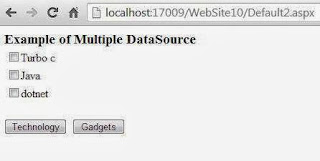
Step-1 : Drop CheckBoxList and Two button control onto the design page.
Step-2 : On first button click event we can bind CheckBoxList with one string array
Step-3 : On Second button click event we can bind same CheckBoxList with another string array.

Complete Code

<%@ Page Language="C#" AutoEventWireup="true" CodeFile="Default2.aspx.cs" Inherits="Default2" %>

<!DOCTYPE html PUBLIC "-//W3C//DTD XHTML 1.0 Transitional//EN" "http://www.w3.org/TR/xhtml1/DTD/xhtml1-transitional.dtd">

<html xmlns="http://www.w3.org/1999/xhtml">
<head runat="server">
    <title>Example of Multiple DataSource</title>
    <style type="text/css">
        .style1 {
            font-size: larger;
        }
    </style>
</head>
<body>
    <form id="form1" runat="server">
    <div>
        <strong><span class="style1">Example of Multiple DataSource</span></strong><br />
        <asp:CheckBoxList ID="CheckBoxList1" runat="server">
        </asp:CheckBoxList>
        <br />
        <asp:Button ID="Button1" runat="server" onclick="technology"
            Text="Technology" Width="87px" />
    &nbsp;<asp:Button ID="Button2" runat="server" onclick="gadgets"
            Text="Gadgets" Width="73px" />
    </div>
    </form>
</body>
</html>

Codebehind file
using System;
using System.Collections.Generic;
using System.Linq;
using System.Web;
using System.Web.UI;
using System.Web.UI.WebControls;

public partial class Default2 : System.Web.UI.Page
{
    protected void Page_Load(object sender, EventArgs e)
    {

    }
  
    protected void technology(object sender, EventArgs e)
    {
        string[] tech = { "Turbo c", "Java", "dotnet" };
        CheckBoxList1.DataSource = tech;
        CheckBoxList1.DataBind();

    }
    protected void gadgets(object sender, EventArgs e)
    {
        string[] gadgets = { "Phone", "Camera", "Tablet" };
        CheckBoxList1.DataSource = gadgets;
        CheckBoxList1.DataBind();
    }

}

Output

ASP.NET : Bind CheckBoxList with Multiple DataSource

ASP.NET : Bind CheckBoxList with Multiple DataSource

Programmatically change CheckBoxList enable disable property in ASP.NET

In previous example we have been covered public properties of CheckBoxList control such as
<%@ Page Language="C#" AutoEventWireup="true" CodeFile="Default2.aspx.cs" Inherits="Default2" %>

<!DOCTYPE html PUBLIC "-//W3C//DTD XHTML 1.0 Transitional//EN" "http://www.w3.org/TR/xhtml1/DTD/xhtml1-transitional.dtd">

<html xmlns="http://www.w3.org/1999/xhtml">
<head runat="server">
    <title>Example of Enable disable property of CheckBoxList</title>
    <style type="text/css">
        .style1 {
            font-size: larger;
        }
    </style>
</head>
<body>
    <form id="form1" runat="server">
    <div>
        <strong><span class="style1">Example of Enable disable property of CheckBoxList</span></strong><br />
        <asp:CheckBoxList ID="CheckBoxList1" runat="server" Width="168px">
            <asp:ListItem>AdRotator Control</asp:ListItem>
            <asp:ListItem>BulletedList Control</asp:ListItem>
            <asp:ListItem>Button Control</asp:ListItem>
            <asp:ListItem>Calendar Control</asp:ListItem>
        </asp:CheckBoxList>
        <br />
        <asp:Button ID="Button1" runat="server" onclick="Enable"
            Text="Enable" Width="61px" />
    &nbsp;<asp:Button ID="Button2" runat="server" onclick="Disable"
            Text="Disable" Width="61px" />
    </div>
    </form>
</body>

</html>

Codebehind
using System;
using System.Collections.Generic;
using System.Linq;
using System.Web;
using System.Web.UI;
using System.Web.UI.WebControls;

public partial class Default2 : System.Web.UI.Page
{
    protected void Page_Load(object sender, EventArgs e)
    {

    }
  
    protected void Disable(object sender, EventArgs e)
    {
        CheckBoxList1.Enabled = false;
    }
    protected void Enable(object sender, EventArgs e)
    {
        CheckBoxList1.Enabled = true;
    }
}

Output

Programmatically change CheckBoxList enable disable property in ASP.NET

Programmatically change CheckBoxList enable disable property in ASP.NET

Programmatically change CheckBoxList font name in ASP.NET

CheckBoxList control is the collection of CheckBoxes . Now you can perform some operations on each CheckBox using Index. Application of CheckBoxList control.

  • You can select multiple items.
Programmatically change CheckBoxList font name in ASP.NET

Complete code

<%@ Page Language="C#" AutoEventWireup="true" CodeFile="Default2.aspx.cs" Inherits="Default2" %>

<!DOCTYPE html PUBLIC "-//W3C//DTD XHTML 1.0 Transitional//EN" "http://www.w3.org/TR/xhtml1/DTD/xhtml1-transitional.dtd">

<html xmlns="http://www.w3.org/1999/xhtml">
<head runat="server">
    <title>Change font name of the CheckBox List</title>
</head>
<body>
    <form id="form1" runat="server">
    <div>
        <asp:CheckBoxList ID="CheckBoxList1" runat="server" Width="168px">
            <asp:ListItem>AdRotator Control</asp:ListItem>
            <asp:ListItem>BulletedList Control</asp:ListItem>
            <asp:ListItem>Button Control</asp:ListItem>
            <asp:ListItem>Calendar Control</asp:ListItem>
        </asp:CheckBoxList>
        <br />
        <asp:Button ID="Button1" runat="server" onclick="Button1_Click"
            Text="Change Font name" Width="124px" />
    </div>
    </form>
</body>

</html>
Codebehind

using System;
using System.Collections.Generic;
using System.Linq;
using System.Web;
using System.Web.UI;
using System.Web.UI.WebControls;

public partial class Default2 : System.Web.UI.Page
{
    protected void Page_Load(object sender, EventArgs e)
    {

    }
    protected void Button1_Click(object sender, EventArgs e)
    {
        CheckBoxList1.Font.Name = "Algerian";

    }
}
Output
Programmatically change CheckBoxList font name in ASP.NET

Programmatically change CheckBoxList font name in ASP.NET

Sunday, October 27, 2013

Exploring the visual studio 2012 IDE : Part-1

Introduction

Visual Studio 2012 provides an IDE to web developers, which is full of toolbars and windows. The windows are dockable, which allows to rearrange them on the IDE as per your requirements. The IDE can also be used for detecting and correcting the errors in your application. The following are the different parts of the visual studio 2012 IDE

  • Start Page
  • Menu Bar 
  • Toolbars 
  • Toolbox
  • The code Editor Window 
  • The Solution Explorer Window
  • The Property Window
  • The Object Browse Window
  • The Class View Window
  • The Server Explorer Window
  • The CSS Style Manager Window
  • The Output Window
  • The Task List Window
  • The Error List Window
  • The Command Window
  • The Dynamic Help Window

Start Page

When you open Visual Studio 2012, the very first window displayed is the Start Page.

 Visual Studio 2012, the very first window displayed is the Start Page

The Recent Projects/WebSites pane displays few projects/WebSites which you have created recently. The Start Page allows you to select from the most recent projects/WebSites on which you have recently worked. The following panes are displayed on the Start Page:
Recent Projects/WebSites : Displays a list of the most recent projects / websites you opened with visual studio, as shown in above figure . You can open the projects by clicking on the Hyperlink having the project's name. At the bottom of the Recent Projects pane two CheckBox are there first one for close page after project load and second one for Show page on startup.

Start : At the Above of the Recent Projects pane , you can see three links - one is for opening an existing project and the other for creating a new project and other for connecting to Team foundation server.

Getting Started: Contains links to various programming tasks in the product's documentation such as Manage your project in the cloud, Learning Resources etc.

Menu Bar

The Menu Bar of the Visual Studio IDE provides different menus for different Visual Studio commands

Menu bar in Visual studio 2012

Most of the menus are displayed as toolbars. Further, if you observe , not all options are available at all times. This is because the options that cannot be applied to the current state of the IDE are made either invisible or disable. For example, when you design the form, the Edit menu bar is quite short; however , when you perform the edit operation, it is quite lengthy.

ToolBars

Toolbars are shortcuts to the most frequently performed actions. You can fin the same commands in menus, but these shortcuts of toolbars are much faster to use than menus. You will find several common toolbars on the Visual Studio IDE, such as standard , layout , formatting , Debug, and Image Editor etc.

ToolBars in visual studio 2012

You can also build your own custom toolbars. Visual Studio displays the toolbars according to the selected object.

Saturday, October 26, 2013

How to Get Selected Fields from List Using LINQ: C#

When we bind a list with a control like datagridview, comboBox or listbox, then it will bind all the fields related to list. I have created a list of student with multiple fields i.e. Name, age, city and DOB. Now in this article I will bind only name and age of this list to a Datagridview.

To get selected fields, syntax of LINQ query will be:
var variable = from tempVar in list
select new
{
   tempVar.Field1,
   tempVar.Field2
};

Now in our case of Student class the records should be selected through the following C# line of code:
var selectedFields = from s in stuList
select new
{
s.Name,
s.Age
};
dataGridView1.DataSource = selectedFields.ToList();

In the last line of code, it will bind the list to gridview and show only name and age of the students like in following image:

Get selected fields in LINQ: C# windows forms
If all the LINQ methods are not showing in your program then sure about the namespace in your code file i.e. System. Linq;

See Also: How to Bind DataGridView with DataSet

How to Bind DataGridView to List Of Items: C#

Datagridview is the common control to bind our records in windows forms. I have bound this datagridview to dataset and in this article I will bind a list of student class’s data. I will use the same student class as in my previous post.

Drag-n-Drop a DataGridView on the form and write the following C# line of code in the constructor of the form.
public Form1()
{
InitializeComponent();
dataGridView1.DataSource = stuList;
}

Before running the project, just sure that you have inserted some items in the stuList. To insert some records we can use an in-built Add function of the list. Write the following code to insert records:
stuList.Add(new Student() { Name = "Jacob", Age = 29, City = "London", Dob = new DateTime(1983, 5, 26) });
stuList.Add(new Student() { Name = "Zulia", Age = 31, City = "London", Dob = new DateTime(1981, 5, 26) });
stuList.Add(new Student() { Name = "Brandon", Age = 35, City = "London", Dob = new DateTime(1978, 5, 26) });

The record insertion should be done before the above binding. Run the project and the datagridview will be shown with these three records. The image shown the records in datagridview:
© Copyright 2013 Computer Programming | All Right Reserved