-->

Monday, February 10, 2014

Types of Web Sites in Visual Web Developer

You can use Microsoft Visual Studio to create and work with Microsoft ASP.NET Web Sites (Web applications) in a variety of hosting scenarios: local Internet Information Services(IIS), file system, FTP, and remote sites.
Types of Web Sites in Visual Web Developer

Local IIS Web Sites

Local IIS Web Sites run using a copy of IIS that is installed on your computer. When you create a local IIS Web Site, the pages and folders for your site are stored in a folder under the default IIS folder for Web Sites (Inetpub\wwwroot). Visual Studio also create the appropriate IIS configuration so that the Web Site is recognized by IIS as an application.

Note : To create a local IIS Web Site, you need Administrator privileges on the computer.
Alternatively, you can create an IIS virtual directory in Visual Studio. In this case, the pages and folders for your Web site can be placed in any accessible folder, a virtual directory in your local copy of IIS points to this location.

File System Web Sites

In a file-system Web site, you can create files in any folder you like, whether on your local computer or in a folder on another computer that you access across a network share. You do not need to run IIS on your computer. Instead, you can test pages by using the Visual Studio Development Web Server.

Note : The Visual Studio Development Web Server works locally. It cannot serve pages to another computer and is therefore suitable only for testing pages locally.
If you create a file system Web site, you can later create an IIS virtual directory that points to the Web site.

FTP Sites

Visual Studio allows you to open and edit Web site that are accessible by using an FTP server. This is a typical scenario if your Web site is located on a hosting site.
You can connect from within visual studio to any FTP server on which you have read/write privileges. You can then create and edit Web pages on that server. If the FTP server is configured with ASP.NET and an IIS virtual root that points to the FTP directory, you can also run your pages from the server to test them.

Remote Web Sites

A remote Web Site is a site that uses IIS but is on another computer that you can access over a local area network. The remote computer must have IIS installed and must be configured with Microsoft Office FrontPage Server Extension. When you create a remote Web site, the pages and folders for your site are stored in the default IIS folder on the remote computer. When you run the pages, they are served by using IIS on the remote computer. 

Sunday, February 9, 2014

How to access base class constructor from derived class in C# Programming

Its a concepts of inheritance, child class derived from base class or you can say, a class inherits property from other class known as derived class or child class.
This example cover, If you want to access base class method into child class, you should use base keyword for that. Lets take an simple example to demonstrate of this.

The base class that is accessed is the base class specified in the class declaration. For example, if you specify class childclass : baseclass, the members of baseclass are accessed from childclass, regardless of the base class of baseclass.

Lets take an simple example 

using System;
using System.Collections.Generic;
using System.Linq;
using System.Text;

namespace ConsoleApplication8
{
    class Program
    {
        public Program ()
        {
            Console .WriteLine ("Base class Constructor");
        }
       
        static void Main(string[] args)
        {

            abc obj = new abc();
            Console.ReadKey();

        }
        
    }
    class abc : Program
    {
        public abc():base()
        {

            Console.WriteLine("Child Class");

          
        }
    }
}

Code Generate the following output 

How to access base class constructor from derived class in C# Programming

How to call base class methods from derived class in c# programming

Its a concepts of inheritance, child class derived from base class or you can say, a class inherits property from other class known as derived class or child class.
This example cover, If you want to access base class method into child class, you should use base keyword for that. lets take an simple example to demonstrate of this.

using System;
using System.Collections.Generic;
using System.Linq;
using System.Text;

namespace ConsoleApplication8
{
    class Program
    {
       
        static void Main(string[] args)
        {

            abc obj = new abc();
            Console.ReadKey();

        }
        public void getg()
        {
            Console.WriteLine("base class");

        }
    }
    class abc : Program
    {
        public abc()
        {
            base.getg();
            Console.WriteLine("Child class");

          
        }
    }
}

Code generate the following output

How to call base class methods from derived class in c# programming

How to get Total traveling time of Train in c# programming

Its a very easy concepts, finding traveling time, which is travel by a train. Suppose your train arrival Date and time is 2/9/2014  10:47:00 PM and departure date time is 2/8/2014 6:32:00 PM . Now, you want to get total traveling time. Use TimeSpan Structure for getting elapsed time. Lets take an simple example.

using System;
using System.Collections.Generic;
using System.Linq;
using System.Text;

namespace ConsoleApplication8
{
    class Program
    {
        static void Main(string[] args)
        {
            DateTime departure = new DateTime(2014, 2, 8, 18, 32, 0);
            DateTime arrival = new DateTime(2014, 2, 9, 22, 47, 0);
            TimeSpan travelTime = arrival - departure;
            Console.WriteLine("{0} - {1} = {2}", arrival, departure, travelTime);
            Console.ReadKey();
        }
    }
}

Code generate the following output

How to get Total traveling time of Train in c# programming

Saturday, February 8, 2014

DropDownList AutoPostBack, Item, Index and Value in asp.net c#

Introduction

First of all, I would like to thank all of the readers who have read my previous articles. What a great support i have got from you people.I really felt great when use of DropDownlist article was displayed on the dotprogramming page. Following are the articles that I have written so far for beginners.

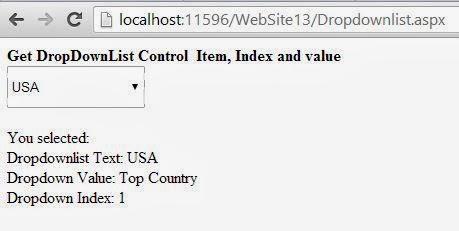
In this article, we will get DropdownList item text , index value and value of it. Generally, we know that it is bind with ListItem class properties. 

Lets take an simple example 


<%@ Page Language="C#" AutoEventWireup="true" CodeFile="Dropdownlist.aspx.cs" Inherits="Dropdownlist" %>

<!DOCTYPE html PUBLIC "-//W3C//DTD XHTML 1.0 Transitional//EN" "http://www.w3.org/TR/xhtml1/DTD/xhtml1-transitional.dtd">

<html xmlns="http://www.w3.org/1999/xhtml">
<head runat="server">
    <title></title>
</head>
<body>
    <form id="form1" runat="server">
    <div>
        <strong>Get DropDownList Control&nbsp; Item, Index and value </strong>
        <br />
    </div>
        <asp:DropDownList ID="DropDownList1" runat="server" AutoPostBack="True" 
        Height="42px" onselectedindexchanged="DropDownList1_SelectedIndexChanged" 
        Width="138px">
            <asp:ListItem>Select Country</asp:ListItem>
            <asp:ListItem Value="Top Country">USA</asp:ListItem>
            <asp:ListItem Value="United State">UK</asp:ListItem>
            <asp:ListItem Value="awsome ">Itly</asp:ListItem>
        </asp:DropDownList>
    <br />
    <br />
    <asp:Label ID="Label1" runat="server"></asp:Label>
    </form>
</body>
</html>

// Code behind code


using System;
using System.Collections.Generic;
using System.Linq;
using System.Web;
using System.Web.UI;
using System.Web.UI.WebControls;

public partial class Dropdownlist : System.Web.UI.Page
{
    protected void Page_Load(object sender, EventArgs e)
    {

    }
    protected void DropDownList1_SelectedIndexChanged(object sender, EventArgs e)
    {
        Label1.Text = "You selected: <br /> Dropdownlist Text: " +
            DropDownList1.SelectedItem.Text.ToString() +
            "<br />Dropdown Value: " + DropDownList1.SelectedValue.ToString() +
            "<br />Dropdown Index: " + DropDownList1.SelectedIndex.ToString(); 
    }
}

Code generate the following output

DropDownList AutoPostBack, Item, Index and Value in asp.net c#

Friday, February 7, 2014

How to generate dynamic page title in ASP.NET

Page control provides page parameters, such as title, metaDescription etc. You can access all the parameters using Page Control in code file. First Check page URL on Page_Load method using Request object. Lets take an simple example

using System;
using System.Collections.Generic;
using System.Linq;
using System.Web;
using System.Web.UI;
using System.Web.UI.WebControls;

public partial class _Default : System.Web.UI.Page
{
    protected void Page_Load(object sender, EventArgs e)
    {
       
        if (Page.Request .Url.ToString () =="http://localhost:11596/WebSite13/Default.aspx")
        {
            Page.Title = "Welcome to dotprogramming";
            Page.MetaDescription = " Its Cover all programming language";
            Response.Write("<h2>Dynamic Page title </h2>");


        }
    }
}

The code generate the following output

How to generate dynamic page title in ASP.NET

How to generate dynamic page title in ASP.NET

Thursday, February 6, 2014

How to Create Database and Add in the MVC Application

In MVC application, to store our data for further references, we have to create a database and use that for SQL querying. Earlier we have created the database using Entity Framework that was a code first approach, in this article we will create a Database first and then code to use that.

  • Right click on the App_Data folder and Add New Item.
  • Under Visual C# in left side tree, click on Data node and select SQL Server Database.
  • The default name for the database is Database1 with .mdf file extension and it may change (I have change it StudentDb.mdf). Click on Add to add the database in our application.

How to Create Database and Add in the MVC Application

As soon as we create this database, our server explorer have a connection with the same as shown.

How to Create Database and Add in the MVC Application

  • Write click on the Table node under newly created database in Server Explorer, and click on Add New Table
  • A design will open with three columns, first for name, second for data type and the last one for Allow nulls or not.
  • Add some Fields in this design as I have added below:

How to Create Database and Add in the MVC Application

While we look in the T-SQL of this table creation, just under the design window i.e.

CREATE TABLE [dbo].[Student]
(
[Id] INT NOT NULL PRIMARY KEY, 
[Name] VARCHAR(50) NOT NULL, 
[Age] INT NOT NULL, 
[City] VARCHAR(50) NULL
)

Change the database name from this T-SQL (Student here) and click on the Update button at left upper of the designer. It will show Preview Database Update window, click on Update Database button and your changes have been saved to database, means Student table have been created in the database.

Add this connection string in your web.config file to establish the connection with the database.

<add name="StudentConnection" connectionString="Data Source=(LocalDB)\v11.0;AttachDbFilename=|DataDirectory|\StudentDb.mdf;Integrated Security=True"/>

The database have been created and added in our project by this connection string, we will do some insert, update and delete with this database in later articles.

© Copyright 2013 Computer Programming | All Right Reserved