-->

Friday, November 6, 2015

LOAD IMAGE WITH IMAGE DATATYPE INTO TABLE IN ASP.NET WEBFORM

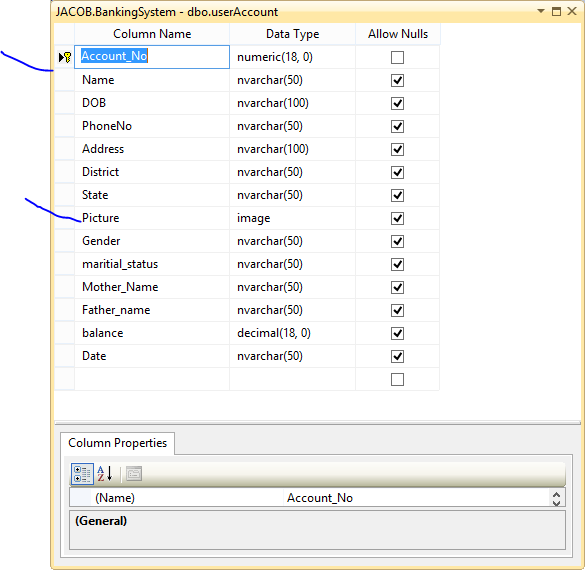
In this article, I will teach you, How to load image into database table with image type in ASP.NET. In previous article i already explained how to save image with their path.So, If you want to do this task then first of all design a table with image datatype.

Database table

LOAD IMAGE WITH IMAGE DATATYPE INTO TABLE IN ASP.NET WEBFORM


Source code 

<form id="form1" runat="server">
    <div>
 
        <asp:FileUpload ID="FileUpload1" runat="server" />
 
    </div>
        <asp:Button ID="Button1" runat="server" OnClick="Button1_Click" Text="Button" />
    </form>

Code behind page

using System.Drawing;
using System.IO;
protected void Button1_Click(object sender, EventArgs e)
    {
        BankingSystemEntities1 BS = new BankingSystemEntities1();
        Bitmap bitmap;
        if (FileUpload1.HasFile)
        {
            FileUpload1.SaveAs(Server.MapPath("~/image/" + FileUpload1.FileName));
            bitmap = new Bitmap(Server.MapPath("~/image/" + FileUpload1.FileName));
            MemoryStream ms = new MemoryStream();
            bitmap.Save(ms, bitmap.RawFormat);


            userAccount uacc = new userAccount();
            uacc.Account_No = 123456789;
            uacc.Picture = ms.ToArray();
            BS.userAccounts.Add(uacc);
            BS.SaveChanges();

         
        }
    }

Code generrates the following output


Wednesday, November 4, 2015

Get data From Database table using EDMX in ASP.NET

In this article, I will show you, how to get data from Database table using EDMX file. Actually EDMX reduces lots of codes, you can see this article which contains lots of codes. EDMX file provides model as well as context class. By using public property of context class, we can communicate with the table.  Before copy this code, first to add EDMX file in solution.

Get data From Database table using EDMX in ASP.NET


Source code

   <form id="form1" runat="server">  
   <div>  
     <asp:GridView ID="GridView1" runat="server">  
     </asp:GridView>  
   </div>  
   </form>  


Code Behind 

   private void loadgrid()  
   {  
     //throw new NotImplementedException();  
     dbEntities dbe = new dbEntities();  
     var item = dbe.usertables.ToList();  
     GridView1.DataSource = item;  
     GridView1.DataBind();  
   }  

Monday, November 2, 2015

Insert data into Database table WPF

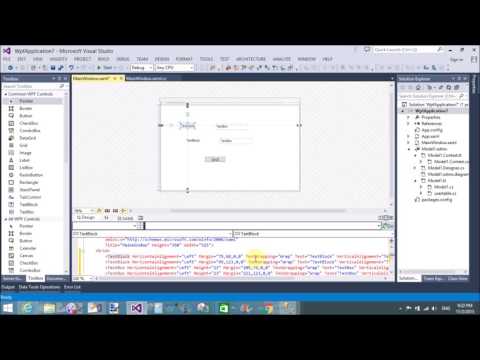
In this article, I will show you how to insert data into Database table using EDMX file. So, before copy this code first to add EDMX file in the project with full configuration. In the source code, we have two text block, two text box and one button control.
Description
I explained, example of login form in WPF, WPF listview with item template binding, Start learning with WPF,


Source code (XAML)
 <Window x:Class="WpfApplication7.MainWindow"  
     xmlns="http://schemas.microsoft.com/winfx/2006/xaml/presentation"  
     xmlns:x="http://schemas.microsoft.com/winfx/2006/xaml"  
     Title="MainWindow" Height="350" Width="525">  
   <Grid>  
     <TextBlock HorizontalAlignment="Left" Margin="75,68,0,0" TextWrapping="Wrap" Text="Username" VerticalAlignment="Top"/>  
     <TextBlock HorizontalAlignment="Left" Margin="75,124,0,0" TextWrapping="Wrap" Text="Password" VerticalAlignment="Top"/>  
     <TextBox Name="t1" HorizontalAlignment="Left" Height="23" Margin="166,70,0,0" TextWrapping="Wrap" Text="TextBox" VerticalAlignment="Top" Width="120"/>  
     <TextBox Name="t2" HorizontalAlignment="Left" Height="23" Margin="166,123,0,0" TextWrapping="Wrap" Text="TextBox" VerticalAlignment="Top" Width="120"/>  
     <Button Content="SAVE" HorizontalAlignment="Left" Margin="166,173,0,0" VerticalAlignment="Top" Width="75" Click="Button_Click"/>  
   </Grid>  
 </Window>  

Code behind code

   private void Button_Click(object sender, RoutedEventArgs e)  
     {  
       dbEntities dbe = new dbEntities();  
       usertable ut = new usertable();  
       ut.Username = t1.Text;  
       ut.Password = t2.Text;  
       dbe.usertables.Add(ut);  
       dbe.SaveChanges();  
     }  
Code Generates the following output


Get last record from Database using LINQ in WPF

Today, I faced a problem which is related to banking application like account number. When I load the application to create new account for new customer then account number automatically increased by one from previously stored account. So, I want to pick last field value of Database table.


Get last record from Database using LINQ in WPF


Let's see the example:

  <Grid>  
     <Button Content="Button" HorizontalAlignment="Left" Margin="70,79,0,0" VerticalAlignment="Top" Width="75" Click="Button_Click"/>  
   </Grid>  

Code behind code

   private void Button_Click(object sender, RoutedEventArgs e)  
     {  
       DatabaseEntities dbe = new DatabaseEntities();  
       var getlastrec = dbe.users.ToArray().LastOrDefault();  
       MessageBox.Show(getlastrec.Id.ToString());  
     }  

Here DatabaseEntities is the context class. In this context class, we have public properties that is users. Through this we can get all records from user table, which is exist in model folder. Before doing this code, must to add EDMX file

Wednesday, October 28, 2015

WPF menu bar with dockpanel | additem | Image | Icon | Checkbox | Click event

In this article, I will teach you, how to add WPF menu bar at top position in window, Add items in it, add image as icon in it, also handle click event on each items of it. I explained, how to add items with underline.

<Window x:Class="WpfApplication5.MainWindow"
xmlns="http://schemas.microsoft.com/winfx/2006/xaml/presentation"
xmlns:x="http://schemas.microsoft.com/winfx/2006/xaml"
<DockPanel>
Title="MainWindow" Height="350" Width="525"> <Grid> <Menu DockPanel.Dock="Top">
<MenuItem Header=" second child"/>
<MenuItem Header="_First Parent"> <MenuItem Header="New" Command="New"/>
</MenuItem.Icon>
<MenuItem Header="Third child with image"> <MenuItem.Icon> <Image Source="mango.png"/>
<MenuItem Header="Second first child" IsCheckable="True" IsChecked="True" Click="MenuItem_Click"/>
</MenuItem> </MenuItem> <MenuItem Header="Second Parent"> </MenuItem> </Menu> </DockPanel>
</Window>
</Grid>

The above-mentioned XAML code define, a menu control inside in DockPanel control at top position. The first item in the menu works as container. In the first menu item, we have three child items. First child item contains shortcut key by using command attribute. Second child item appears as simple text, last item contain image. Similarly add another menu item in the menu control for making second parent item with click event. 


  private void MenuItem_Click(object sender, RoutedEventArgs e)  
     {  
       MessageBox.Show("second parent first child clicked");  
     }  
When, I press child item of second parent item then appear a message box on the screen.
Code generates the following output:

WPF menu bar with dockpanel | additem | Image | Icon | Checkbox | Click event

Example of Login form in WPF

Today, I will teach you, how to design login form in WPF. Also, I will teach you, how it will work. In this example, I will take two text boxes, two Text Blocks and one button control from ToolBox. Now, create a database table with some following fields:

 CREATE TABLE [dbo].[users] (  
   [Id]    INT      NOT NULL IDENTITY,  
   [username] NVARCHAR (50) NULL,  
   [password] NVARCHAR (50) NULL,  
   PRIMARY KEY CLUSTERED ([Id] ASC)  
 );  

In this database table, I have three column, first column is automatic incremented by one.

 <Window x:Class="WpfApplication5.additemwpflistview"  
     xmlns="http://schemas.microsoft.com/winfx/2006/xaml/presentation"  
     xmlns:x="http://schemas.microsoft.com/winfx/2006/xaml"  
     Title="additemwpflistview" Height="300" Width="300">  
   <Grid>  
     <TextBlock HorizontalAlignment="Left" Margin="10,41,0,0" TextWrapping="Wrap" Text="UserName" VerticalAlignment="Top"/>  
     <TextBox Name="t1" HorizontalAlignment="Left" Height="23" Margin="94,41,0,0" TextWrapping="Wrap" Text="" VerticalAlignment="Top" Width="120"/>  
     <TextBlock HorizontalAlignment="Left" Margin="15,91,0,0" TextWrapping="Wrap" Text="Password" VerticalAlignment="Top"/>  
     <TextBox Name="t2" HorizontalAlignment="Left" Height="23" Margin="94,84,0,0" TextWrapping="Wrap" Text="" VerticalAlignment="Top" Width="120"/>  
     <Button Content="Login" HorizontalAlignment="Left" Margin="94,130,0,0" VerticalAlignment="Top" Width="75" Click="Button_Click"/>  
   </Grid>  
 </Window>  

Note: Before doing all such things, must to add EDMX file in the project.


  private void Button_Click(object sender, RoutedEventArgs e)  
     {  
       DatabaseEntities dbe = new DatabaseEntities();  
       if(t1.Text!= string.Empty || t2.Text!=string.Empty)  
       {  
         var users = dbe.users.FirstOrDefault(a => a.username.Equals(t1.Text));  
         if(users!=null)  
         {  
           if(users.password.Equals(t2.Text))  
           {  
             WPFListview l1 = new WPFListview();  
             l1.ShowDialog();  
           }  
         }  
       }  
     }  

Code generates the following output:

Example of Login form in WPF


Monday, October 26, 2015

WPF Listview formatting, styling

In this article, I will teach you, how to change Background color, foreground color, font style, and many more things. I explained already many more things about WPF Listview like
  1. How to add items in it using XAML code
  2. How to bind the WPF Listview.view from Gridview.
  3. WPF Listview binding from EDMX file 
  4. Binding it with List of string type.
Also covered many more articles, which is related to styling and formatting. You can see my video article for Learn WPF styling using static as well as dynamic. Today, I will put some styles in XAML code. Let's see

   <ListView Name="list1" HorizontalAlignment="Left" VerticalAlignment="Top">  
       <ListViewItem FontFamily="Times New Roman" FontSize="15" Foreground="Red" Background="Green" BorderBrush="AliceBlue" BorderThickness="2">Apple</ListViewItem>  
       <ListViewItem FontSize="16" Foreground="Green" Background="orange" BorderBrush="AliceBlue" BorderThickness="2">Orange</ListViewItem>  
       <ListViewItem FontSize="17" Foreground="Red" Background="White" BorderBrush="AliceBlue" BorderThickness="2">Pea</ListViewItem>  
       <ListBoxItem>  
         </ListBoxItem>  
     </ListView>  

Code generates the following output

WPF Listview formatting, styling

© Copyright 2013 Computer Programming | All Right Reserved